Features of the Redwood Theme for Interviews
The Redwood styling that can be applied to an Intelligent Advisor interview ensures that agents get a consistent look and feel for interviews embedded within the latest Fusion agent user interface and knowledge articles, or other Redwood-themed interfaces.
The Redwood theme includes call to action button coloring, textural page background, train stop navigation strip, Oracle Sans proprietary font, Redwood icons and more.
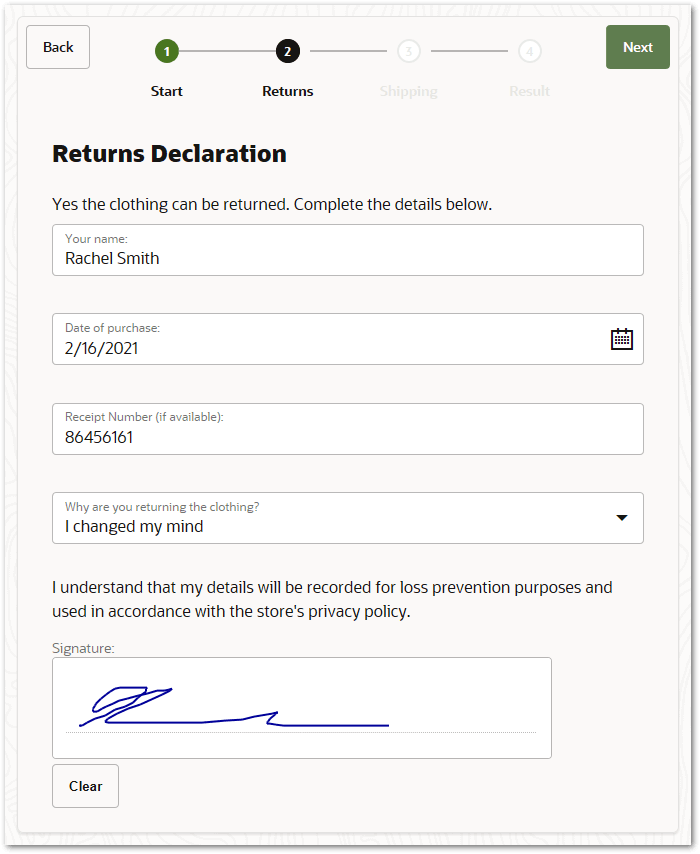
To maintain the integrity of the Redwood style, most of the styling customizations that you can normally make to an interview are not available when using the Redwood theme. See below for what changes can and cannot be made. Tip: If the styling changes that you want to make are not supported in a Redwood theme interview, Change the Interview Theme.
Changes that can be made to a Redwood-styled interview
When using the Redwood theme, you can make changes in the Styles dialog to the behavior and appearance of the following features:
 Header
Add a header to the interview
The Redwood theme does not, by default, have a header in the interview. To show a header:
- Select the Show Header check box.
- In the text field, enter the text for the header.
- Specify the behavior of the header when the interview is embedded in an iframe using the Hide when embedded check box.
- Specify whether to show a language menu in the header using the Show language menu check box. A language menu provides users with the ability to change the language of an interview at any point. The menu is displayed in the top right of the header.
Navigation strip
Remove the navigation strip
The Redwood theme has, by default, a navigation strip in the interview. To remove the navigation strip, deselect the Navigation strip check box.
Hide the navigation strip when the interview is embedded
When the interview is embedded in an iframe, you can hide the navigation strip. To do this, select the Hide when embedded check box.
Hide empty progress stages
When the interview contains empty progress stages, you can hide these in the navigation strip. To do this, select the Hide empty progress stages check box.
Allow free navigation
By default, Redwood themed interviews do not allow screens to be visited in any order. If you want to allow free navigation, select the Allow navigation in any order check box.
For more information on this setting, see Specify That Free Navigation Is Allowed.
Remove the back button
A Redwood themed interview has, by default, a back button. To remove the back button, deselect the Include back button check box.
Note that:
- If the interview has a navigation strip, the back button will be on the left end of the navigation strip.
- If the screen display is too narrow to display the back button in the navigation strip, the back (and next) button will be moved to the top right position on the screen below the navigation strip.
- If the interview does not have a navigation strip, the back button will be in the top right position on the screen.
For more information on this setting, see Add or remove the back button.
Remove the submit progress message
By default, a Redwood themed interview will display a message box showing the progress of the submit. To hide the submit progress message box, deselect the Show submit progress lightbox check box.
For more information on this setting, see Configure the Submit Option.
Add prompt when leaving unsaved interviews
In a Redwood themed interview there is, by default, no warning to users if they have unsaved changes and try to leave the interview. If you want to prevent users from accidentally losing data in this situation, select the Warn if unsaved changes check box.
For more information on this setting, see Prevent Users From Accidentally Losing Data.
Screen
Remove screen titles
Screen titles are shown by default in Redwood themed interviews. If you don't want the screen name to be displayed on any interview screens, deselect the Show screen title check box.
You can also remove the screen name on individual screens. For more information, see Remove a Screen Name.
Add a restart button
A Redwood themed interview does not, by default, include a restart button. To add a restart button to an interview, select the Include restart button check box.
Note that:
- If the interview has a navigation strip, the restart button will be added to the right of the back button in the navigation strip.
- If the screen display is too narrow to display the restart button in the navigation strip, the restart button will be moved to the bottom left position on the screen.
- If the interview does not have a navigation strip, the restart button will be added to the bottom left position on the screen.
For more information on this setting, see Allow an Interview to Be Restarted.
Add an exit button
A Redwood themed interview does not, by default, include an exit button. To add an exit button to an interview:
- Select the Include exit button check box.
- Click in the Exit button hyperlink URL field, and enter the URL that you want the button to link to.
- In the drop-down menu, choose the option that defines the browser behavior when the interview is exited.
Note that:
- If the interview has a navigation strip, the exit button will be added to the right of the back button in the navigation strip.
- If the screen display is too narrow to display the exit button in the navigation strip, the exit button will be moved to the bottom left position on the screen.
- If the interview does not have a navigation strip, the exit button will be added to the bottom left position on the screen.
For more information on this setting, see Allow an Interview to Be Exited.
Controls
Change question position
By default, question text for inputs that are collected inside boxes (for example, drop down lists, text boxes, dates) in a Redwood themed interview are shown inside the input box. To change this so that question text is shown above the input:
- In the Question position drop-down, select Above.
This is a good option for longer question text which would otherwise get truncated if the question text is shown inside the input box.
Note that fixed lists and masked input text boxes always have the question text shown above the input box.
Captcha
Change the appearance of CAPTCHAs
You can configure the default appearance of CAPTCHAs (Completely Automated Public Turing tests to tell Computers and Humans Apart) in a Redwood themed interview. To do this:
- In the Length field, change the number of characters per CAPTCHA
- In the Image Height field, change the height of the CAPTCHA image (in pixels)
- In the Image Width field, change the width of the CAPTCHA image (in pixels)
- In the Image Line drop-down, select the line noise. The options are None, Curved and Straight.
- In the Image Distortion drop-down, select the distortion type. The options are None, Block, DropShadow, FishEye, Ripple, Shear and Stretch.
- In the Image Background drop-down, select the background type. The options are Grey, Gradient, Squiggles and Transparent.
For more information on these settings, see Configure the Appearance of CAPTCHAs.
Upload
Restrict uploads by file type
By default, users of a Redwood themed interview are able to upload any file type. To change this so that interview users can only upload appropriate file types:
- Select the Restrict uploads by file extension check box.
- In the field provided, enter the allowable file extensions as a semi-colon separated list. For example, "pdf;png;jpg". This list will apply, by default, to all upload groups.
For more information on this setting, see Restrict Uploads by File Type.
In addition, the following features are supported in a Redwood-styled interview:
-
Using HTML tags in label text
-
Using Custom Control Rendering Extensions (for example, customInput)
-
Using the customOptions extension
-
Allowing uncertain for Boolean controls. Note that support for the uncertain option for Boolean radio button controls was only introduced in Policy Modeling component version 53 via a new option in the compatibilityOptions.json file called "RedwoodHideBooleanUncertain". If true, it will hide the uncertain option for optional Boolean radio buttons using the Redwood theme. If false or unspecified, then the optional radio button option will be shown. For new projects, this option is false by default. For existing projects, this option is set to true on upgrade.
Changes that cannot be made to a Redwood-styled interview
The following features are not supported in a Redwood-styled interview:
-
Using the Question, Alert and Comment label styles
-
Using HTML tags in question text and navigation bar text
-
Using multi-input date and time controls
-
Using Masked Input Text Boxes
-
Using the customSearch extension
Note that in a Redwood-styled interview:
-
drop down lists are rendered as filtered drop down lists
-
multi-input date and time drop downs are rendered using the Redwood date, time, or datetime picker