Run the Oracle Policy Modeling Installer
To run the Oracle Policy Modeling installer file:
- Double-click on the downloaded installation file in Windows Explorer. This will have a filename similar to Oracle_Policy_Modeling_26A.exe and corresponds to the build version of the Intelligent Advisor Hub from which the file was downloaded. You may be prompted to allow the installer permissions to make changes to your computer. You should confirm that the publisher is Oracle America, Inc. before agreeing.
-
The installer will detect if any of the prerequisites are not currently installed. If any missing prerequisites are detected, you will be prompted prior to commencing installation. Once all prerequisites are verified, the installation wizard opens.
Note: Microsoft Visual C++ 2015-2022 Redistributable libraries are required to be installed to start Policy Modeling. This can be skipped as a prerequisite and manually installed after the Policy Modeling installer is complete.
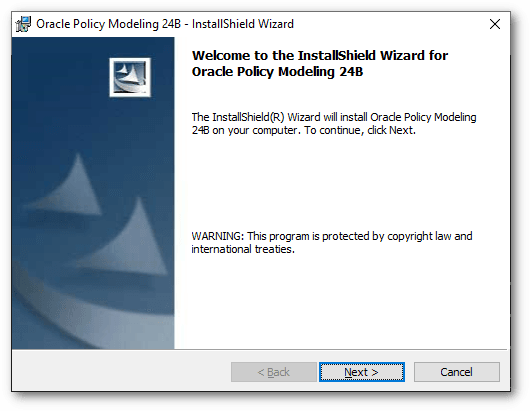
- On the Welcome page, click Next.
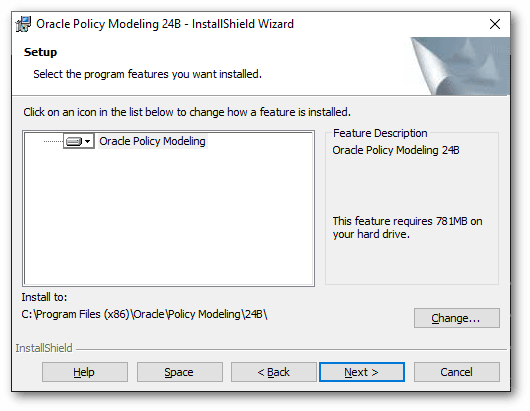
- On the Setup page:
- (Optional) Click the Change button to change the installation location. The installation location is automatically defaulted to the Program Files directory. If Oracle Policy Modeling is being installed on a 64-bit machine, then the default installation location will be for 32-bit applications.
- (Optional) Click the Space button to check the amount of space available in the installation location.
- Click Next.
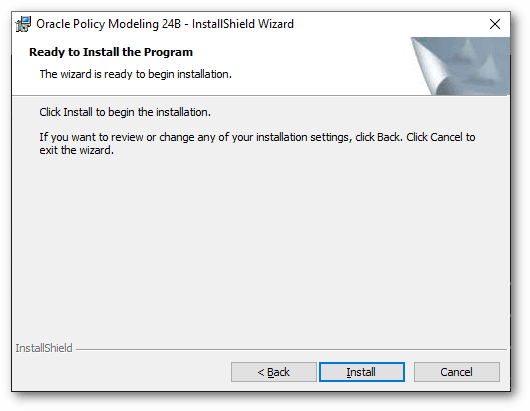
- On the Ready to Install the Program page:
- (Optional) Click Back if you want to change anything in your installation settings.
- Click Install.
The installation process commences.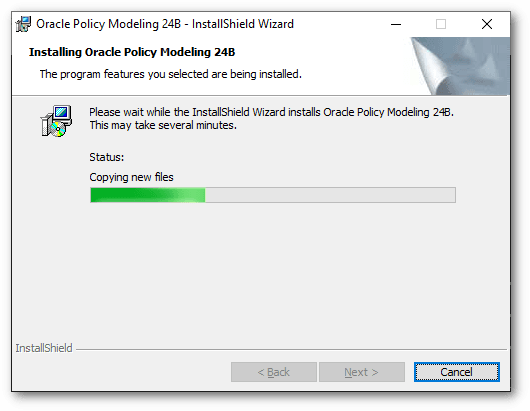
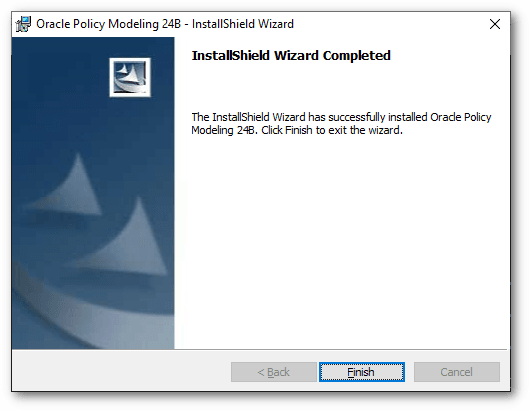
When the installation is complete, the InstallShield Wizard Completed page is displayed.
- Click Finish to exit the wizard.
The following applications will have been installed:
- Oracle Policy Modeling (OPM.exe)
- Oracle Policy Modeling launcher (OPMLauncher.exe)
- Oracle Policy Modeling command-line migration tool (OPMMigrator.exe)
- Oracle Policy Modeling command-line project creation tool (OPMNewProject.exe)
- Oracle Policy Modeling command-line project export tool (OPMExport.exe)
- Oracle Policy Modeling command-line build tool (OPMBuild.exe)
- Oracle Policy Modeling command-line testing tool (OPMRunTests.exe)
Tip: To check that the installation is functioning correctly, you can do a Walkthrough of Policy Modeling.
Note: If there is another version of Oracle Policy Modeling installed on your machine that is version 10.4.2 (or earlier), it should first be uninstalled before continuing with this installation. Side-by-side installation with the latest versions of Oracle Policy Modeling is not supported by Policy Modeling version 10.4.2 (or earlier).
Access Oracle Policy Modeling properties
Occasionally, you may need to access Oracle Policy Modeling properties. To access the Policy Modeling Properties dialog, follow these steps:
- From the Windows start menu, open the Oracle Policy Modeling folder in the list of apps.
- Right-click Policy Modeling and select More, then Open file location.
- In the Windows Explorer window, right-click Policy Modeling and select Properties.
Use a command line argument when running Oracle Policy Modeling
Advanced users can use command-line arguments to change the behavior of Policy Modeling. For example, to change the user interface language, to test custom controls through a proxy server, or to fix various issues. To do this:
- Open the Policy Modeling Properties dialog (following the steps in the previous section).
- Select the Shortcut tab.
- In the Target field, you will see a path to an executable file (for example, "C:\Program Files (x86)\Oracle\Policy Modeling\26A\bin\OPM.exe"). Leave one space after the final quote mark, then type the command-line argument. For more information on the command-line argument to use, see:
- Click OK. Note: You may need administrator permission to complete this change to your settings. Click Continue if a dialog box appears requesting this. Contact your system administrator if you experience problems.
The next time you open Policy Modeling from the Start menu, it will open with the additional argument applied.
To return to the default behavior of Policy Modeling, repeat steps 1 to 3 and delete the command-line argument from the end of the Target field.