Set up the Ongoing Import of Oracle Sales Data
After completing the initial import of data from Oracle Sales, you can set up the ingest job that will allow for the ongoing import of data. You must ensure that you correctly format the source files and ingest jobs so that you can successfully import data.
- Ensure source files are formatted correctly by reviewing CSV file standards for Fusion Unity Data Platform and supported CSV parsers.
- Review how to import empty or null data and the restrictions that apply to empty and null data in the Fusion Unity Data Platform.
Create the Sales Source
- Select the Oracle icon to open the navigation menu.
- From the Sources area, select Create Source.
- Select CX Sales.
The job details section lets you define how Fusion Unity Data Platform will access the source and how the source will display.
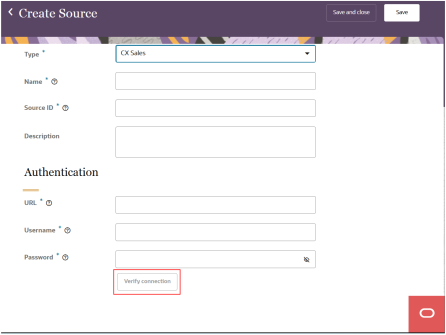
- Enter the details for the source as follows:
- Name: Enter a name. The name must be 1 or more characters, up to a maximum of 50. Use only letters (a–z and A–Z), numbers (0–9), underscores (_), hyphens (-), and spaces. The first character can't be a space.
- Source ID: When Fusion Unity Data Platform ingests data using this source, it uses this value for the Source ID attribute of each object. The Source ID is auto-populated from the source name you enter. You can't change this value after you create the source.
- Description: Enter a description. This field is optional, but it's highly recommended to add descriptions for any entity created. This helps all other users get more context when using and navigating the Fusion Unity Data Platform. The description can have a maximum of 512 characters with no restrictions on characters used. You can use characters from all languages supported in the language settings.
Configure Authentication Settings
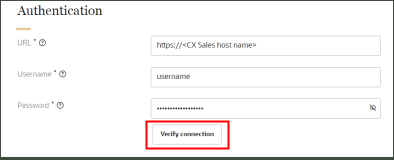
- URL: Enter the required base URL for your Oracle
Sales instance in this format:
https://<Oracle Sales host name> - Username: Enter the user name to access the URL.
- Password: Enter the password to access the URL.
-
Once you enter all the details, select Verify connection to ensure that Fusion Unity Data Platform can access the source.
-
When finished defining the source, select Save or Save and close.
- Publish your changes. See Publish Changes to the Fusion Unity Data Platform for more information.
Create the Ingest Job
After creating and publishing the Oracle Sales source, you can create the ingest job that will import the data and map it to the Fusion Unity Data Platform data model. See the Create an Ingest Job section of the Define an Ingest Job topic for more information.