FSM Case Invoicing
In Field Service Management (FSM), case invoicing lets you create invoices from a case in NetSuite. FSM can use a linked sales order or create an invoice from case details and available billable time and expenses.
How It Works
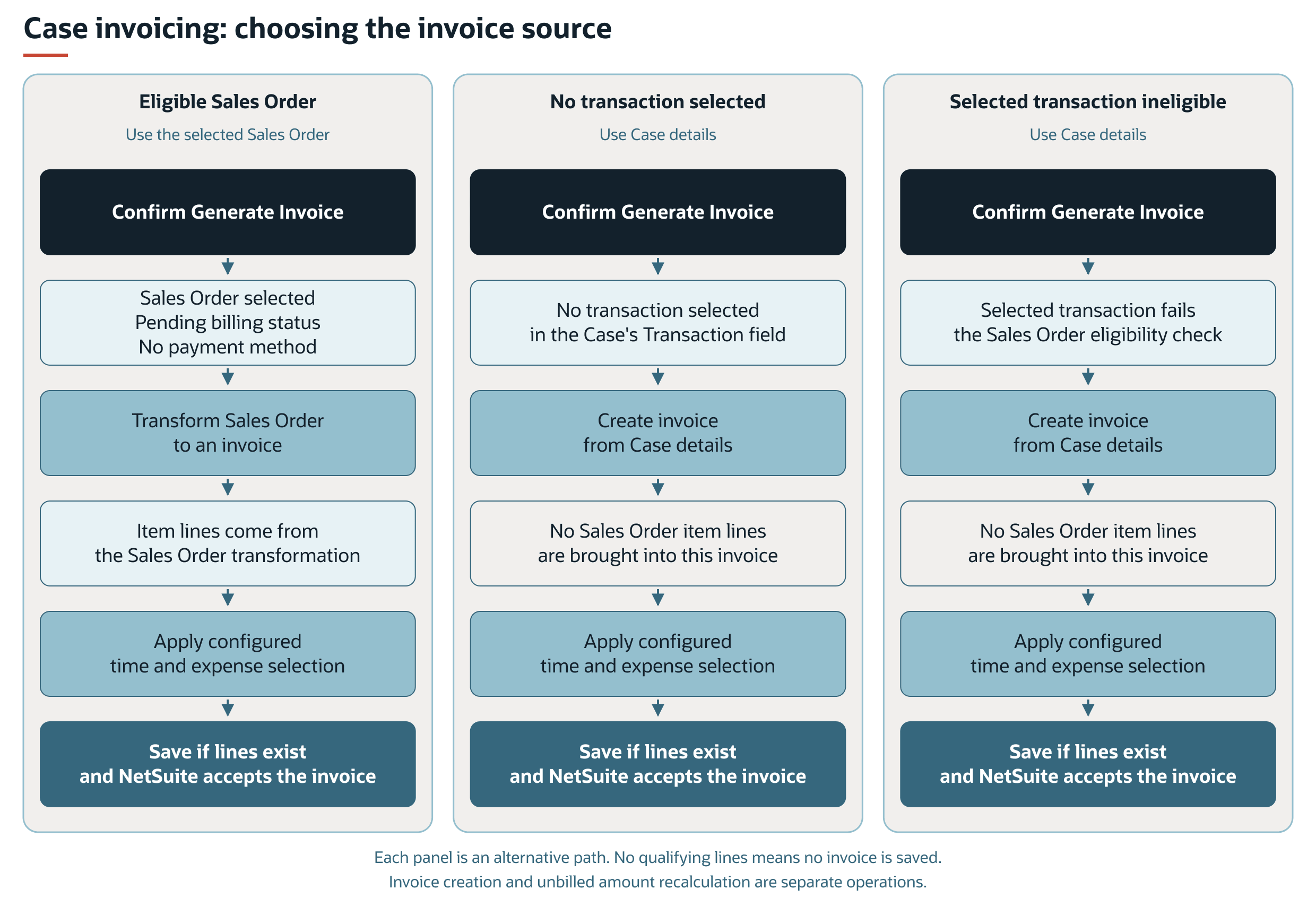
FSM checks the transaction selected in the case's Transaction field to choose the invoice source. FSM transforms an eligible sales order into an invoice. That sales order supplies the invoice's item lines. If no transaction is selected, or the selected transaction isn't an eligible sales order, FSM creates an invoice from case details instead. Both paths then apply the configured time and expense selection.
All paths apply configured time and expense selection and require qualifying invoice lines and a successful NetSuite save. FSM also checks the same source and line-selection rules when deciding whether Generate Invoice should appear. Case Type, form mode, and button visibility still apply.
The following diagram shows three alternative paths after a confirmed invoice request:
Key Behaviors
This section describes how the feature responds to different conditions and actions.
Case Invoicing Availability
With the default configuration, Generate Invoice appears when you view a case that meets both conditions:
-
Case Type is selected.
-
FSM finds at least one item line or selects at least one time or expense line under the rules in Invoice Content Rules.
The button doesn't appear when you create, edit, or copy a case. FSM checks the available invoice lines when the case form loads. The Amount Unbilled field doesn't determine whether Generate Invoice appears.
Invoice Creation
When you click Generate Invoice, FSM makes the button unavailable and asks you to confirm. If you cancel, FSM makes the button available again without requesting an invoice.
After you confirm, FSM submits a request to create the invoice. If the request succeeds, FSM opens the invoice record and displays a success message. If the request fails or returns an error, FSM displays an error message.
FSM can use the sales order selected in the Transaction field when its status is Pending Billing or Pending Billing/Partially Fulfilled and no payment method is selected. Otherwise, FSM creates an invoice from case details.
These conditions determine whether FSM uses the sales order as the invoice source. NetSuite determines which of that order's lines are available on the resulting invoice. Passing the source check doesn't guarantee that every sales order line is included.
An invoice created from case details uses the case's customer, PO number, and asset, and is linked to that case. FSM sets the invoice date using the case's time zone.
Consumable processing can create or update a sales order and link it to the case. For information about consumable processing, see FSM Consumable Processing.
Invoice Content Rules
For Generate Invoice, an eligible line is a line available on the invoice FSM prepares that also meets FSM's configured line-selection rules. Eligibility is checked in two stages:
-
NetSuite makes lines available. NetSuite prepares the invoice for its customer or project using its billing rules and enabled features. Time and expenses must be available on the invoice's Billable Time and Billable Expenses subtabs. Marking a charge Billable alone doesn't establish that it is available to this invoice. Time must meet the account's approval requirements where those requirements are enabled. For native billing requirements, see Billing Time to Customers, Approving or Rejecting a Time Transaction, and Billing Expenses to Customers.
-
FSM selects from those lines. FSM counts item lines already on the prepared invoice and applies its configured selection rules to the available time and expense lines. With the default configuration, time and expenses must also be linked to a task associated with the invoice's case.
The following table lists the lines that qualify with the default configuration.
|
Line Type |
Qualifying Lines |
|---|---|
|
Items |
Item lines present on the invoice prepared from the eligible sales order selected in Transaction. FSM doesn't require these item lines to have a task link. |
|
Time |
Lines available on the prepared invoice's Billable Time subtab and linked to tasks associated with the invoice's case. |
|
Expenses |
Lines available on the prepared invoice's Billable Expenses subtab and linked to tasks associated with the invoice's case. |
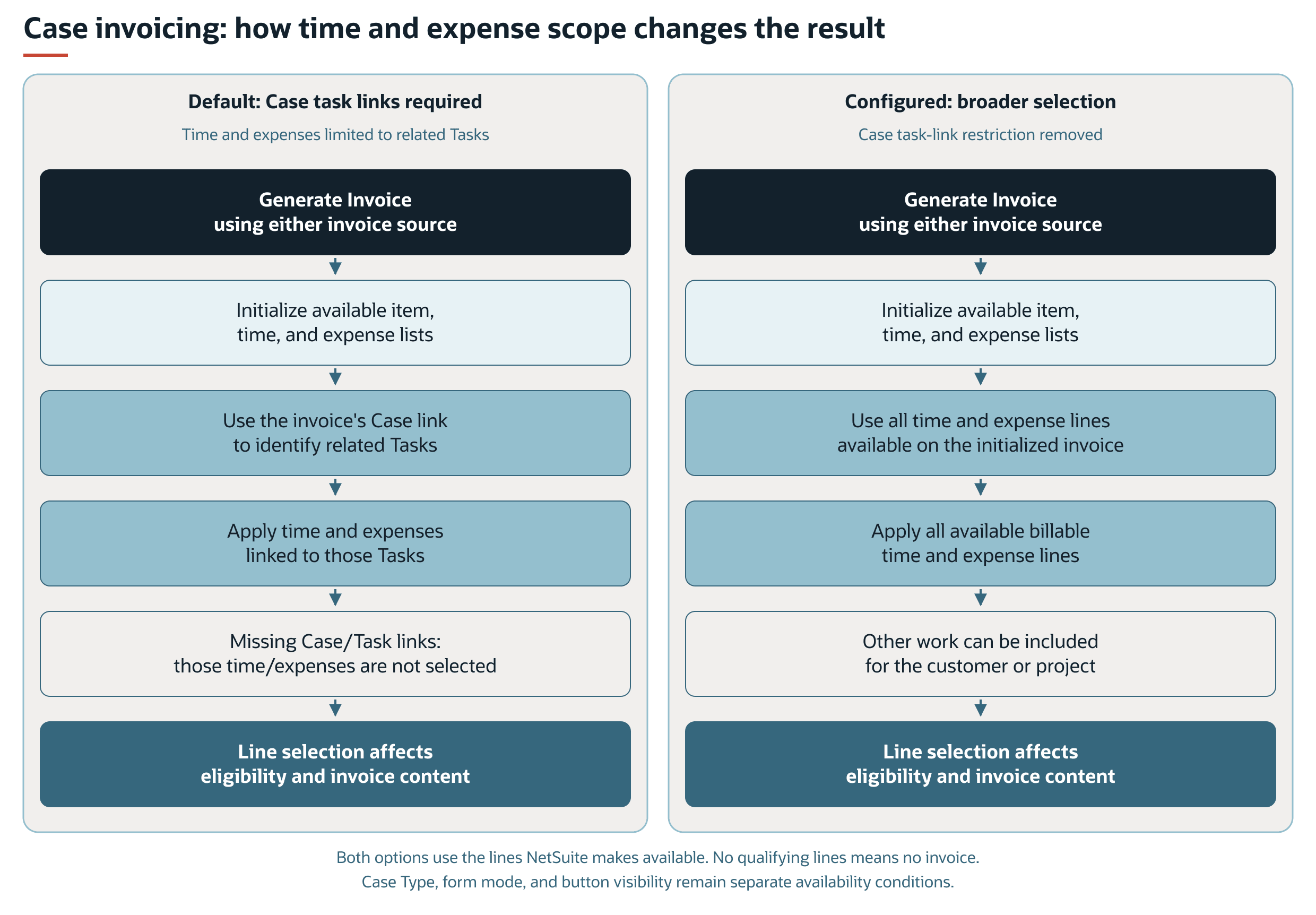
Both invoice source paths use the same configured time and expense selection. Under the default configuration, FSM identifies qualifying tasks from the case linked to the initialized invoice. An invoice transformed from a sales order therefore needs the relevant case link for task-based time and expense selection. Without that link, FSM doesn't select time or expense lines through these rules. Item lines can still qualify the invoice.
The default selects time and expenses linked to tasks associated with the initialized invoice's case. Broader configuration applies all available billable time and expenses and can include other work for the customer or project. Selected lines affect button eligibility and invoice content.
The following diagram compares the default task-based selection with the broader configurable scope:
A case link alone doesn't qualify a time or expense line for selection under the default configuration. FSM doesn't save the invoice if it finds no item lines or qualifying time or expense lines.
This check uses the number of qualifying lines, rather than a positive unbilled amount. Passing this check doesn't guarantee that NetSuite accepts the invoice when it is saved.
Why Unbilled Amounts Can Differ
The case's unbilled amount fields report charges using separate calculation rules. These fields don't identify the exact lines that Generate Invoice selects. The following table compares examples of unbilled amount calculations and default case invoice selection.
|
Charge |
Unbilled Amount Calculation |
Default Case Invoice Selection |
|---|---|---|
|
Approved billable time linked directly to the case, without a task link. |
Can contribute to Unbilled Time. |
Excluded because the required task link is missing, even if NetSuite makes the time available on the invoice. |
|
A billable expense report line on a report linked to the case, without a task link for that expense. |
Can contribute to Unbilled Expenses. |
Excluded because the required task link is missing, even if NetSuite makes the expense available on the invoice. |
|
Unbilled amounts on a sales order linked to the case but not selected in Transaction. |
Can contribute to Unbilled Sales Orders. |
That order doesn't supply the invoice's item lines. FSM uses the selected eligible sales order or creates the invoice from case details. |
A positive unbilled total therefore doesn't guarantee that Generate Invoice appears or that the invoice includes every reported charge. Unbilled Amounts describes the amounts reported by these fields.
Processing Model and Lifecycle
Creating an invoice and updating unbilled amounts are separate operations. Successful invoice creation doesn't confirm that the case's unbilled amounts have been refreshed. For information about calculation rules, update timing, the amounts, and the Update Unbilled field, see FSM Case Unbilled Amount Calculation.
The following scripts support case invoicing and the related update of unbilled amounts.
|
Script |
Script ID |
Role |
|---|---|---|
|
Field Service User Event |
|
Checks button availability when the case form loads. After an invoice linked to a case is saved, the script requests an update of the case's unbilled amounts. |
|
Field Service Suitelet |
|
Processes the confirmed request and creates the invoice. |
|
Field Service Scheduled |
|
Uses the |
Configuration
Case invoicing lets you configure time and expense selection, Generate Invoice button visibility, and button labels. You can also configure confirmation, success, and error messages.
Time and expense selection can be broadened beyond the default case-task relationship to all available billable time and expense lines on the prepared invoice. Broader selection affects both invoice-source paths and can change whether Generate Invoice appears. The available charges still depend on the invoice's customer or project context and billing rules in NetSuite.
Broadening time and expense selection can include charges for other work available to the invoice's customer or project. Confirm that this billing scope matches the intended outcome before changing the configuration.
The Generate Invoice button can be hidden from the case form. Hiding it doesn't change invoice line selection or prevent invoicing through other paths.
For settings, setup instructions, and verification, see Configuring FSM Case Invoicing.