FSM Profitability Reporting
Field Service Management (FSM) provides a Profitability Report button on asset, customer, and project records in NetSuite. The button opens a financial report using criteria from the starting record, so you can review the relevant financial detail.
These optional buttons are convenience shortcuts to NetSuite reports. You can also run and customize profitability reports directly in the NetSuite user interface. Available report types and your permissions determine which reports you can use.
Profitability reporting reads report data. Opening a report does not create accounting transactions or post labor costs. FSM Project Labor Cost Posting is a separate feature.
How It Works
The starting record determines which report opens and supplies its record criteria in the report address. The selected report determines the financial data, columns, calculations, and remaining filters.
The following diagram shows how record context selects a report and supplies its criteria:
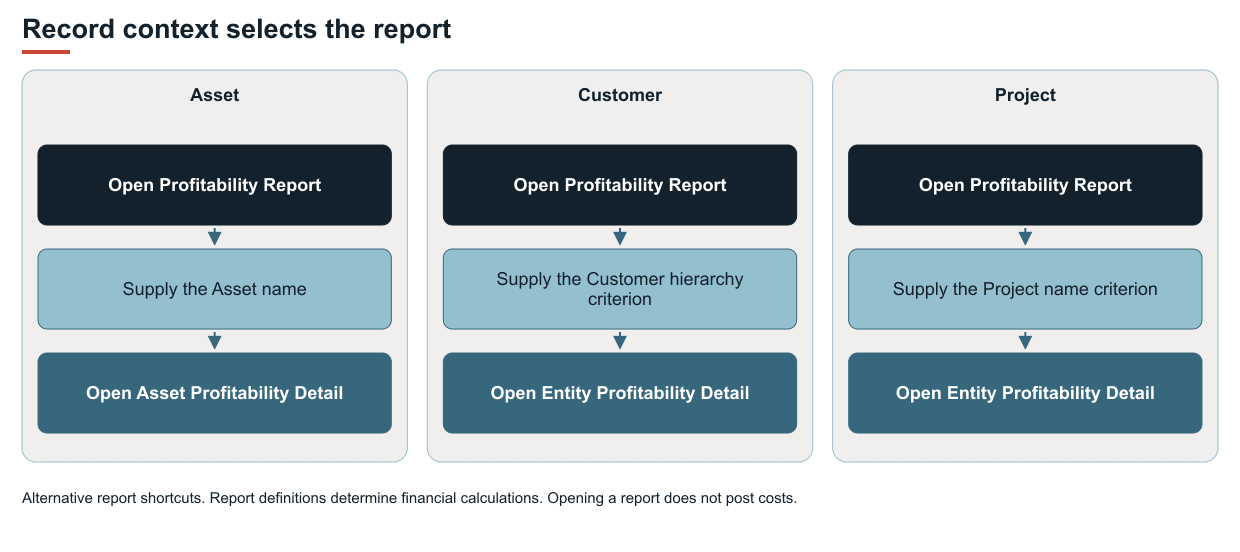
On a saved record in view mode, the standard FSM button opens the report in another browser window or tab. Customer and project records use the same entity report with different criteria. Asset records use a separate financial report.
The standard report addresses use numbered criteria in the supplied reports. These numbers must match the selected report's filters. Do not treat these numbers as permanent field references across reports or report changes. FSM does not inspect an edited or replacement report to automatically remap the numbered criteria. Keep the report definition and shortcut compatible.
The following table lists the reports and record criteria for each shortcut.
|
Starting Record |
Standard Report |
Button Criteria |
|---|---|---|
|
Asset |
Field Service Asset Profitability Detail |
The asset name. |
|
Customer |
Field Service Entity Profitability Detail |
The customer entity title, applied to the report's Customer hierarchy criterion. |
|
Project |
Field Service Entity Profitability Detail |
The project title together with the displayed parent name, applied to the report's Project/name criterion. |
The supplied entity report shows transaction detail for customers and projects. The supplied asset report uses an income-statement layout. For report scope, financial data, and the supplied US layout calculations, see FSM Profitability Report Data and Calculations.
Prerequisites
The record form must load the relevant FSM profitability view, and that view must be enabled. The selected report must exist in the account and accept the criteria supplied by the shortcut. You must have access to the report. For general report-access rules, see Access to Reports.
The standard report selection uses the report registered for the account unless configuration selects another report. A visible button does not confirm that the report selection can be used or that you can open the report.
Key Behaviors
The shortcuts differ in their initial criteria and availability:
-
Customer and project dates - The standard shortcuts request a broad custom date range rather than the current month or accounting period. The exact initial dates and criteria in the report address are defined in FSM NetSuite View Configuration.
-
Asset dates - The standard shortcut supplies the asset criterion without supplying a date range. The selected report determines the date or period selection.
-
Record names - The standard shortcuts supply names or titles to the report criteria, rather than record internal IDs. The selected report's criteria must remain compatible with those values.
-
Form mode - FSM adds these buttons in view mode. The standard profitability views do not add these buttons when you create or edit a record.
-
Report scope - Other criteria in the selected report still apply. Opening a report from a customer, project, or asset does not remove those criteria.
Configuration
For button settings and the supplied report-link defaults, see Configuring FSM Profitability Reporting.
You can hide each FSM button or change its label. Hiding a button removes the shortcut. The reports and financial data remain available subject to NetSuite access.
Configuration supports selecting another report and overriding the report address used by each record's shortcut. Changing a report ID alone retains the existing criterion mapping. For a replacement report, use an address whose numbered parameters, operators, and values match the report's filters. Use the record context available to that shortcut. FSM does not discover this mapping or adapt it after the report changes.
Saved configuration retains the report selection and address independently of the report definition. It does not protect the selected report or its financial layout from edits or updates. Configuration updates or replacement can change saved settings. An override does not guarantee preservation of the settings.
For different reporting requirements, you can create or customize reports in NetSuite. You can also hide the corresponding FSM buttons and add your own buttons through Form.addButton(options). The report links, record criteria, and maintenance are part of that account customization.
For button controls and the report-specific criteria, see the asset, customer, and project profitability entries in FSM NetSuite View Configuration. For the report-selection settings, see Properties and Defaults.
Limitations and Constraints
The meaning of a result depends on the selected report, its layout, and its filters. Keep these limitations in mind:
-
The supplied asset report and entity report have different structures. Their figures should not be treated as interchangeable measures of profitability.
-
The supplied entity report's Project Type criterion limits its scope. It should not be read as an unrestricted statement of all customer financial activity.
-
Saving changes to the filters of a supplied report can change its results or make the existing FSM shortcut incompatible. These effects can occur even when the report ID stays the same. Check the criterion mapping again after a report changes. NetSuite report ownership and customization permissions determine who can save changes to the original report and who must save a copy. See Saved Reports Page.
-
For independently maintained reporting, use a separately owned report copy. Asset financial reporting can also use a shared financial layout. Copying the report alone does not make its layout independent. NetSuite provides a separate option to copy a shared custom layout. See Making a Layout Editable in the Financial Report Builder.
-
Bundle updates can overwrite local changes to supplied reports. See Bundle Update Reference. Do not rely on an FSM update to repair a customized report or preserve its changes. For bundled financial statements, an update can modify the report and layout objects without resetting a changed layout assignment. See Bundling NetSuite Financial Statements.
-
The report shortcut does not perform invoicing, post recorded time costs, or change a time entry's costed state. Those actions belong to their respective features.
-
Changing a report or its layout can change the meaning and coverage of its figures. The standard button does not guarantee a particular treatment of labor, tax, currency, accounting basis, or reporting period.