FSM Project Labor Cost Posting
This Field Service Management (FSM) feature was designed as a limited alternative for customers without the native Job Costing and Project Budgeting feature in NetSuite. The native feature provides its own labor-cost posting workflow through Post Time.
FSM Project Labor Cost Posting creates a journal entry for recorded labor costs associated with a project. Finance personnel start the action with Create Time Journal on the project in NetSuite. FSM uses eligible time bills to create balanced debit and credit lines, then marks those time bills as costed.
How It Works
The flow is eligible project time → journal entry → costed time. The journal contains one debit and one equal credit for each selected time bill. Each amount is the time bill's saved hourly cost multiplied by its duration in hours, rounded to two decimal places.
Saving the journal and marking time bills as costed are separate operations. Partial failure can leave time eligible again. The following diagram shows the successful posting sequence:
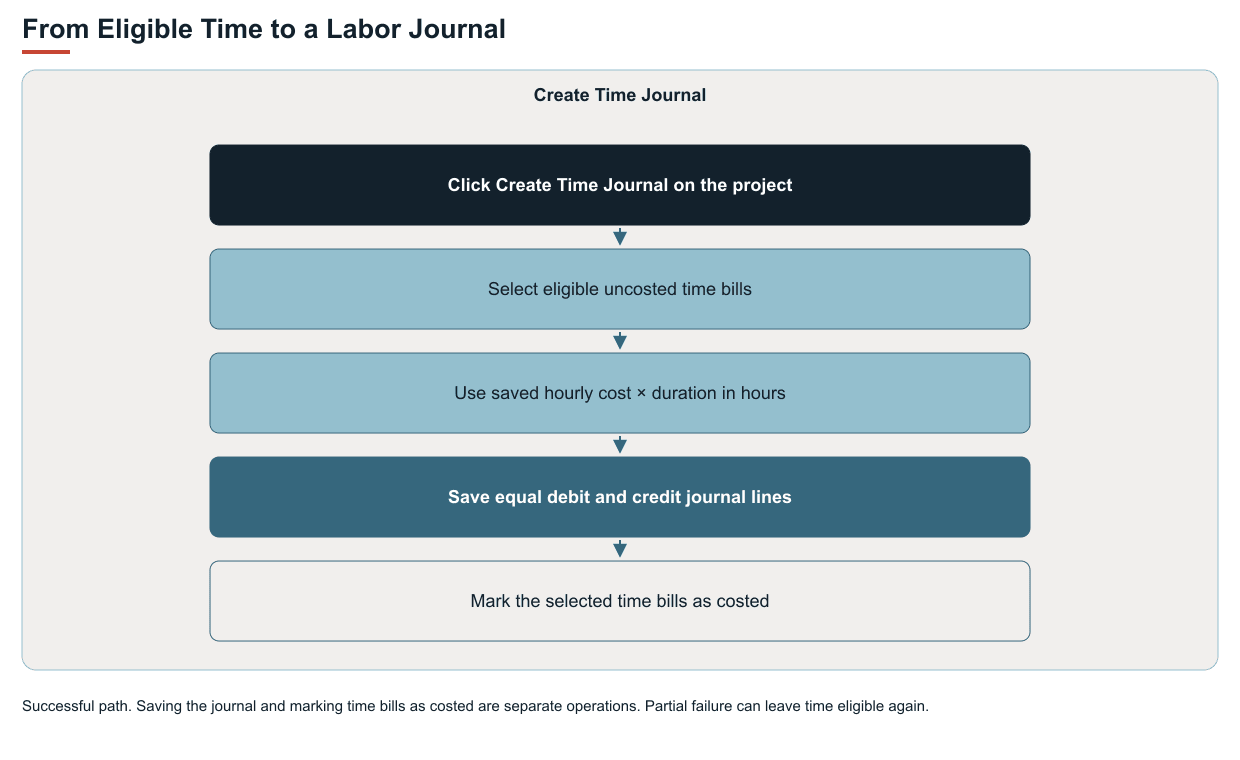
The hourly cost is Field Service Time Cost (custcol_nx_time_cost). In the standard field setup, Field Service Time Cost obtains its value from the employee's Field Service Labour Cost field. Posting uses the cost saved on the time bill rather than retrieving the employee's current labor cost again. For example, a saved hourly cost of 40 and a duration of 1.5 hours produce a debit of 60 and a credit of 60.
Both posting accounts must be configured before the action is available. With the standard view enabled, the button appears in project view mode when eligible time exists. Clicking Create Time Journal creates and saves the journal. The action has no preview or confirmation step.
Prerequisites
The following table lists the prerequisites for creating a time journal.
|
Prerequisite |
Purpose |
|---|---|
|
FSM project form behavior and authenticated access to the FSM action |
Provides the project button and processes the request. |
|
Configured labor debit and credit accounts |
Determines the accounts used for the journal lines. The accounts and other journal values must satisfy NetSuite validation. |
|
Eligible time bills associated with the project |
Supplies the recorded cost and duration. |
|
Access for the server execution role to read the project and time bills, create the journal, and update the time bills |
Enables the complete action. The supplied FSM deployment uses the FSM System role for server processing. |
Key Behaviors
This section describes how the feature responds to different conditions and actions.
Eligible Time
A time bill qualifies only when all these conditions are met:
-
Its Customer/Project association identifies the project being processed.
-
It is approved.
-
Field Service Time Cost is greater than zero.
-
Field Service Time Costed (
custcol_nx_time_costed) is false.
In the standard field setup, Field Service Time Costed is false by default. The action excludes time with a zero, negative, or missing cost and time that is unapproved or already costed. Eligibility tests the hourly cost. The duration then determines the journal amount.
Billability does not determine eligibility for this action. Both billable and nonbillable time can qualify. Labor cost posting and customer invoicing use separate criteria.
Accounting Attribution
The debit line identifies the project and carries the time bill's available FSM task and asset references. The matching credit line does not receive those references. Available memo, department, class, and location values are carried to both lines. Classification fields depend on the corresponding NetSuite features being enabled.
In OneWorld, FSM supplies the project's subsidiary for the journal. When Multiple Currencies is enabled, it supplies the project's currency. NetSuite validation and accounting rules determine the saved journal values. The amount calculation uses the saved time bill cost directly and performs no currency conversion of that cost.
Later Posting Actions
Successfully marked time bills are excluded from later actions. Newly approved time, or other time that subsequently meets all eligibility conditions, can be included in a later journal. The action creates a separate journal for the selected time. It does not revise an earlier journal when a time bill's cost or duration changes.
Record Interactions
The following table describes how each record contributes to labor cost posting.
|
Record |
Role and Effect |
|---|---|
|
Project |
Identifies the time to process and supplies debit-line project attribution, subsidiary, and conditional currency. |
|
Time bill |
Supplies the saved hourly cost, duration, and available line details. After saving the journal, FSM sets Field Service Time Costed to true on each time bill and stores the flag rather than the journal ID. |
|
Journal entry |
Receives one debit and one equal credit per selected time bill, with no consolidation into a single project total. |
|
Employee |
Supplies the standard source for Field Service Time Cost. The posting action uses the time bill's stored value. |
|
Task and asset |
Their available time bill references are retained on the debit line. This action does not create or update those records. |
Processing Model and Lifecycle
Clicking Create Time Journal starts server processing through the FSM Suitelet (customscript_nx_suitelet, deployment customdeploy_nx_suitelet). Time capture and approval establish eligible input but do not start this journal action.
The following table describes the processing stages and observable outcomes.
|
Stage |
Processing |
Observable Outcome |
|---|---|---|
|
Availability check |
FSM checks the configured accounts and eligible project time when the form loads. |
The standard button is offered when the check finds eligible time. Its presence does not mean processing is running. |
|
Selection and creation |
FSM checks eligibility again and creates the journal from the selected time. If no eligible time remains, it creates no journal. |
A saved journal entry is the evidence of creation. |
|
Costing updates |
After saving the journal, FSM marks each selected time bill as costed. |
The selected time bills have Field Service Time Costed set to true. This hidden standard field does not provide a visible progress display. |
|
Result |
The browser displays a success or error message. It does not automatically open the journal. |
The message does not identify the journal or establish its approval and ledger-posting state. |
The journal save and time bill updates are separate. If the journal-save operation fails, costing updates do not start. The error alone does not prove that no journal was saved. An error during the costing updates can leave a saved journal with some or all of its input time still marked uncosted.
Time that remains uncosted can qualify again even if a journal was already saved. Repeating the action after an error or an uncertain response can duplicate labor costs. Establish whether the journal and costing updates completed before repeating it. An inactive button in the current browser does not prevent another session from starting the action.
Server errors handled by FSM are reported through the Field Service Error Record mechanism. A browser connection or response error can show the same generic error message. That message does not establish whether an error record was created or a journal was saved.
Configuration
For the supported settings, defaults, and examples, see Configuring FSM Project Labor Cost Posting.
Administrators configure the debit and credit accounts in FSM accounting configuration and can also control the project button's visibility and presentation. Hiding the button removes that form entry point. Changing its label or messages does not change time eligibility or journal amounts.
Posting-account settings and defaults are defined in Properties and Defaults. Create Time Journal Button defines the button settings. Shared editing and activation guidance is in FSM Configuration.
Best Practice
When the Job Costing and Project Budgeting feature in NetSuite is enabled, use its native Post Time workflow and disable FSM Project Labor Cost Posting. The FSM feature was designed only for customers without that native capability. Native Transactions > Financial > Post Time supports bulk selection of time transactions across result pages. See Posting Time Transactions.
Keep both FSM labor posting accounts unconfigured and hide Create Time Journal. Unconfigured accounts prevent the standard FSM action from creating journals. Hiding the button alone does not prevent server posting. For the exact values and JSON, see Changing Labor Posting Availability.
Both posting workflows can be available in the same account. Native enablement does not disable FSM automatically. Using both for the same time can duplicate labor costs. Disabling FSM posting affects later requests and does not reverse existing journals or reset already costed time.
Limitations and Constraints
The following limitations apply to FSM Project Labor Cost Posting:
-
The action does not derive a journal date from time bill dates or offer a posting-date or posting-period selector.
-
Field Service Time Costed records FSM's costing update. It does not establish that the journal has been approved or posted to the general ledger. Journal approval requirements still apply. See Journal Entry Approval Overview.
-
The action does not automatically reverse or amend an earlier journal, or reset costed time when that journal is changed or deleted.
-
The standard FSM action is manual and processes one project at a time. A finance user must open each project and click Create Time Journal. It processes eligible time for that project, with no built-in action to post multiple projects in bulk and no automatic or scheduled posting.
-
FSM does not automatically restrict this action to customers without native Job Costing. Enabling Job Costing and Project Budgeting does not itself hide or disable the FSM action.
-
FSM's Field Service Time Costed flag is separate from the native NetSuite Posted field. This action does not check native Posted status when selecting time or explicitly set it after creating the journal. Using both posting workflows for the same time can therefore duplicate labor costs.