Managing Custom Tools in NetSuite
In NetSuite, custom tool scripts let you define one or more tools. These tools are individual functions that perform specific actions and can be invoked by external AI clients through the NetSuite AI Connector Service.
The Custom Tools page provides a centralized location to view and manage the tools available in your NetSuite account. This page displays tools from SuiteApps and account customization projects (ACPs). The tools are organized by toolset, which is the SDF object used to define custom tool scripts and group related tools.
To access the Custom Tools page, go to Customization > Scripting > Custom Tools. Only users with the SuiteScript (Full) permission can view the page and delete toolsets. Only users with the Administrator role can activate or deactivate toolsets and manage allowed File Cabinet access.
This topic includes the following sections:
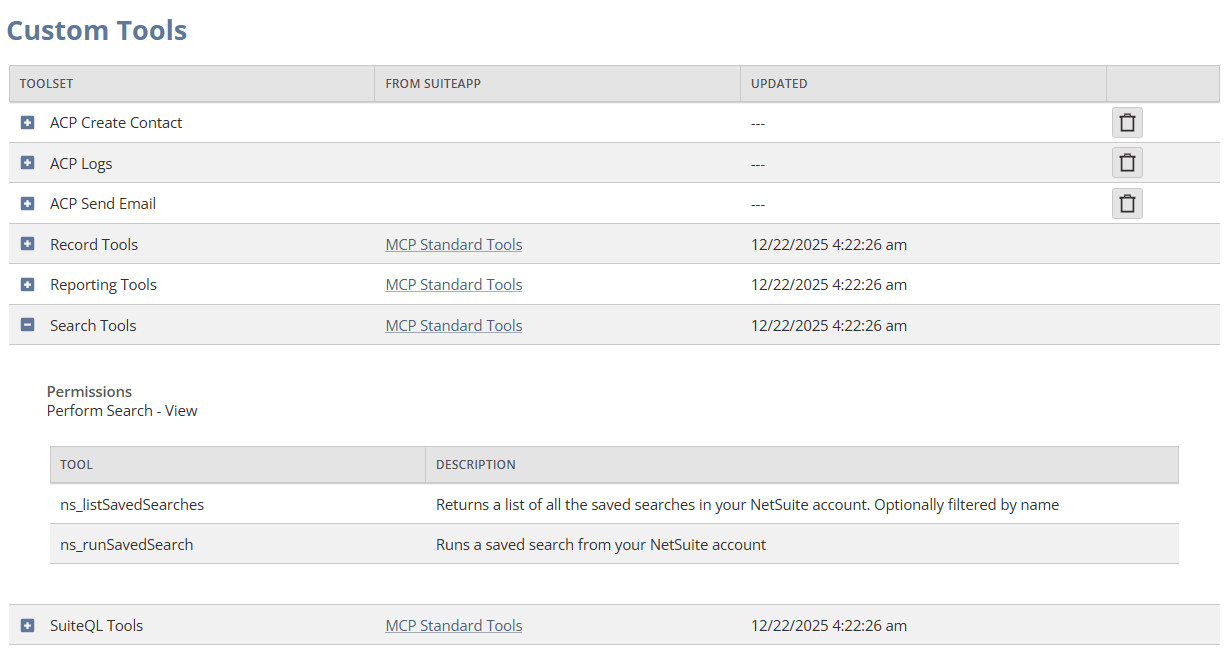
You can expand each toolset to view the individual tools and the permissions required to view them in the AI client.
Toolset Activation
A toolset is either active or inactive. The activation status applies to all tools in the toolset. You cannot activate or deactivate individual tools. Only tools from active toolsets are available for discovery and execution through the NetSuite AI Connector Service.
The Inactive column identifies inactive toolsets. Activation status is separate from the exposure and permission settings defined for the toolset. A tool must belong to an active toolset and meet the applicable exposure and permission requirements before it is available in an AI client.
Activating or Deactivating a Toolset
To activate or deactivate a toolset:
-
Go to Customization > Scripting > Custom Tools.
-
Expand the toolset that you want to manage.
-
Click Activate or Deactivate.
When you deactivate a toolset, its tools are no longer available for discovery or execution through the NetSuite AI Connector Service.
When you activate a toolset, its tools become eligible for discovery and execution, subject to the toolset's exposure settings and the user's permissions.
Deleting a Toolset
You can delete toolsets that are part of ACPs directly from the Custom Tools page. To delete a toolset, click the delete icon. This action deletes all tools in the selected toolset.
You can't delete toolsets that are part of SuiteApps from this page, but you can click the SuiteApp link to go to the Installed SuiteApps page. On the Installed SuiteApps page, you can remove the SuiteApp toolsets by uninstalling the associated SuiteApp. For information about uninstalling SuiteApps, see Viewing and Uninstalling SDF SuiteApps in a NetSuite Account.
Configuring File Cabinet Access for Custom Tools
On the Custom Tools page, use Allowed File Cabinet Access to specify which folders custom tools can access. The list applies to all custom tools in your account, including tools used by the File Cabinet MCP Apps. Only users with the Administrator role can manage the list. For more information about the File Cabinet MCP Apps in the MCP Standard Tools SuiteApp, see File Cabinet MCP Apps.
Add at least one folder to Allowed File Cabinet Access. If the list is empty, custom tools can't read, create, or update File Cabinet files.
During custom tool execution, the N/file module can access only folders covered by the list. The list doesn't filter folder listings, file-name searches, path lookups, or record attachments performed through other SuiteScript modules. Scripts running outside custom tool execution aren't affected.
Each entry grants access to the selected folder and its subfolders. If more than one entry applies to a folder, the highest access level applies. A lower access level on a subfolder doesn't restrict access granted by a parent folder. Access granted by the list doesn't override existing NetSuite role permissions.
|
Access Level |
Allowed Operations |
|---|---|
|
View |
Read existing files. |
|
Create |
Read existing files and create new files. |
|
Edit |
Read existing files, create new files, and update or replace existing files. |
To add an allowed folder:
-
Using the Administrator role, go to Customization > Scripting > Custom Tools.
-
Click Allowed File Cabinet Access.
-
Click Add.
-
Use the menus in the folder path to select the folder you want to add.
-
Select an access level. The default is View.
-
Click Add to add the folder.
NetSuite saves each change immediately. Click Cancel to stop adding a folder. Click Close to close the window. Closing the window doesn't undo saved changes.
To change an existing entry, select its row and select a different access level. To remove an entry, select its row and click Remove. Removing an entry doesn't delete the folder, and access granted by a parent folder still applies.
You can add up to 1,000 folders. You can't add the File Cabinet root or add the same folder more than once.
Use a dedicated folder outside SuiteScripts whenever possible. Allowing access to SuiteScripts or its subfolders could expose script source. Write access could also let custom tools change scripts that run in your account.