Editing Values Within the Segment Definition
This topic describes how to set filter conditions for each segment value by editing the Values sublist within the segment definition. For general information about value filtering, see Setting Filters for Each of the Segment's Values.
If you have permission to edit the segment definition, you can set filters for each value by editing the Values sublist.
To edit values within the segment definition:
-
Edit the custom segment for which you want to add filtering.
-
In the Values sublist, edit each value as follows:
-
For the value that you want to configure, click anywhere in that row to enable a series of buttons.
-
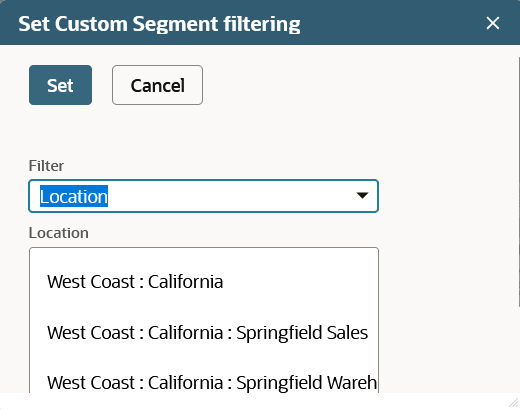
Click Set Filters to open a popup window. The popup window includes a Filter list. Its value is the field selected in the segment's Filtered by field. Directly below the list is a list of that field's values.
-
In the popup window, select the values of the Filter field that permit this value to be displayed as an option. For example, suppose you're editing the Book value of the Profit Center segment. If you want this value to be available only when the West Coast: California location is selected, select West Coast: California. To select more than one value, hold down the Ctrl key.
-
If the segment's Filtered by field includes more than one selection, use the Filter list to select another classification and set its values.
-
When you've selected values for all fields in the Filter list, click Set.
Important:You must set values for all of the fields available in the Filter list, or the value is never available to users.
-
Click OK.
-
-
If there are other values that should be available, and don't have filters set, repeat the preceding editing steps for that value.
-
Click Save on the segment definition.