Editing Each Segment Value Directly
This topic describes how to set filters for individual segment values when you do not have permission to edit the segment definition itself. For general information about value filtering, see Setting Filters for Each of the Segment's Values.
If you don't have permission to edit the segment definition, but you do have permission to edit its values, use the following procedure.
To edit each value directly:
-
If it isn't already open, open the value for editing. For more information, see Editing Values of a Custom Segment by Clicking Manage Values.
-
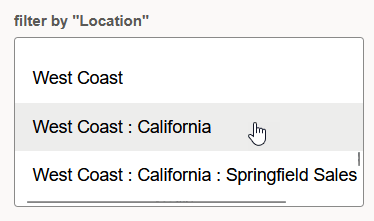
Find the Filter by [Classification Field] field, where [Classification Field] is the field selected in the segment's Filtered by field. This list includes all possible values of the field by which you're filtering.
-
Select the values of the classification field that should permit the user to select the value that you're editing. For example, suppose you're editing the Book value of the Profit Center segment. If you want this value to be available only when the West Coast: California location is selected, select West Coast: California. To select more than one value, hold down the Ctrl key.
-
If the page includes additional fields labeled Filtered by [Classification Field], make selections in each of these fields.
Important:You must set values for all of the Filtered by fields, or the value you're editing is never available to users.
-
Click Save.