Uploading and Testing the Revised User Event Script
After you update the createTask.js file, complete the following tasks to finish the tutorial:
Uploading the revised file makes the entry point script use the custom module. Testing the script confirms that the module creates a phone call record. To complete the test, create an employee record with supervisor and phone values.
Upload the Revised User Event Script
To upload the script file:
-
In the NetSuite UI, go to Documents > File > SuiteScripts.
-
In the left pane, select the SuiteScripts folder and click Add File.
-
Follow the prompts to locate the createTask.js file in your local environment and upload it to the SuiteScripts folder.
-
If the system says a file with that name already exists, click OK to overwrite it.
Test the Script
After both files are uploaded, make sure the custom module works as expected.
To test the script:
-
Start creating a new employee record by going to Lists > Employees > Employees > New.
-
In the new employee form, check if the Notes field is disabled. If the beforeSubmit entry point works, the field will be gray and you can't edit it.
-
Enter values for the required fields. These fields might vary depending on your account's features and customizations. At minimum, they include:
-
Name - Enter Susan as the first name and Johnson as the last name.
-
Subsidiary - (OneWorld only) Choose a value from the dropdown list.
-
-
To make sure that the custom module logic is used, enter values in the Supervisor and Phone fields.
-
Click Save. You'll see a success message, and the system will show the new record in View mode.
-
Check that the phone call record was created successfully:
-
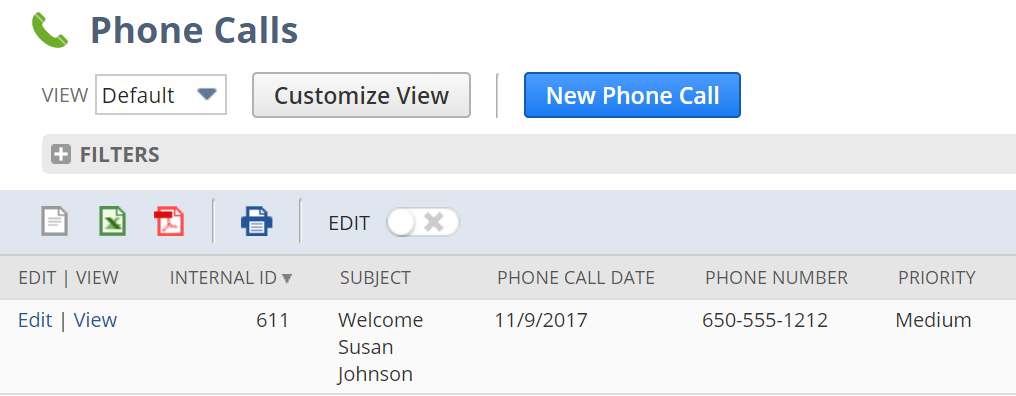
Select Activities > Scheduling > Phone Calls.
-
Check the filtering options to make sure phone calls for all employees are shown.
-
Make sure a phone call was scheduled to welcome the new employee.
-