Saving and Sharing Workbooks and Datasets
You can share workbooks and datasets with individual users or groups based on roles. To avoid data inconsistencies, shared workbook recipients can't edit the underlying datasets. For example, if you share a workbook with users in the Accountant role, everyone in that role can access and save their own versions, but they can't edit the original datasets. If a workbook has multiple datasets, you need to save each before saving and sharing the workbook, including datasets you create during authoring but don't connect to a visualization. If you don't want to share datasets that aren't linked to a workbook visualization, delete them before saving and sharing.
Anyone with access to Workbook can share a workbook or dataset, however recipients can only view the record types and fields that they have access to based on their permissions. Record types and fields that a recipient does not have access to are simply not displayed. If you have the Analytics Administrator permission, you can also share workbooks and datasets with every user in your account using the Share with all option. Keep in mind however, if you use Share with all in a workbook, the original author won't be able to connect additional datasets to it. Make sure you contact the original owner of a workbook before you share it with everyone in your account.
Shared workbooks include all visualizations, including your Table View, Pivot, and Chart tab selections. If a visualization uses linked datasets, the link definition is shared too. You can't share a set of linked datasets without sharing the associated workbook. Shared datasets include all the joined record types, fields, and criteria filters that define them. If you have the export lists permission and only want to share a dataset, click Export in the dataset to download a CSV file of the Data Grid.
To save and share a workbook or dataset:
-
Click Share from anywhere within the workbook or dataset.
-
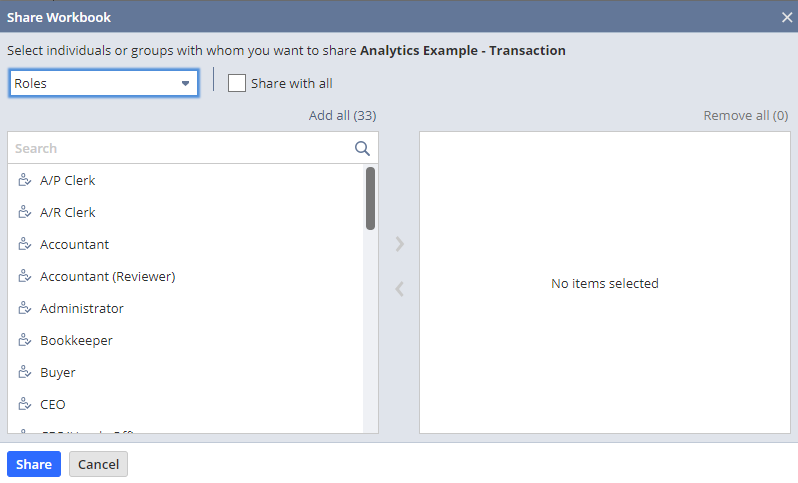
Select the roles or users you want to share the workbook or dataset with, then click the right arrow to add them to the distribution list. If you have the Analytics Administrator permission, check Share with All to share the object with everyone in your account.
Important:If you use the Share with all option in a workbook, the original author will not be able to connect additional datasets to it.
-
Click Save and share.
The object is shared and appears on the Analytics Home page for the selected recipients. Currently, notifications are not sent when a workbook or dataset is shared with a user.
You cannot save and share a workbook if it has visualizations based on unsaved datasets. Before you begin, save or delete any datasets connected to the workbook. Remove these fields before you attempt to save and share.
If you have the Analytics Administrator permission and you want to share workbook or dataset templates such as Open Sales Orders Lines or Number of Fulfillments, you must follow the steps in this procedure. These templates cannot be shared from the Analytics Home page.