Creating Center Links to Web Pages
This topic describes how you can create center links to web pages. For general information about creating center links, see Creating Center Links.
To create links to web pages:
On the Translation subtab, enter translations for the custom center link. The Translation subtab is available only if the Multi-Languages feature is enabled in your account. For more information, see Configuring Multiple Languages.
-
Go to the website or NetSuite page for which you want to create a link. Right-click the address bar and select Copy.
-
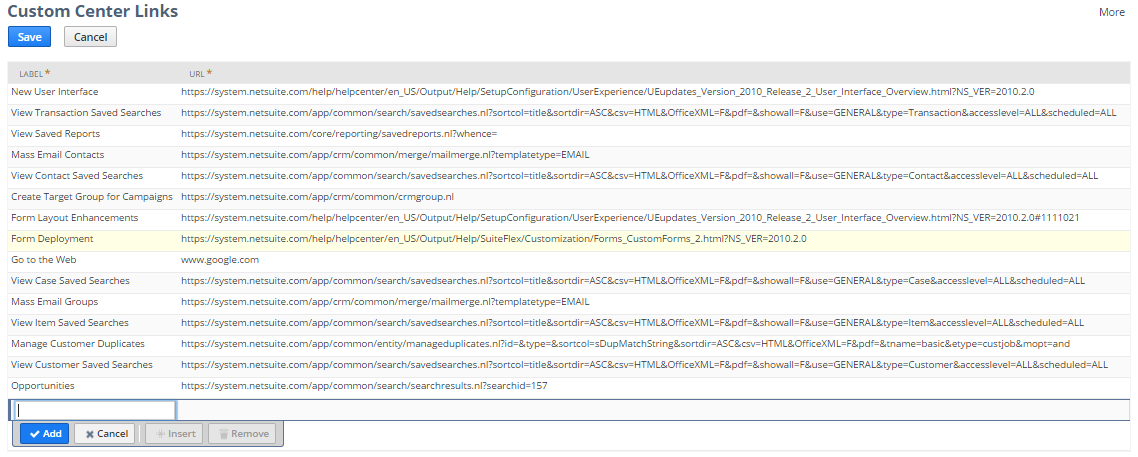
Go to Customization > Centers and Tabs > Center Links > New.
-
In the Label column, name your custom link.
-
In the URL column, enter the URL for the link.
-
In the Script ID field, enter a unique ID for the custom center link.
-
Click Add.
Note:The link will open in the existing window. You cannot set up a link to open in a new window.
-
Click Save.
-
To add the link to a custom category, go to Customization > Center and Tabs > Center Categories
-
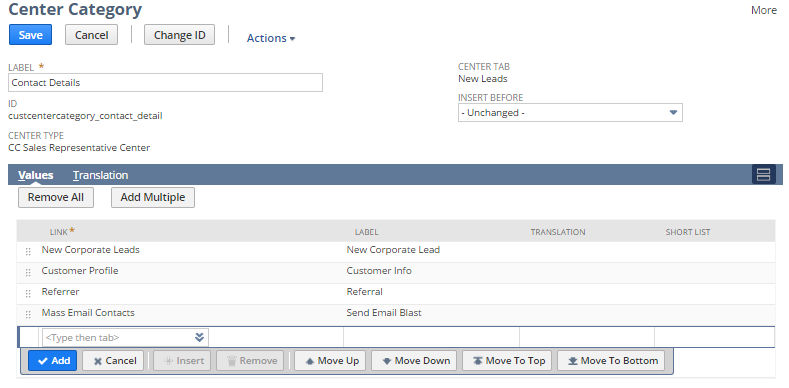
Click Edit next to the category where you want to add the link.
-
From the Link list, select the custom link label.
-
Click Add.
-
Click Save.