Configure the SC Cookie Consent Extension
After enabling the feature and installing/activating the extension, you must set up the cookie consent text and options. This setup configures the information shown to your shoppers as they decide to accept or disallow certain cookies.
The SuiteCommerce Analytics Data feature and Cookie Consent extension don't include default consent-management text. Any text you see in the images in this guide are for example only.
Web store owners are responsible for adding all consent information. Owners must also ensure the text complies with privacy regulations applicable to the countries, states, or regions in which they do business.
To Enter Text for Your Cookie Consent Menu:
-
Go to Commerce > Websites >Configuration.
-
Use the Websites and Domain lists to select the web store.
-
Click Configure.
-
Open the Extensions subtab.
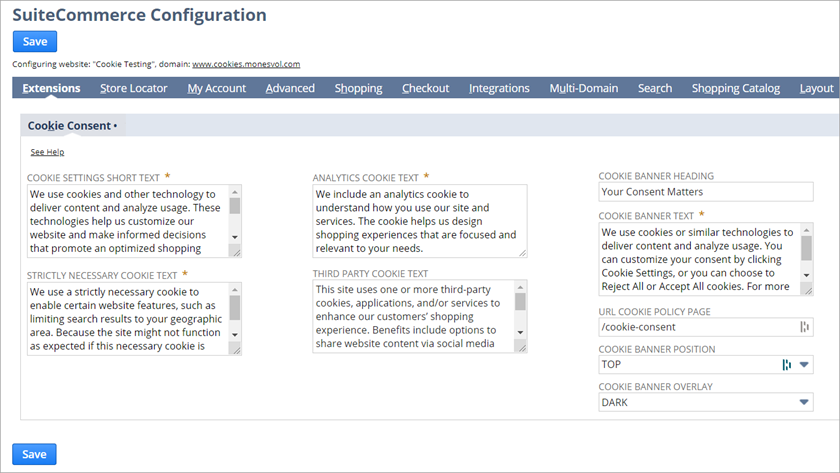
The Cookie Consent fields appear.
-
Enter text or make a selection for each field provided.
If you leave a field empty, it doesn't appear in the cookie consent banner or settings menu.
-
Click Save.
These fields can use Rich Text Format (RTF) for bold, italics, and to add links to other pages or websites.
|
Field |
How to complete |
|---|---|
|
Cookie Settings Short Text |
Enter a short description of how you use cookies in your SuiteCommerce web store. This description is the header paragraph for the cookie settings menu. |
|
Strictly Necessary Cookie Text |
Enter a description of any cookie that is required for your site to function. Include that this cookie is locked-in as enabled. |
|
Analytics Cookie Text |
Enter an overview of how the analytics cookie is used on your site. |
|
Third Party Cookie Text |
Enter an overview of the one or more third-party cookies used on your site. If applicable, include that third parties might track a portion of the shopper's activities. Note that you can include links to other sites for more information. |
|
Cookie Banner Heading |
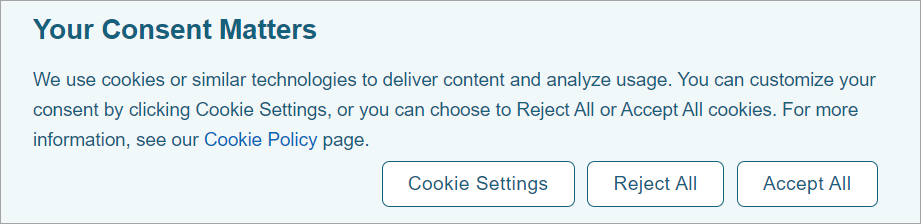
Enter a short title for the banner that alerts the shopper of their cookie consent options. This the initial banner from which a shopper must make a choice before proceeding to your web store. |
|
Cookie Banner Text |
Enter a short description of the shopper's cookie consent options. The shopper can use the banner to allow all cookies, reject all cookies, or open the cookie settings menu. It is common to include a link to your cookie policy page. |
|
URL Cookie Policy Page |
Enter the link to your cookie policy page. The link must be relative to your other SuiteCommerce web store pages. For example, enter the link as |
|
Cookie Banner Position |
Choose where the banner will appear on your landing page - at the top or at the bottom. |
|
Cookie Banner Overlay |
Select whether to use a dark or light overlay when the cookie banner displays. The overlay prevents the shopper from accessing website content before they set their cookie consent choices. |
Example Cookie Consent Banner
Text shown here is for example purposes only.
Example Cookie Consent Configuration
Text shown here is for example purposes only.
Related Topics
- Setting Up the SuiteCommerce Analytics Data Feature
- Enable the SuiteCommerce Analytics Data Feature
- Install the SC Cookie Consent Extension
- Activate the Extension for Your Web Store Domain
- Add Required Footer Links to Cookie Policy and Settings
- Using Extensibility For a Custom Cookie Consent Process