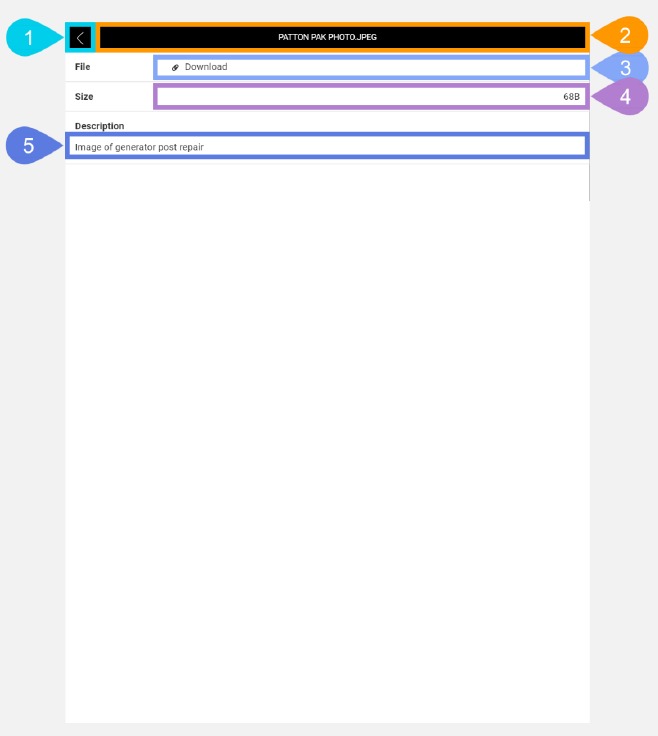
History File Item Details Screen in Detail
This screen lets you view details of the selected file item saved for the selected historical task.
|
Section |
Task |
Effect |
Availability |
Errors/Alerts Shown |
Highlighted in Screenshot |
|---|---|---|---|---|---|
|
Back button |
Lets you go to the History Task Details screen. |
Displays the History Task Details screen. |
Always |
None |
1 |
|
Toggle Selected Task Details Screen Visibility button |
Lets you access functions on the Selected Task Details screen. This button, positioned in the Control Bar, spans the entire width of the screen except where other buttons are placed. The file name for the selected file item shows up inside this button. |
Shows the Selected Task Details screen. |
Always |
None |
2 |
|
View History File button |
Lets you view the historical file. |
The file will be launched into a new browser tab. Depending on the operating system of the mobile device being used the file, and depending on the file type, this file will either display in the new tab or be saved into the device's permanent storage so that another app may be able to display the file. |
Always |
None |
3 |
|
History File Size text display field |
Lets you see the size of the historical file. |
None |
Always |
None |
4 |
|
History File Description text display field |
Lets you see the historical file's description. |
None |
Always |
None |
5 |