Offer Similarity Detection AI Agent
Product proliferation especially for bundles is one of the most daunting challenge for every Communications Service Providers (CSP). Given the inability to know if a similar bundle already exists before releasing a new bundle leads to more and more of the same bundles with hardly any differentiation leading to poor customer experience and high operational overhead. The ability to identify similar offers before releasing new offers to the market promotes high reusability, ease of doing global changes and mitigates proliferation.
You can now detect similar offers (bundles and atomic) while creating, revising or cloning offers using the Fusion AI Agent. The similarity is based on the structure of the bundle offer with its mandatory and optional components, option group and attributes that make up the bundle. Similar offers of the same offer type are presented ranked by their semantic similarity as Highly Similar, Mostly similar and Partially similar offers. You can download the results to get a detailed explanation of similarities and differences for the results in a business friendly language.
The "View Similar Offers" action of invoking the AI Agent is available when you drilldown from the offer dashboard into the offer details page. The following figure shows how to invoke the Similarity Detection AI Agent:
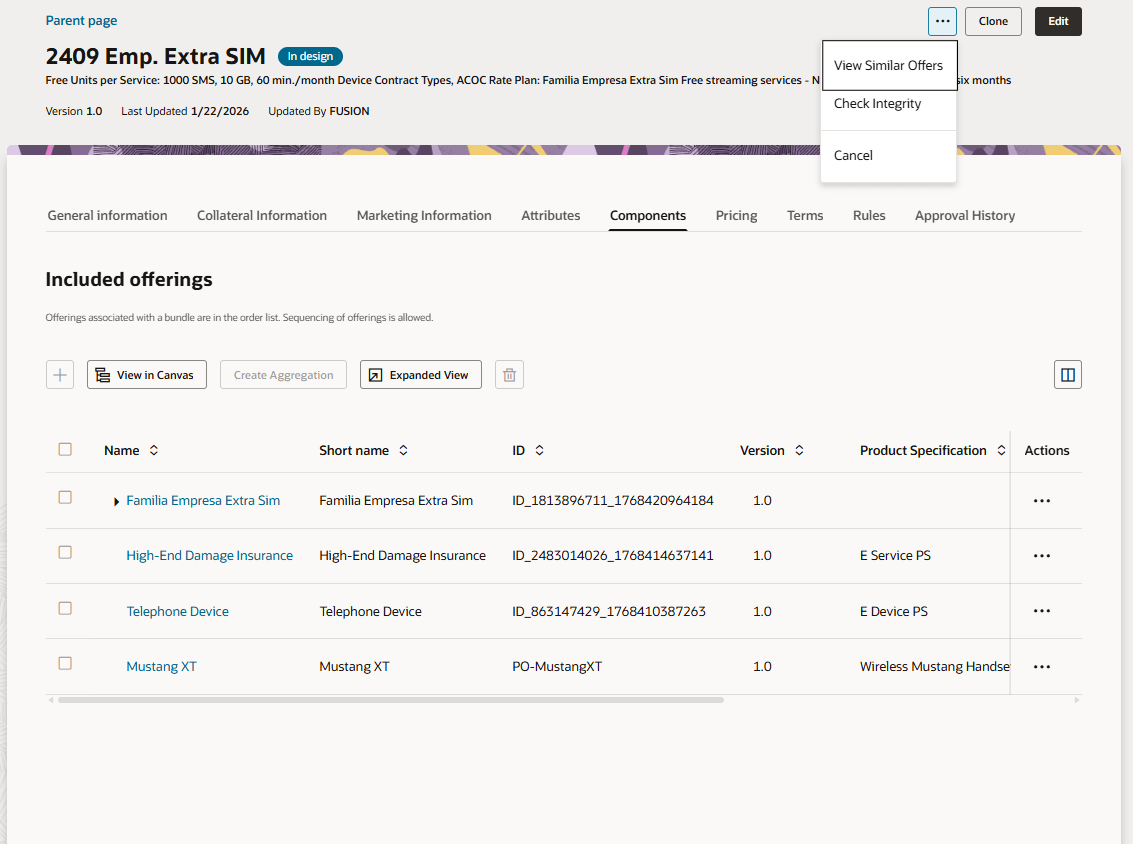
Similarity Detection Invocation
The following figure shows the top five similar offers ranked by their similarity score, classified into Highly Similar, Mostly Similar or Partially Similar. The results are based on the similarity of an Offer structure with its the mandatory and optional components, its relationship based on the configured cardinality, attributes and associated product specification :
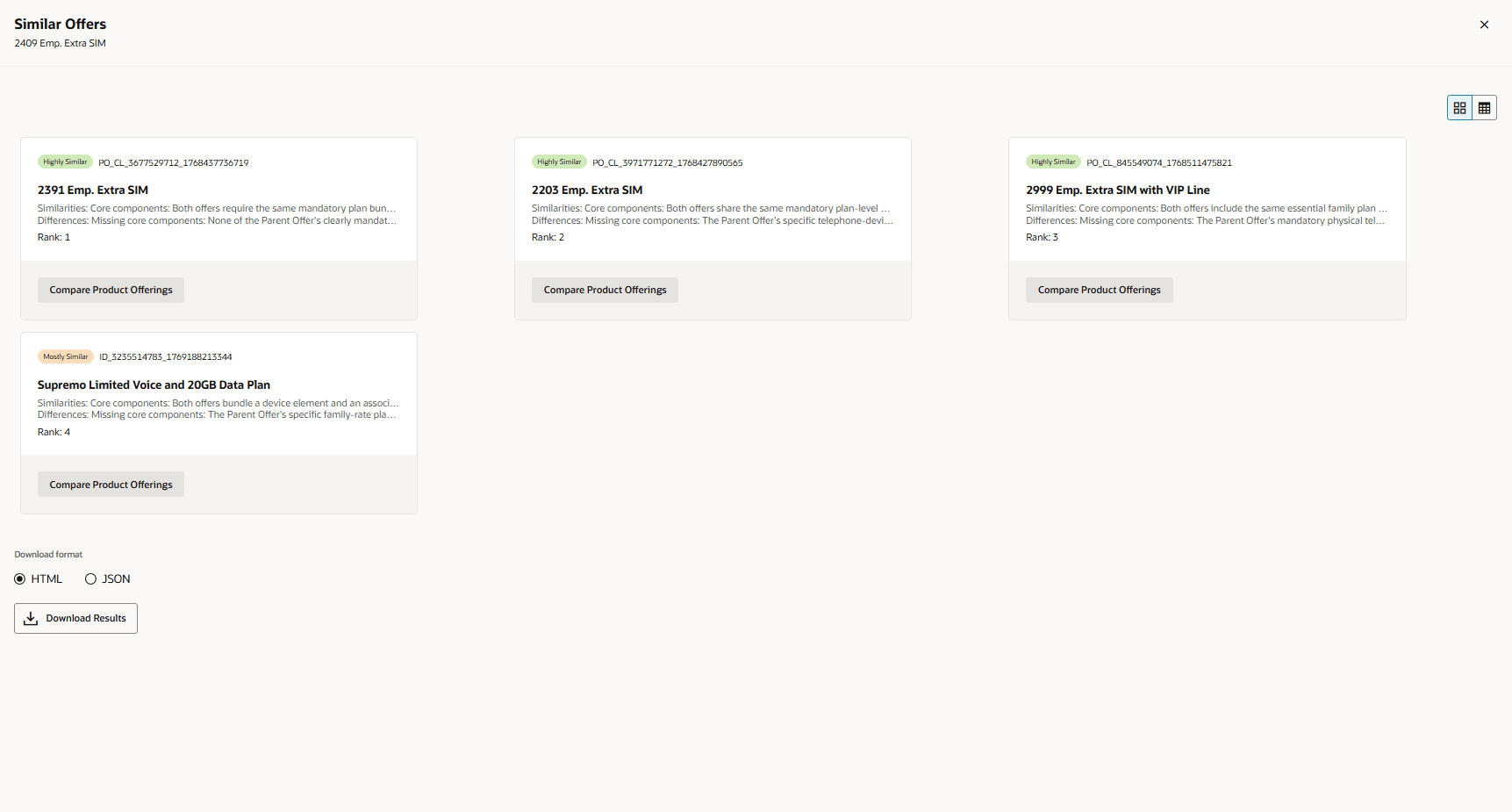
Similarity Detection Results
You can download the detailed explanation of the bundle offers. The following figure shows the summarization of similarities and differences along with its ranking:
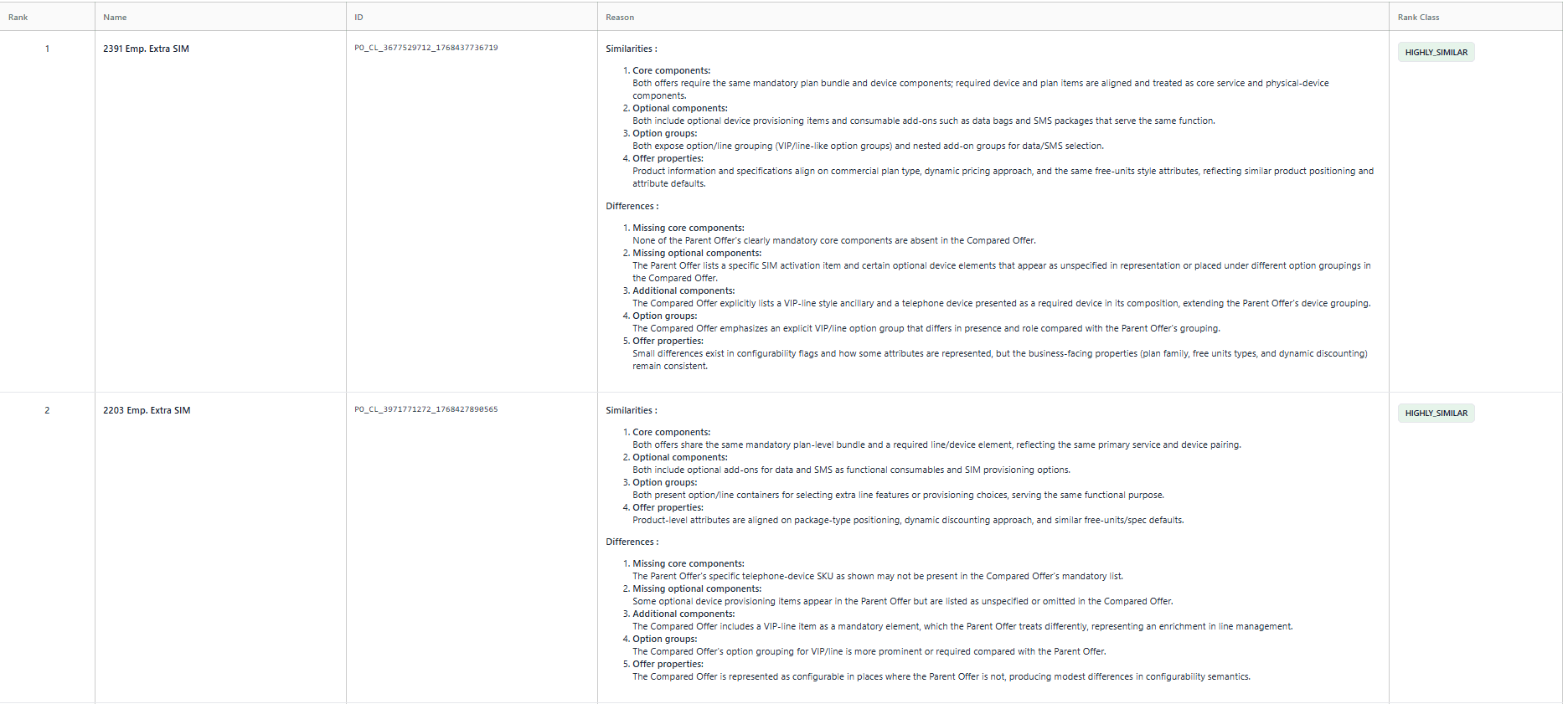
Similarity Detection Explanation
For the Offer Similarity Detection to happen, there are three Agents involved. They are:
-
Similarity Ingestion Assistant - This is a seeded agent that prepares the offers for similarity search. This agent retrieves eligible offers to generate structured summaries using well-defined prompts. It then writes the summaries into the vector storage using the Vector writer tool.
-
Similarity Detection Assistant - This is a seeded agent that finds and ranks similar offers. This agent reads the summarized input, queries the vector storage using the Vector reader tool to retrieve similar offers
-
Similarity Clean up Assistant - This is a template agent that maintains the index consistency. This agent retrieves all related vectors, cleans up the stale entries (for ex: offer deletion from the user interface) to reset ingest as applicable. Please refer to "Steps to Configure" section on details of enabling this agent.
The business benefit of this feature are:
- Improved decision making in market releases
- Reduced catalog bloating and redundancy
- Greater operational efficiency and catalog maintainability
Steps to enable and configure
You can use AI Agent Studio to use or copy a preconfigured agent template to create agents for your business processes. To automatically add a suffix to all artifacts in your agent team, you can Copy Template instead of Use Template. When you copy a template, you're directly taken to the agent team canvas where you can edit the agent team settings, agents, tools, and topics. The Use Template option takes you through a step-by-step process for configuring each artifact in the agent team.
For information on using AI Agent Studio, see How do I use AI Agent Studio?
Follow these steps to enable this functionality:
Create Agent Team for Similarity Ingestion Assistant
- Click Navigator > Tools > AI Agent Studio.
The page named AI Agent Studio will open.
- On the tab named AI Agent Studio, search for Similarity Ingestion Assistant, and click Copy Template.
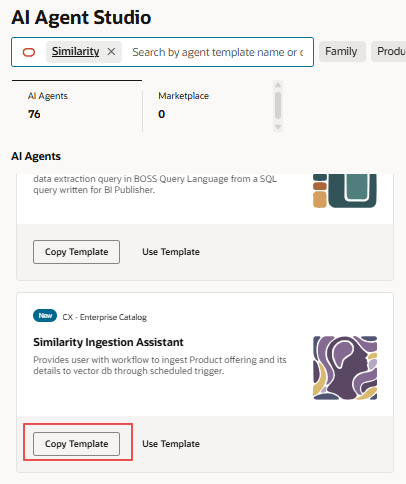
Search to retrieve the Agent to click Copy Template
The Copy Template dialog box opens.
- Enter a suffix for the name of your agent team. This suffix is appended to the names of the agent team’s worker agents so that they can be identified. Duplicate suffixes aren’t allowed.
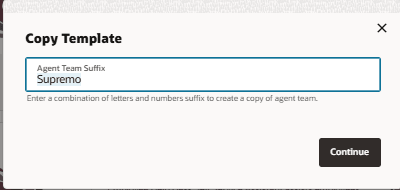
Suffix for Agent Template
Click Continue. You will see a graphical representation of the new agent team with the provided suffix.
- You will see a graphical representation of the new agent team with the provided suffix. Click on settings
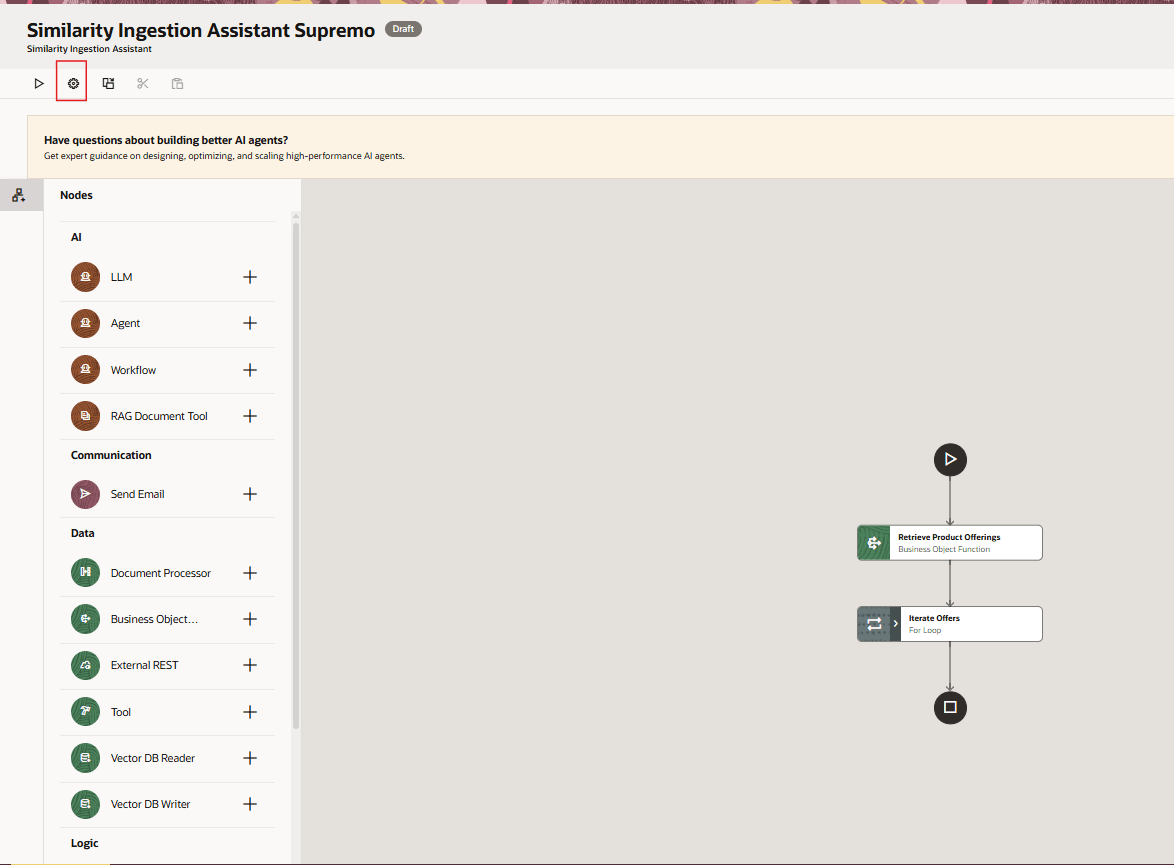
Settings to open up the drawer
- Click on Triggers and click on Add for the Schedule.
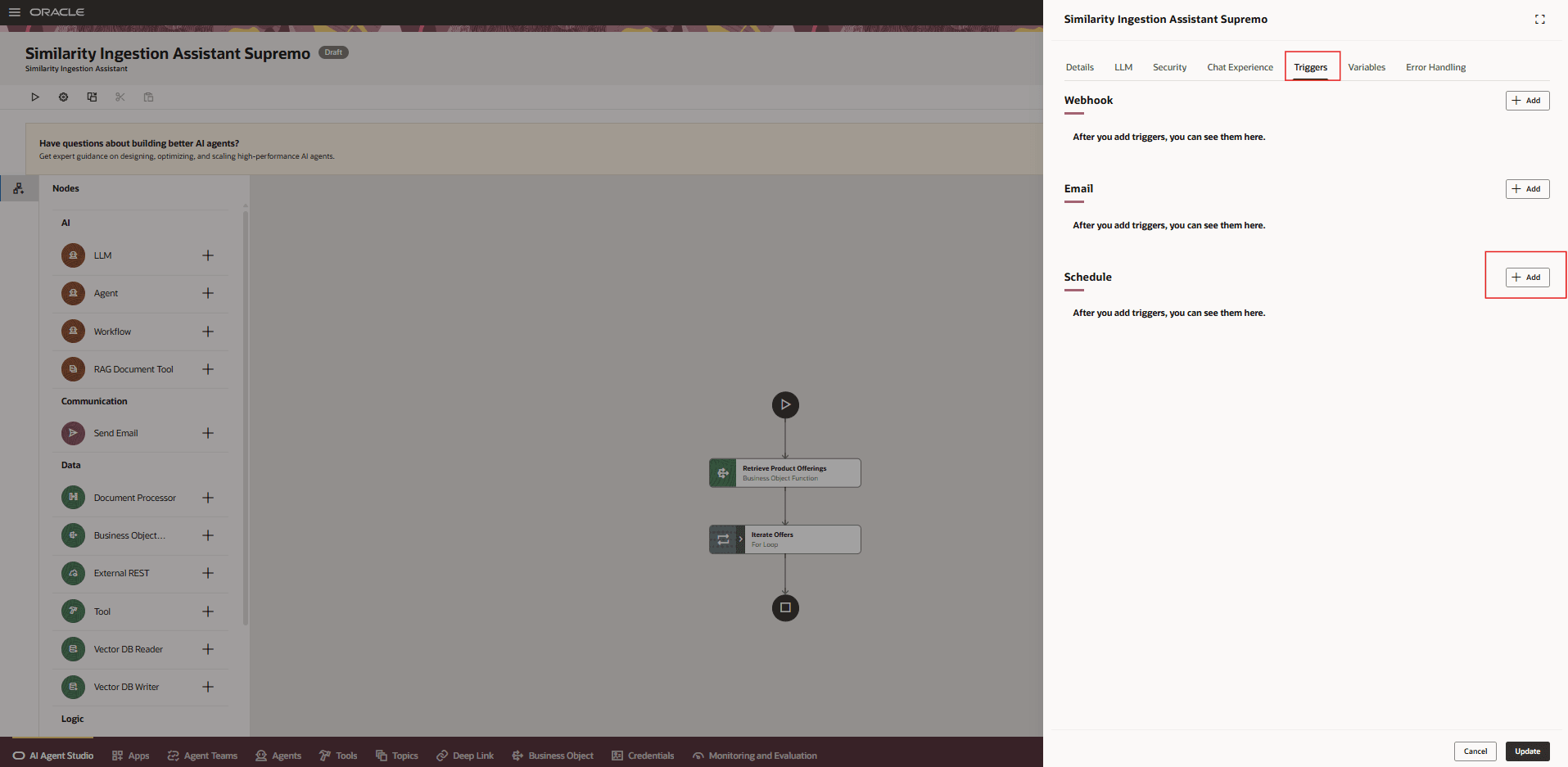
Create a Trigger of type Schedule
- Provide the schedule for the ingestion job:
- Interval: 'minutes'
- Value: 15 (to run every 15 minutes)
- Start time: Set the start time in UTC format (e.g., 23:00:00)
- End time: Set a suitable end date and time(UTC format) as per your convenience
Click on Update to update the schedule settings
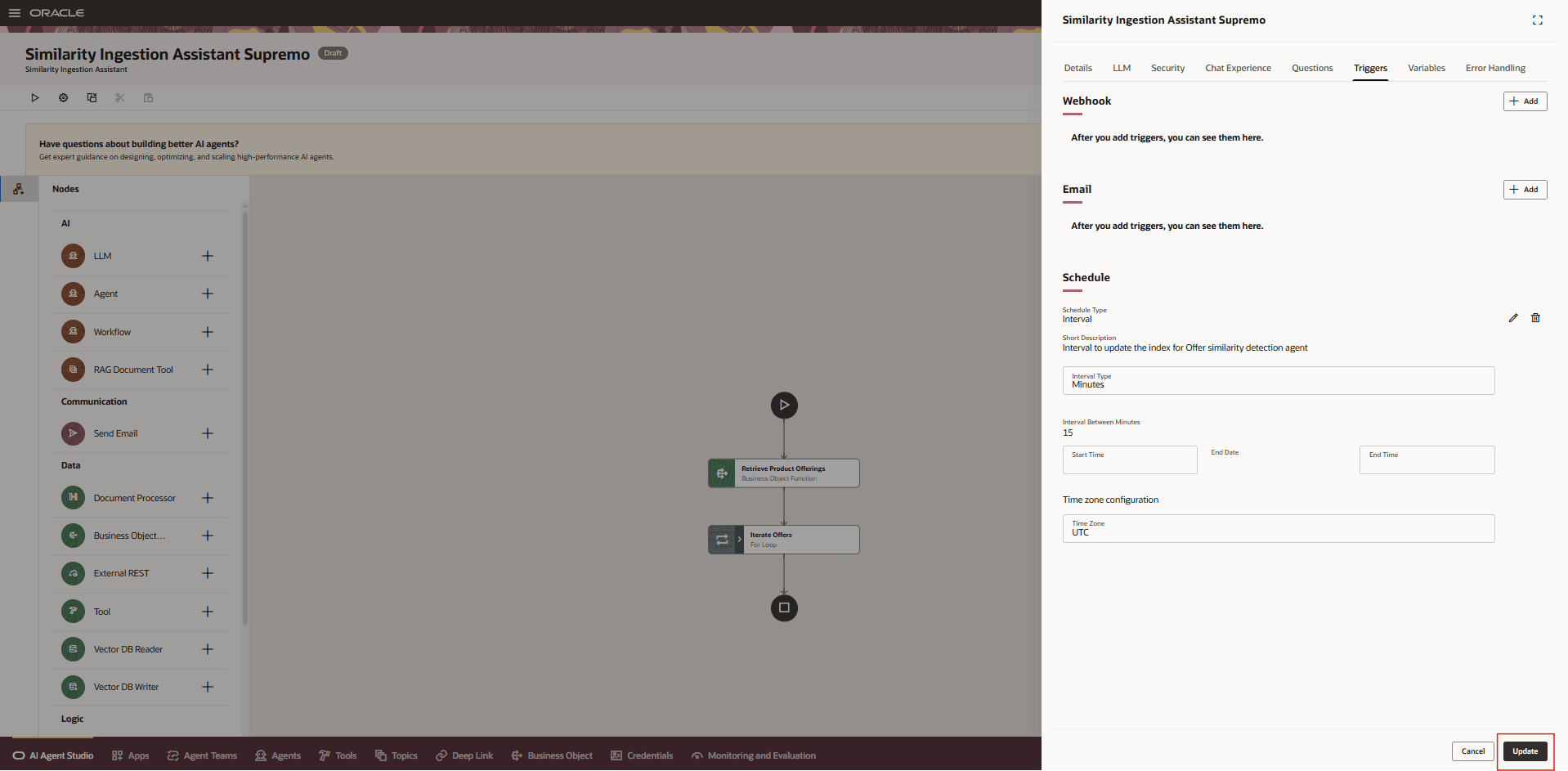
Update Trigger after setting the schedule
- After the schedule has been configured, save and publish the workflow.
Once the workflow is published, it will start ingesting records into the vector storage at the scheduled start time. You can verify the workflow's status and the ingestion process through launch api services to ensure that it's working as expected.
Tips and considerations
- It is recommended to use the Agent with minor modifications. Cloning the seeded template, making basic modifications to the agent created from a template, such as changing Maximum Interactions, Summarization Mode and prompt, input parameters and out specification are allowed changes that is allowed at no additional cost to be deemed as a custom Agent.
-
The agents and other artifacts included within an agent template are optimized to provide the best usage of the agent team. We recommend not to change the basic functionality of the artifacts because that might impact your agent team's performance.
Key resources
- For information of getting started with AI Agents, see Oracle AI for Fusion Applications - Get Started
- For information on using AI Agent Studio, see How do I use AI Agent Studio?
- For information on the access requirements for AI Agent Studio, see Access Requirements for AI Agent Studio.
- For guidance on how to create AI agents, see Create AI Agents.
Access requirements
To access the Oracle AI Agent Studio for Fusion Applications and manage Launch AI agents, users must be assigned a custom job role that contains specific duty roles. Please follow the steps below to configure the two roles.
Configure Launch AI Agent Admin User Role
- Navigate to the Security Console and create a new custom job role titled "AI Agent Launch Admin Role"
Note: Make sure to enable permission groups.
- On the Role Hierarchy page, open the Roles and Privileges tab and add these roles:
- Manage CX AI Agents (ORA_ZCA_MANAGE_CX_AI_AGENTS)
- Manage CX AI Agents (ORA_ZCA_MANAGE_CX_AI_AGENTS_HCM)
- Open the Roles and Permission Groups tab and add the below duty role.
- Fai Genai Agent CX Administrator Duty (ORA_DR_FAI_GENERATIVE_AI_AGENT_CX_ADMINISTRATOR_DUTY)
- Save the custom role and assign this custom role to the "Communications Catalog Administrator" job role.
Configure Launch AI Agent Product Manager User Role
To interact with AI agents on Launch product pages, users must be assigned a configured job role that contains specific duty role. Please follow the steps below to configure it.
- Navigate to the Security Console and create a new custom job role titled "AI Agent Launch User Role"
Note: Make sure to enable permission groups.
- On the Role Hierarchy page, open the Roles and Privileges tab and add these roles:
- Manage CX AI Agents (ORA_ZCA_MANAGE_CX_AI_AGENTS)
- Manage CX AI Agents (ORA_ZCA_MANAGE_CX_AI_AGENTS_HCM)
- Open the Roles and Permission Groups tab and add the below duty role
- Fai Genai Agent Runtime Duty (ORA_DR_FAI_GENERATIVE_AI_AGENT_RUNTIME_DUTY)
- Save the custom role and assign this custom role to the following job roles.
- Communications Catalog Product Manager
- Communications Catalog Marketing Manager
See Access Requirements for AI Agent Studio (for administrators) and How can I give users access to AI agents (for end-users) for more information.
For further AI Agent configuration and set up, please review the AI Agent Studio Guide https://docs.oracle.com/en/cloud/saas/fusion-ai/aiaas/index.html
See Access Requirements for AI Agent Studio (for administrators) and How can I give users access to AI agents (for end-users) for more information.