IPM Insights: Ability to View Insights from Forms and Dashboards
You can now view insights directly from within forms and dashboards.
Applies To: Enterprise Profitability and Cost Management, FreeForm, Planning
Note: An administrator must have already run the Insights job in order to see the insights in forms and dashboards.
To view insights from a form or dashboard:
- From a form or dashboard, click the Insights icon in the upper right corner.
 Pre-generated insights are retrieved based on the form or dashboard POV. A panel opens on the left side of the form or dashboard.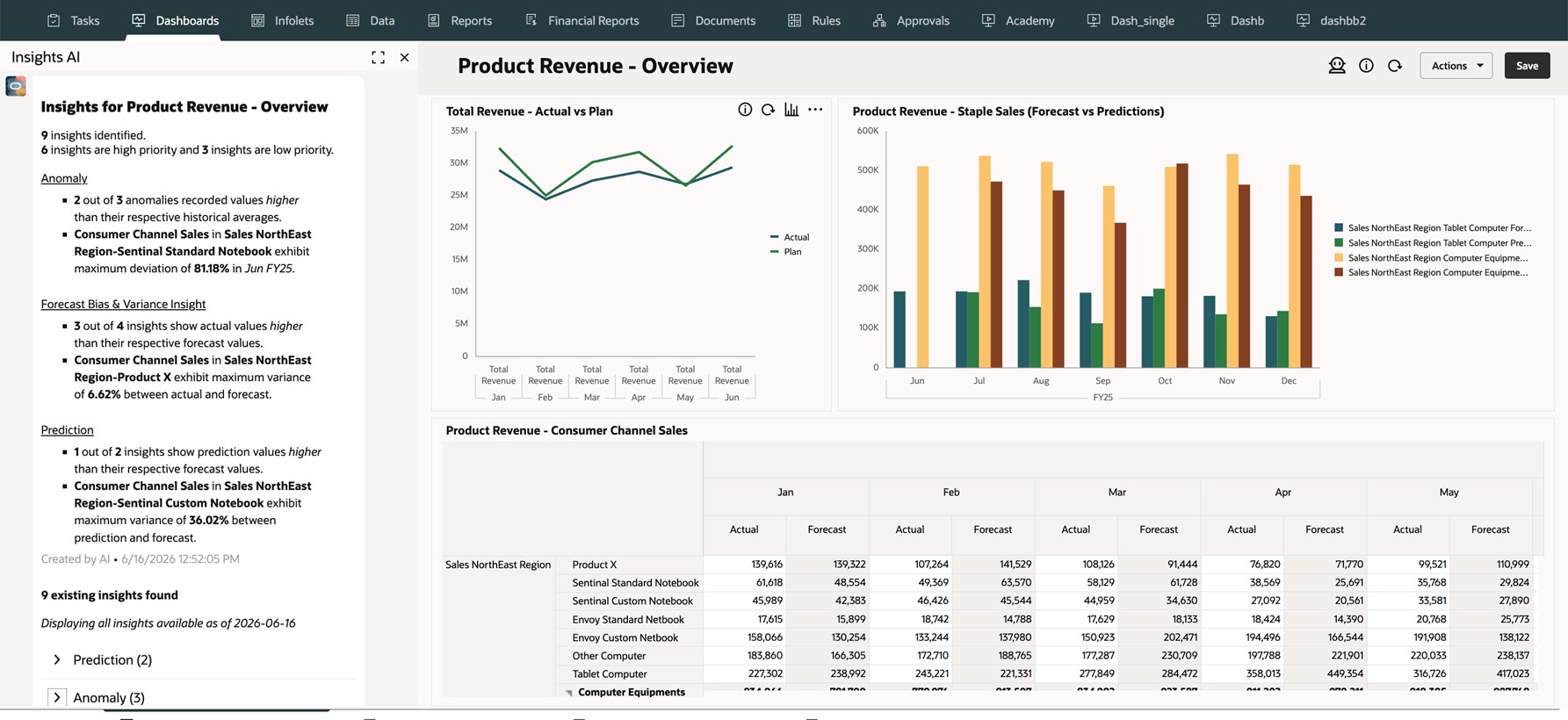
Insights viewed from a dashboard
- In the Insights panel, you see a summary of the pre-generated insights for the current POV. If GenAI is enabled, you see a GenAI-enhanced summary of the insights. If GenAI is not enabled, you see the number of insights identified and their categorization by insight type.
You also see Displaying all insights available as of <date>, which indicates when the currently displayed insights were last generated. This helps you understand the freshness of the insights and whether the Insights job might need to be run again to reflect more recent data changes. - Insights are grouped by type. Click the > to expand and show the insights for each insight type.
- You can maximize the Insights panel, which makes it easy to see Insights details, including Priority, Details, POV, Impact, and Created. You can also perform these actions:
- Click a column header to sort the insights list.
- Click the Details cell for an insight to open the Insights details page.
Business Benefit: You can review insights directly in your workflow, based on the POV of your current data view, rather than having to navigate to the Insights list, making insights easier to access.
Tips and considerations
- IPM Insights require an EPM Enterprise Subscription with Hybrid mode enabled.
- The Insights job must have already been run to see the insights in forms and dashboards.
- If GenAI is enabled, you see a GenAI-enhanced summary of the insights. If GenAI is not enabled, you see the number of insights identified and their categorization by insight type. To enable GenAI, from the Home page, click Application, then click Settings, and then in the Enable AI section, select Generative AI.
- These insight types are supported:
- Prediction (for FreeForm and Planning)
- Anomaly
- Forecast Variance & Bias
Period Movement Variance insights will be supported in an upcoming update.
- You can see insights from within forms and dashboards, not from within ad hoc forms.
Key resources
- Administering and Working with Enterprise Profitability and Cost Management
- Administering FreeForm
- Working with FreeForm
- Administering Planning
- Working with Planning