Expenses Agent: Employee Expense Completion and Compliance Enhancements
With Touchless Expenses, employees can easily capture project details, stay within daily spend limits through policy enforcement, resolve duplicates with a guided two-item merge process, and manage corporate card obligations with aging and dispute controls. These enhanced capabilities improve overall user experience and strengthen policy compliance.
Projects: Project fields allow employees to allocate expenses across projects. To use projects, employees must have the required project privileges, and expense types must be enabled for projects.
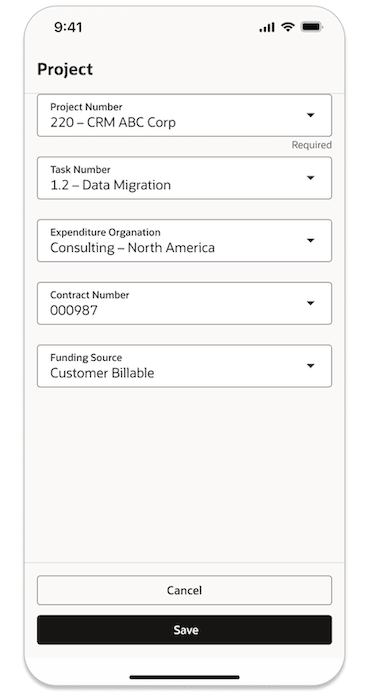
Project drawer
Manual Merge: In rare cases where automatic matching can’t reconcile duplicates, employees can perform a guided, two item manual merge from the landing page. For example, if an employee swipes a corporate card and also submits an e-receipt for the same transaction, and the system doesn't automatically match them, the employee can manually merge the receipt and the card transaction.
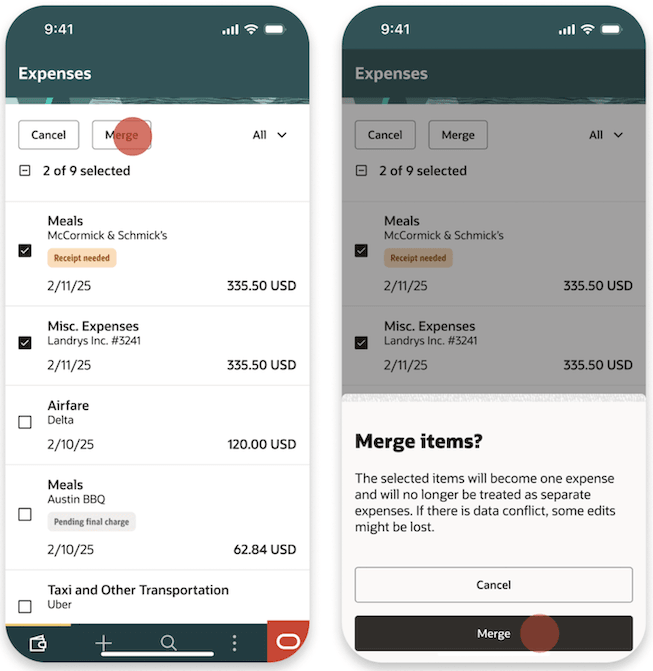
Manual merge
Corporate Card Dispute: Employees can mark and resolve disputes. Disputed expenses can't be submitted until they’re resolved.
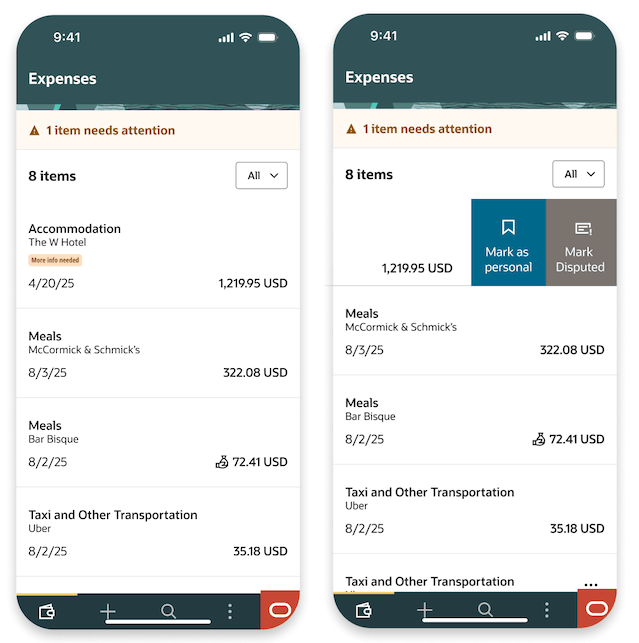
Mark disputed
Corporate Card Aging:
- Administrators can set an age limit for corporate card charges.
- Employees are blocked from submitting cash expenses until overdue card charges are submitted.
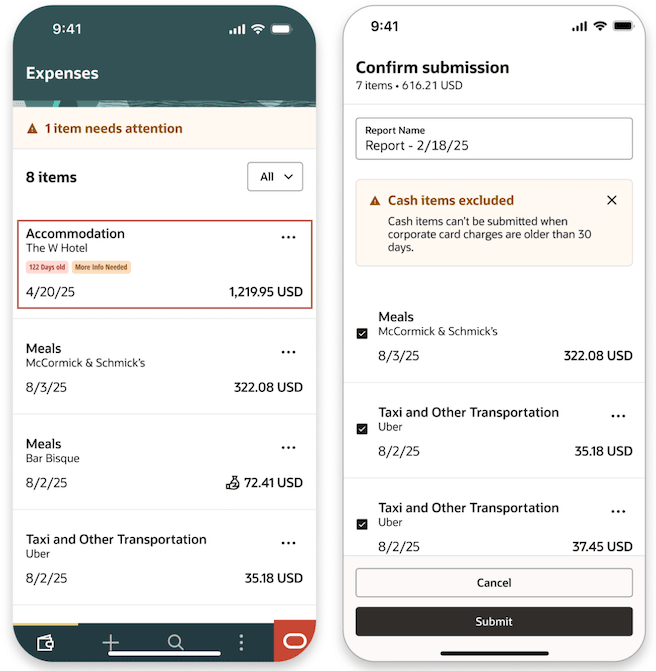
Submission of expenses with an aged corporate card
Mark as Cash: Corporate card employees can now treat expenses from cash e-receipts as cash expenses by selecting “Mark as Cash” swipe on mobile or picking the option from the actions menu (...) on desktop.
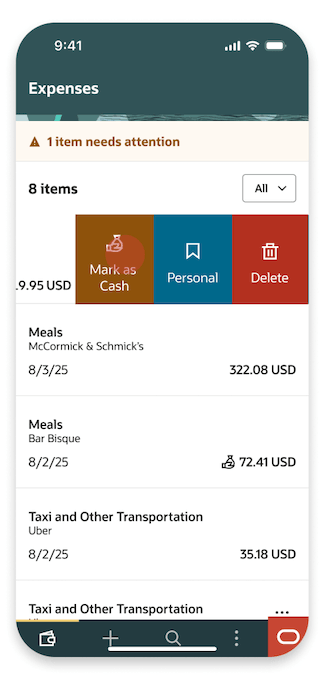
Mark as cash on mobile
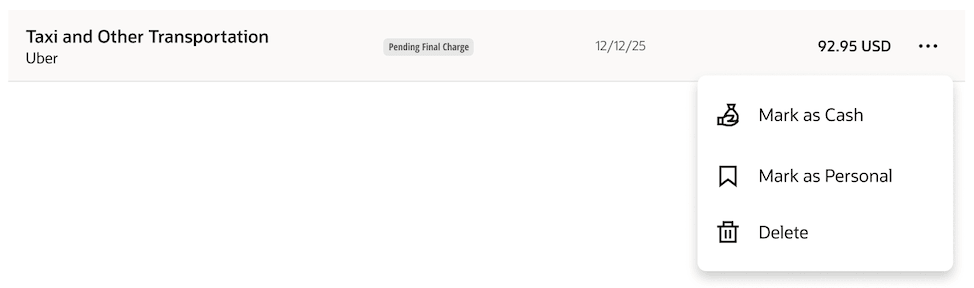
Mark as cash on desktop
Policy Enforcement: Policy enforcement allows administrators to set daily limits for meals, entertainment, accommodation, car rental and miscellaneous expense categories.
Push Notifications: Push notifications notify employees at the time of corporate card uploads and when expenses are automatically personalized. JPMC card holders additionally receive push notifications during real-time authorization.
Business benefits include:
- Touchless Expenses streamlines expense management by enabling end-to-end, automated workflows that reduce manual effort, improve data accuracy, and accelerate reimbursements.
- Built-in policy enforcement improves cost control and compliance, while comprehensive project detail capture supports required project allocation.
- Corporate card aging controls and integrated dispute management reduce errors, prevent improper payments, and ensure timely resolution, delivering better governance, audit readiness, and overall operational efficiency.
Steps to enable and configure
To use these enhanced capabilities, first enable Touchless Expenses as outlined in the Touchless Expenses (25D) feature.
- Projects: To view the project and task fields in the application, administrators should enable the following.
- In Manage Expense Report Templates, select the relevant business unit, expense template, and an expense type.
- Next, in Project Expenditure Type Mapping, enable project.
- Assign the duty role Project Expense Allocation Duty to the user.
- In Manage Expense System Options, set Require Project Fields for Project Users field to Yes. Note that this task is required only if project is to be made mandatory.
- Policy Configuration:
- In Manage Policies by Expense Category, create a policy and define the rate limits and policy enforcement options for applicable expense types. Include daily and/or single instance limits, warning and error tolerances, and reimburse to upper limit behavior
Tips and considerations
- Improved messaging in email helps employees understand the issue clearly and resolve expenses with ease.
- On mobile, accommodation expenses now support all policy configurations except seasonal rates.
- When extensive itemization is not required, employees can see a summary of the itemized expense in the email and the application.
- Expense report submission link now appears under the Total (mobile and desktop), enhancing discoverability and making it faster for users to submit expenses manually when needed.
Key resources
To use these enhanced capabilities, first enable Touchless Expenses as outlined in the Touchless Expenses (25D) feature.
Access requirements
You’ll need the Application Implementation Consultant role to enable projects and modify policy configurations.