Create Jobs with AI Assistance
The Jobs Assistant is your predefined AI-powered assistant for streamlining the job creation process. The Assistant acts as an intelligent companion that helps to make the job creation process faster and more efficient overall.
The AI Agent intelligently assists HR professionals in these ways:
- Proactively prompts the user: "How can I help you? Create a Job "
- Creates the job with very minimal information such as job name and code, thus making the experience swift and easy.
- Also shares a view link to further visit the jobs page to view the newly created job and make additional updates.
Powered by Oracle's AI Agent framework and advanced large language models (LLMs), the Jobs Assistant interprets your natural language questions and responds with clear, actionable answers tailored to your organization's policies. Agents created from this version of template will create jobs based on the inputs you provide.
Inputs Required for the Jobs Assistant AI Agent
Here are some key points about the inputs that you need to provide when you use the Jobs Assistant AI Agent:
- To create jobs, this agent takes only two inputs from the user: job name and job code.
- Whether the agent asks for the job code will depend on the enterprise setting:
- If the Job Code Generation Method in the enterprise setting is set to Automatic Upon Final Save, the job code is autogenerated.
- If the Job Code Generation Method in the enterprise setting is set to Manual, you need to provide the job code.
- The set will be defaulted to the Common Set internally and the user doesn’t need to specify it.
- Effective start date is also defaulted to today’s date and the user doesn’t need to specify it.
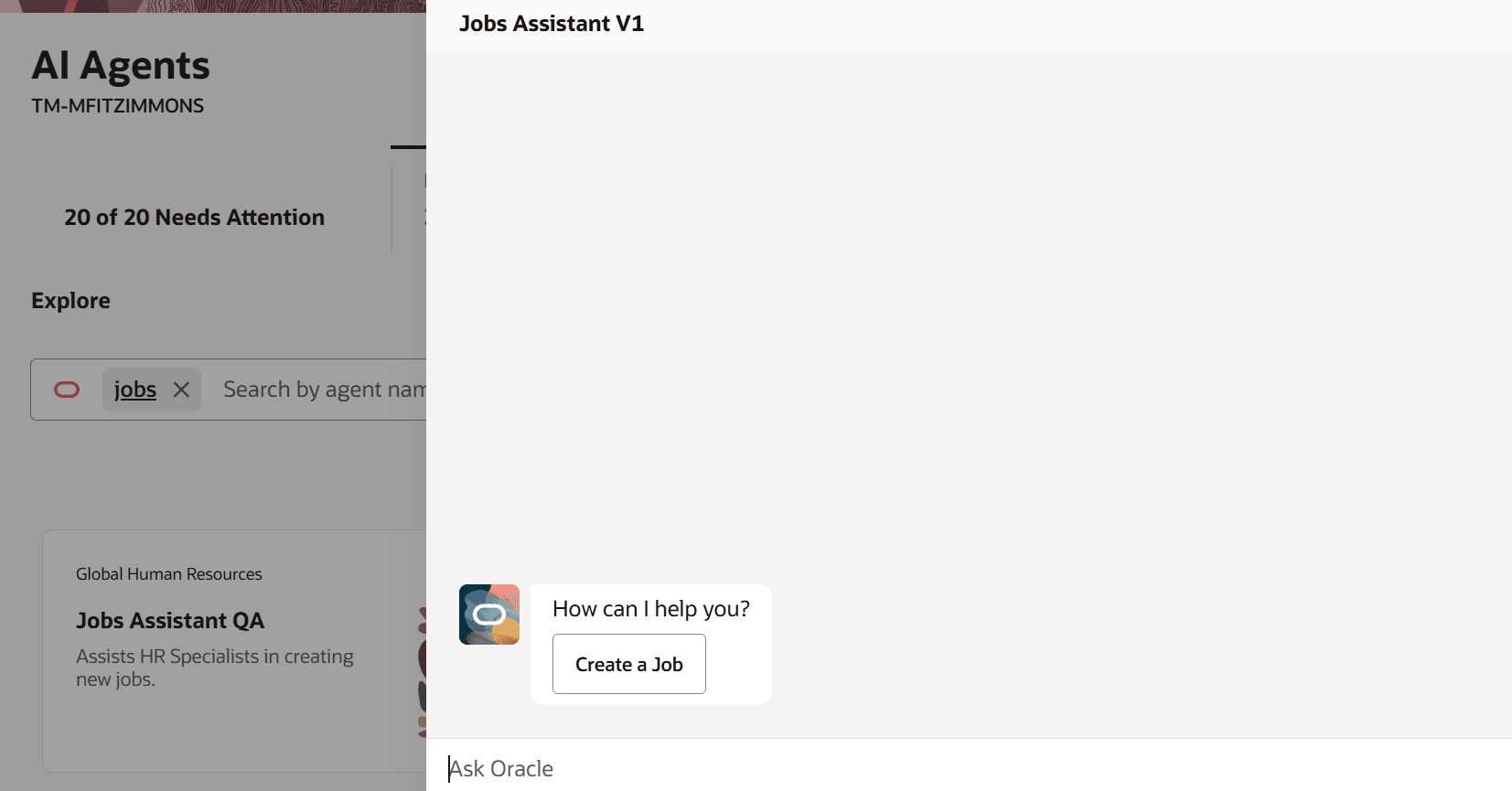
Jobs Assistant AI Agent showing the starter question
Examples
Let’s look at some examples of how the Jobs Assistant creates jobs:
Example 1: Job Code Generation Method is set to Automatic in the enterprise settings - You need to provide only the job name, as the job code is autogenerated.
Sample input: Please create a job with the name Data Scientist
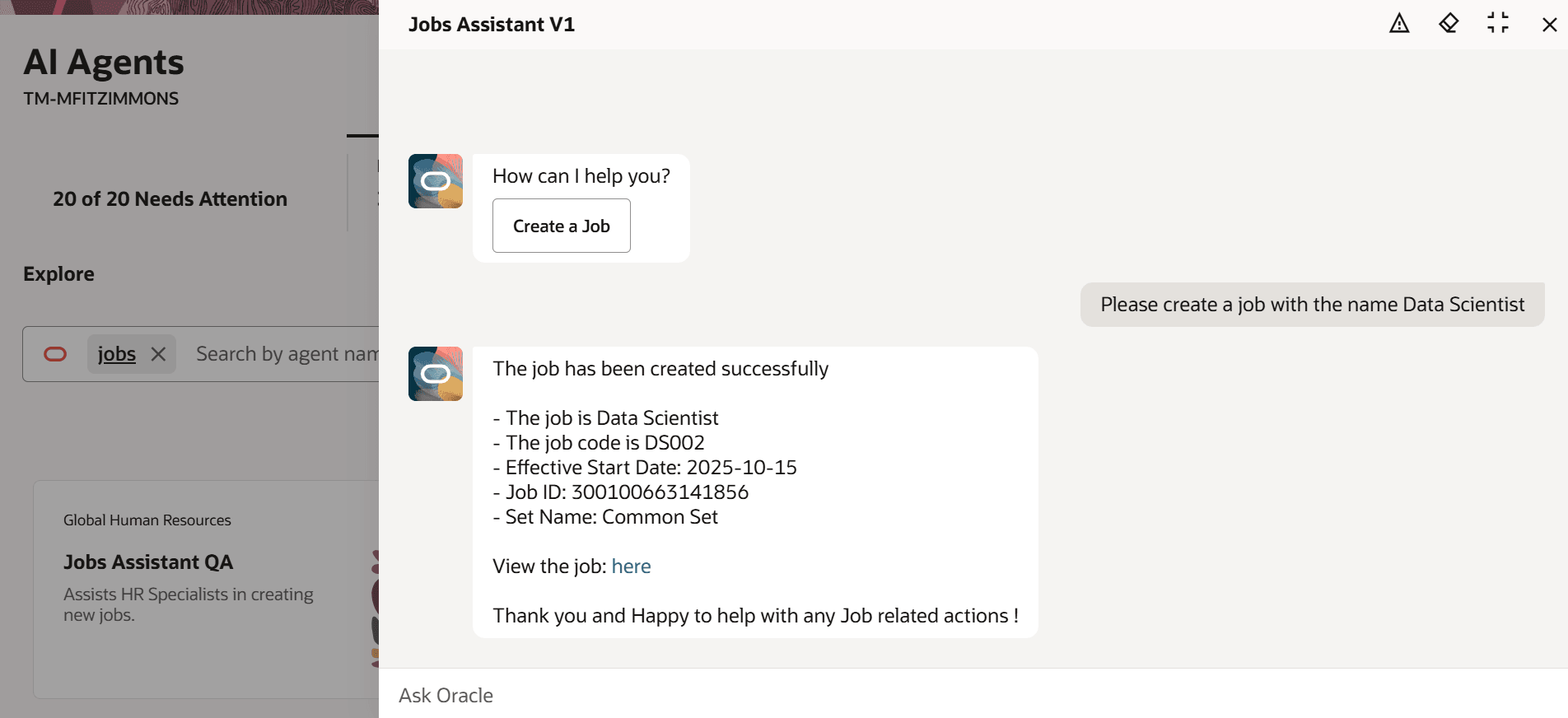
Creating a job when Job Code Generation Method is set to Automatic
Example 2: Job Code Generation Method is set to Manual in the enterprise settings - You need to provide both the job name and job code.
Sample input 1: Please create a job with the name Data Scientist and code DS002.
The agent will create a job with the specified name and code.
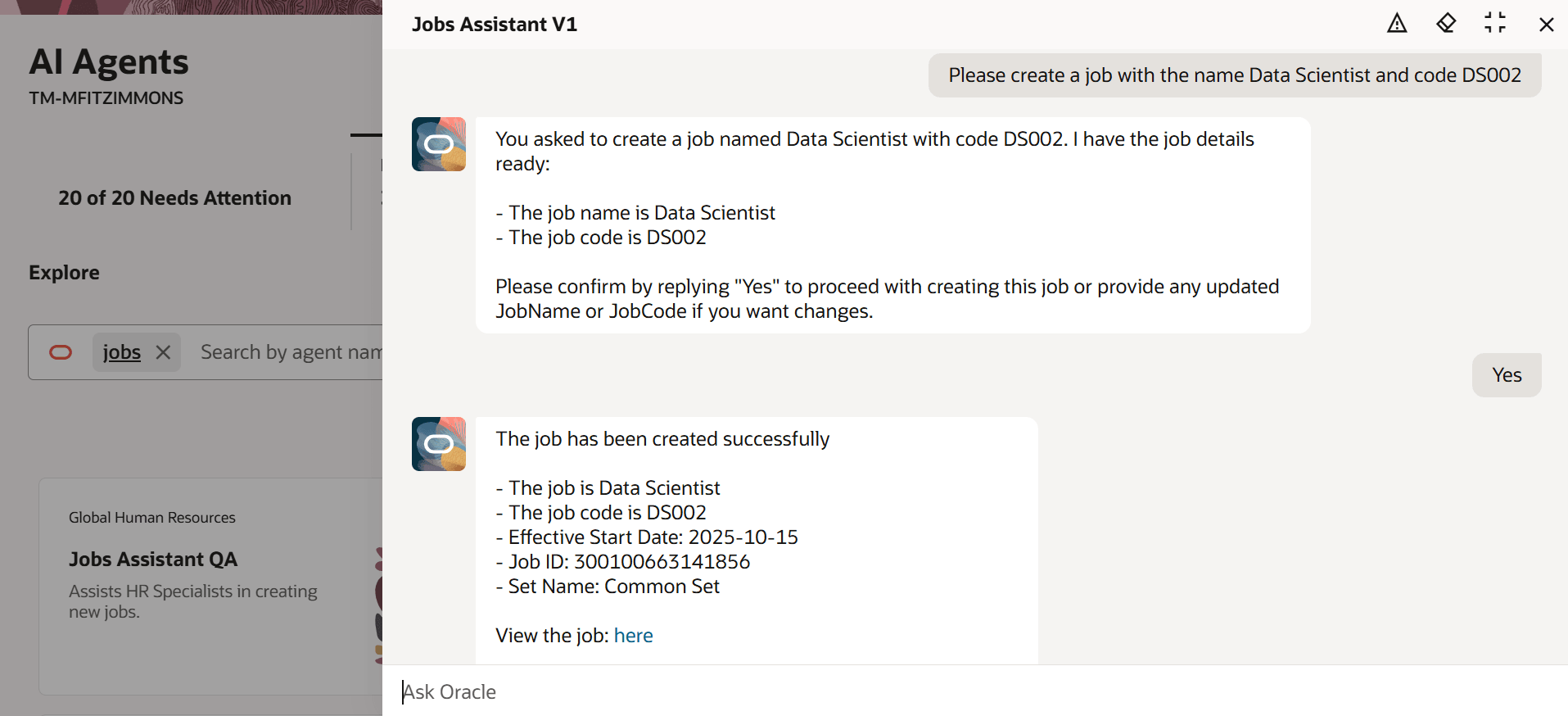
Creating a job when Job Code Generation Method is set to Manual and code is provided
Sample input 2: Can you create a job with the name QA Engineer?
Because the job code needs to be provided manually, the agent will ask for it. Once you specify the code, it will create the job.
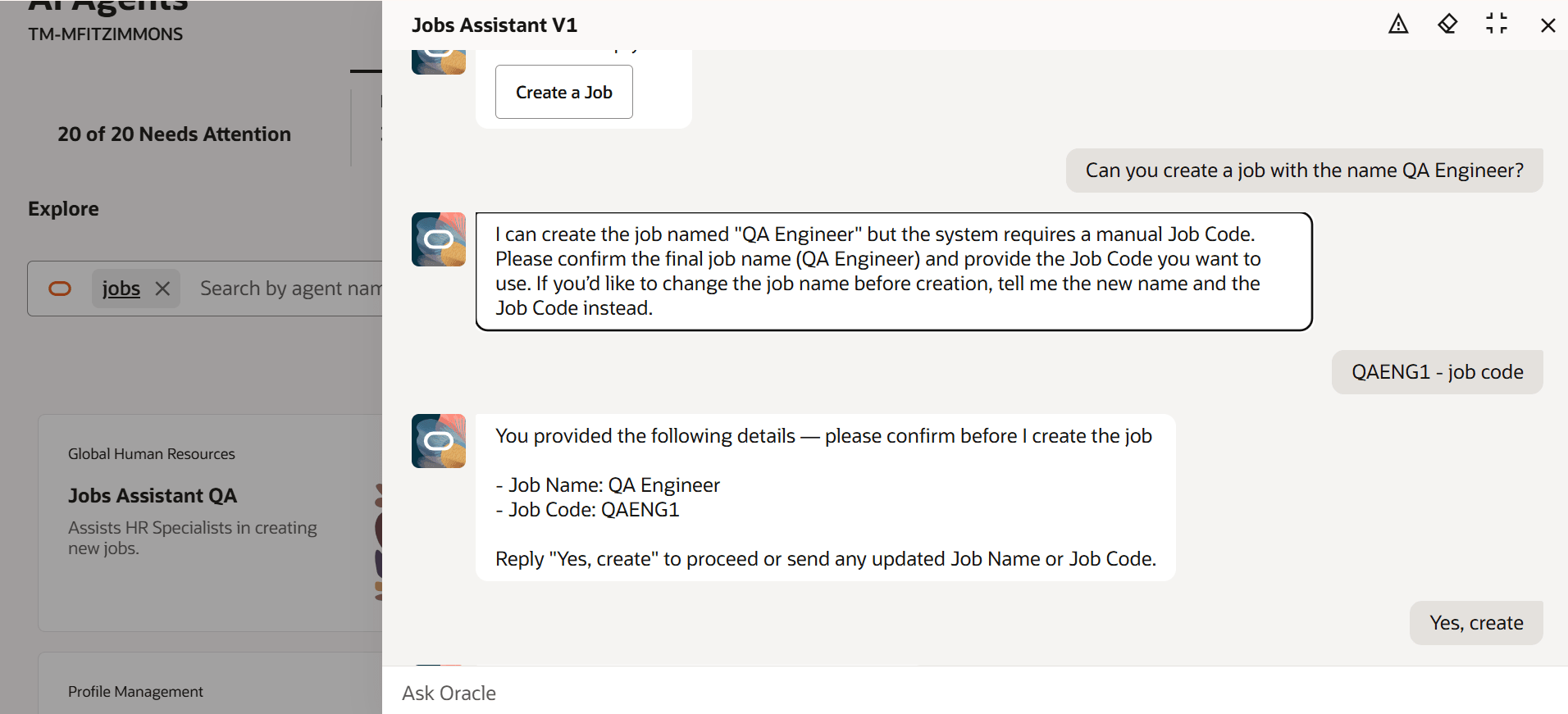
Creating a job when Job Code Generation Method is set to Manual and code isn’t provided
Example 3: Approvals are enabled
If approvals are enabled, the agent won't show the view link immediately. Instead, it will show a message stating that the job has been successfully submitted for creation.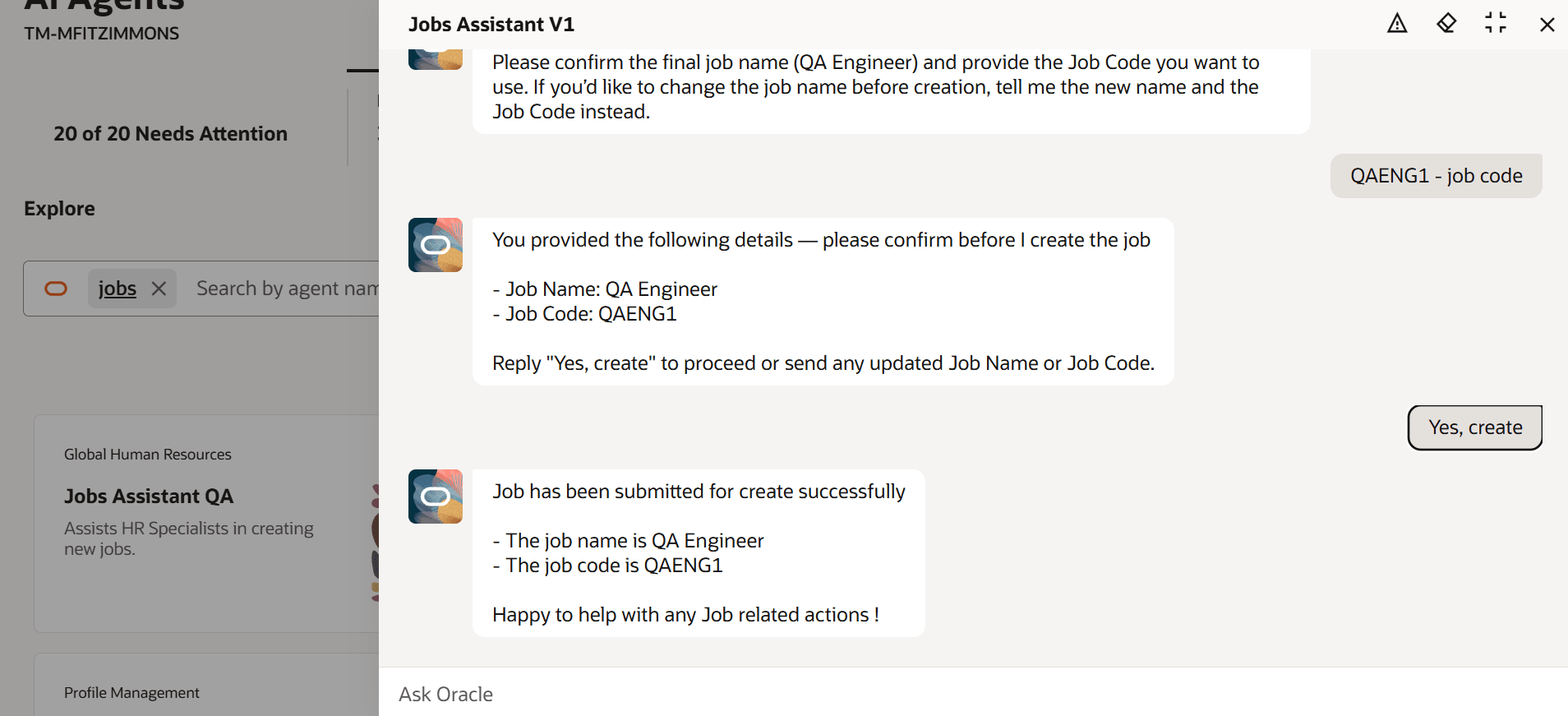
Creating a job when approvals are enabled
Business benefit: HR users can swiftly create jobs with minimal inputs. The Agent thus improves productivity and creates a good user experience. It’s also helpful for users who are new to the job creation process, as the Agent guides them through each step.
Steps to enable and configure
-
Your environment must have certain necessary configurations. Ask your help desk to contact Oracle Support, who can verify what your environment has and address any gaps. For more information, see FAQ2521 on My Oracle Cloud Support.
-
Set the Enable Security Console External Application Integration (ORA_ASE_SAS_INTEGRATION_ENABLED) profile option to Yes and enable permission groups for the appropriate roles. See Access Requirements for AI Agent Studio.
-
The Jobs Assistant is a preconfigured template. You need to create your own agent using the preconfigured template.
-
To learn how to set up AI agents, see Create AI Agents Using Preconfigured Agent Team Templates.
-
Tips and considerations
Controlling what information the agent can return
- What's honored: Role-based data security (RBAC). Users only see the data that their role permits.
- What’s not honored: Localization rules and your own business rules in Visual Builder Studio aren't enforced by the Agent.
What's not included
- Data that's pending for approval isn't retrieved by the agent.
- Any object that has more than 25 rows will only return 25 rows.
Key resources
Access requirements
The agents you can view depend on the roles and privileges assigned to you. To access this agent, your role must be explicitly granted access to it by an AI Studio Administrator.
See How can I give users access to AI agents, and Access Requirements for AI Agent Studio.