Introducing Redwood Course Management
This update introduces the Redwood course creation and management experience to Oracle Learning. The experience brings an updated, visually pleasing interface rooted in Redwood design.
Learning specialists
- Enjoy a modern, streamlined interface with grouped tabs for course management: Definitions, Defaults, Access, Skills and Qualifications, User Experience, and More Details.
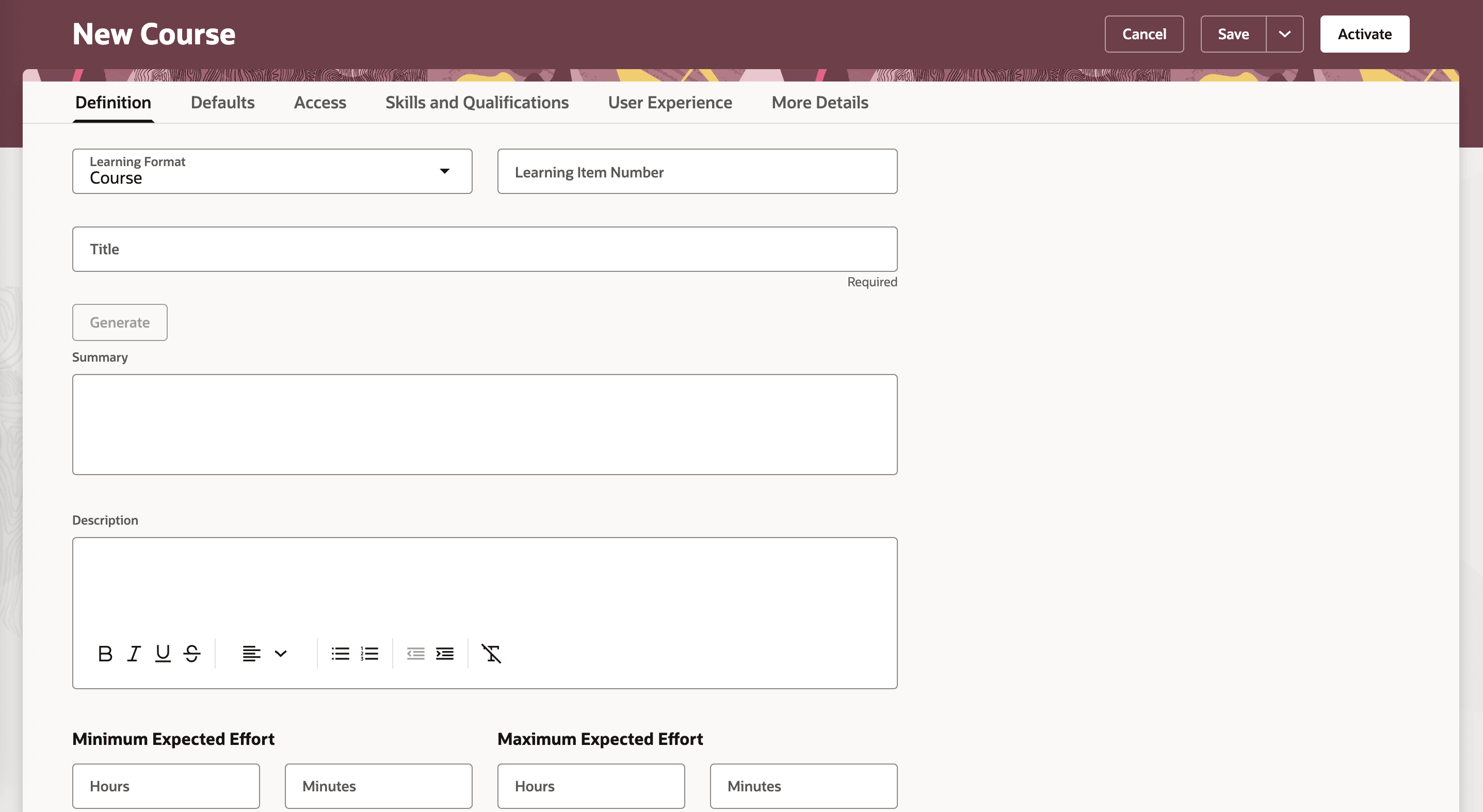
Redwood Course Creation: Modernized Definition Tab
- Follow a step-by-step course creation process with improved organization for core details, descriptions, visuals, and settings.
- Access all course offerings, instructor-led, self-paced, and blended types plus associated events on a single Offerings tab for faster navigation.
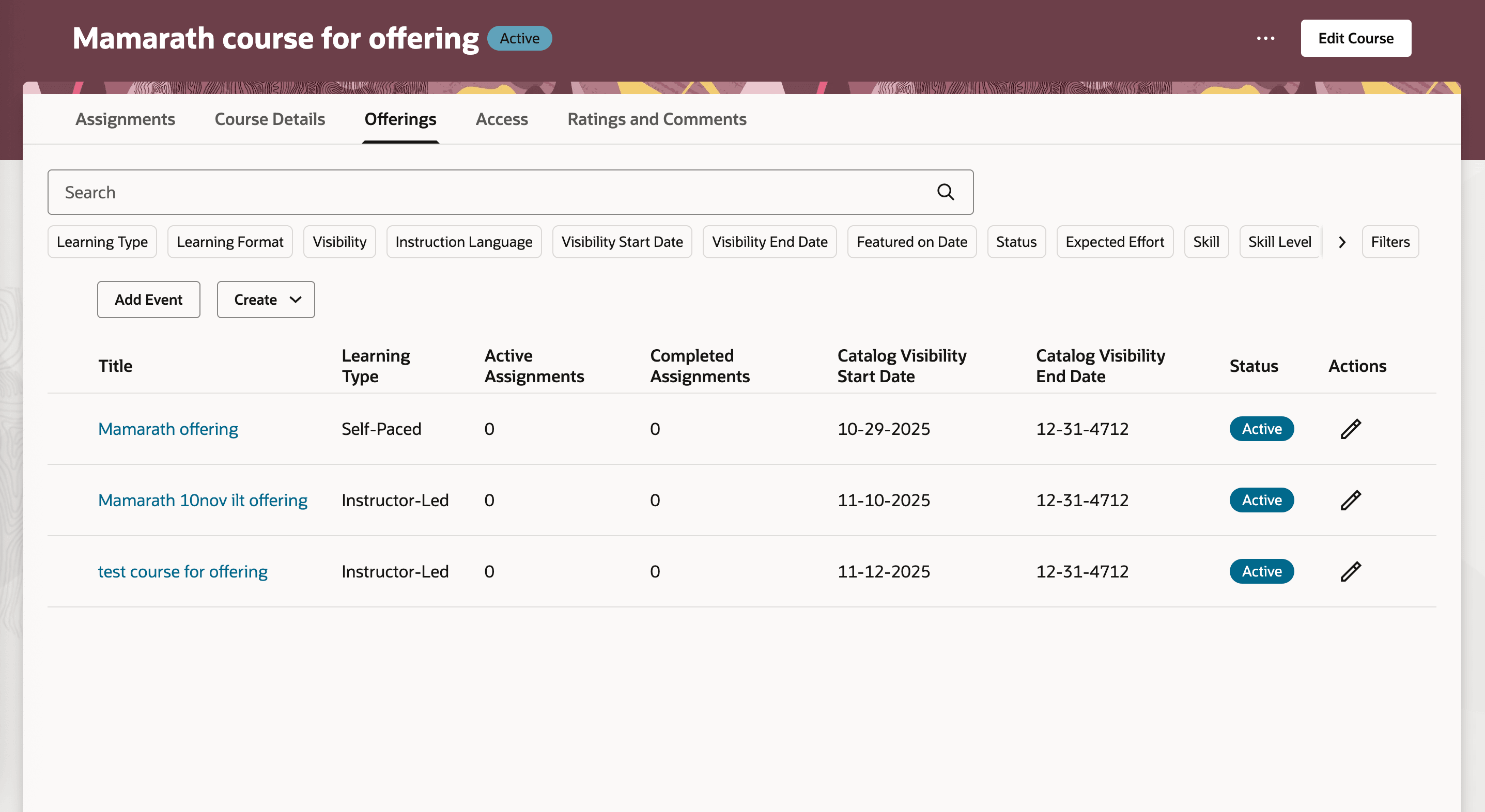
Offerings Tab: Unified View of Linked Learning Offerings and Events
- Act on each offering, including edit, copy, remove, and event linking.
- Manage catalog visibility and update audience access with precise options for privacy, timing, and self-service enrollment.
- Assign, search for, and manually enter authors, instructors, coordinators, and publishers.
- Configure renewal, expiration, and completion rules from a dedicated tab.
- Use generative artificial intelligence to compose smooth, consistent course summaries and descriptions.
- Receive alerts to reconcile assignments when any course update might impact active learning.
Learners
- Browse course detail pages with improved visual layouts, clarity for included content, expected effort, acquired skills, instructors, outcomes, offered languages, and celebratory completion notices.
- Participate with added ratings, comments, and lively discussions through purpose-built interaction tabs.
The Redwood course experience saves time and reduces mistakes for learning specialists through simple workflows and clear forms while helping learners discover, enroll in, and enjoy richer, more interactive course content. The experience also offers a significant step up in personalized, efficient course management and an enriched learning journey.
Steps to enable and configure
- You need to enable these features to use this feature:
- Self-paced learning
- Redwood assignment management
-
Set up unified learning catalog administration and access control.
- Enable release 26A What's New feature Redwood Assignment Management.
- Set the site-level value to Yes for the ORA_WLF_ENABLE_REDWOOD_COURSES profile option. Go to Setup and Maintenance > Tasks panel > Search > Manage Administrator Profile Values.
Tips and considerations
- Edit old courses in the new interface to ensure data completeness.
- Fill legacy fields, such as learning format or expected effort, for optimal catalog display.
- When updating audience settings, review your visibility controls as you switch to user groups.
Key resources
For more information about the unified learning catalog and catalog administration, see these documents:
- Learning Catalog Management: Redwood Experience [3052904.1] on My Oracle Support
- Unified Learning Catalog Administration and Access Control feature in the release 25D What's New
- Oracle Learning Administration Transition to Redwood Series post on customer connect.