Introducing Redwood Assignment Management
The new Redwood assignment management experience offers learning specialists a simpler, smarter, and more reliable way to create, manage, and track learning assignments. It combines unified flows, flexible audience definitions, and robust business rule enforcement to streamline voluntary and required learning while preventing duplicates and invalid segments.
Learning Assignment Profiles
You start by creating one-time and automatic (initiatives) learning assignment profiles to generate voluntary and required learning assignments. This unified assignment flow lets you robustly define the learning audience, enforce business rules, and control the assignment lifecycle. And it automatically prevents duplicate and invalid audience segments.
Key highlights:
- Unified interface: Assign learning, manage assignment profiles, and access learning from a single page.
- Lifecycle controls: Set start and end dates and frequency, as well as validity, renewal, and assignment rules.
- Capacity and waitlisting: Manage capacity and waitlists for events and ILT or blended offerings, with options to bypass waitlists or expand capacity.
- Prerequisite logic: Apply waivers and tailored logic for learners who haven't met prerequisites.
- Flexible audience definition: Identify learners using multiple criteria, including:
- Individual Person
- .csv file upload supports person number and email
- Filtered lists from worker assignments or learning assignments
- Analysis reports, user groups, hierarchy manager, and direct reports
- Advanced criteria using worker attributes, such as business unit, department, job, position, and descriptive flexfields.
- Direct assignment: Assign learning directly from catalog listings or detail pages.
- Conflict management: Set up rules for single and multiple learning assignment, prevent duplicate criteria, and handle exceptions based on business needs.
- Field-level defaults and validations: Configure assignment behavior, such as start date, due date, withdrawal period, and renewal period, using business rules.
- Business rule enforcement: Define and apply rules across assignment fields to ensure consistency and compliance.
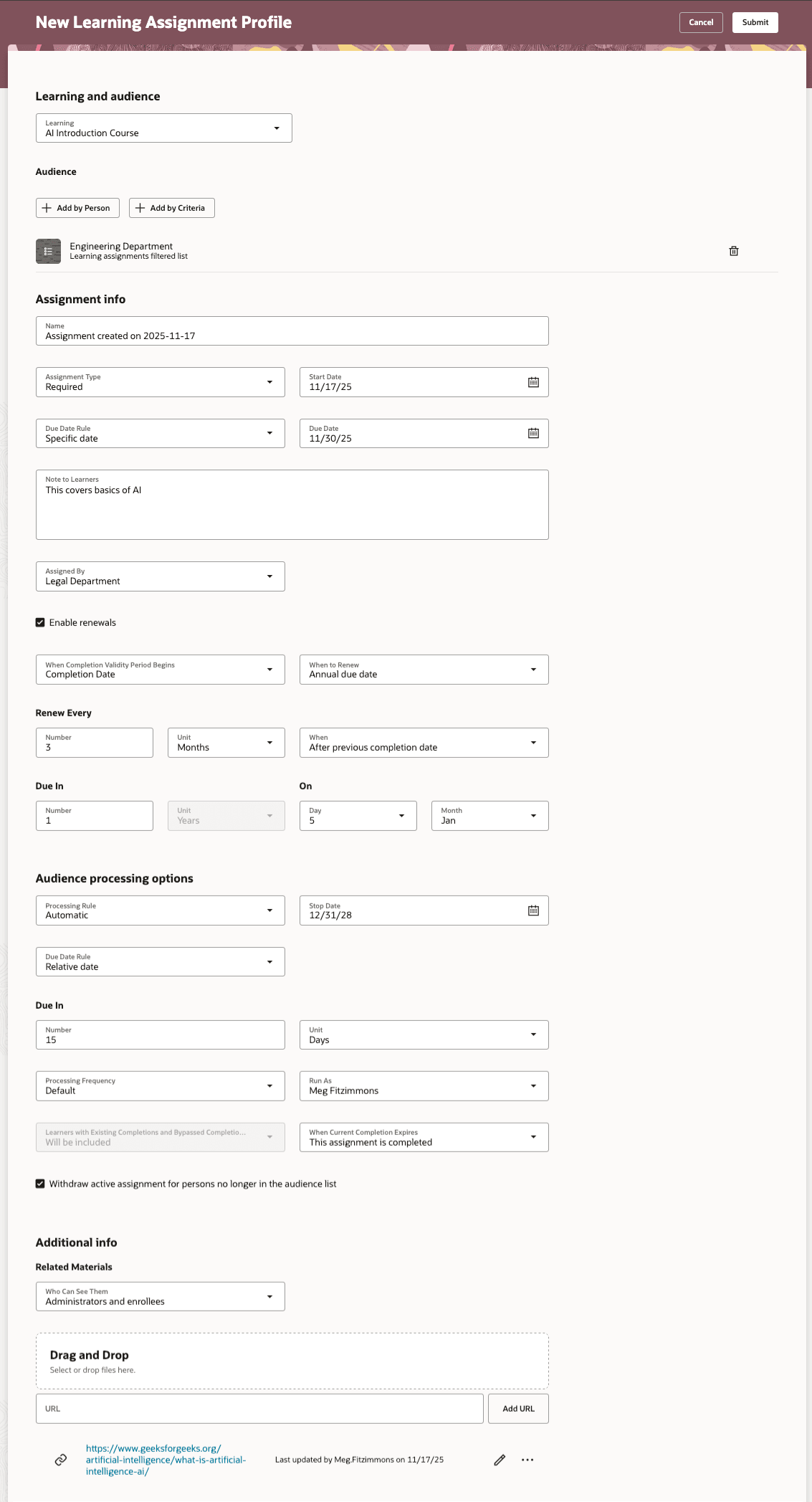
New Learning Assignment Profile Page
You can manage assignment profiles and learning assignments with greater precision and speed using advanced filters, metrics, configurable views, and direct assignment flows. Key highlights:
- Comprehensive filtering: Quickly locate relevant profiles by status, learning type and format, assignment type, and dates.
- Visual insights: See counts of Active, Paused, Cancelled, and One-time profiles.
- Export and reuse: Download search results as Microsoft Excel files and save search criteria for future use.
- Flexible editing: Update audiences, due dates, validity rules, renewal settings, and conflict handling directly in profiles.
- On-demand processing: Manually process profiles so that learning assignments reflect the current audiences—automatically assigning, withdrawing, or reactivating learners as appropriate.
- Controlled cancellation: Cancel outdated profiles with reason codes and identify how assignments are handled (withdrawn, incomplete, or hidden). Cancelled profiles become read-only and are excluded from future processing.
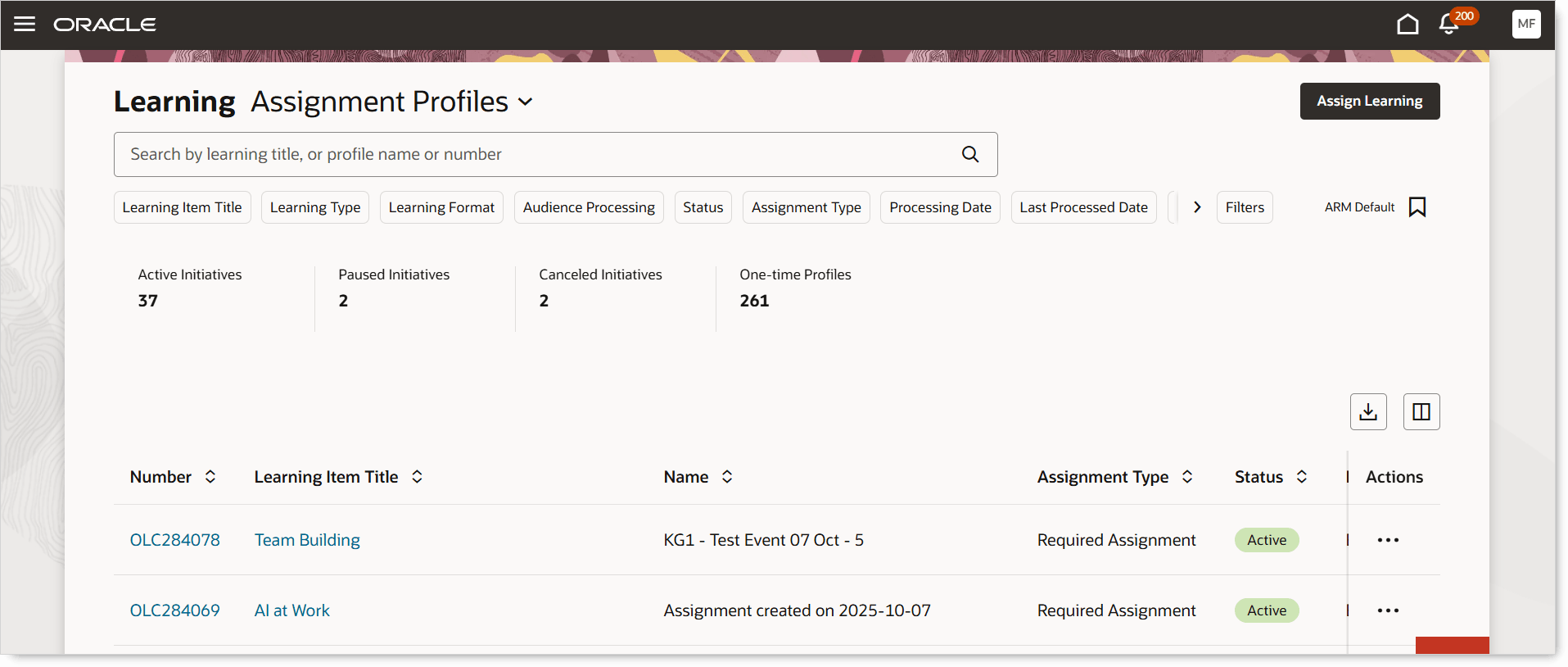
Learning Assignment Profiles Page
Learning Assignments
The Learning Assignments page was redesigned for Redwood to give you a powerful, flexible, and data-rich experience. Key highlights:
- Delivered search views: Easily toggle between configurable views—Learning Attributes (assignment-focused filters) and Worker Attributes (learner-focused filters) are available out of the box. The page layout and results adapt instantly based on the selected search view, improving usability and focus.
- Configurable views: Create, copy, and tailor views with specific filters, keywords, and result columns to suit your organizational needs.
- Advanced filtering: Apply rich filters across learning, assignment profiles, statuses, date ranges, worker attributes (such as manager, job, grade, department, country) and descriptive flexfields.
- Error filtering: Hide assignments in error states to streamline review and action.
- Visual insights: See counts of assignments by statuses and track learner completion with progress indicators.
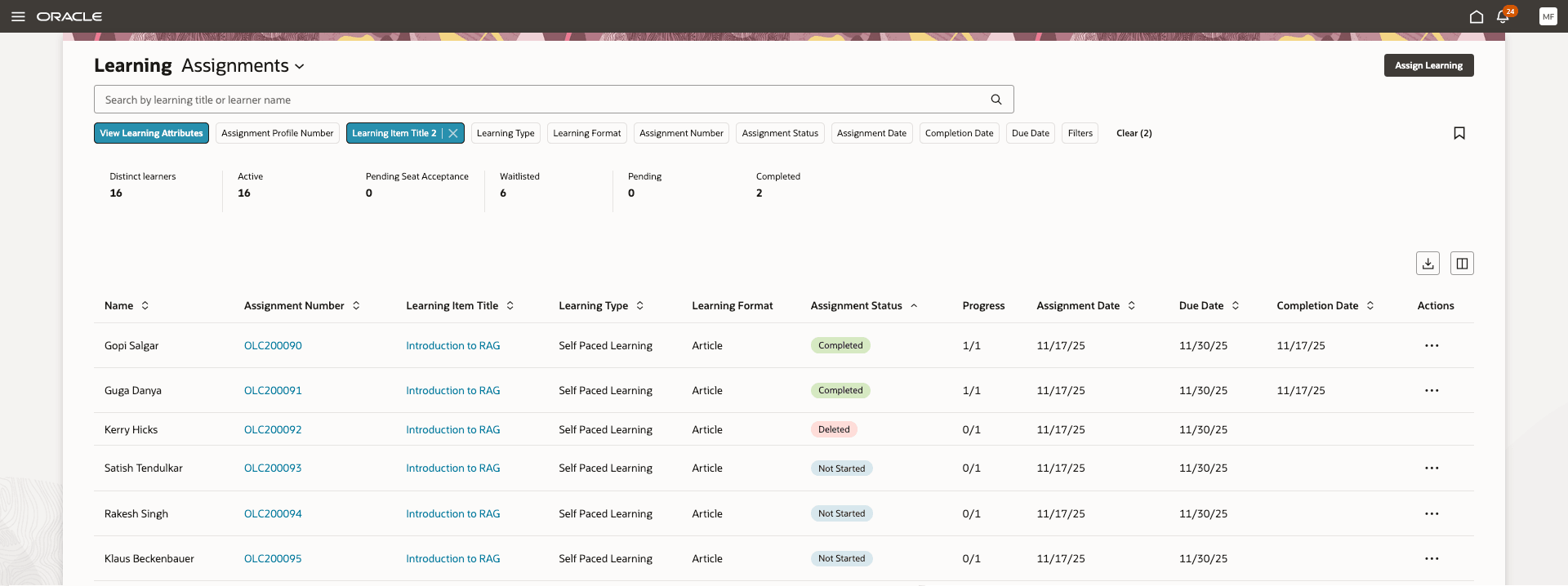
Learning Assignments Page
Assignments tab
A new Assignments tab on all Redwood administration learning details pages provides a centralized view of all assignments linked to the learning. This view gives you deeper visibility and control over learner engagement. Key highlights:
- Interactive assignment counts: Filter the assignment list by clicking Active or Completed counts.
- Delivered search views: Easily toggle between two views—Learning Attributes (assignment-focused filters) and Worker Attributes (learner-focused filters).
- Configurable views: Create, copy, and personalize views with specific filters, keywords, and result columns to suit specific tracking needs.
- Advanced filtering options: Filter by assignment profile attributes, statuses, date ranges (such as assignment, due, completion, expiration), worker attributes (such as manager, job, grade, department, country) and descriptive flexfields.
- Visual insights: See counts of assignment statuses (such as Not Started, In Progress, Completed, and Withdrawn).
- Flexible assignment actions: Assign learning by adding learners individually or using advanced criteria such as job, profile, user group, or hierarchy manager.
You would be able to assign learning from this tab using three Assign By menu options: File, Name, and Advanced options. When you assign learning by file or name, there aren't any renewals or expiration rules, and no audience processing options. To access and configure the full profile attributes, select Advanced options.
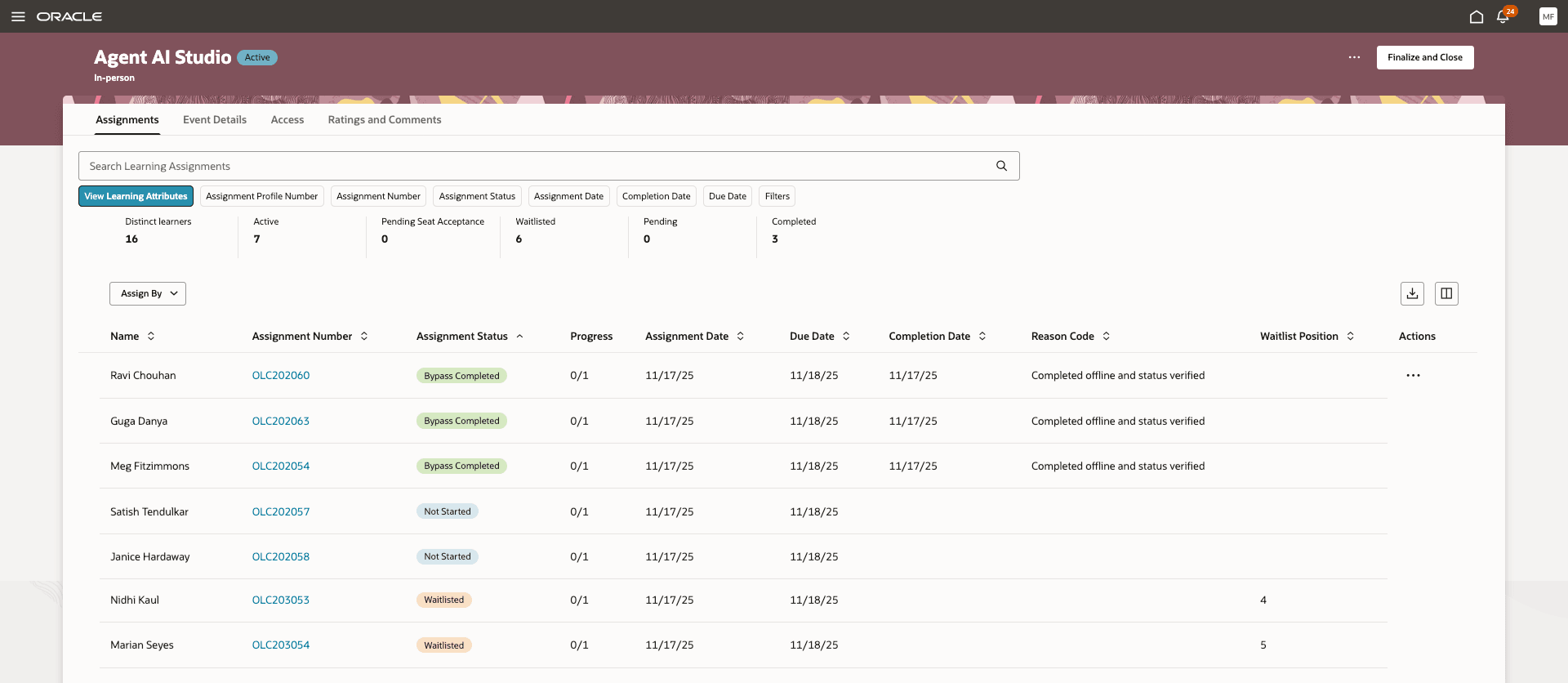
Event Details Page, Assignments Tab
Assignment Details
A new drawer designed for Redwood lets you view and manage the assignment details in a powerful, flexible, and data-rich experience. Key highlights:
- A single panel to view and manage all the assignment details like enrollment details, activities, selected offerings, related materials and enrollment lifecycle.
- Navigate seamlessly between tabs: Enrollment Details, Activities, Enrollment Form, Enrollment Lifecycle, Related Materials, and Selected Offering.
- Support for multiple learning types: Works across course, offering, self-paced learning, and event-based learning assignments.
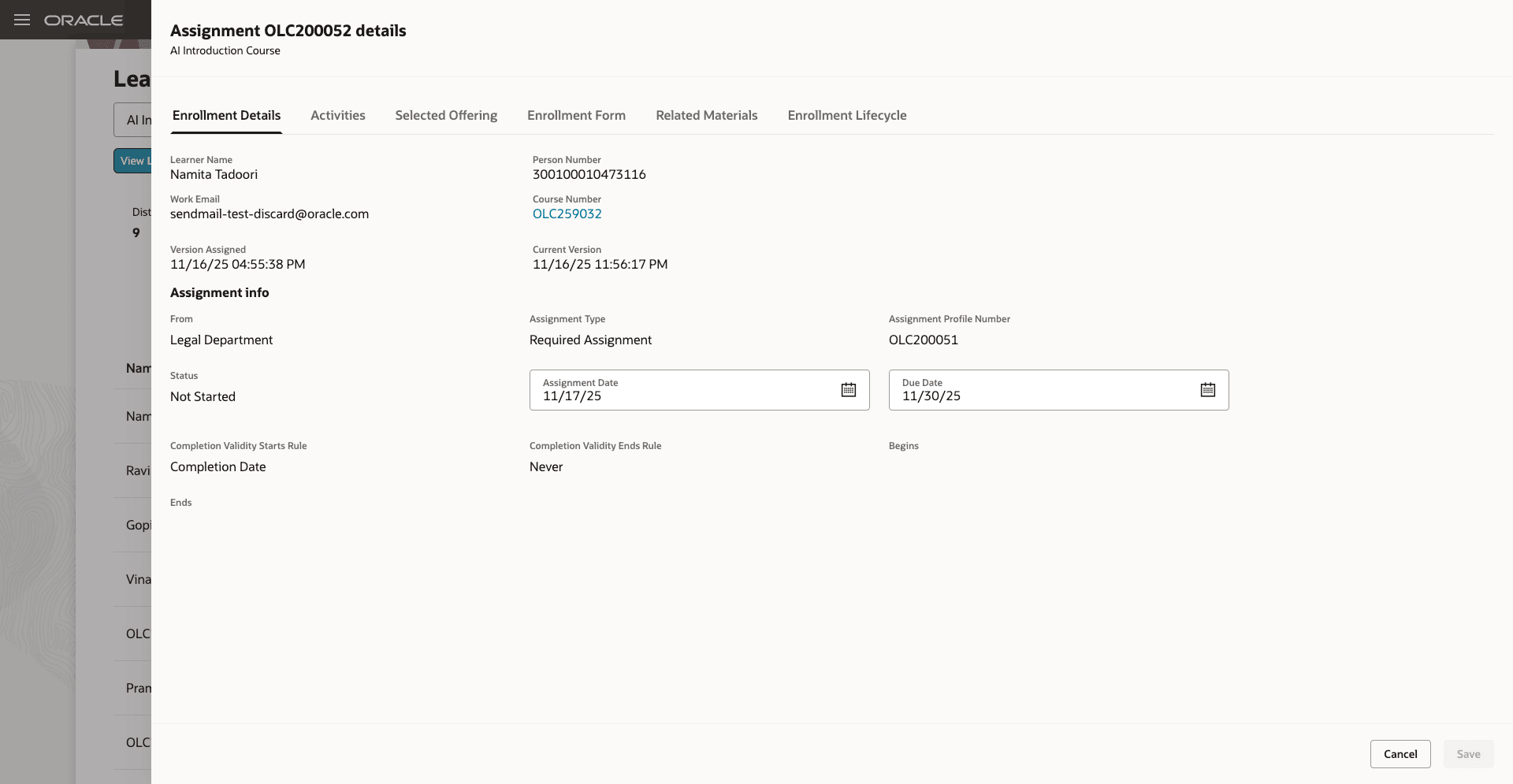
Assignment Details for Course
This feature empowers learning specialists to manage learning assignments with precision and agility—reducing manual effort, improving data accuracy, and aligning delivery with evolving organizational needs.
Steps to enable and configure
Here's how to turn on the Redwood flows:
- Enable self-paced learning.
- Set up unified learning catalog administration and access control.
- Set the site-level or user-level profile value to Y for the ORA_WLF_ASSIGNMENTS_REDWOOD_ENABLED profile option.
- Run the ESS job to create index definition and perform initial ingest to OSCS process with the fa-hcm-learningassignmentprofile parameter.
You also need to configure security. See the Access Requirements section.
Tips and considerations
- Assign Learning actions are available for only active learning.
- Saved searches are tied to the specific search view they were created on and will set the search view automatically when selected.
- Learning assignment actions and list features are role-based and require the relevant privileges.
- If the search view doesn't have the Learning Item Title filter enabled, when specialists open the Learning Assignments page from a course, offering, or specialization classic experience details page, the results won't be filtered to that specific learning.
- For filtering to work on descriptive flexfields, on the Filters tab of search views, enable the appropriate flexfields and set their filter type.
-
-
- Enable the hover card and the combined learning catalog browse and search page. For details, see the release 24D What's New feature Learning Catalog Browse and Search Updates.
- Enable search view configuration support for the learning catalog page. For details, see these release 25A What's New features Configure Learning Catalog Search Filters and Configure Search Experience with Search Views.
-
Add Descriptive Flexfields to Search Views
-
-
- Configure the Oracle Search index fa-hcm-learningitem and enable the learning item descriptive flexfield segments to use for searching or filtering the learning catalog.
- Go to Setup and Maintenance > Tasks panel Search > Manage Search Indexes.
- Configure the fa-hcm-learningitem index.
- Expand the liFlexFields node.
- To enable flexfield segments configured as a list of values, select the Value [Value] options.
- Configure the Oracle Search index fa-hcm-learningitem and enable the learning item descriptive flexfield segments to use for searching or filtering the learning catalog.
-
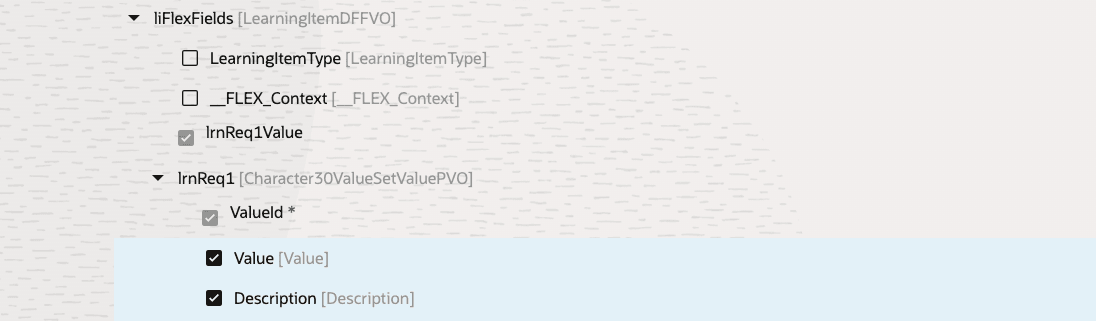
liFlexfields List of Values Segment Example
To enable flexfield segments configured as a text entry, a date and time, or a table validation, select the option that's the segment's name.
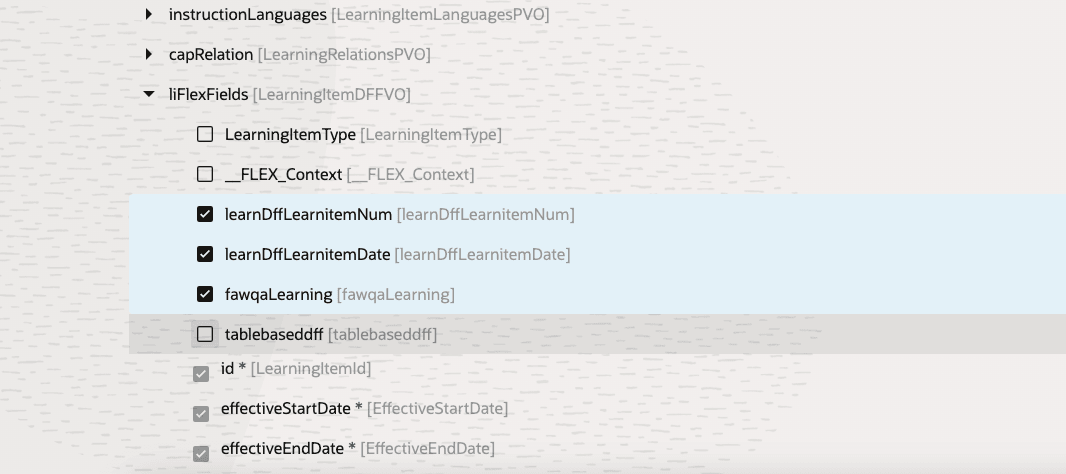
liFlexfields Text Entry and Date Segment Examples
-
-
- Re-ingest the learning item Oracle Search index for the descriptive flexfield segments so that they appear in the search view configuration.
- Go to Tools > Scheduled Processes.
- Submit the ESS job to create index definition and perform initial ingest to OSCS process with the fa-hcm-learningitem input parameter.
- Configure the appropriate learning item search view to enable the applicable flexfield segment in the keyword or filter configuration.
- Re-ingest the learning item Oracle Search index for the descriptive flexfield segments so that they appear in the search view configuration.
-
- For text and numeric descriptive flexfields, aggregations in the filters aren't supported.
- When assigning learning by selecting individual people, assignments will now be created in real time instead of via background processing, as long as the number of selected people does not exceed the number specified by the profile option "Real-time individual learners' processing threshold". Users will need to wait for the processing to finish before they receive confirmation that the assignment was created. The value for this profile option is set to 5 out of the box.
- The automatic (initiatives) learning assignment profiles can only be created for learning types specialization, self-paced or a course.
- On the Assignment Profiles listing page, for existing manager-created assignment profiles, many of the columns, like Name, Audience Processing, Last Processed Date, Learning Format, Processing Duration, etc., will be blank.
- The Learners tab on course, offering, and specialization details pages was also enhanced:
- Access Groups tab is now the default selection.
- Learning Assignments and Learning Initiatives tabs are no longer displayed.
- Manage Default Access has moved under the Actions menu.
- Learning Assignments and Assignment Profiles buttons are now visible across all tabs, not just the Learners tab—improving access and consistency.
Key resources
For more information, see the Oracle Learning Administration Transition to Redwood Series post on customer connect.
Access requirements
Grant the Learning Assignment Management duty to appropriate users. It contains these roles and privileges.
| Role Name | Code | Description |
|---|---|---|
| View Learning Assignments by Administrator | ORA_WLF_VIEW_LEARNING_ASSIGNMENT_BY_ADMIN | Allows searching and viewing learning assignments in the administrator work area. |
| Manage Learning Assignment Profiles | ORA_WLF_MANAGE_LEARNING_ASSIGNMENT_PROFILES | Allows the user to manage learning assignment profiles. |
| View Learning Assignment Profiles | ORA_WLF_VIEW_LEARNING_ASSIGNMENT_PROFILES | Allows the user to view learning assignment profiles. |
| View Learning Catalog Items | ORA_WLF_VIEW_LEARNING_CATALOG_ITEMS | Allows the user to view learning catalog items. |
| Use REST Service - Learning Record Searches by Administrator | ORA_WLF_REST_SERVICE_ACCESS_LEARNING_RECORD_SEARCHES_BY_ADMIN | Allows the user to search learning records as a learning administrator. |
| Privilege Name | Code | Description |
|---|---|---|
| Manage Learning Assignments | WLF_MANAGE_LEARNING_ASSIGNMENTS_PRIV | Allows the user to manage learning assignments. |
| Withdraw Completed Learning Assignments | WLF_WITHDRAW_COMPLETED_LEARNING_ASSIGNMENTS_PRIV | Allows the user to withdraw completed assignments. |
| Perform Mass Actions on Learning Assignments | WLF_PERFORM_MASS_ACTIONS_ON_LEARNING_ASSIGNMENTS_PRIV | Allows the user to perform mass actions on learning assignments. |
| Select Learning Audience by Analysis | WLF_SELECT_LEARNING_AUDIENCE_BY_ANALYSIS_PRIV | Allows the user to define a learning audience using analysis reports. |
| Select Learning Audience by Filtered List | WLF_SELECT_LEARNING_AUDIENCE_BY_FILTERED_LIST_PRIV | Allows the user to define a learning audience using filtered lists. |