Schedule Generation Profiles Enhancements
These enhancements make schedule generation profile duplication faster and allow greater flexibility:
- Duplicate an existing schedule generation profile with a single click that opens a details drawer.
- Option to include or exclude staffing departments when creating a duplicate profile.
- Duplicated profiles are automatically saved as drafts, letting you review and edit before activation.
- The duplicate action always copies the float department, while staffing departments are only copied if you choose to include them.
- Validation ensures each department belongs to just one schedule generation profile.
- Now, add business unit as a condition to define eligibility for self-scheduling rotations and groups for published open shifts.
Common scenarios include:
- Quickly roll out proven profiles: Use an existing profile as a template for a new location, with control over department attachments.
- Smooth profile rollover at key dates: Save time by duplicating profiles as organizational needs change.
- More precise eligibility: Configure self-scheduling and open-shift rules that only apply to intended business units.
These enhancements speed up the creation of schedules by reducing manual setup, improve compliance by validating department assignments, and tighten control over who can self-schedule or claim open shifts through business unit conditions.
Steps to enable and configure
Here's how to duplicate an existing schedule generation profile:
- Go to My Client Groups > Schedule Generation Profiles.
- In the applicable profile row, select Actions > Duplicate.
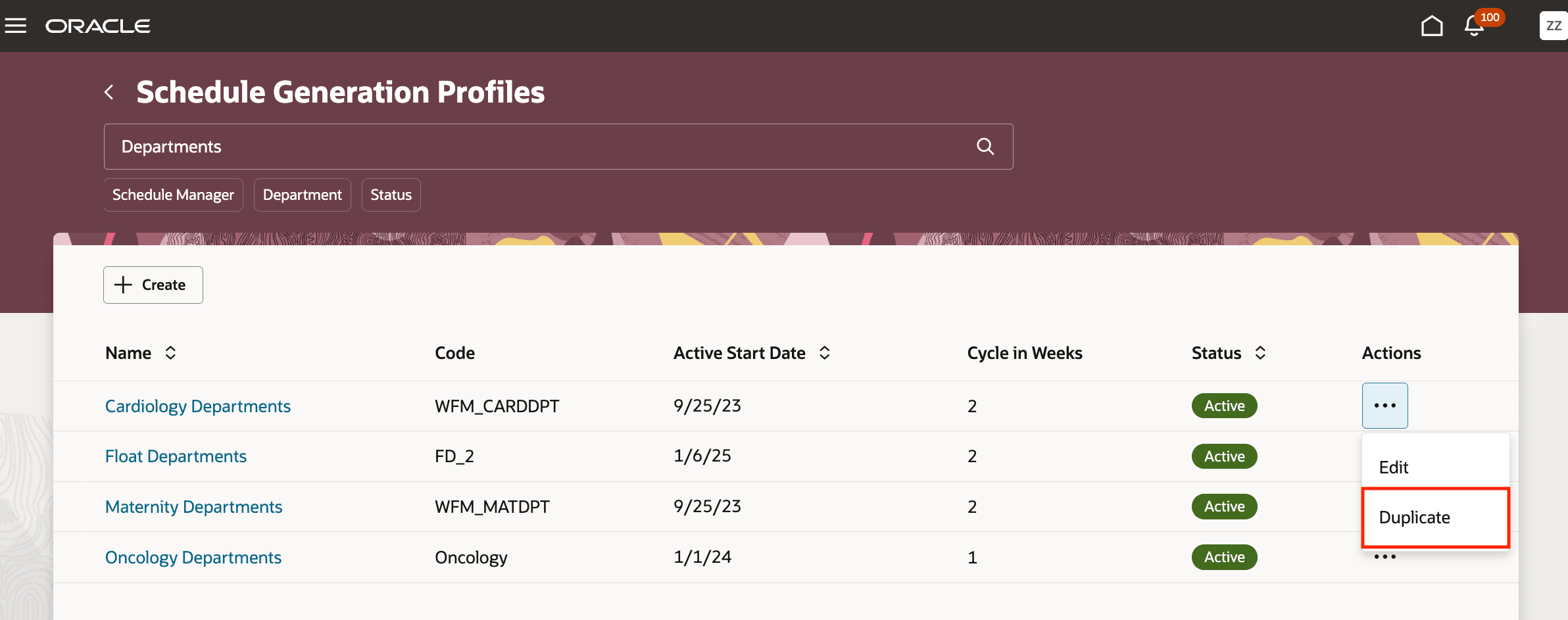
Duplicate Action on Schedule Generation Profiles
- In the Duplicate profile drawer, complete the required and relevant optional fields.
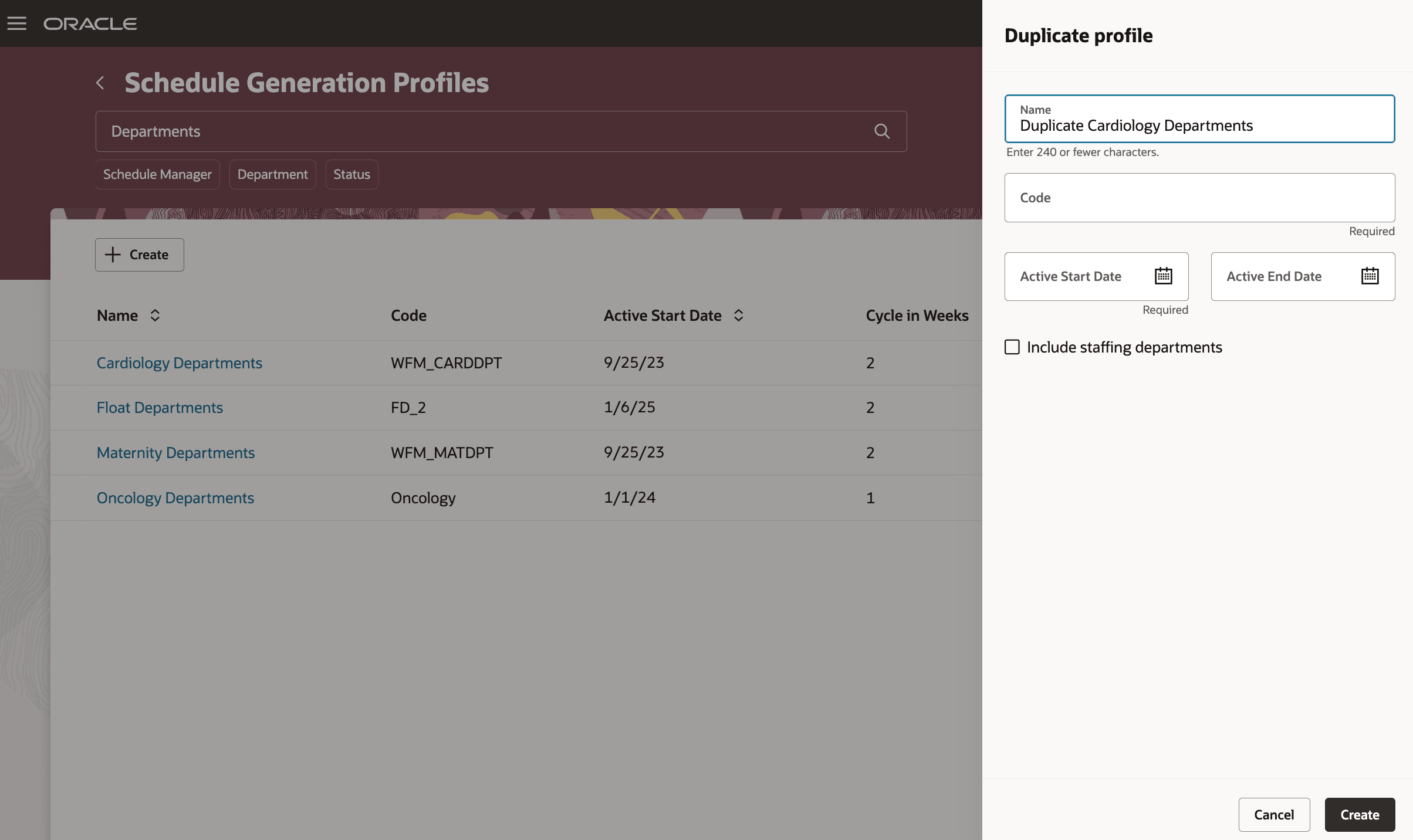
Duplicate Profile Drawer
- To bring over staffing departments from the source profile, select Include staffing departments. If deselected, staffing departments aren't copied.
- Click Create. The profile is created in Draft status in review.
- Open the draft profile to review it, make appropriate updates, and activate the profile when it's ready.
If you plan to leverage Business Unit conditions in related Workforce Management configurations, review and update your condition rules to align with the new attribute.
Tips and considerations
Staffing departments option:
- Selected: Departments are copied to the new profile; validation ensures a department belongs to only one profile at any time.
- Deselected: Departments aren’t copied.
Float department is always copied.
Key resources
For more information about schedule generation profile, see the release 24B What's New feature Schedule Generation Profile Introduction
Access requirements
Here are the aggregate privileges that schedule administrators and managers need to work with schedule generation profiles:
| Privilege Name | Code | Description |
|---|---|---|
|
Manage Schedule Generation Profiles by Schedule Administrator |
ORA_HTS_MANAGE_SCHEDULE_GENERATION_PROFILE_BY_ADMINISTRATOR |
Allows schedule administrators to manage schedule generation profiles. |
|
View Schedule Generation Profiles by Schedule Administrator |
ORA_HTS_VIEW_SCHEDULE_GENERATION_PROFILE_BY_ADMINISTRATOR |
Allows schedule administrators to view schedule generation profiles. |
|
View Schedule Generation Profiles by Schedule Manager |
ORA_HTS_VIEW_SCHEDULE_GENERATION_PROFILE_BY_MANAGER |
Allows schedule managers to view schedule generation profiles. |