Manage Jobs with AI Assistance
The Jobs Assistant is your AI-powered assistant designed to seamlessly integrate with Oracle Cloud HCM Jobs, acting as an intelligent companion that assists HR professionals in creating, viewing, editing, and deleting job data.
Powered by Oracle’s AI Agent framework and advanced large language models (LLMs), the Jobs Assistant interprets your natural language questions and responds with clear, actionable answers tailored to your organization’s policies.
Here are some benefits of using this agent instead of the UI:
- Reduces manual HR administrative effort, speeds up data retrieval and updates, and allows HR teams to focus on strategic initiatives.
- Generates dynamic summaries and change insights, highlighting what’s been modified across job versions.
- Offers interactive prompts and confirmations for safer execution of job changes.
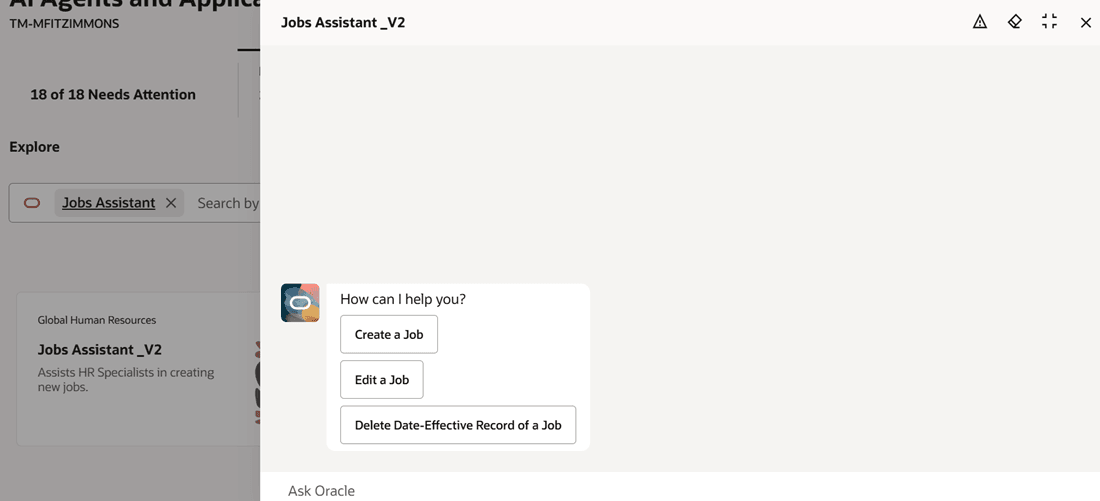
Jobs Assistant AI Agent showing the starter question
View Jobs
The agent helps HR professionals quickly access and review job details, including active jobs, historical versions, Summary of changes, and date-effective records. It also helps them view jobs by grade, job family, or function, and identifies jobs with missing or outdated data.
Sample Queries on Viewing Jobs That the Agent Can Answer
Here are some sample queries that HR professionals have about viewing jobs, which the agent can answer:
- Can you show me all jobs whose title starts with Analyst?
- Show me the details for the Analyst job with code “Sales Analyst”.
- Find me all the active jobs in the Global High Tech Sales job family.
- What jobs are associated with the Managerial job function?
- I want to view all jobs that have a blank job family.
- Can you pull up the latest details for the Sales Manager job?
- Pull up the earlier version of the GSTA.Global Staff Administrator job.
- What modifications were done in the GSTA.Global Staff Administrator job from the previous version to now?
Question: Can you show me all jobs whose title starts with Analyst?
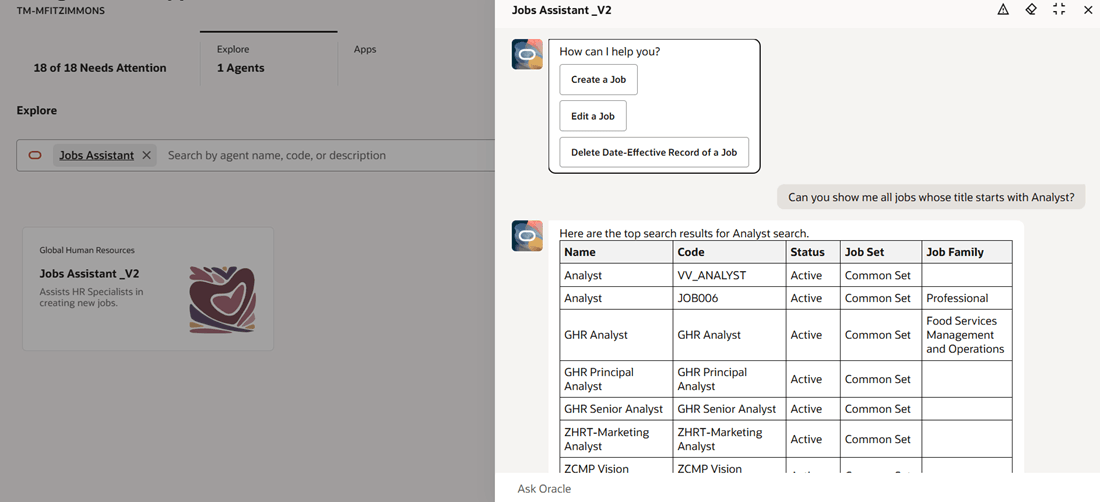
All jobs whose title starts with Analyst
Question: I want to view all jobs that have a blank job family.
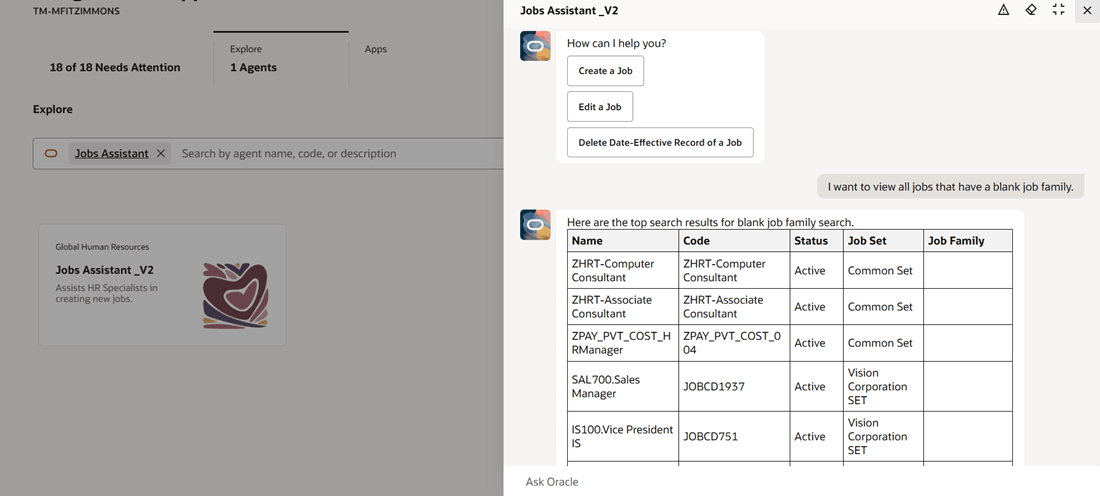
All jobs that have a blank job family
Question: What modifications were done in the GSTA.Global Staff Administrator job from the previous version to now?
This question is related to Summary of changes. The agent will show you the changes that you can see on the view page at the top. It will replicate the same info.
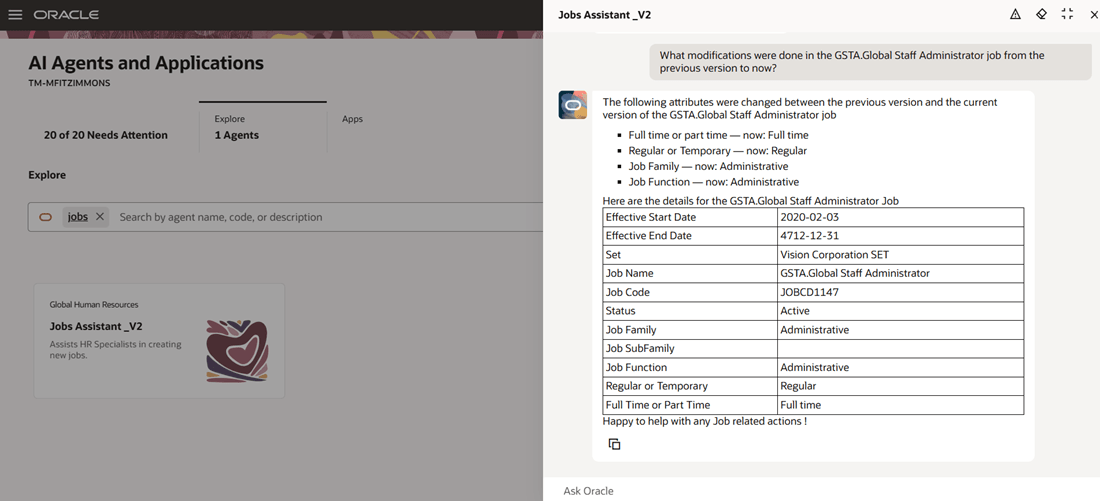
Modifications done to a job from the previous version to the current version
Edit Jobs
The agent helps HR professionals update or correct existing job records with minimal risk of errors, ensuring accuracy and compliance with organizational standards.
Sample Queries on Editing Jobs That the Agent Can Answer
Here are some sample queries that HR professionals have about editing jobs, which the agent can answer:
- I want to update the Sales Manager job’s job family starting from Jan 1, 2024.
- Change the current grade of Global Sales Representative job to Manager.
Question: I want to update the Sales Manager job’s job family starting from Jan 1, 2024.
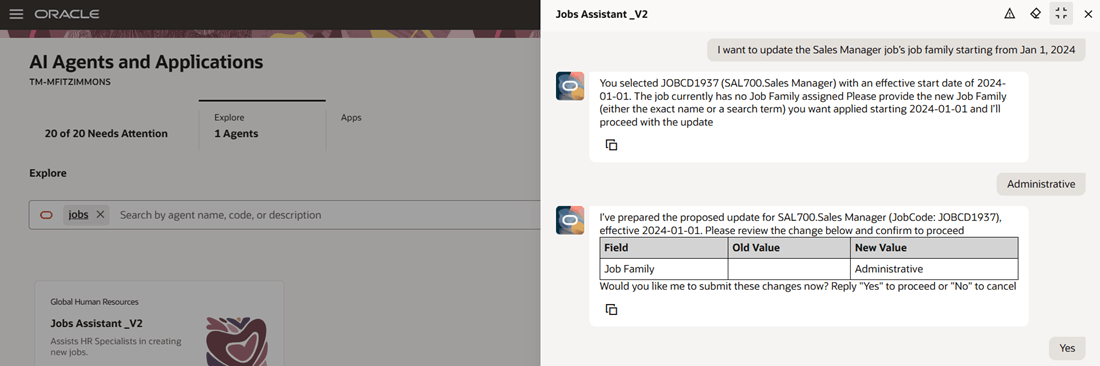
Updating the job family for a job starting from a specific date
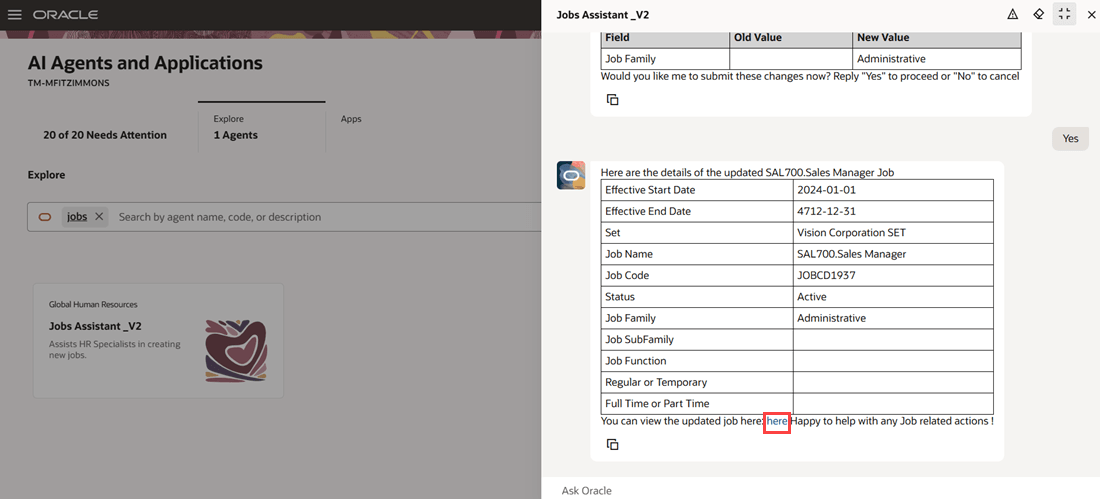
Agent displays details of the updated job and a view link to the updated record
Delete Jobs
HR professionals can safely delete date-effective job records to maintain up-to-date records. Deleting a job record isn’t currently supported for the AI Agent. It shows you a link to the job view page that will take you to the latest record. You can navigate to the History section, decide which date effective record you want to delete, and then delete it.
Sample Queries That the Agent Can Answer
Here’s a sample query that HR professionals have about deleting jobs, which the agent can answer:
Question: Delete the GSTA.Global Staff Administrator entry from the job list.
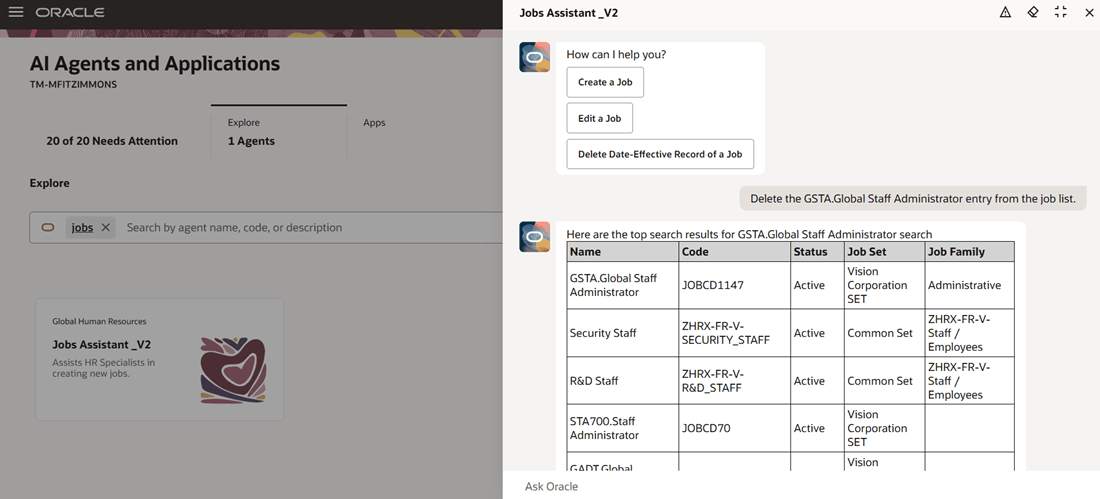
Top search results for the specified job
After you select the job to be deleted by replying with the job name or job code, it will give you the view link to review the date-effective records and delete the suitable record.
Note: If only one date-effective record exists, it won’t show you the view deep link. It will show you a message saying there’s only one date-effective record and you can’t delete it.
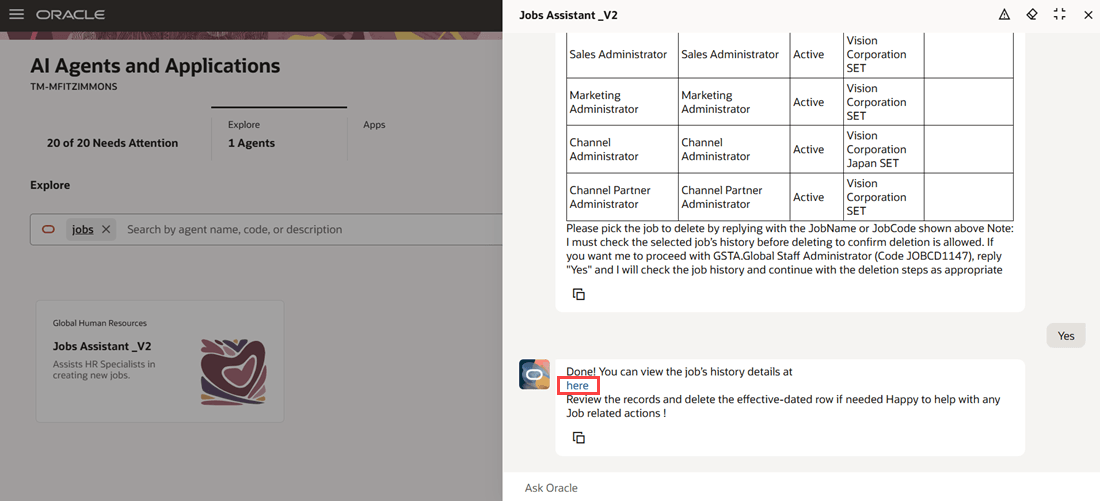
View link displayed to view the job's history details and delete the row that you want to
Business benefit: HR professionals can manage jobs through a single conversational interface without having to navigate multiple pages. The agent guides them step by step, validates entries, and ensures that job views, updates, corrections, or deletions are processed seamlessly and accurately.
Steps to enable and configure
-
Your environment must have certain necessary configurations. Ask your help desk to contact Oracle Support, who can verify what your environment has and address any gaps. For more information, see FAQ2521 on My Oracle Cloud Support.
-
Set the Enable Security Console External Application Integration (ORA_ASE_SAS_INTEGRATION_ENABLED) profile option to Yes and enable permission groups for the appropriate roles. See Access Requirements for AI Agent Studio.
-
The Jobs Assistant is a preconfigured template. You need to create your own agent using the preconfigured template.
-
To learn how to set up AI agents, see Create AI Agents Using Preconfigured Agent Team Templates.
-
Tips and considerations
Controlling what information the agent can return
- What's honored: Role-based data security (RBAC). Users see only that data which their role permits.
- What’s not honored: Localization rules and your own business rules in Visual Builder Studio aren't enforced by the Agent.
What's not included
- Data that's pending for approval isn't retrieved by the agent.
- Any object that has more than 25 rows will return only 25 rows.
Key resources
Access requirements
The agents you can view depend on the roles and privileges assigned to you. To access this agent, your role must be explicitly granted access to it by an AI Studio Administrator.
See How can I give users access to AI agents, and Access Requirements for AI Agent Studio.