 Dynamic Notes Generation for Journey Tasks Using BI Reports and AI Agent
You can now generate journey task notes dynamically by selecting the dynamic notes source as BI Report or Agent. The dynamically generated notes are displayed in the task notes section along with any static notes provided in the journey template.
Use this feature to personalize your task notes and display additional information easily and accurately, making your tasks less complex and easy to navigate.
For example, when initiating an exit process:
- HR specialists and managers can immediately view the employee’s job, department, location, and line manager directly within the task.
- Termination date can be verified.
- No manual cross-checking with multiple screens is required.

Select Source as BI Report to Dynamically Generate Task Notes

Verify Task Details Before Completing Task

View Completed Task
Here's another example where an employee has a task in a performance journey to review their equity award and state their preference. You can personalize the task notes by including relevant tokens that are displayed dynamically when the employee accesses the task. Attributes such as the employee's name, year, company name, equity amount, and allotment date can be obtained from a BI report so that the employee can view a personalized message in their task notes.
When you configure the journey task, you can select BI Report as the source to generate task notes dynamically and provide the path of your custom report.

Select Source as BI Report to Dynamically Generate Task Notes
This is an example of a task assigned to an employee. When the employee accesses the task to view their equity award details, the report is run, and the task fetches the details from the custom BI report. The details are then displayed dynamically in the note section of the task.

Dynamically Generated Notes by BI Report Displayed in Journey Task Notes Section
When the user marks the task as complete, they can return to the task anytime to view the dynamically generated task notes.

View BI Report After Task is Completed
You can pass these journey specific parameters in the BI report path:
- P_ALLOCATED_TASK_ID
- P_ALLOCATED_CHECKLIST_ID
When you select Agent as the source, you need to select the specific workflow agent that will generate task notes dynamically.

Select Source as Agent to Dynamically Generate Task Notes
Here's an example of a task note that’s dynamically generated by an AI Agent to show the compensation details for an employee. When the employee accesses this task assigned to them, the agent is triggered, and it fetches the compensation data.

Dynamically Generated Notes by AI Agent Displayed in Journey Task Notes Section

View Task Notes After Task is Completed
You can pass these parameters to the workflow agent:
- workerJourneyId
- workerJourneyTaskId
- assignmentId
- personId
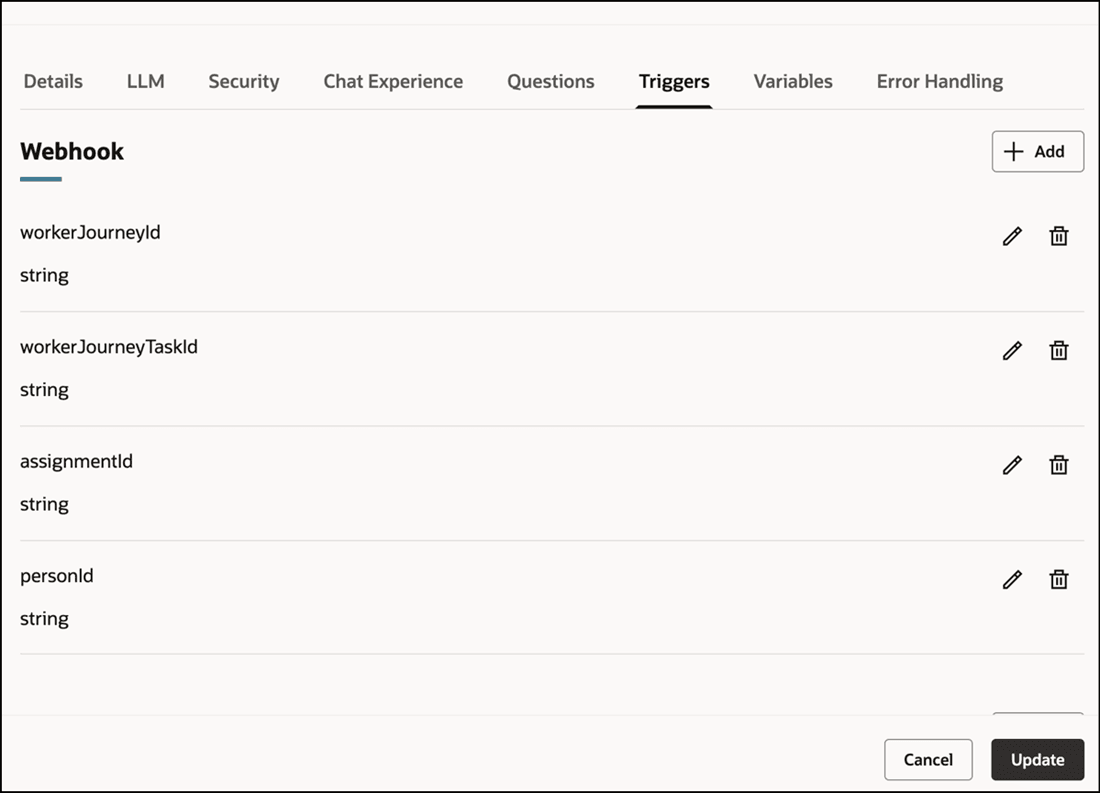
Parameters for Journey Workflow Agent
Business benefit: Users can now include any type of dynamic content to get clear and contextual insights directly within their journey tasks notes.
Steps to enable and configure
-
For more information, see the Generate Dynamic Notes section in this topic: How do I create journey tasks?
-
Your environment must have the appropriate services for Oracle Applications Platform deployed. For more information, see FAQ2521 on My Oracle Cloud Support.
-
Set the Enable Security Console External Application Integration (ORA_ASE_SAS_INTEGRATION_ENABLED) profile option to Yes and enable permission groups for the appropriate roles. See Access Requirements for AI Agent Studio.
-
You need to create your own agent using the preconfigured template.
-
To learn how to set up AI agents, see Create AI Agents Using Preconfigured Agent Team Templates.
-
Tips and considerations
-
Dynamic notes are not supported for guided journey tasks.
-
You can continue to provide static instructions in addition to dynamic notes.
-
All standard input parameters supported in BI reports, such as Person ID, Assignment ID, Task ID and Journey ID are available for dynamic notes.
-
The dynamic notes source (BI Report and Agent) is primarily designed to only display dynamic content. It's recommended to use this feature only to generate the necessary dynamic content and not large volumes of data.
-
The Notes field supports 4000 characters which includes images, formatting, etc.
-
The output of the report or agent is only displayed in HTML format in the journey task.
-
The BI Report or Agent is run dynamically each time the user accesses the journey task. However, if the user marks the task as complete, then only the generated HTML content is displayed when they access the task subsequently.
Key resources
For more information, refer to these resources:
Access requirements
-
You must be granted the Manage Journey (ORA_PER_MANAGE_JOURNEY_TEMPLATE) aggregate privilege to work on journey templates.
-
The agents you can view depend on the roles and privileges assigned to you. To access this agent, your role must be explicitly granted access to it by an AI Studio Administrator. See How can I give users access to AI agents, and Access Requirements for AI Agent Studio.