Configure Document Type Tag for Journey Task Attachments
You can now use the Applied Tags field to automatically assign standardized tags to document records when attachments are automatically transferred to document records. These tags are derived from the tags configured for each document type, ensuring consistent classification across documents.
Applied tags help organizations group, organize, and filter document records more efficiently, making it easier for HR specialists and administrators to quickly locate and manage documents.
This feature is available in these scenarios:
-
All journey tasks where attachments are enabled and a document type is configured to transfer attachments to document records.
-
Specific task types, such as Report, Native eSignature, and I-9 Verification where reports or I-9 documents are configured to be transferred to document records.
This example illustrates a manual task in a journey where a user uploads a passport as an attachment. While configuring the task, applicable tags are selected for the associated document type. When the task is completed, the attachment is transferred to Document Records, and the selected tags are automatically applied to the document record.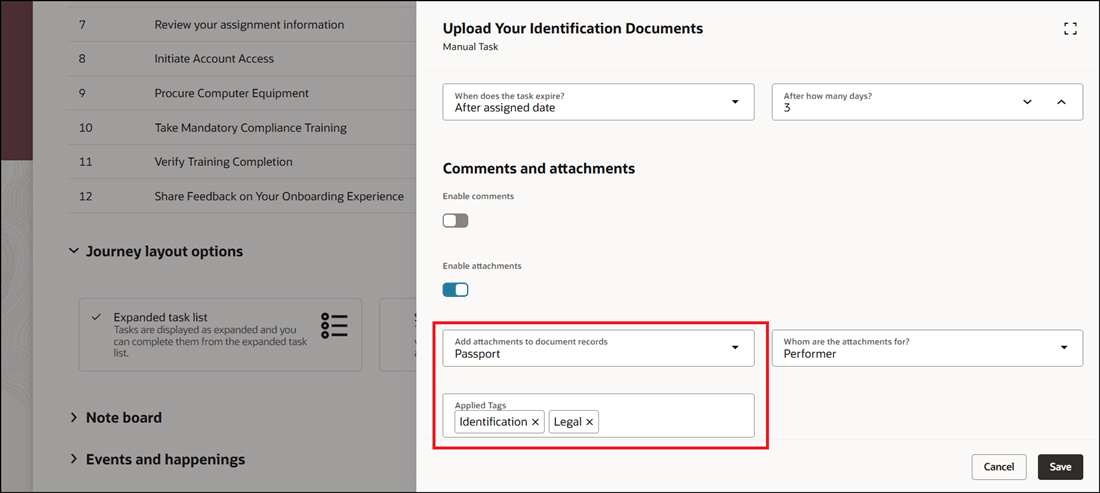
Select Tags for Document Type
You upload the attachment when you perform the task, and mark the task as completed.
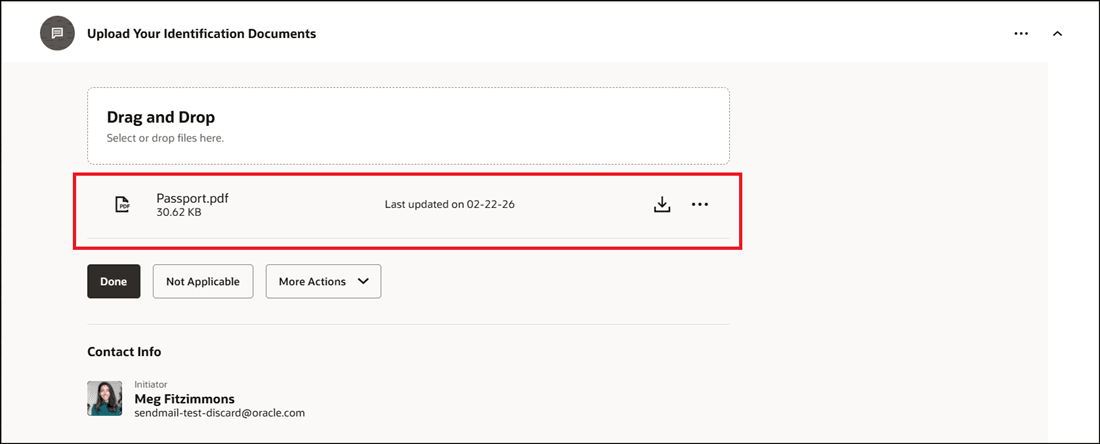
Upload Task Attachment
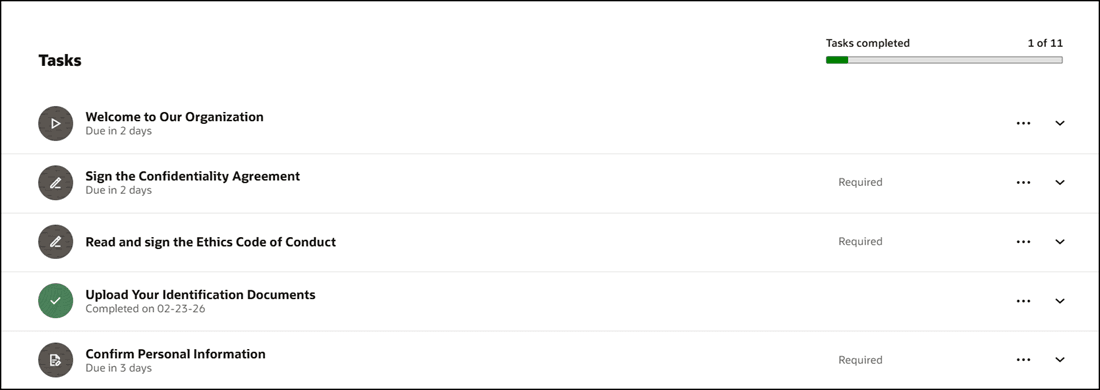
Mark Task as Complete
When the journey task is completed and the attachments are transferred to document records, the applied tags are associated to the document record.
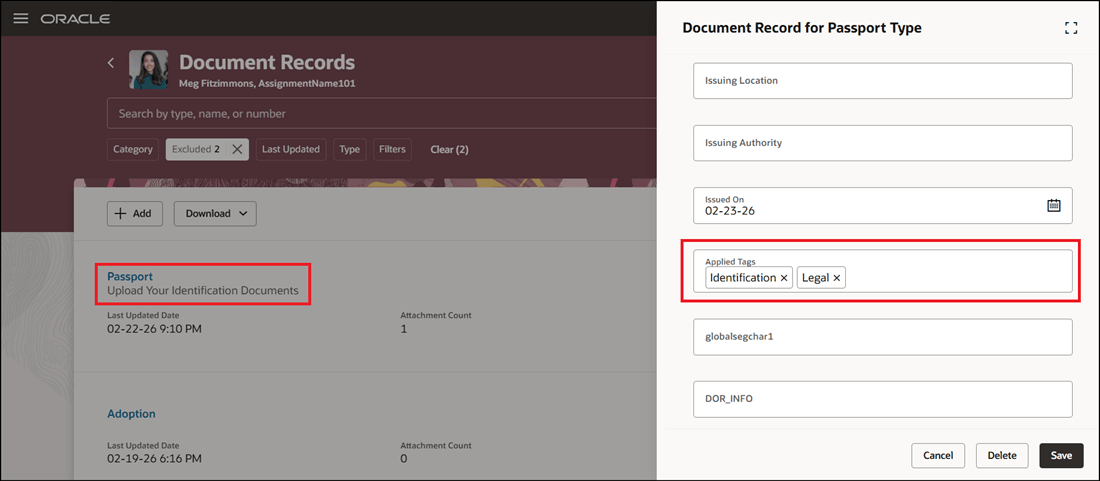
Tags Attached to Document Record
Ensures documents are automatically categorized with the correct tags, improving organization and searchability in Document Records.
Steps to enable and configure
For more information, see this topic: Configure Document Type Tag for Journey Task Attachments
Tips and considerations
-
This feature only applies to Redwood Journey setup page.
-
Only tags that are configured for the selected document type are populated in the Applied Tags list on the journey task page.
Key resources
For more information about journeys, refer to the Implementing and Using Journeys guide on Oracle Help Center.
Access requirements
You must be granted the Manage Journey (ORA_PER_MANAGE_JOURNEY_TEMPLATE) aggregate privilege to work on journey templates.