 Time Zone Configuration in Journey Templates
You can now configure your preferred time zone by using the new Time Zone Code field at the Journey template level so that journey allocation, status changes, and time-based evaluations follow the selected local time zone instead of using the default UTC time zone. This ensures that all journey and task dates, such as allocation date, due date, expiry date, delay duration, overdue status, and reminders are calculated based on the selected time zone rather than the default UTC setting.
To ensure that the configured time zone code on the journey template is applied correctly, you need to schedule the Process HR Checklist and Tasks ESS process to run daily. When this process runs, it evaluates all journey allocations and task dates based on the selected time zone and updates tasks accordingly, initiating new tasks or expiring existing ones as required.
When a time zone is configured at the journey template level, these attributes are evaluated based on the time zone:
-
Allocation Date
-
Due Date
-
Expiry Date
-
Delay Duration
-
Overdue Status
-
Reminder Notifications
Consider this example:
An HR user in Australia (UTC+10 AEST) hires an employee Jack Thomson, with a hire date of 15-November-2025. The onboarding journey is automatically triggered. Here's how the journey and task dates are evaluated before and after configuring the time zone code.
Before Enhancement (UTC-Based Allocation)
Because the application evaluates allocation timing in UTC, the journey remains in Deferred status until UTC reaches 12:00 AM on 15-November-2025. Although it is already November 15 locally, the application waits for the UTC date to roll over before initiating the journey and tasks.
| Local Time (AEST) | UTC Time | Journey Status | Task Status |
|---|---|---|---|
| 9:00 AM, Nov 15 | 11:00 PM, Nov 14 | Deferred | Deferred |
| 9:45 AM, Nov 15 | 11:45 PM, Nov 14 | Deferred | Deferred |
| 10:00 AM, Nov 15 | 12:00 AM, Nov 15 | Initiated | Initiated |
Here's an example of an onboarding journey that was deferred in Australian time zone. The journey was deferred because the time zone was set to the default UTC value when it was assigned.
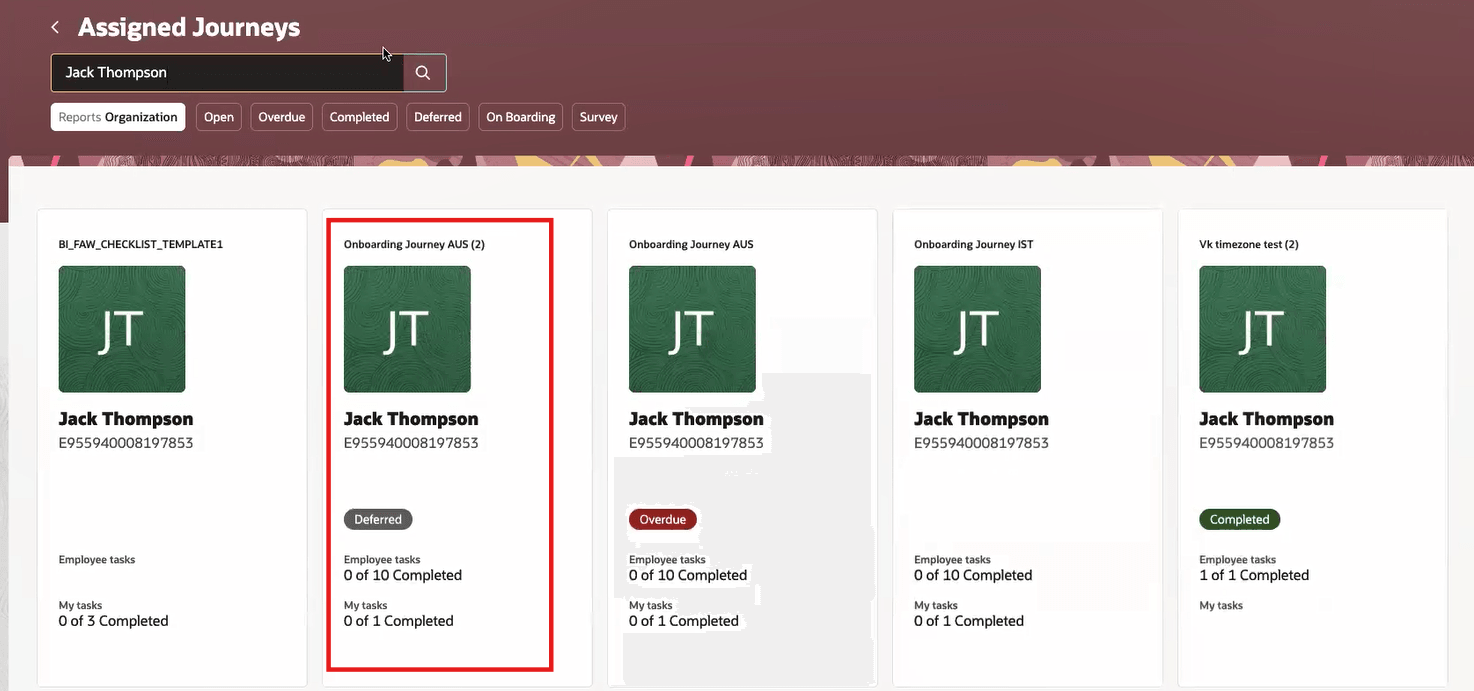
Journey in Deferred Status Because of Default Time Zone
In this case, the journey tasks are configured to start on 15-November-2025, but since the UTC time zone is a day earlier, the tasks are not yet initiated.
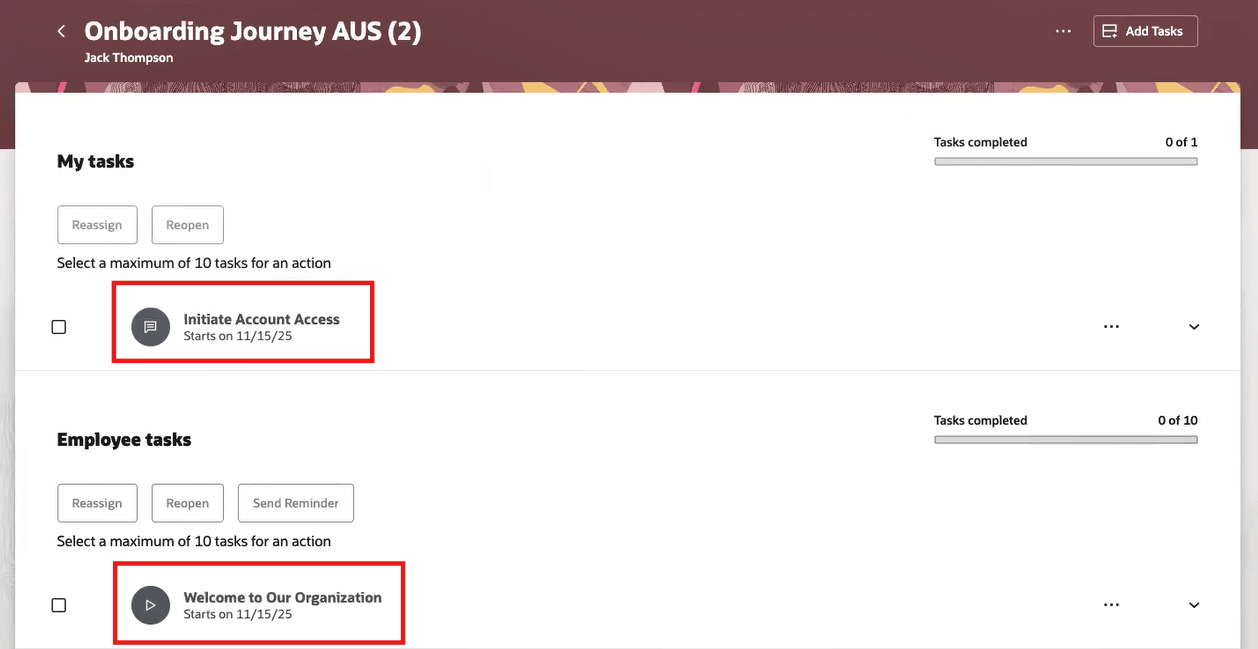
Tasks not Initiated Until Time Zone is Evaluated
After Enhancement (Configured Time Zone Code - AEST)
With the time zone code set to AEST (UTC+10) on the journey template, allocation is evaluated in local time. After the time zone is changed to Australian time zone and the Process HR Checklist and Tasks process is run, the deferred status is removed for the journey. Additionally, the tasks are initiated for 15-November-2025.
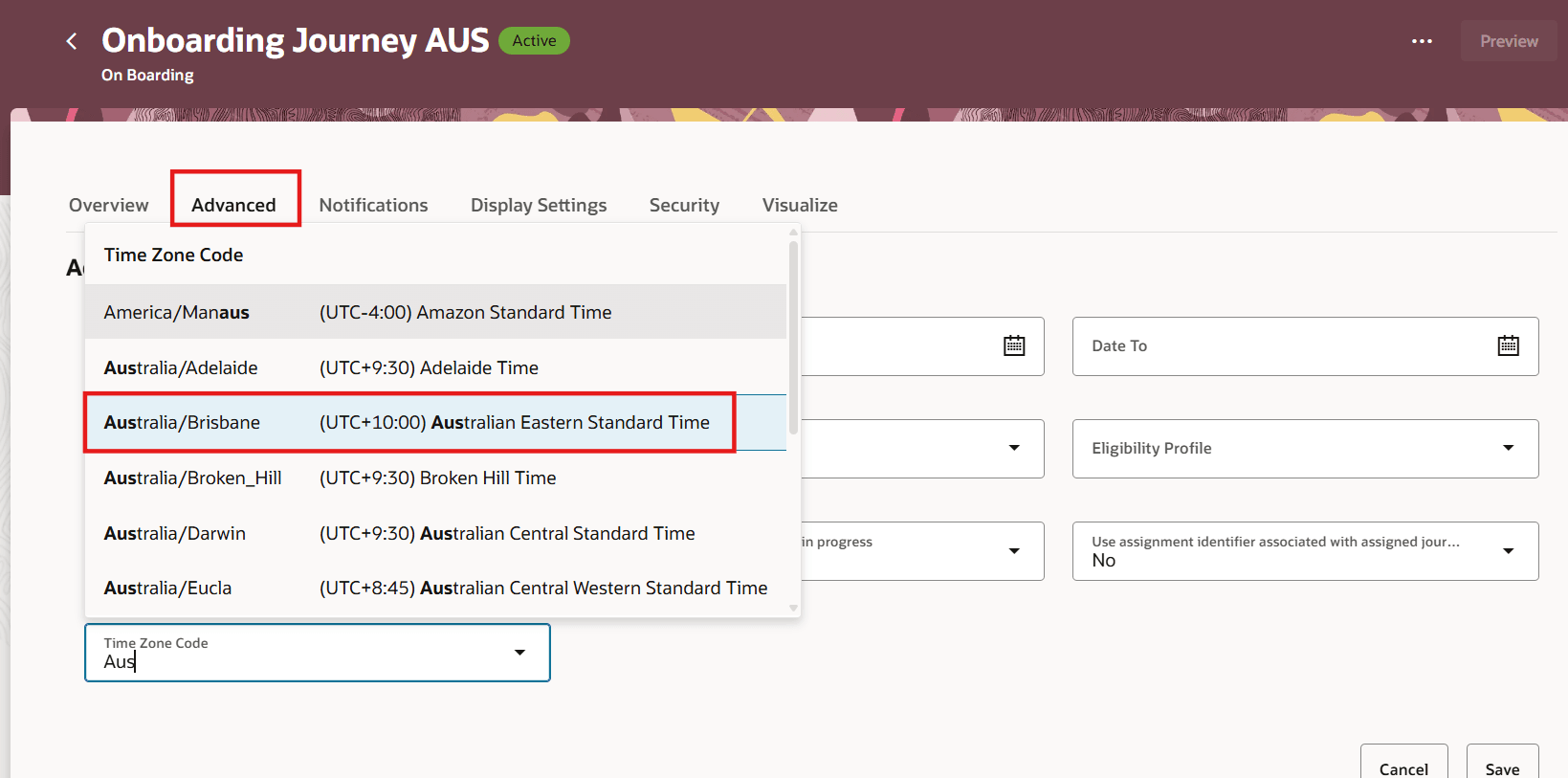
Select Time Zone Code During Journey Template Configuration
| Local Time (AEST) | UTC Time | Journey Status | Task Status |
|---|---|---|---|
| 9:00 AM, Nov 15 | 11:00 PM, Nov 14 | Initiated | Initiated |
| 9:45 AM, Nov 15 | 11:45 PM, Nov 14 | Initiated | Initiated |
| 10:00 AM, Nov 15 | 12:00 AM, Nov 15 | Initiated | Initiated |
In this configuration, the journey and task allocation occur according to the configured local time zone rather than UTC.
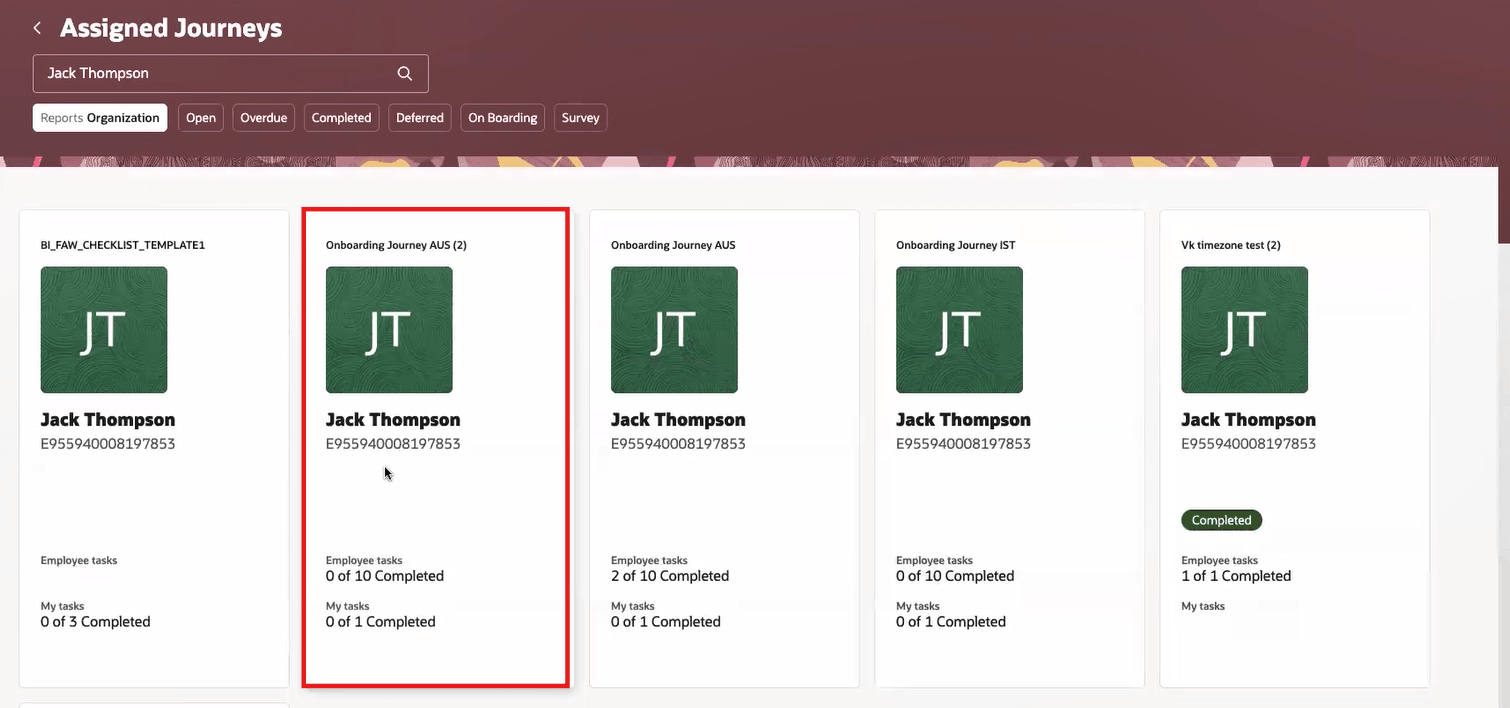
Journey Not in Deferred Status After Evaluating Configured Time Zone
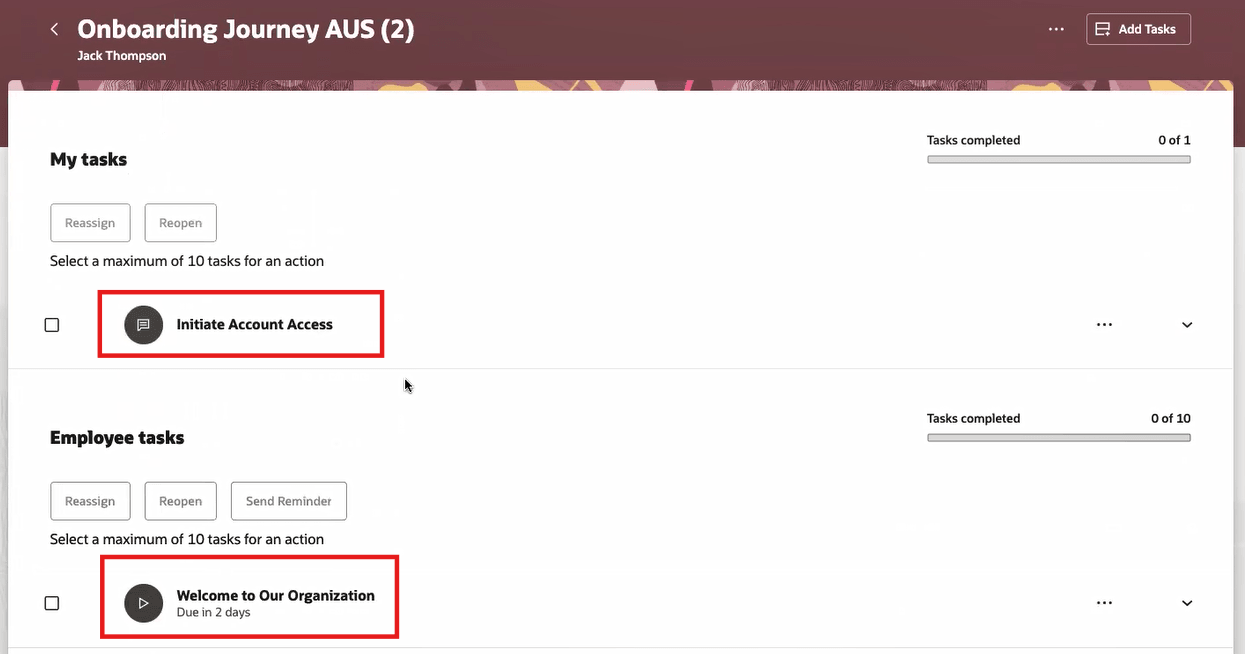
Journey Tasks are Initiated After Evaluating Configured Time Zone
Similarly, due date, expiry date, delay duration, and reminder notifications are calculated based on the selected time zone instead of the default UTC setting.
This feature ensures journey and task allocations are triggered based on the configured local time zone rather than UTC, thereby eliminating unnecessary delays. As a result, organizations can initiate time-based tasks immediately, improving compliance, operational efficiency, and employee experience.
Steps to enable and configure
Schedule the Process HR Checklist and Tasks ESS process to run daily in your selected time zone. The process when run will pick up all journeys tasks to initiate or expire. For more information, see the Time Zone Code field in the table in this topic: What are the attributes that define a journey template?
Tips and considerations
-
By default, UTC is populated as the time zone in the journey template.
-
The time zone configuration affects only those journeys where the time zone is selected.
-
The Time Zone Code field is available only when the journey template is configured with Alerts-based notification as the processing mode.
-
All date computations for journeys, such as allocation date, due date, expiry date, waiting date, overdue, and reminders are impacted by the time zone configuration. These dates will honor the time zone configured on the journey template irrespective of where the user is accessing the journey or task from.
Key resources
For more information, see the Implementing and Using Journeys guide.
Access requirements
You must be granted the Manage Journey (ORA_PER_MANAGE_JOURNEY_TEMPLATE) aggregate privilege to work on journey templates.