Trigger Workflow Agent on Journey Task Completion with AI Assistance
You can now associate workflow agents with journey tasks so that key business actions happen automatically the moment a task is completed. This enhancement allows you to trigger a workflow agent directly from a completed journey task, thus removing manual follow-ups and ensuring downstream processes start immediately.
Here’s how the process works:
-
A workflow agent is associated with a specific journey task.
-
When the journey task is marked as Complete, the workflow agent is automatically triggered.
-
The agent executes the defined business logic (for example, sending notifications or calling external systems).
Here’s an example where you can trigger an associated workflow agent: Generate an email and place an order for an employee badge when the approver completes the task.
-
An employee submits a badge request as part of a journey task and uploads their photo.
-
The manager reviews the request.
-
When the manager completes the task, these actions follow:
-
The workflow agent automatically notifies the badging system.
-
The employee receives confirmation that the request is approved.
-
The badge creation process begins immediately.
-

Configure Workflow Agent to Trigger After Task Completion
The manager reviews the Request for Badge task and clicks Submit to complete the task.

Click Submit to Mark Task as Complete
When the Request for Badge task is marked as completed by the manager, the workflow agent automatically notifies the badging system and employee through email.

Task Marked as Complete
These parameters are passed to the workflow agent:
- workerJourneyId
- workerJourneyTaskId
- assignmentId
- personId
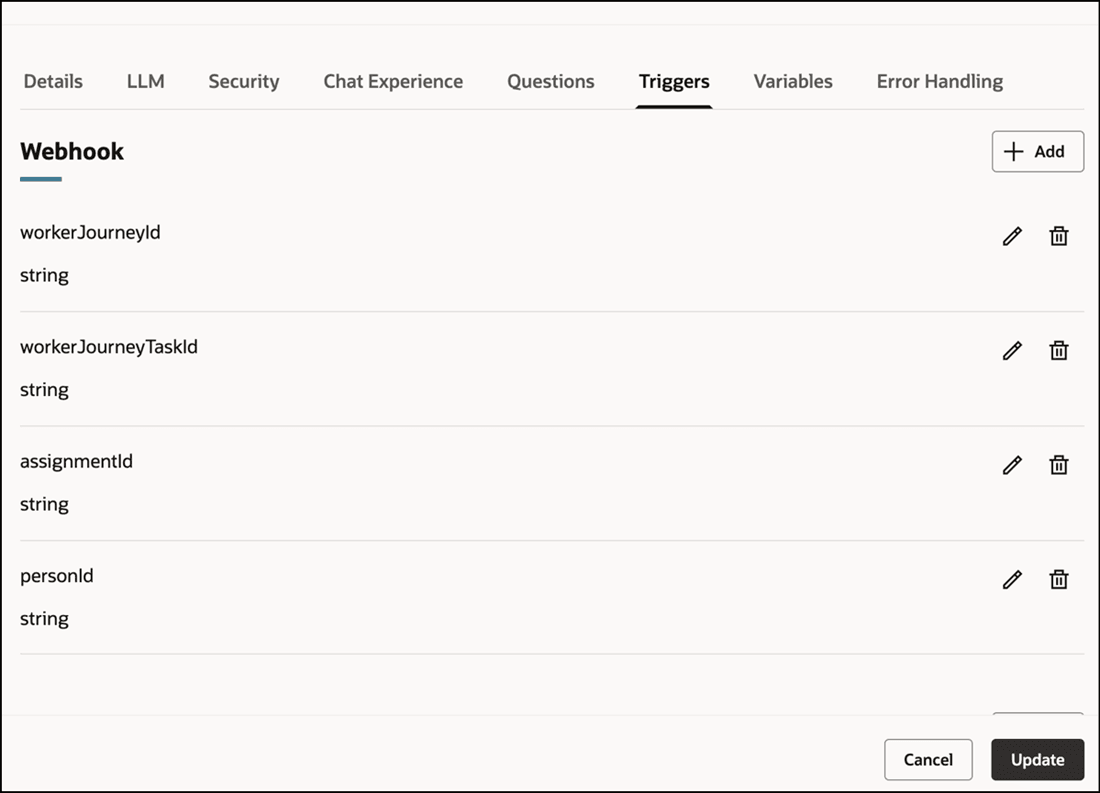
Parameters for Journey Workflow Agent
Business benefit: This feature removes the manual handoffs between teams and systems while accelerating approvals and downstream processes.
Steps to enable and configure
-
For more information, see the Trigger Workflow Agent when Journey Task is Completed section in this topic: How do I create journey tasks?
-
Your environment must have certain necessary configurations. Ask your help desk to contact Oracle Support, who can verify what your environment has and address any gaps. For more information, see FAQ2521 on My Oracle Cloud Support.
-
Set the Enable Security Console External Application Integration (ORA_ASE_SAS_INTEGRATION_ENABLED) profile option to Yes and enable permission groups for the appropriate roles. See Access Requirements for AI Agent Studio.
Tips and considerations
-
Currently, you can only trigger the workflow agent from the Journeys UI. If you use HCM Data Loader or REST API to complete the journey task, the workflow agent won’t be triggered.
-
Users who participate in the journey need to be granted access to the associated workflow agent.
Key resources
For more information, refer to these resources:
Access requirements
-
You must be granted the Manage Journey (ORA_PER_MANAGE_JOURNEY_TEMPLATE) aggregate privilege to work on journey templates.
-
The agents you can view depend on the roles and privileges assigned to you. To access this agent, your role must be explicitly granted access to it by an AI Studio Administrator. See How can I give users access to AI agents, and Access Requirements for AI Agent Studio.