Manage Positions with AI Assistance
In continuation of the Positions Assistant (Supervisor Agent) introduced in Release 25D (Create New Positions or Reuse Existing Positions with AI Assistance), we have now delivered an enhanced workflow agent Positions Management Assistant.
Positions Management Assistant is a new, separate workflow agent that extends position management capabilities to editing positions, apart from the existing capabilities of creating and viewing positions.
This workflow agent includes all the capabilities of the existing Release 25D Positions Assistant supervisor agent and extends functionality to support Line Managers and HR professionals, enabling them to manage positions more efficiently across their teams and workforce. It leverages advanced large language models (LLMs) to understand your natural-language requests and provide contextual, accurate assistance when creating, viewing, reusing, and editing positions.
NOTE: The existing Supervisor Agent template will no longer be supported. Instead, you can use the workflow agent template.
Here are a few points to note:
- If you’re currently using a copy of the Release 25D agent, you can continue using it without disruption. However, it will continue to support only the functionalities that were delivered as part of that agent, and not the new capabilities.
- This enhancement gives greater flexibility by allowing you to either continue with the existing supervisor agent or adopt the enhanced workflow agent for expanded position management.
Here are some benefits of using this workflow agent instead of the UI:
- Proactively suggests the vacant positions reporting to the manager.
- Allows initiating a requisition for one of the vacant positions, which can be done by selecting the corresponding deeplink.
- If the manager prefers to create a new position, they have the option of duplicating an existing position by selecting the corresponding deeplink. Otherwise, the position is created from scratch by using the name and code provided and by defaulting the other key attributes from the manager's position.
- Reduces time-to-fill by suggesting existing vacant positions and allowing positions to be created in a more guided manner. This feature is especially helpful because managers may not be aware of the vacant positions that can be reused.
- Assists new or occasional users in determining the correct action and then provide a step-by-step guidance through the action.
View Positions
Using the agent, HR professionals can quickly access and review position details, including active positions, historical versions, Summary of changes, and date-effective records.
NOTE: While displaying position details, the agent shows the following columns: Name, Code, Status, Business Unit Name, and Department Name.
Sample Queries on Viewing Positions That the Agent Can Answer
Q: Search for positions for business unit Vision ADB
Q: Show details of position with name Sales Manager
Q: Show summary of changes for position SSP.VPPOS since 2025
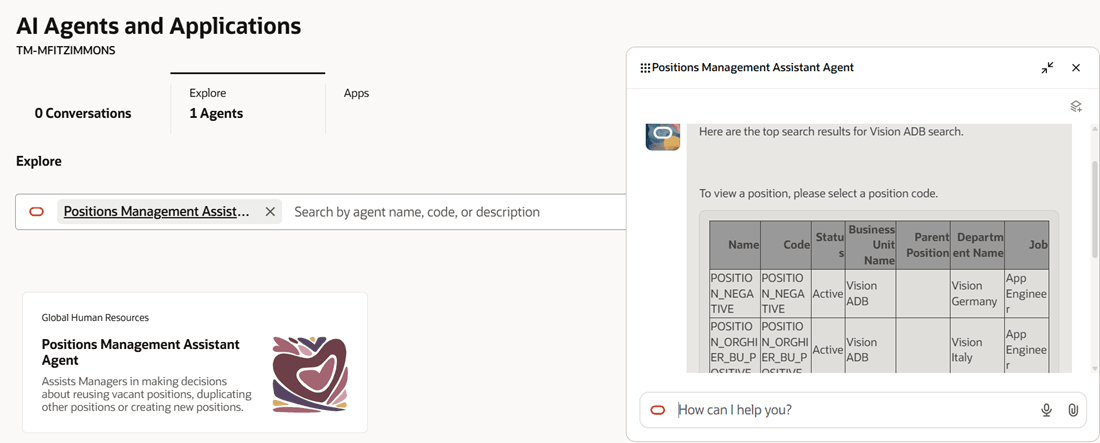
Search for positions with business unit Vision ADB
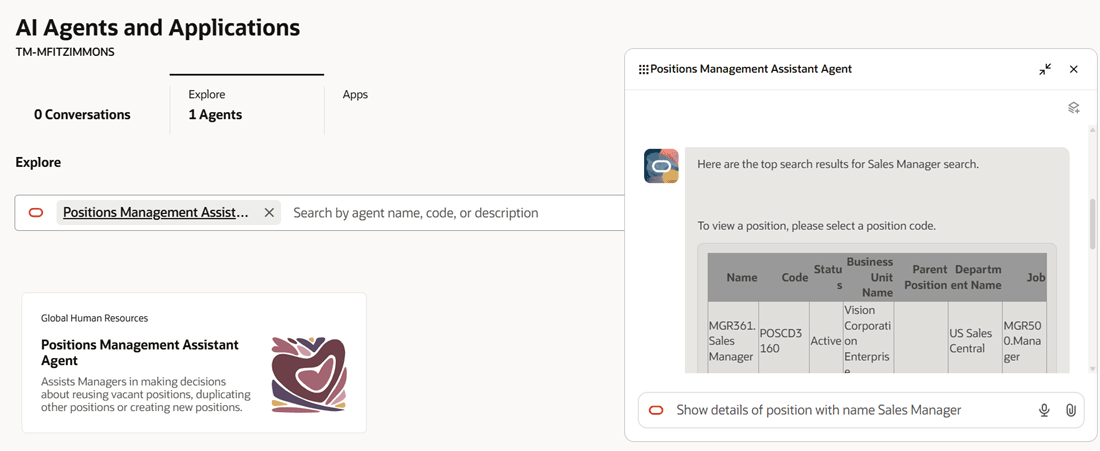
Show details of position with name Sales Manager
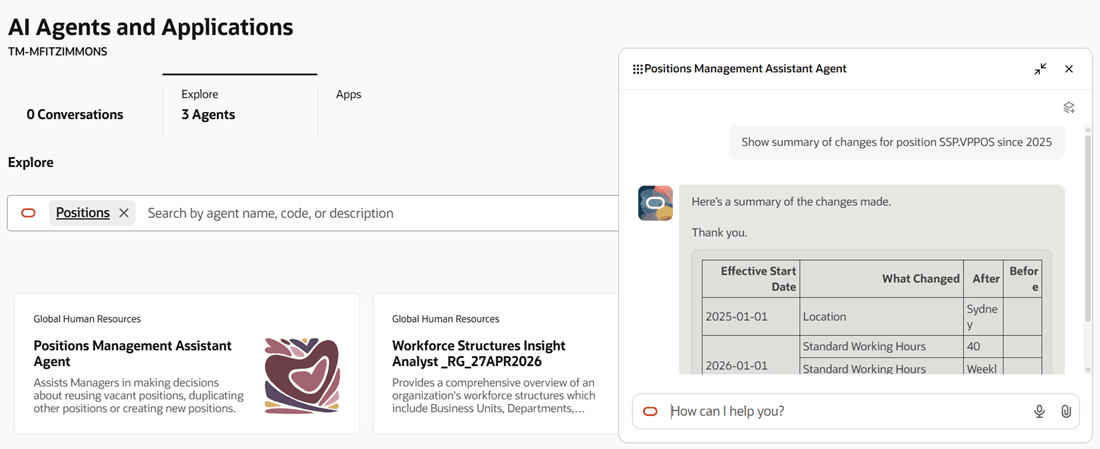
Show summary of changes for position SSP.VPPOS since 2025
Edit Positions
The agent helps HR professionals update or correct existing position records with minimal risk of errors, ensuring accuracy and compliance with organizational standards. It could be current-dated records or any date-specific record.
Sample query: Update Position Director
NOTE: If there are any pending transactions for that position, then it won’t allow you to edit the position.
It shows you a summary of proposed edits. After you confirm, it shows the details of the updated position along with a view link.
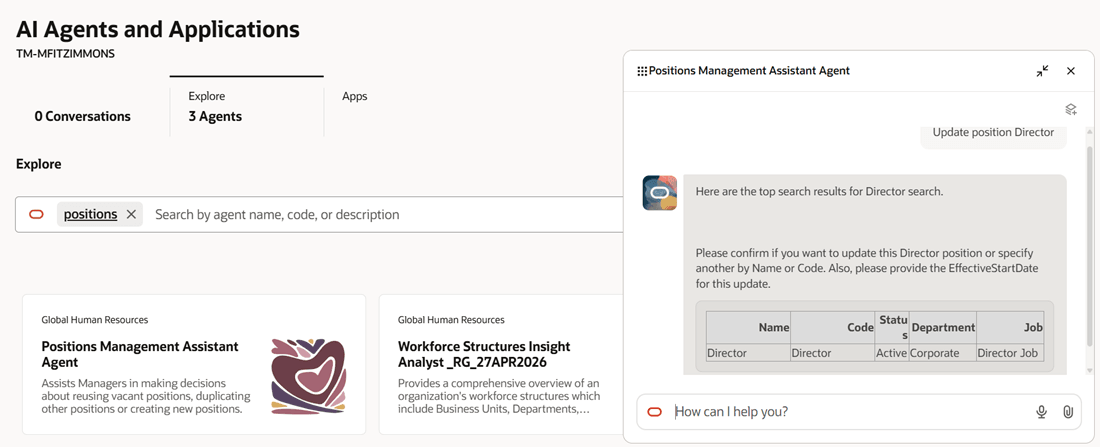
Update position Director
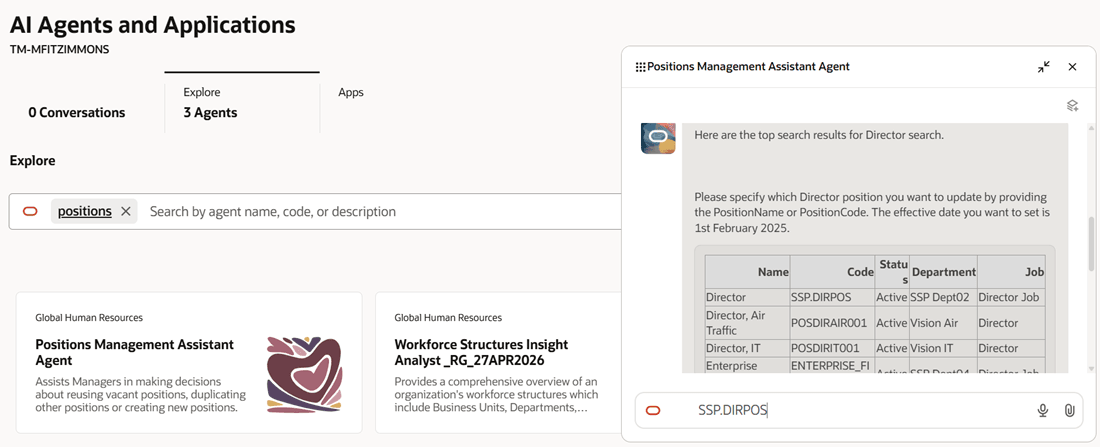
Select the position code for updating the Director position
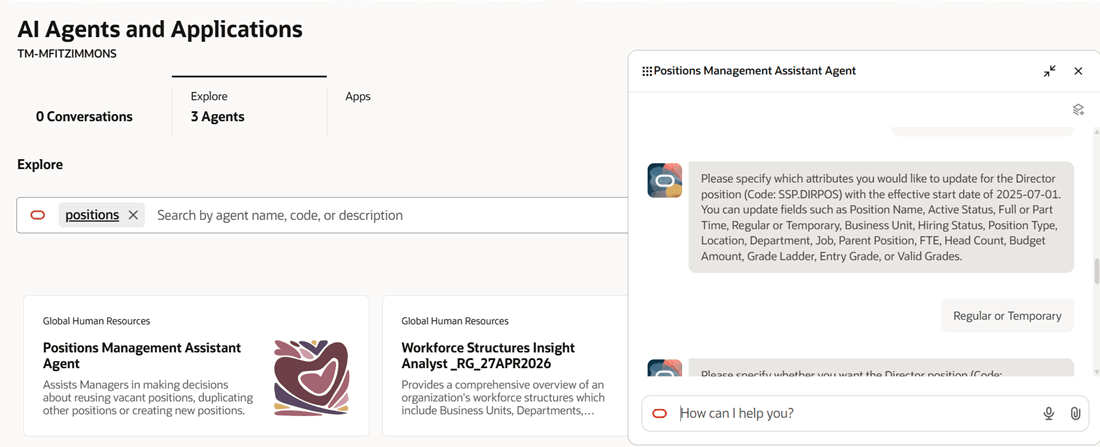
Specify attributes for the Director position to be updated
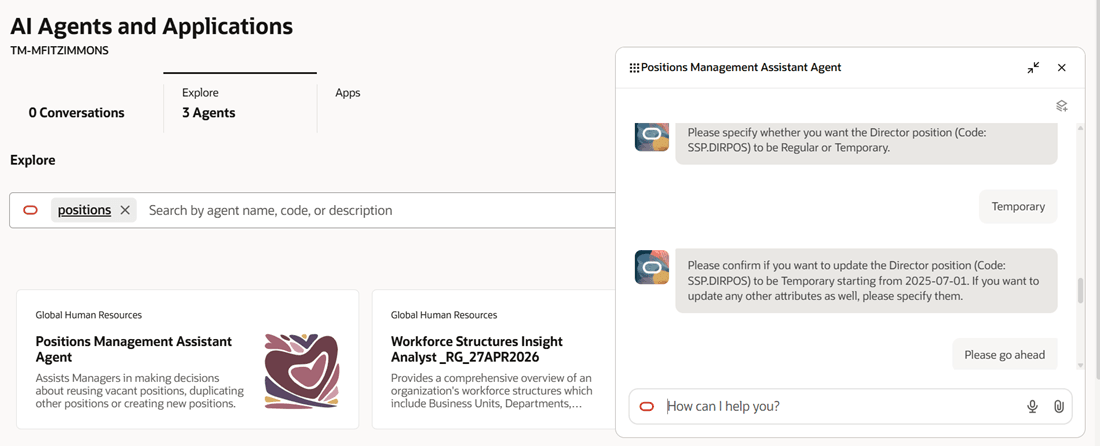
Specify whether you want the Director position to be regular or temporary and confirm
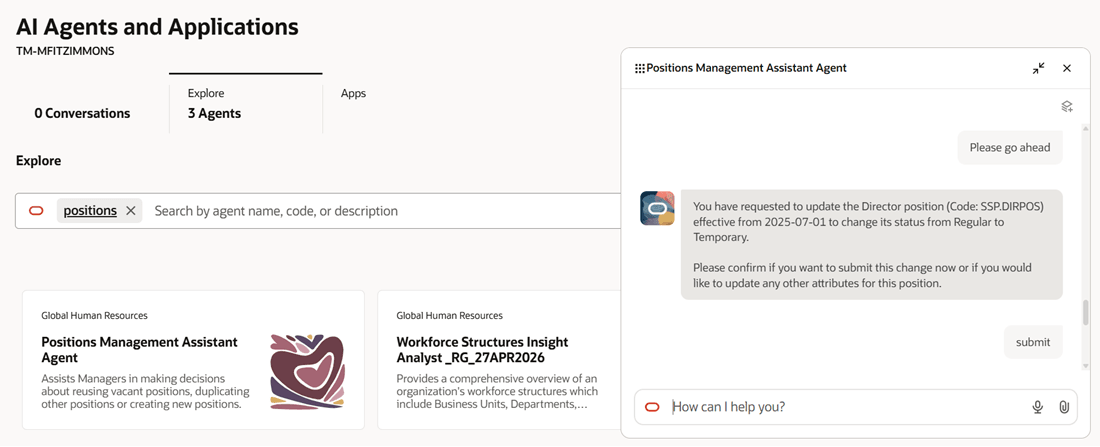
Confirm the changes and submit
Delete a Position
Line Managers and HR professionals can safely delete date-effective position records to maintain up-to-date records. It shows you a link to the position view page that will take you to the latest record. You can navigate to the History section, decide which date effective record you want to delete, and then delete it.
Sample Queries on Deleting Positions That the Agent Can Answer
Q: Remove the position with code POSCD2980
Q: Delete position Director.
Let’s say this position doesn’t have any date-effective records. Then it shows a message saying there are no records of this position that can be deleted. And it doesn’t show the view link to that position page.
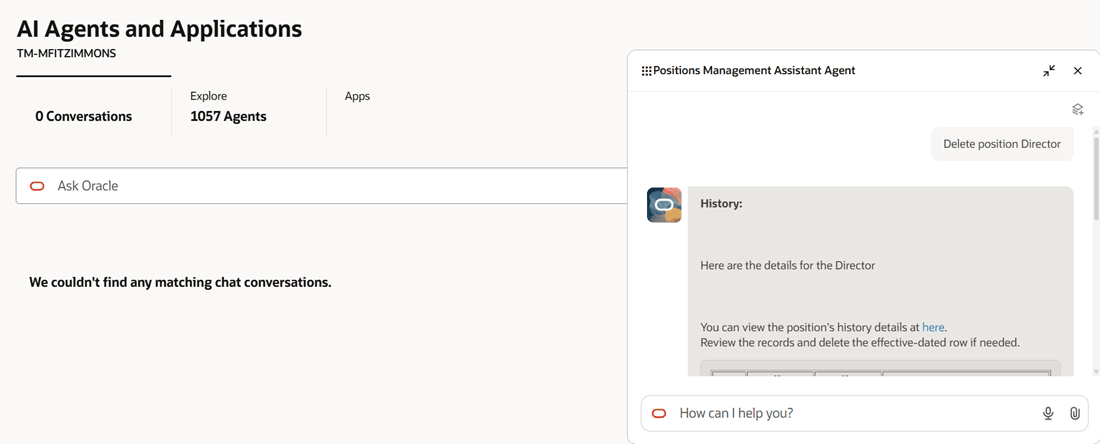
Delete position Director question
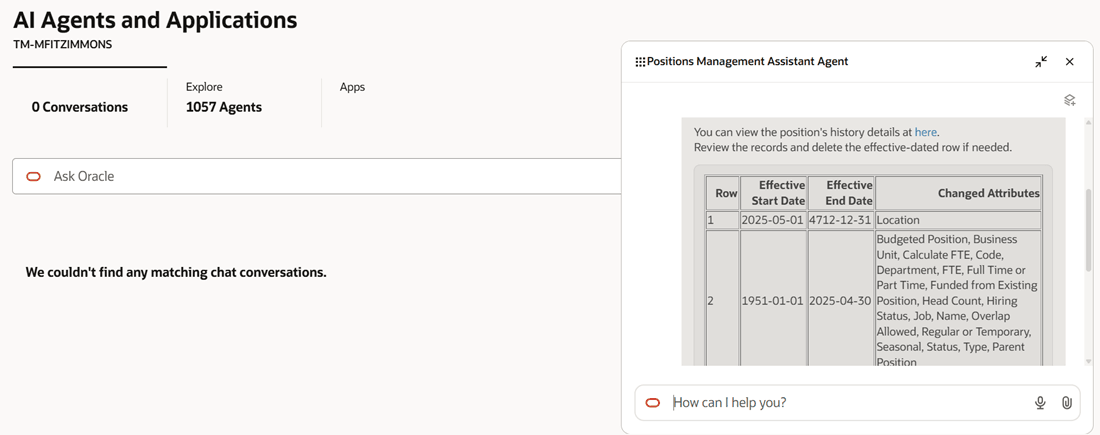
Records displayed for the Delete Position Director question
Business benefit: Empower Managers with intelligent, seamless, and supportive position creation, reusing existing vacant positions, and also in viewing and editing positions. The Positions Management Assistant gives a better user experience by eliminating workflow interruptions, reducing manual errors, and guiding users, especially those not familiar with position management.
Steps to enable and configure
-
Your environment must have certain necessary configurations. Ask your help desk to contact Oracle Support, who can verify what your environment has and address any gaps. For more information, see FAQ2521 on My Oracle Cloud Support.
-
Set the Enable Security Console External Application Integration (ORA_ASE_SAS_INTEGRATION_ENABLED) profile option to Yes and enable permission groups for the appropriate roles. See Access Requirements for AI Agent Studio.
-
The Positions Management Assistant is a preconfigured template. You need to create your own agent using the preconfigured template.
-
To learn how to set up AI agents, see Create AI Agents Using Preconfigured Agent Team Templates.
-
Tips and considerations
Controlling what information the agent can return
- What's honored: Role-based data security (RBAC). Users see only that data which their role permits.
- What’s not honored: Localization rules and your own business rules in Visual Builder Studio aren't enforced by the Agent.
What's not included
- Data that's pending for approval isn't retrieved by the agent.
- Any object that has more than 25 rows will return only 25 rows.
Key resources
Access requirements
The agents you can view depend on the roles and privileges assigned to you. To access this agent, your role must be explicitly granted access to it by an AI Studio Administrator.
See How can I give users access to AI agents, and Access Requirements for AI Agent Studio.