Introducing HCM Professional Activity Center
The HCM Professional Activity Center provides a Redwood experience that helps HR users quickly review information about the people they support and perform HR actions for them.
Access
- You can navigate to HCM Professional Activity Center using the quick action under My Client Groups > Show More > Employment.
- Access to this feature is controlled through the ORA_PER_HR_ACTIVITY_CENTER_ENABLED profile option. In 26C, this is defaulted to Yes. This setting does not turn off Classic/Responsive Person Management.
Search capabilities
- Using keywords and filters, you can search for people based on your role’s person security profile. If another HR user has delegated their role to you, you can search for people based on that user’s person security profile as well.
- Keywords can be based on the name, business title, work email, or person number of the worker.
- You can also download the search results to an Excel sheet.
- You can save searches and rerun them without re-entering the search criteria.
- The search context is retained so you can return to prior results after completing any of the quick actions.
- You can configure columns in search results to show or hide attributes that are relevant to your work.
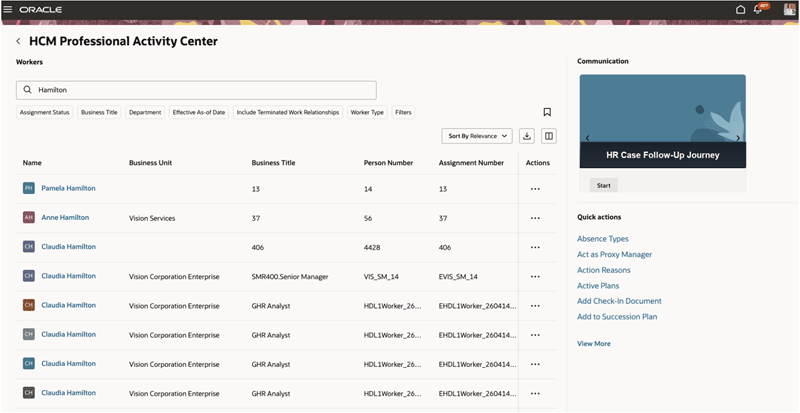
Search results in HCM Professional Activity Center
Quick actions you can perform
- You can perform individual quick actions for workers using the Actions menu. The View More link on this menu opens a panel drawer with more quick actions that are specific to the worker in context.
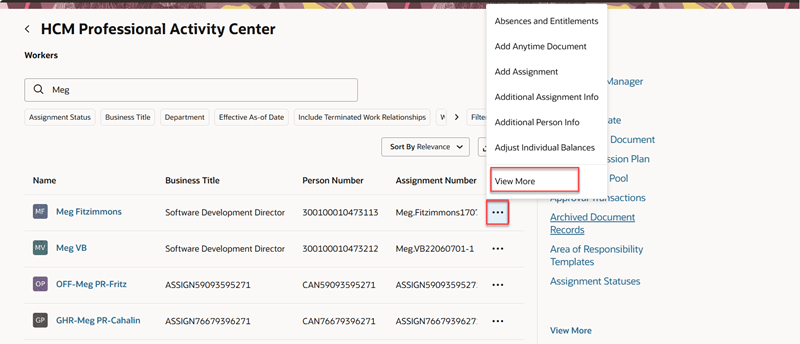
Quick actions for each worker
- A default set of quick actions that aren’t tied to a specific worker are shown on the right pane of the page. You can select the View More link on this pane to view additional actions.
- You can pin your preferred quick actions to personalize your default set of actions. Pinned actions are saved for subsequent sessions in the same browser on the same device, and don’t carry over to other browsers or devices.
- When you select a worker’s name from search results, their Person Activity Center is displayed. To display it in a new tab or window, use the shortcut menu on the worker’s name.
- You can open quick actions in the same tab, or use the shortcut menu on a quick action to open it in a new browser tab.
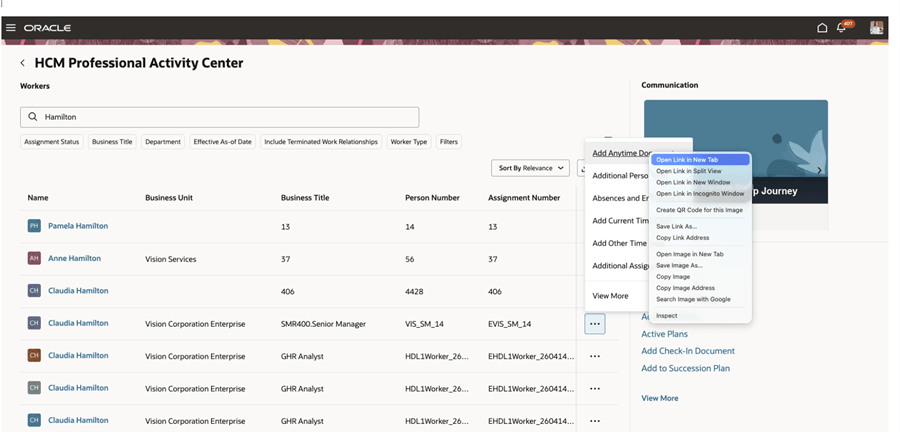
Opening a quick action in a new tab
Additional in-page capabilities
- In the Communication section, you can view communications that are broadcast by your organization through Journeys and other applications.
- You can view journey tasks from this section.
- You can also invoke AI agents through guided journeys.
Business Benefit: HR teams can complete person-management work faster by combining worker search and action execution in one Redwood workspace, reducing context switching and improving day-to-day processing efficiency.
Steps to enable and configure
Search
Ensure that the search indexes are built and refreshed:
- Create the person index, fa-hcm-person and run initial data ingestion.
- Set up data security for HCM.
- Enable Oracle Search for Workers List of Values.
Apart from the above steps, the same setup that’s needed for Person Spotlight Search is applicable to HCM Professional Activity Center.
Extensibility
Administrators can use VB Studio extensibility to adjust the look and feel of HCM Professional Activity Center. For details, see the topic, Extensibility for Activity Centers.
Quick actions
The order and list of quick actions displayed in Person Activity Center can be configured using the Structure tool. For details, see Manage the Display of Quick Actions in Activity Centers.
Tips and considerations
- Setting the ORA_PER_HR_ACTIVITY_CENTER_ENABLED profile option to Yes doesn't disable Classic/Responsive Person Management.
- You can’t select terminated assignments workers or future hires from search results and navigate to their Person Activity Center . However, you can navigate to their quick actions.
- Only the last 4 digits of the national identifier are displayed. The rest are masked. For details, see the 26B What's New feature, Redwood Experience: National Identifier Person Search.
- In Person Activity Center, the list of applications below the person summary card won’t display. This is because the application list applies to the logged in user and not to the worker data that’s viewed.
Key resources
Also see the 26B What's New feature, HCM Professional Concierge.
Access requirements
Each quick action is secured by its own set of privileges. So, their availability depends on the role assigned to each user.
Professional users need to have the Access Person Spotlight Advanced Search duty role to use the search feature.