Redwood Experience: Create Interview Summary and Populate Questionnaires Using AI Agent
Use an AI Agent to complete interview feedback requests more efficiently. Paired with the Interview Companion feature, it analyzes interview transcripts to create interview summaries and pre-populated feedback questionnaires, which are sent directly to interviewers for review and submission.
To use this new feature:
- The interview must be a web conference created using the Zoom or Microsoft Teams integration and contain feedback requests using a questionnaire.
- The interview was completed using Interview Companion.
Here's how it works.
A new agent template is available in AI Agent Studio: Interview Insights Generator.
After an interview transcript has been generated using Interview Companion, the Interview Insights Generator agent analyzes the interview transcripts and creates an interview summary which is available on the Interview Details page which you can access from the job application’s Interviews tab.
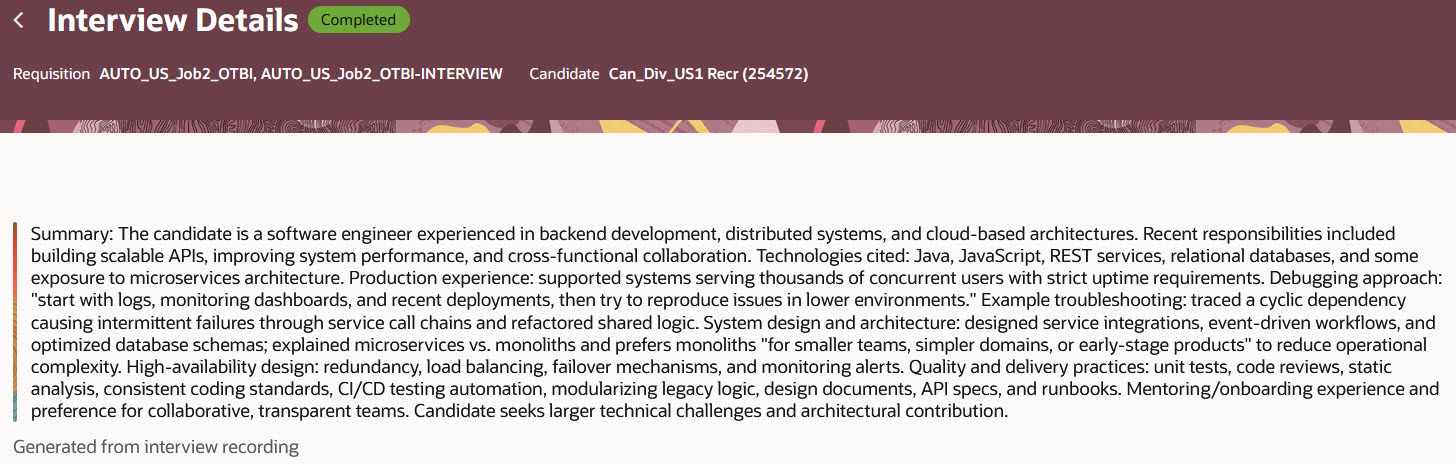
Interview Summary Generated by the Agent
If feedback was requested to the interviewers, responses to the interview questions are pre-populated using the transcript. When a rating is requested in the feedback request, this rating will also be populated by the agent. Respondents receive a notification asking them to review the draft feedback for the candidate. When clicking the link in the notification, they’re brought to the Provide Feedback page where a message indicates to review the questionnaire responses. Respondents can review and modify the responses. Note that a candidate rating is also provided by the agent based on the interview conversation.
For rating-only feedback (when no questionnaire is used for the feedback request), the agent won't populate anything.
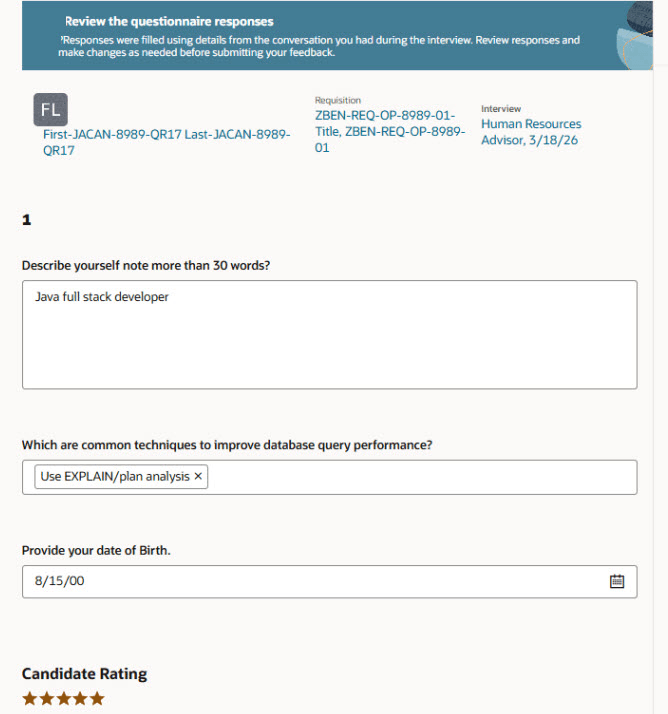
Review Questionnaire Message
You can use the View Interview Summary button to view the interview summary and the transcript. You can also access notes captured with Interview Companion.
Business benefit: Reduces manual effort by automatically generating interview summaries and populating questionnaires.
Steps to enable and configure
Step 1: Opt in to Recruiting Booster
To use the Interview Insights feature, you need to opt in to Recruiting Booster. For details, see Opt in to Recruiting Booster.
Step 2: Enable Interview Companion
Enable Interview companion in Setup and Maintenance and run the Retrieve Interview Transcripts scheduled process. For details, see the 26C What's New feature Redwood Experience: Interview Companion.
Step 3: Enable Interview Insights
In Setup and Maintenance, select one or both options:
- Enable interview insights using interview transcript: Select this option to generate the interview summary.
- Enable draft feedback using interview transcript: Select this option to generate the responses of the interview feedback questions.
Go to Setup and Maintenance > Recruiting and Candidate Experience > Recruiting and Candidate Experience Management > Enterprise Recruiting and Candidate Experience Information > Interview Intelligence.
Step 4: Configure the AI Agent
The Interview Insights Generator agent invokes another agent called Interview Insights and Feedback Response Assistant, which contains all the logic. The trigger for this agent is a schedule that runs every 15 minutes, between 9 am and 9 pm. You can configure the schedule as needed.
Step 5: Modify the new notification
A new notification is available in Alerts Composer: Feedback Questionnaire Prefilled with Draft Response
This notification is sent to respondents to inform them that the feedback questionnaire was prefilled with responses and it’s ready for their review. You can modify the content of the notification as per your business needs.
Step 6: Enable Redwood experience
To use Redwood experience, you need to enable the Recruiting Redwood pages profile options. For details, see Set profile options for Redwood pages.
Key resources
- Create AI Agents Using Preconfigured Agent Team Templates
- Explore AI Agents for Oracle Fusion Cloud Applications
- How do I use AI Agent Studio?
- How can I give users access to AI agents
- Access Requirements for AI Agent Studio