Security for Tasks in Journey Task Library
You can now secure tasks in the journey task library by controlling which worker roles can discover and use individual tasks.
Previously, tasks in the library could be broadly available, making it difficult to ensure that workers only accessed tasks appropriate for their responsibilities. With this enhancement, administrators can configure task security so that only those tasks are accessible that are intended for the requesting worker based on their role and permitted use cases.
Here are a few examples where task security can be used:
- HR-only administrative tasks: Allow offboarding tasks, such as revoking system access or processing final payroll only to HR specialists, while preventing employees from discovering or initiating these tasks.
- Employee self-service tasks: Allow employees to locate and start personal tasks, such as updating contact information, reviewing personal records, or submitting supporting documents.
- Role-based onboarding: Configure onboarding preparation tasks, such as provisioning equipment or creating user accounts so that only HR administrators or onboarding specialists can assign them. Allow employees to self-initiate optional onboarding activities, such as requesting a parking space or enrolling in wellness programs.
- Learning and development: Make relevant learning tasks and development activities available to the appropriate audience, such as employees, managers, and HR specialists.
- Benefits administration: Allow benefit enrollment tasks to be displayed only to workers and benefits specialists who are authorized to perform those activities.
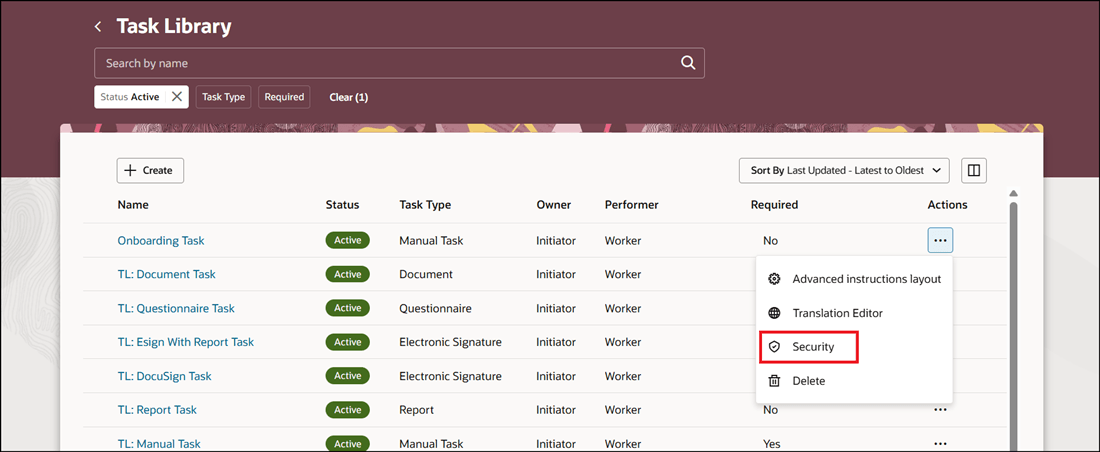
Security Action for Task in Task Library
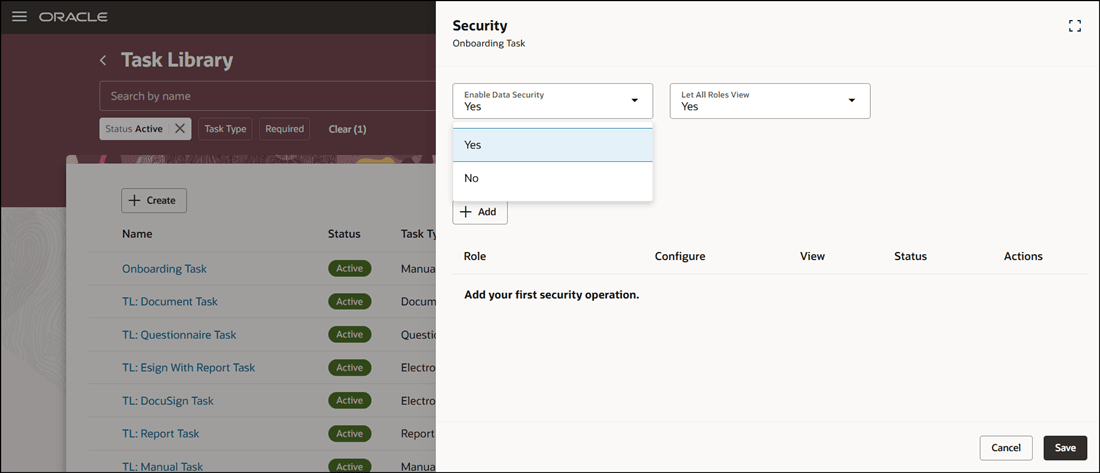
Enable Data Security for Task Library Task
Select the data, job, or abstract user role for which you need to enable Configure or View access. You can use the Configure access to control who can access the task library UI and modify the task. The View access controls who can add the task to a journey template, task library, or an assigned journey.
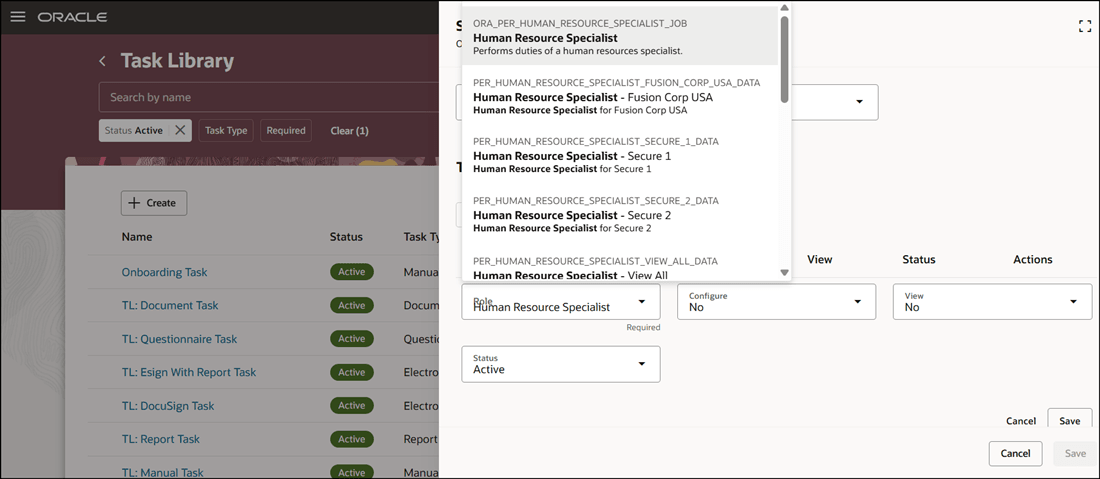
Select Role to Configure Security
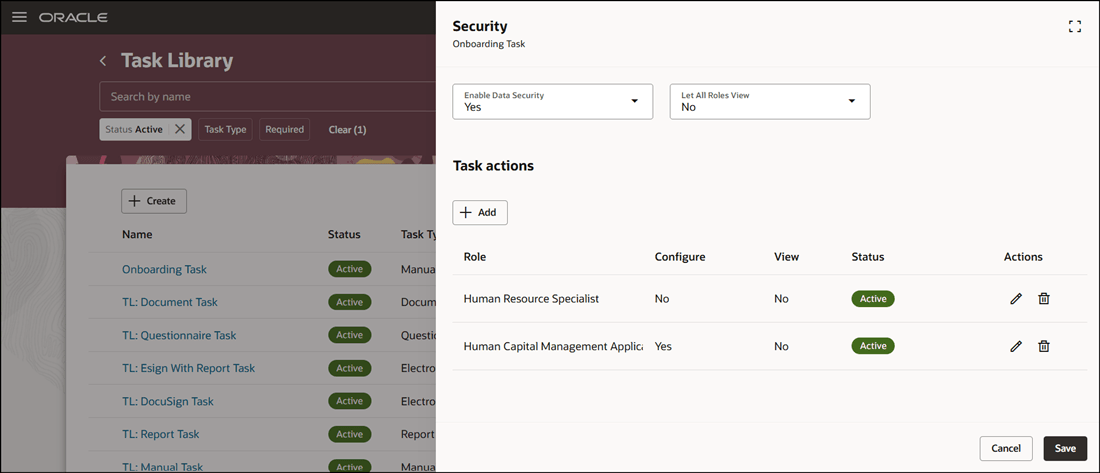
Role Based Security for Configure and View Access
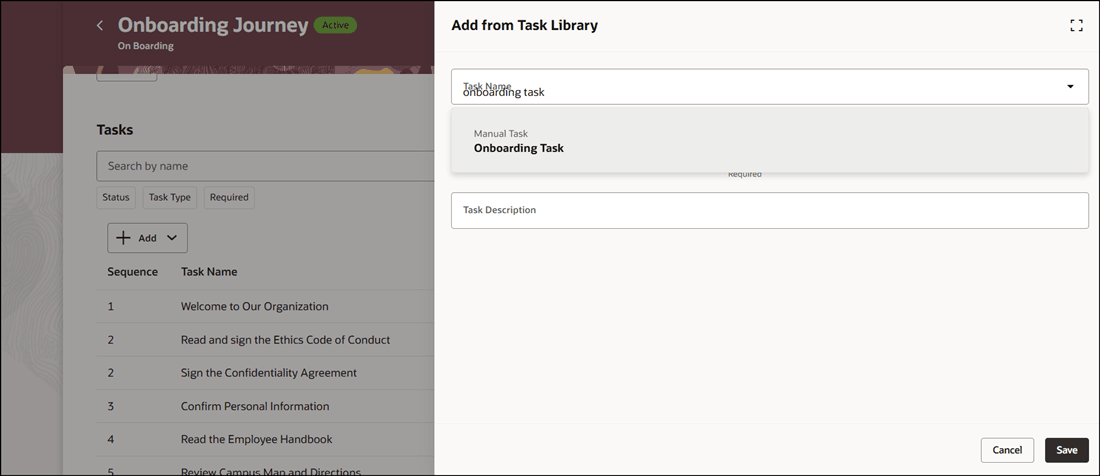
Search and Add Task When View Access is Allowed
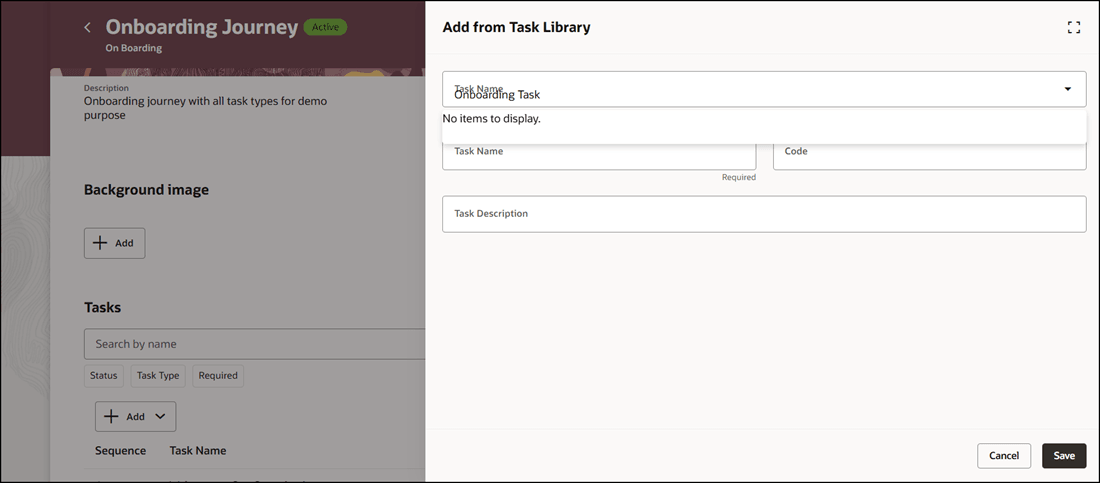
Task Can’t be Searched and Added When View Access is Not Allowed
This feature limits visibility of tasks in the journey task library to authorized users and prevents workers from discovering or attempting tasks outside their responsibilities.
Steps to enable and configure
- To configure security for tasks in the journey task library, you need to enable the ORA_PER_JRNY_TASK_LIB_SECURITY_ENABLED profile option by setting the profile value to Y. For more information, see How do I enable a profile option?
- To enable the Redwood journeys setup pages, you need to enable the ORA_PER_JOURNEYS_SETUP_REDWOOD_ENABLED profile option by setting the profile value to Y.
- To enable security for tasks, see Enable Security for Tasks in Journey Task Library
Tips and considerations
- By default, data security is not enabled for tasks in the task library.
- If you select No for View access, ensure that the No value is also selected in the Let All Roles View drop-down list because it takes precedence.
- You need to add at least 1 role to save the security configuration.
Key resources
For more information, refer to the Implementing and Using Journeys guide.
Access requirements
This table shows the predefined role that inherits the duty and aggregate privileges supporting this feature:
|
Job Role |
Duty Privilege |
Aggregate Privilege |
|---|---|---|
|
Human Resource Specialist |
ORA_PER_JOURNEY_BUILDER_DUTY Journey Builder |
ORA_PER_MANAGE_ALL_TASKS_IN_JOURNEY_TASK_LIBRARY Manage All Tasks in Journey Task Library |
|
Human Capital Management Application Administrator |
If you are using the predefined roles, no action is necessary. However, if you are using custom versions of these roles, you must add these aggregate privileges to your custom roles to use this feature. See the Release 13 Oracle Human Capital Management Cloud Security Upgrade Guide on My Oracle Support (Document ID 2023523.1) for instructions about implementing new functions in existing roles.
For information about existing security privileges, refer to the Security Reference for Common Features guide on the Oracle Help Center.