Assign Journey Tasks to Performer Groups
You can now assign journey tasks to a group of performers instead of a single performer. With this capability, you can use a group of users as the task performer and route journey tasks to the appropriate departmental team.
When a task is assigned to multiple performers, the group members can be notified about the task, and one of the performers can complete it. This provides greater flexibility for tasks where responsibility belongs to a team rather than to a predetermined individual.
For example, you can use performer groups in these scenarios:
- IT support during onboarding: Assign a laptop provisioning task to a group of IT administrators. Any available administrator can claim the task and complete the laptop setup for the new hire.
- Facilities or workplace services: Route a workspace preparation task to a facilities team instead of identifying a particular facilities employee when the journey is assigned.
- HR operations: Assign an employee document verification task to a group of HR specialists so that an available team member can take responsibility for the task.
- Functional or departmental processing: Route tasks to a group responsible for a particular business function, allowing the appropriate member of that group to claim and complete the work.
Add the performer group when you configure the journey template. Mark the group and users as active and add users who can review and perform the journey task.
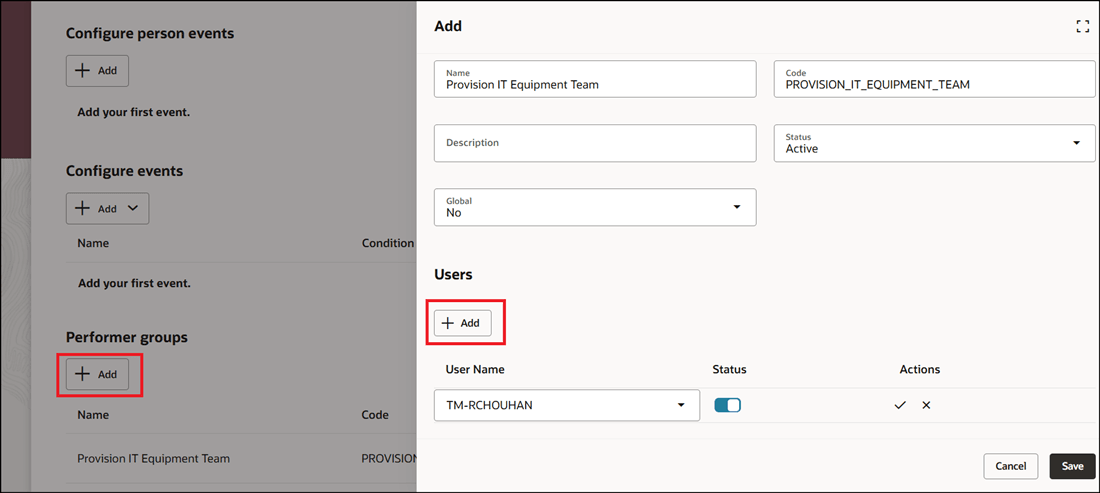
Configure Performer Group in Journey Template
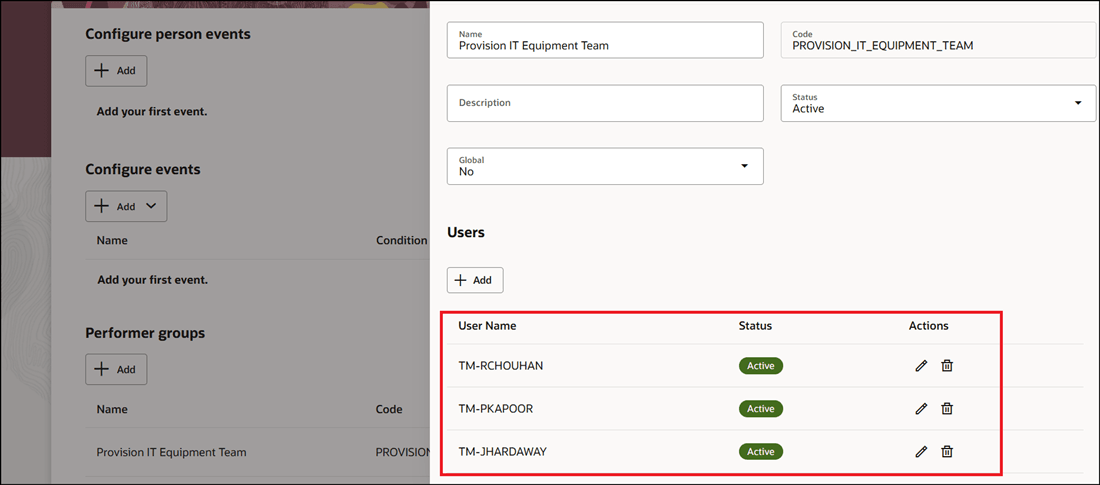
Added Users for Performer Group
After you configure the performer group, select it from the task configuration UI.
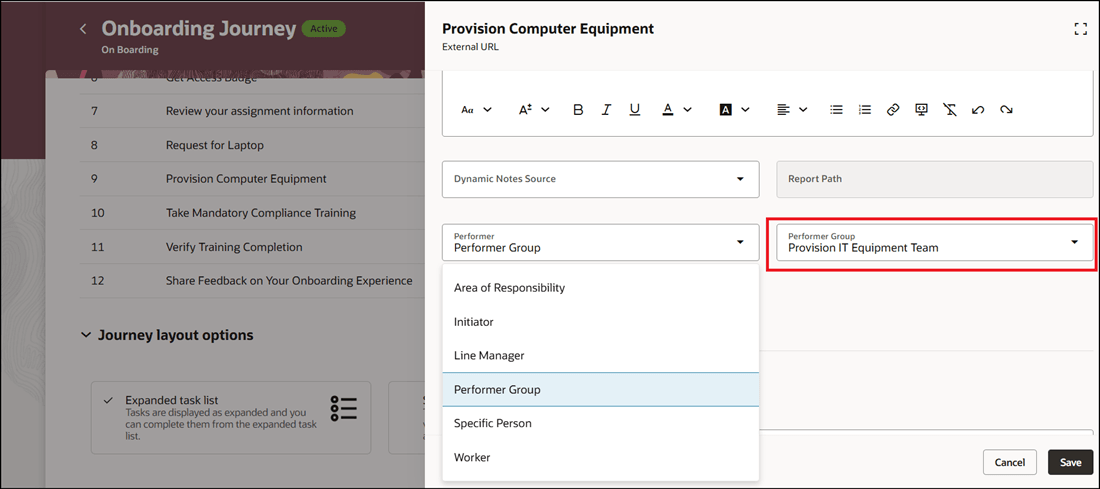
Select Performer Group Type in Journey Task
A user in the performer group claims the task, reviews it, and marks it as done.
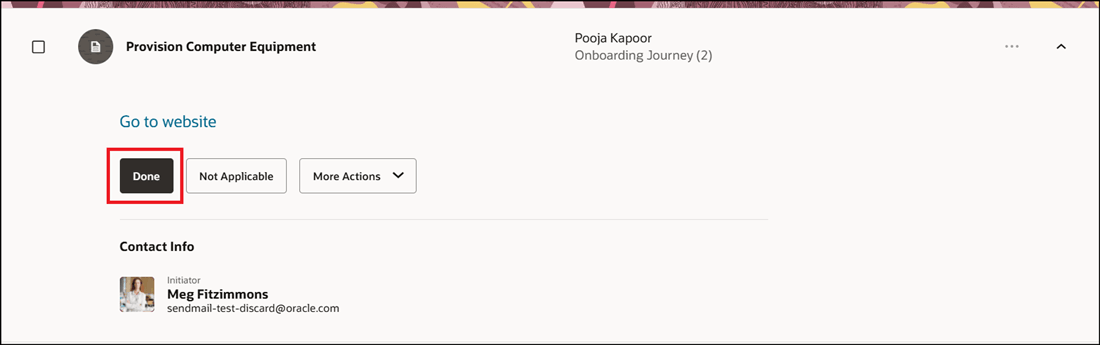
Task Marked as Completed by User in Performer Group
The performer name who completed the task is displayed in the My Tasks or Organization Journeys tab.
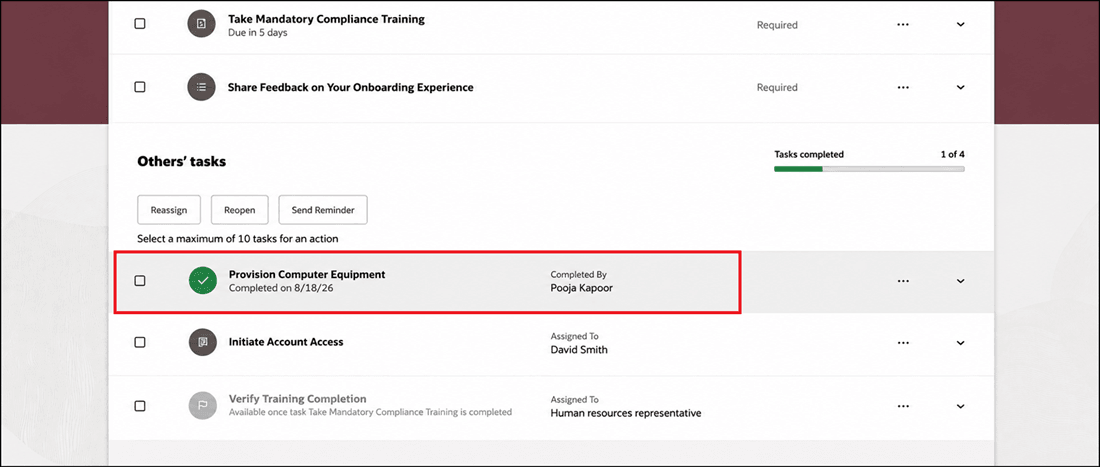
Completed By User Status After Task is Completed
Performer groups make journey task assignment more flexible for business processes where work is owned by a team rather than a specific person.
Steps to enable and configure
To assign journey task to performer group, see Assign Journey Task to Performer Group
Tips and considerations
- When you configure a performer group in a journey template, you can only use it for tasks within that journey template. For example, if you have more than one journey, you need to configure the performer group separately for each journey.
- You can only configure a maximum of 60 users in a performer group.
- When the journey is assigned, the performer group name is displayed if there is more than one user in the group. If the group has only one user, the user name is displayed.
Key resources
For more information, see the Implementing and Using Journeys guide.
Access requirements
You must be granted the Manage Journey (ORA_PER_MANAGE_JOURNEY_TEMPLATE) aggregate privilege to work on journey templates.