AI Agent: Inventory Aging Advisor
Slow-moving or dead stock inventory can negatively impact a business by increasing storage costs, creating missed opportunities, and causing financial losses due to insufficient space for high-demand items. To minimize these effects, companies should regularly review inventory performance, adjust purchasing strategies, and consider promotions or liquidations. However, the first step is identifying which goods are currently classified as slow-moving stock. Now you can use the Inventory Aging Advisor AI agent to identify and disposition your slow-moving goods.
This agent analyzes inventory across an organization to identify slow-moving, non-moving, or obsolete items based on operational metrics, including:
- Inventory turns: Frequency with which inventory is sold or used over a period
- Weighted average inventory age: Average duration items remain in inventory
- Sales percentage: Proportion of stock sold relative to total inventory over a set timeframe
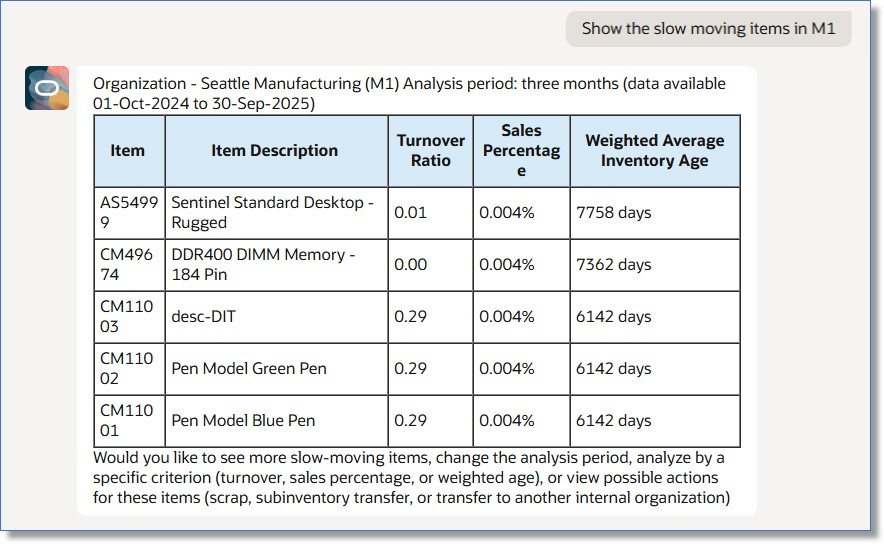
Slow-Moving Items
Upon identifying such items, the agent checks for existing demand and supply within the same or other organizations. Based on the findings, recommended actions may include:
- Scrapping: Disposing of obsolete goods
- Transferring to alternative subinventories: Moving items to locations with potential demand
- Interorganization transfers: Relocating inventory to organizations where the items are needed
If there's no existing demand for an item within or across organizations and you decide to scrap it, you can initiate a scrap transaction. After the transaction is created successfully, you can review the details using the provided deep link URL.
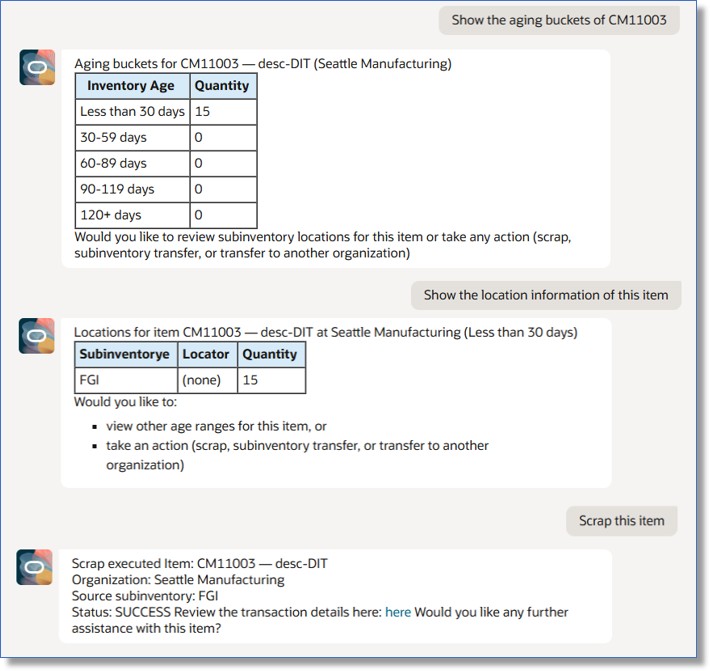
Scrap Transaction
Once you identify the organization that requires the item, you can initiate an interorganization transaction. The agent will prompt you for confirmation before proceeding. After the transaction is created successfully, you can view the related supply request using the provided deep link URL.
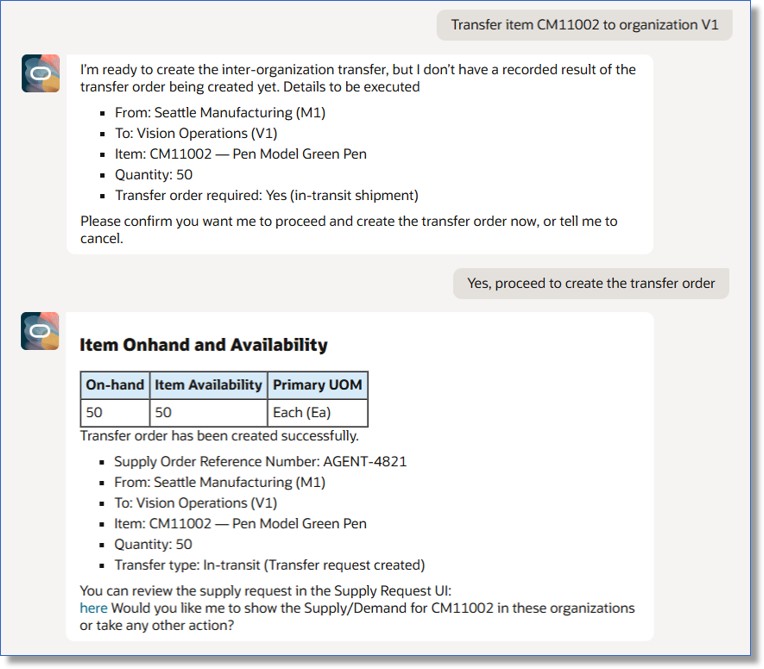
Interorganization Transfer
This AI agent enhances your ability to identify your slow-moving stock so that you can take appropriate actions to reduce holding costs and prevent stock obsolescence.
Here's the demo of these capabilities:
Steps to enable and configure
To enable permission groups for roles, take these steps:
- In the Setup and Maintenance work area, search for the Manage Administrator Profile Values task using the search link in the Tasks panel tab.
- Search for the Enable Security Console External Application Integration (ORA_ASE_SAS_INTEGRATION_ENABLED) profile option and set the Site profile level to Yes.
You can use AI Agent Studio to use or copy a preconfigured agent template to create agents for your business processes. To automatically add a suffix to all artifacts in your agent team, you can use the Copy Template instead of Use Template button. When you copy a template, you're taken directly to the agent team canvas where you can edit the agent team settings, agents, tools, and topics. The Use Template option takes you through a step-by-step process for configuring each artifact in the agent team.
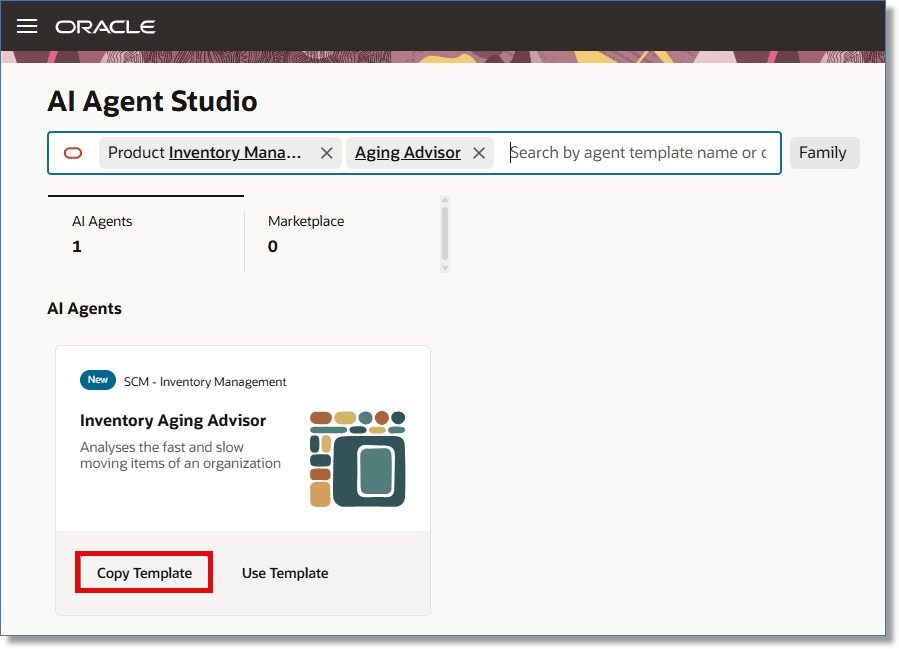
Inventory Aging Advisor Template
For information on using AI Agent Studio, see How do I use AI Agent Studio?
Tips and considerations
- To ensure your inventory aging analysis data is up-to-date and available for the agent to analyze and present, schedule the Populate Inventory Aging Analysis Data scheduled process as per the required frequency.
- After publishing your agent, you can add it to a page such as the Item Quantities page by including it in the guided journey of that page. To do this, create an Agent task of type Workflow Agent for the agent, and add it to the guided journey.
Key resources
- Oracle Fusion Cloud SCM: Using Receiving guide, available on the Oracle Help Center.
- Oracle Fusion Cloud SCM: Implementing Manufacturing and Supply Chain Materials Management guide, available on the Oracle Help Center.
- Oracle Fusion Cloud SCM: Security Reference for Manufacturing and Supply Chain Materials Management guide, available on the Oracle Help Center.
- Access Requirements for AI Agent Studio
- How can I give users access to AI agents?
- Create AI Agents
Access requirements
To access the Oracle AI Agent Studio for Fusion Applications and manage SCM AI agents, users must be assigned a configured job role that contains these duty roles:
- SCM Intelligent Agent Management Duty (ORA_RCS_SCM_AI_AGENT_MANAGEMENT_DUTY)
- SCM Intelligent Agent Management Duty (ORA_RCS_SCM_AI_AGENT_MANAGEMENT_DUTY_HCM)
- Fai Genai Agent SCM Administrator Duty (ORA_DR_FAI_GENERATIVE_AI_AGENT_SCM_ADMINISTRATOR_DUTY)
To interact with AI agents in product pages, users must be assigned a configured job role that contains this duty role:
- Fai Genai Agent Runtime Duty (ORA_DR_FAI_GENERATIVE_AI_AGENT_RUNTIME_DUTY)
To allow users to interact with agents, you must also enable permission groups in the Security Console on those users' configured job roles that contain the Fai Genai Agent Runtime Duty role. You can enable permission groups when you manage the basic information of your configured job roles.
Users' configured job roles must also contain privileges that allow access to the pages where AI agents are enabled.
- Inventory Aging Analysis (INV_INVENTORY_AGING_ANALYSIS)
- Get Item Rest (EGP_GET_ITEM_REST)
- Manage Inventory Balance Message Data (INV_MANAGE_INVENTORY_BALANCE_MESSAGE_DATA)
- View Inventory Organizations List of Values by Web Service (RCS_VIEW_INV_ORG_LOV_WEB_SERVICE)
- View On-Hand Quantity Using Responsive Inventory (INV_VIEW_ONHAND_QUANTITY_USING_RESPONSIVE_INVENTORY_PWA)
- Manage On-Hand Quantity Data (INV_MANAGE_ONHAND_QUANTITY_DATA)
- Review Item Shortage Using Responsive Inventory (INV_REVIEW_ITEM_SHORTAGE_USING_RESPONSIVE_INVENTORY_PWA)
- Create Supply Request (DOS_CREATE_SUPPLY_REQUEST)
- Manage Interorganization Parameter Data (INV_MANAGE_INTERORGANIZATION_PARAMETER_DATA)
See Access Requirements for AI Agent Studio (for administrators) and How can I give users access to AI agents (for end-users) for more information.