AI Agent: Inventory Reservation Assistant
In fast-paced, just-in-time fulfillment industries, efficiently managing order reservations is essential for meeting demand and ensuring customer satisfaction. Order managers need the flexibility to quickly create and update reservations as circumstances change or when customer service expedites specific orders. With the Inventory Reservation Assistant AI agent, you can now create, view, and manage reservations all in one place, eliminating the need for navigating through multiple pages or performing manual searches. This tool streamlines the process, helping you respond swiftly to last-minute changes and ensuring your customers receive their goods on time.
Using the prebuilt AI agent template for the Inventory Reservation AI Assistant, you can create an agent team by making a copy of the template. This agent team can then be added to a guided journey on a Redwood page, such as the Reservations page in Inventory Management, New Sales Orders page in Order Management, and Work Orders page in Manufacturing.
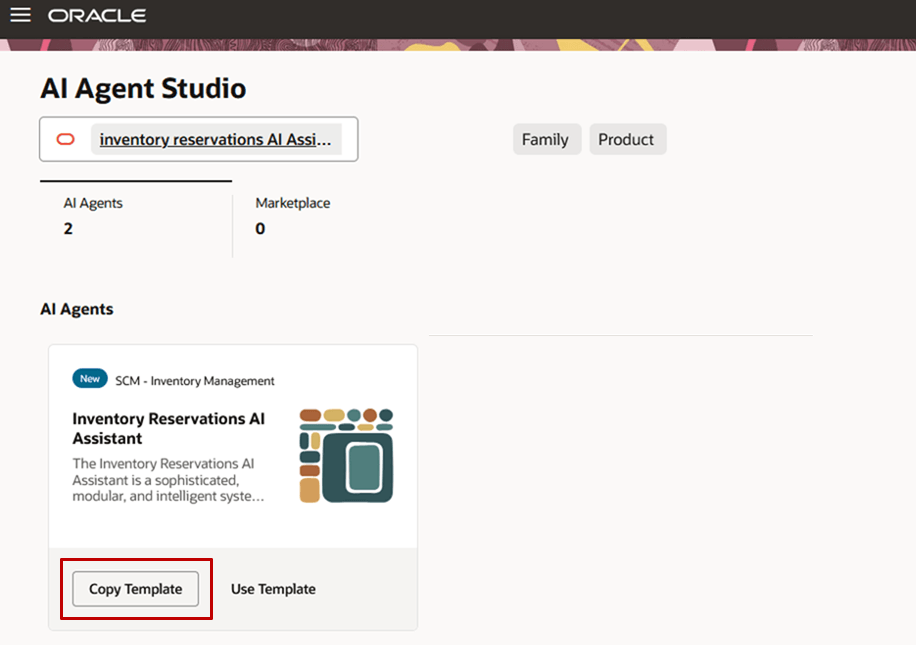
Inventory Reservations AI Assistant
Here are the tasks that this agent can perform:
- Provide the reservation status for a document number
- View the demand lines for a document number
- Create reservations for a document number to automatically reserve demand lines to on-hand supply
- View reservations for a document number
- Delete reservations
- Update reservations for a document number
- Update the supply source for a specific line within a document number
- View the unreserved lines for an item in an organization
You can select a query upon invoking the agent.
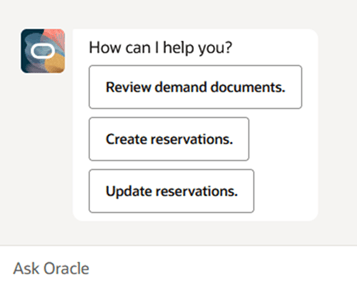
Select Query
Here's an example of selecting the Review demand documents option.
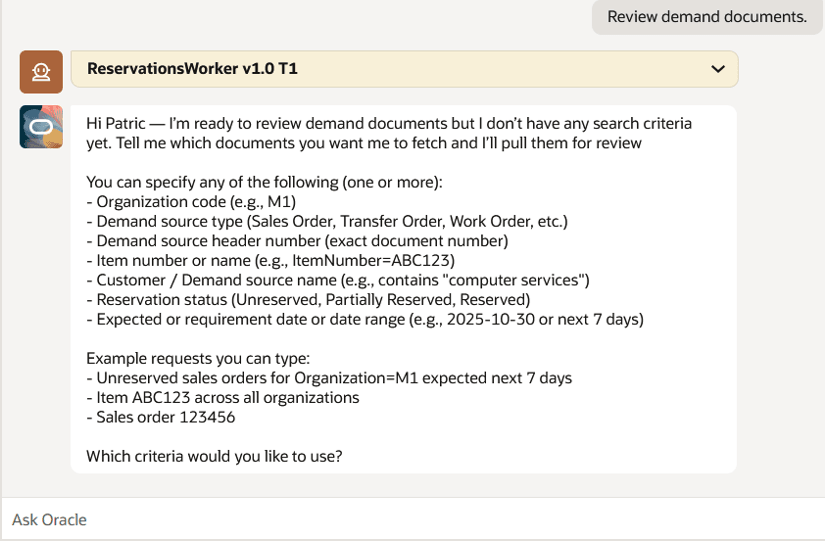
Select Review Demand Documents to View a Demand
You can search for a specific demand document as shown in this example.
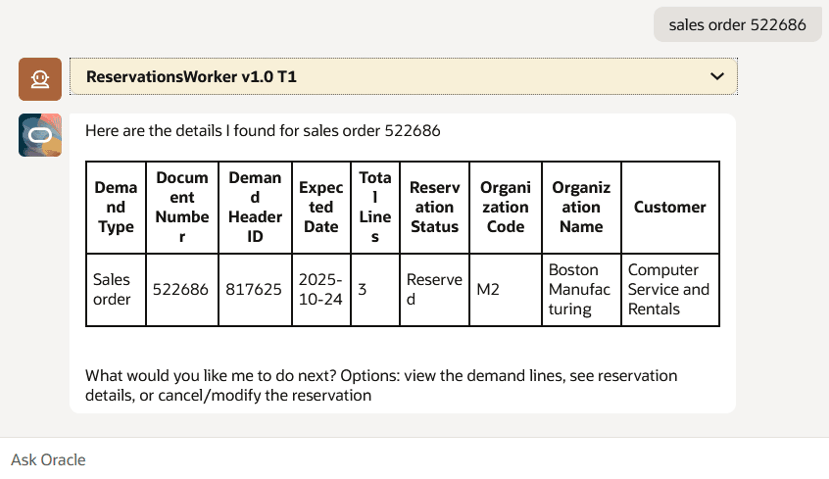
Search for Specific Demand Document
You can view the demand lines for a demand document.
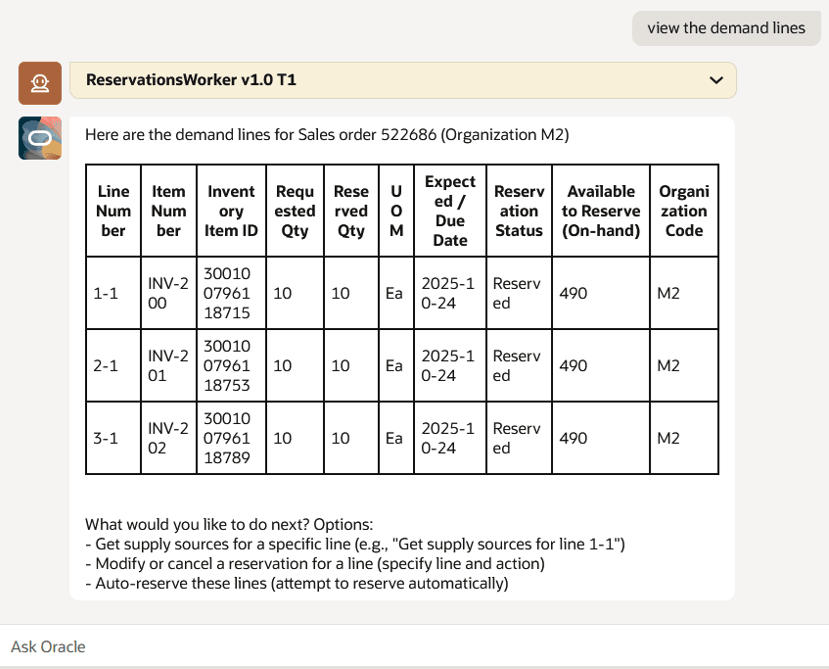
View Demand Lines for a Demand Document
You can search for unreserved sales order lines for an item in an organization.
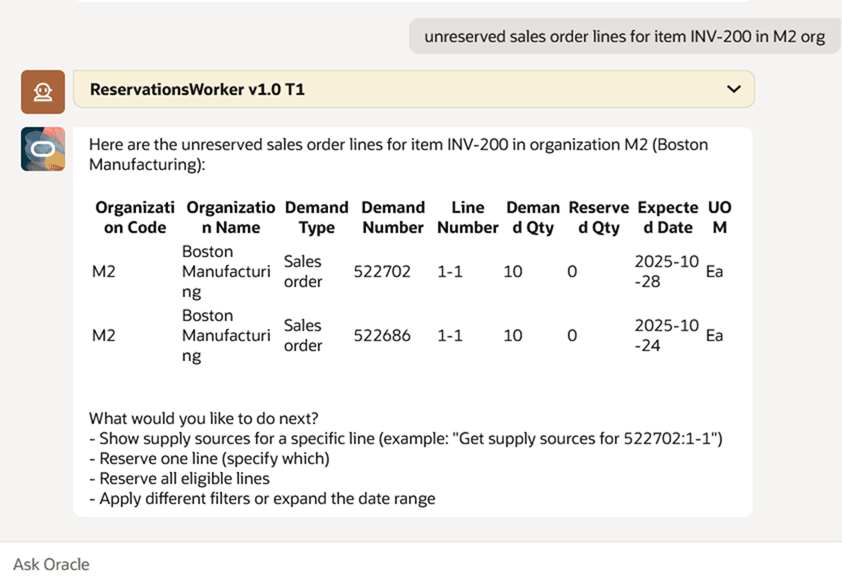
Search Unreserved Sales Order Lines
You can create reservations for a sales order.
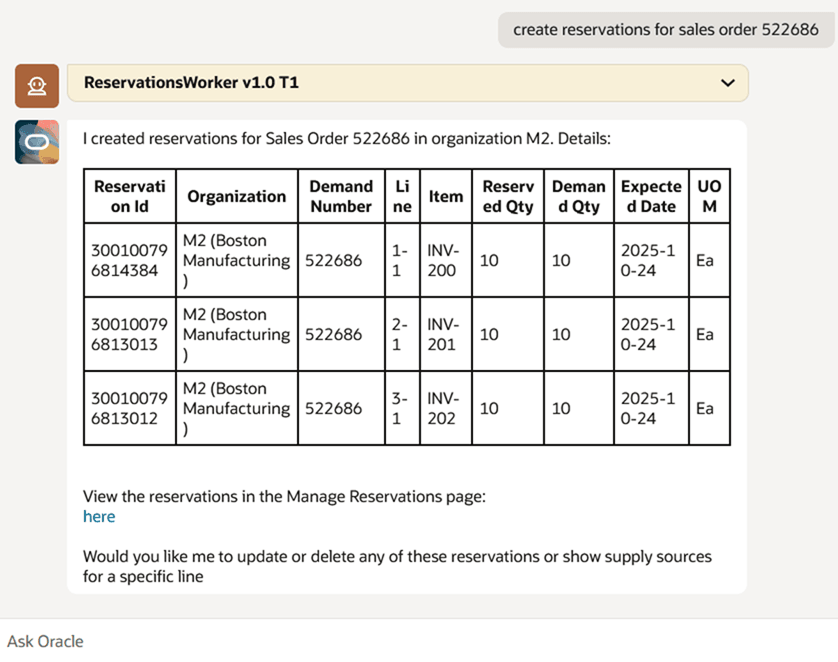
Create Reservations for a Sales Order
You can use the deep link to review the reservations for a demand document.
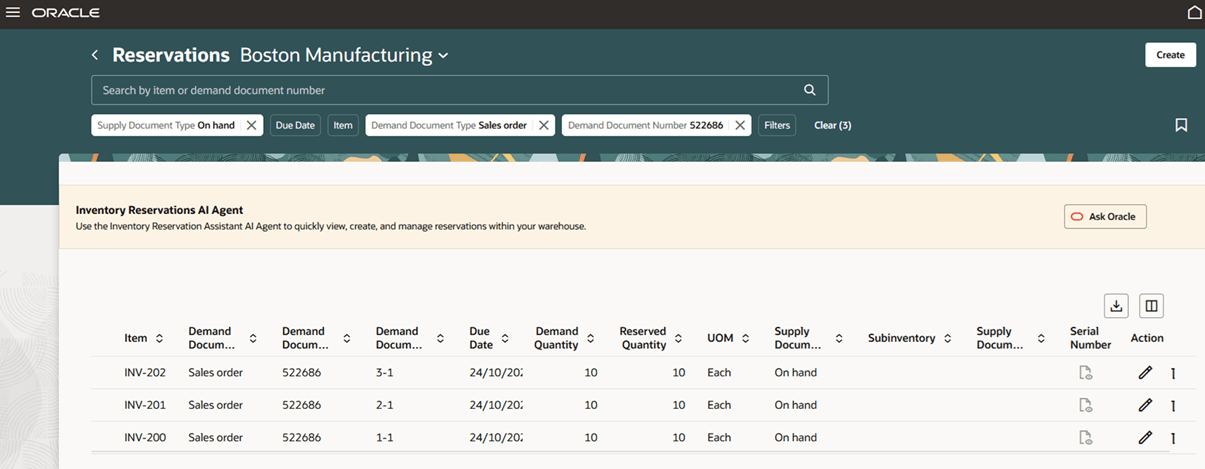
Use Deep Link to View Reservations
You can delete reservations.
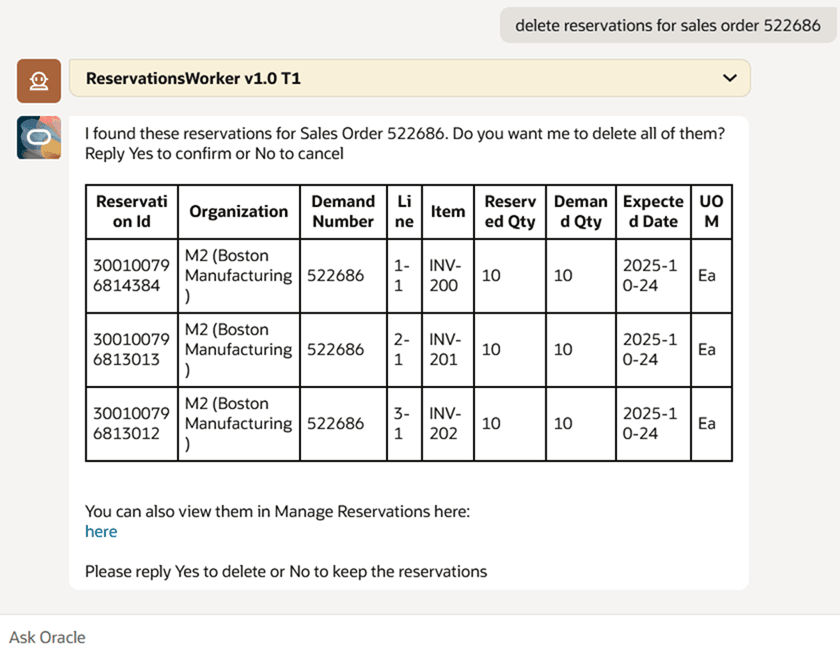
Delete Reservations
This AI agent enables order managers, inventory managers, and customer service representatives to manage reservations using natural language, streamlining operations and minimizing the time needed to meet demand.
Here's the demo of these capabilities:
Steps to enable and configure
To enable permission groups for roles, take these steps:
- In the Setup and Maintenance work area, search for the Manage Administrator Profile Values task using the search link in the Tasks panel tab.
- Search for the Enable Security Console External Application Integration (ORA_ASE_SAS_INTEGRATION_ENABLED) profile option and set the Site profile level to Yes.
You can use AI Agent Studio to use or copy the preconfigured agent template to create Agents for your business processes. To automatically add a suffix to all artifacts in your agent team, you can use the Copy Template instead of Use Template button. When you copy a template, you're directly taken to the agent team canvas where you can edit the agent team settings, agents, tools, and topics. The Use Template option takes you through a step-by-step process for configuring each artifact in the agent team.
For information on using AI Agent Studio, see How do I use AI Agent Studio?
Tips and considerations
- After publishing your agent, you can add it to a page by including it in the guided journey of that page. To do this, create an Agent task of type Workflow Agent for the agent, and add it to the guided journey.
- The AI agent doesn't support the reservations for Assemble to Order or Pick to Order models. You can use it to create, update, delete, or transfer reservations for purchased or finished items.
Key resources
- Oracle Fusion Cloud SCM: Using Inventory Management guide, available on the Oracle Help Center.
- For information on using AI Agent Studio, see How do I use AI Agent Studio?
- Access Requirements for AI Agent Studio
- How can I give users access to AI agents?
- Create AI Agents
Access requirements
To access the Oracle AI Agent Studio for Fusion Applications and manage SCM AI agents, users must be assigned a configured job role that contains these duty roles:
- SCM Intelligent Agent Management Duty (ORA_RCS_SCM_AI_AGENT_MANAGEMENT_DUTY)
- SCM Intelligent Agent Management Duty (ORA_RCS_SCM_AI_AGENT_MANAGEMENT_DUTY_HCM)
- Fai Genai Agent SCM Administrator Duty (ORA_DR_FAI_GENERATIVE_AI_AGENT_SCM_ADMINISTRATOR_DUTY)
To interact with AI agents in product pages, users must be assigned a configured job role that contains this duty role:
- Fai Genai Agent Runtime Duty (ORA_DR_FAI_GENERATIVE_AI_AGENT_RUNTIME_DUTY)
To allow users to interact with agents, you must also enable permission groups in the Security Console on those users' configured job roles that contain the Fai Genai Agent Runtime Duty role. You can enable permission groups when you manage the basic information of your configured job roles.
Users' configured job roles must also contain privileges that allow access to the pages where AI agents are enabled.
- Manage Inventory Reservation (INV_MANAGE_INVENTORY_RESERVATION_PRIV)
- Manage Inventory Reservation and Picks (INV_MANAGE_INVENTORY_RESERVATION_AND_PICKS_PRIV)
- View Inventory Reservation (INV_VIEW_INVENTORY_RESERVATION_PRIV)
Users who are assigned these configure job roles can use this agent:
- Inventory Manager
- Production Supervisor
- Order Entry Specialist
See Access Requirements for AI Agent Studio (for administrators) and How can I give users access to AI agents (for end-users) for more information.