Redwood: View Shortages and Stockouts for Kanban Locations on the Item Shortages Page
Kanban is a widely used replenishment technique in manufacturing industries that helps ensure components are consistently available at forward supply locations. Despite its efficiency, supply chain disruptions can still lead to restocking delays, causing shortages and stockouts at Kanban supply points. The Item Shortage Workbench provides a comprehensive view of critical item stockouts and shortages across your organization, along with relevant demand and supply information to help you identify the root cause of issues. Now, Kanban locations are displayed on the Item Shortages Workbench to address the critical need for greater inventory visibility and proactive management. With real-time access to the status of Kanban locations within the workbench, inventory managers can quickly identify and address material shortages or stockouts, enabling prompt corrective actions to minimize production interruptions and downstream delays.
With this feature, you can:
- Use the Redwood Item Shortages page to monitor stockouts and shortages in Kanban locations.
- Use the Item Shortages Analysis Advisor AI agent to get detailed insights into stockouts and shortages in Kanban locations.
- View Kanban location stockouts directly from the Inventory Management landing page.
Redwood Item Shortages Page
You can access the Item Shortages page from the Inventory Management work area. Alternatively, you can navigate to the page by selecting the Inventory Item Shortages quick action.
Once you open the Item Shortages page, you can view item stockouts for the selected organization. You can also switch the view to display item shortages for the same organization. The page displays a list of items with stockout or shortage issues and indicates whether the shortage or stockout occurs at a regular quantity-tracked location, PAR location, or Kanban location.
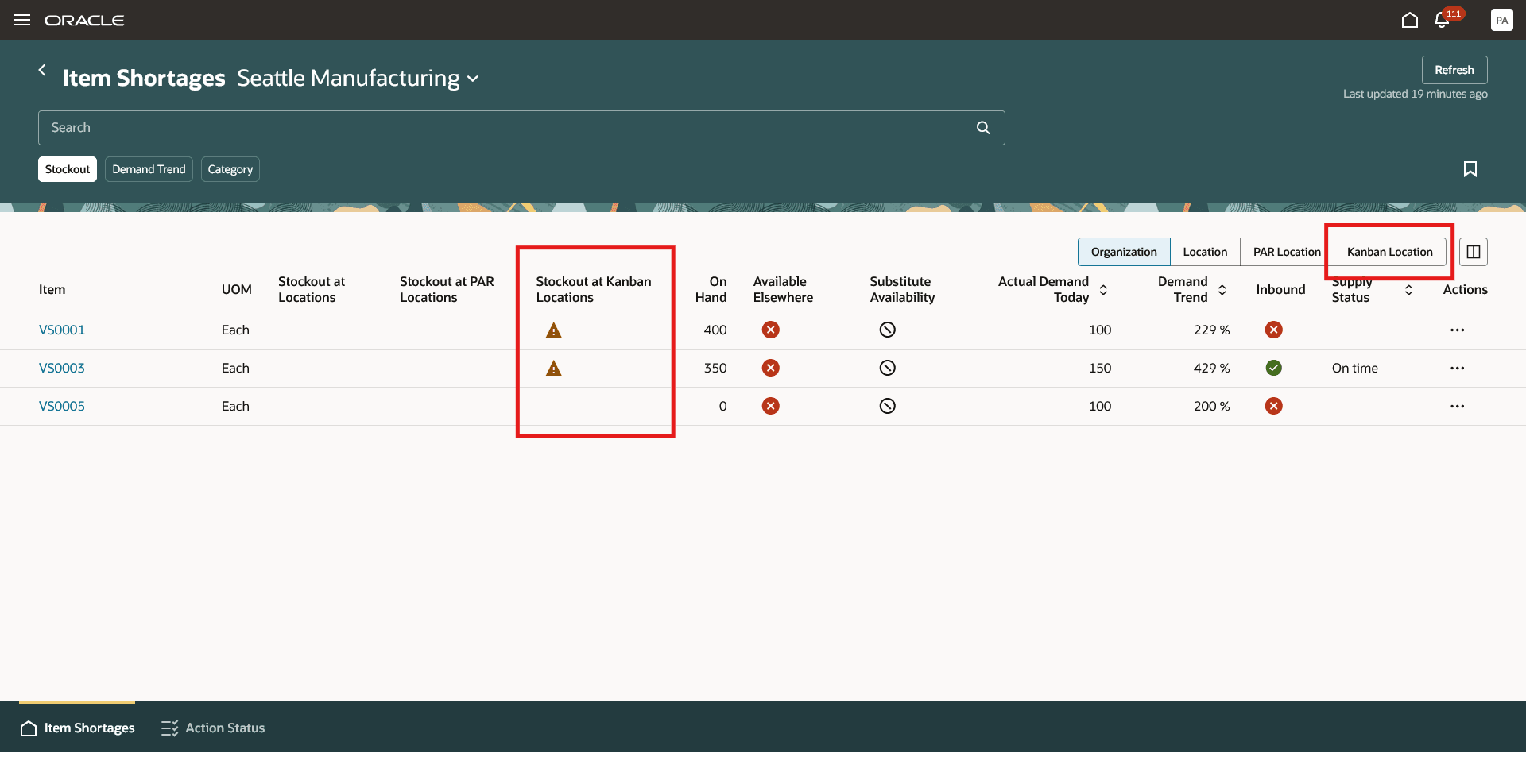
Redwood Item Shortages Page
- Use the Location toggle to view shortage or stockout information at the subinventory level.
- Use the PAR Location toggle to view shortage or stockout information at the PAR-enabled subinventory and locator level.
- Use the Kanban Location toggle to view shortage or stockout information for items at the point of use.
- You can navigate directly from this page to the Kanban Pull Sequences page to review or manage pull sequence details.
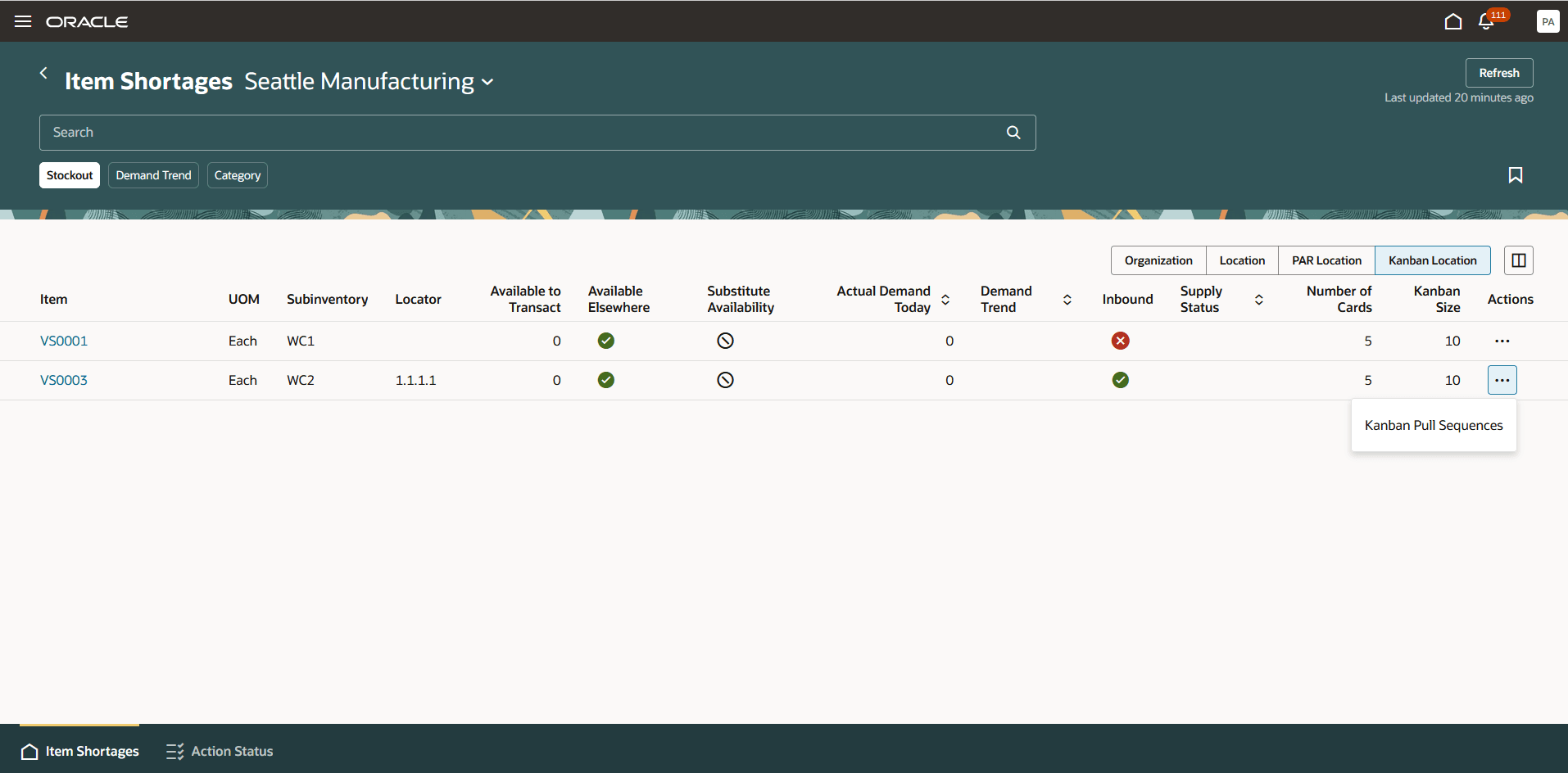
Kanban Location Toggle
Stockout and Shortage Tracking in Kanban Locations
- Kanban pull sequences are created per item and point-of-use location (subinventory and locator). Each pull sequence defines the number of cards and Kanban card size.
- The maximum expected on-hand quantity, used for shortage evaluation, is calculated as: Number of Cards × Kanban Size.
- Only active Kanban cards are considered for shortage and stockout tracking.
- An item is tracked for stockout and shortage in a Kanban location when the following criteria are met:
- The item belongs to a category that's configured for shortage and stockout tracking.
- A Kanban pull sequence is defined for the item in a quantity-tracked subinventory and locator.
- At least one active Kanban card has a supply status of Empty, Full, In Process, or In Transit, or has a replenishment activity within the average demand period defined in the Configure Item Shortage Parameters setup task.
- An item is considered a stockout when the on-hand quantity = 0 at the point-of-use location defined in the Kanban pull sequence.
- When an item’s availability falls below this percentage of the maximum expected quantity in the Kanban location, it’s listed as a shortage. You can configure the shortage threshold percentage for Kanban locations using the Shortage Threshold for Kanban Location section in the Configure Item Shortage Parameters setup task. For example, if an item has 5 active Kanban cards, each with a card size of 10 units, the maximum expected quantity is 50 units. If the shortage threshold is set to 60%, a shortage is triggered when the on-hand quantity falls below 20 units.
Item Shortages Analysis Advisor
The Item Shortages Analysis Advisor AI agent is enhanced to assist you with stockout and shortage information in Kanban locations.
Here are some sample prompts:
- What items are stocked out in Kanban locations in Seattle Manufacturing?
- What items are in shortage in Kanban locations in Seattle Manufacturing?
- How many active Kanban cards exist for item VS0001 in subinventory WC1 at Seattle Manufacturing?
- What is the Kanban size for item VS0002 in WC2 subinventory and 1.1.1 locator?
This enhanced transparency for Kanban locations supports more efficient material replenishment, reduces costly downtime, and improves overall supply chain responsiveness.
Steps to enable and configure
Use the Opt In UI to enable this feature. For instructions, refer to the Optional Uptake of New Features section of this document.
Offering: Manufacturing and Supply Chain Materials Management
Follow these steps to enable or disable the Item Shortages task:
- In the Setup and Maintenance work area, search for and select the Manage Inventory Profile Options task.
- On the Manage Inventory Profile Options page, search for and select the ORA_INV_VIEW_ITEM_SHORTAGES_REDWOOD_ENABLED profile option code.
- In the Profile Values section, set the Site level to Yes or No. The default value is No.
- Yes = enables the feature
- No = disables the feature
- Click Save and Close. Changes in the profile value will affect users the next time they sign in.
In the Setup and Maintenance work area, use the Configure Item Shortage Parameters task to set up the defaults and rules used by the Item Shortages page:
- Category: Use this section to set the default item category for the Item Shortages page. You can also add rules to include additional item categories that you want to monitor for stockouts and shortages. The categories added to the rule appear as options in the Item Category filter chip on the Item Shortages page.
- Shortage threshold: Use this section to set the default shortage threshold percentage. When an item’s available quantity falls below this percentage of the minimum quantity or PAR level, it’s listed as a shortage. You can also add rules to define thresholds for specific item categories or sets of categories. For example, you may want to flag all items as shortages when the available quantity falls 50% below the minimum quantity, but for certain categories, only trigger the shortage when it falls below 20%.
- Shortage threshold for kanban locations: Use this section to set the default shortage threshold percentage for Kanban locations. When an item’s availability falls below this percentage of the maximum expected quantity in the Kanban location, it’s listed as a shortage. You can also add rules to define thresholds by item category or set of categories.
- Average demand period: Use this section to set the period for calculating average demand. Available options include Last 7 days, Last 30 days, and Last 90 days.
- Open supply period and Open demand period: Use these sections to set the default period for reviewing open supply and demand on the Item Shortages Detail page. Available options include Today, Tomorrow, and Next 7 days.
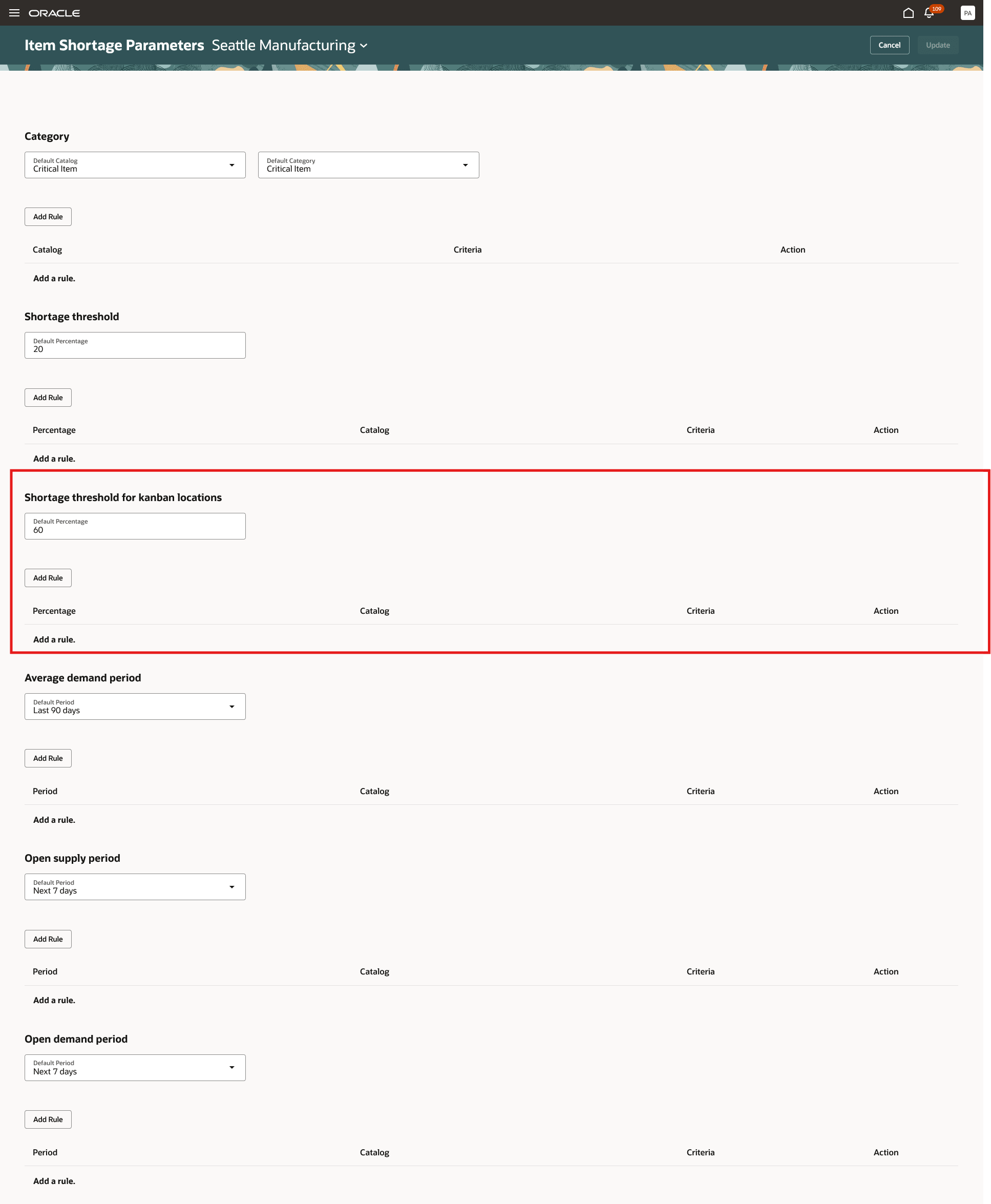
Item Shortage Parameters
Tips and considerations
Some information, such as average demand and items in a category, is collected to improve page performance. The Refresh button is used to refresh the collection data. We recommend that you schedule the Refresh Item Shortage Data process at the beginning of the day. You can use the Refresh button to submit the ad-hoc process. For example, if you added an item to an item category and you want to look at the shortage information immediately, you can use this option.
Key resources
- Refer to the What's New of the 24D feature: View Item Shortages and Remedy Warehouse Stocking and Replenishment Issues.
- Oracle Fusion Cloud SCM: Using Inventory Management guide, available on the Oracle Help Center.
- Oracle Fusion Cloud SCM: Using Manufacturing guide, available on the Oracle Help Center.
Access requirements
Users who are assigned a configured job role that contains these duty roles can access this feature:
- Review Item Shortage Using Responsive Inventory (ORA_INV_REVIEW_ITEM_SHORTAGE_PWA_DUTY)
- Configure Item Shortage Parameters Using Responsive Inventory (ORA_INV_CONFIGURE_ITEM_SHORTAGE_PARAMETER_PWA_DUTY)
These duty roles were available prior to this update.