Redwood: Update Attributes and Flexfields Without Revising the Order
Use Oracle Order Management's redesigned pages to update scheduling attributes and extensible flexfields on order lines without having to revise the sales order.
Realize these benefits:
- Reduce administrative overhead. For example, manage approvals, do credit check, and check for trade compliance.
- Speed up fulfillment and reduce delay. Update fulfillment attributes without having to revise the sales order. Adjust ship dates, arrival dates, sourcing, and shipping method without having to revise, do extra compliance checks, and so on to keep the order moving forward instead of sending it back through approval.
- Cut cost. Switch shipping methods or sourcing options quickly so you can select the cheapest or fastest path without revising the order.
- Increase control. Specify the attributes that you can update without having to revise the order.
- Scale updates. Update more than one line at a time from the search results, then do a single action to apply the same update across sales orders.
You can use the new Revision Preferences page to specify the attributes that you can update without revising the sales order:
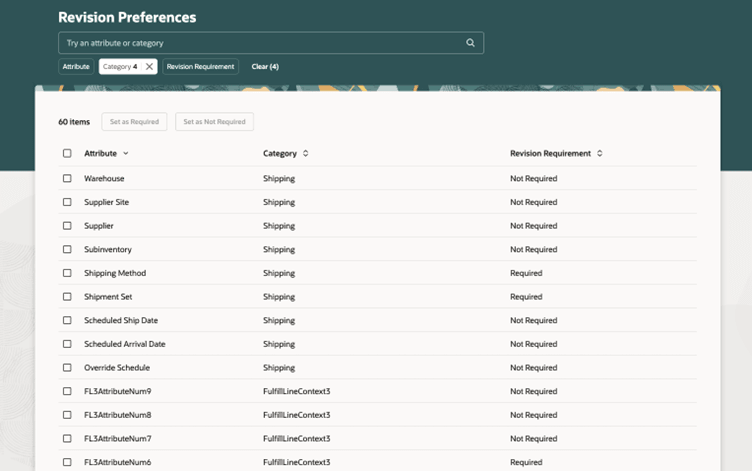
Specify your revision preferences for these attributes on the order line:
- Demand Class
- Override Schedule
- Scheduled Arrival Date
- Scheduled Ship Date
- Shipment Set
- Shipping Method
- Subinventory
- Supplier
- Supplier Site
- Warehouse
- Extensible flexfields on the fulfillment line
Assume you create a segment named Expedited Shipment in your flexfield, and you use the Revision Preferences page to specify that you can update these attributes without revising the order:
- Scheduled Ship Date
- Scheduled Arrival Date
- Override Schedule
On November 1, 2025, your Computer Service and Rentals customer has two open sales orders with these lines:
|
Order |
Line |
Item |
Quantity |
Requested Ship Date |
Scheduled Ship Date |
Scheduled Arrival Date |
Status |
Expedited Shipment |
|
1001 |
1 |
14 inch laptop |
20 |
November 15, 2025 |
November 25, 2025 |
November 27, 2025 |
Awaiting Shipping |
No |
|
1002 |
1 |
1 TB external HDD |
25 |
November 15, 2025 |
November 21, 2025 |
November 23, 2025 |
Awaiting Shipping |
No |
Computer Service and Rentals requests to expedite shipment for the items that you shipped on the original requested date. You can update the scheduled ship date without creating a revision:
- Go to Home > Order Management > Order Management (New) > Sales Order Lines.
- Search for Computer Service and Rentals and filter the line status to Awaiting Shipping.
- Click the sales order, select the order lines, then click Update Lines.
- Use the Update line dialog to modify the Scheduled Ship Date. The dialog automatically sets the Override Schedule to Yes and sets the Scheduled Arrival Date to empty.
- Set the Expedited Shipment attribute to Yes, then enter the change reason and change comments in the prompt.
Order Management will automatically start the update. You can use the Action Status page to monitor the progress and the Action Report to get details about the attributes that you changed.
The updated lines will display the new values. You didn't revise the order, so the Revisions tab and other related parts of the sales order won't display the update:
|
Order |
Line |
Item |
Quantity |
Requested Ship Date |
Scheduled Ship Date |
Scheduled Arrival Date |
Override Schedule |
Status |
Expedited Shipment |
|
1001 |
1 |
14 inch laptop |
20 |
November 15, 2025 |
November 15, 2025 |
November 17, 2025 |
Yes |
Awaiting Shipping |
Yes |
|
1002 |
1 |
1 TB external HDD |
25 |
November 15, 2025 |
November 15, 2025 |
November 17, 2025 |
Yes |
Awaiting Shipping |
Yes |
Steps to enable and configure
- If you want to use the Redwood: Update Attributes and Flexfields Without Revising the Order feature, then you must opt in to its parent Redwood: Search and Apply Actions on Multiple Sales Orders feature. If you already opted in to the parent, then you don't have to opt in again.
- Go to Home > Order Management > Show More > ctrl+f > Revision Preferences for Sales Orders, then set your preferences.
Tips and considerations
If you update lines but don’t revise the order:
- You must use Update Lines in the Order Lines search results to do your update.
- Order Management will still send changes to your fulfillment system. For example, if you update the scheduled ship date or warehouse, it will send these values to Oracle Global Order Promising and Oracle Shipping.
- You can update an order line that already has a revision that's in Draft status. If you want to revise the order later, then you must discard the draft.
- You can’t update an attribute on an included item, option class, or optional item in a configured item or kit. You must update it on the configured item or the kit to update all its children.
- Order Management will still apply processing constraints.
If you update lines, don’t revise the order, and you:
- Update two or more lines but Order Management can't update order lines for some reason, then it will skip the lines that it can't update and process updates on all other lines.
- Update an extensible flexfield on the root parent line of an assemble-to-order or pick-to-order configured item or kit, then Order Management will cascade values to child lines according to how you set up the Cascade Values in Extensible Flexfields for Configured Items order management parameter. See Manage Order Management Parameters.
- Provide a change reason and comment for the update, then you can view that reason and comment on the order line for each line that you update. If you do a second update on the same line, then Order Management will replace the original change reason and comment with the latest reason and comment that you add. If you revise the order, then you can continue to view the original reason and comment on the order header.
If you update lines and don't revise the order, then Order Management won't:
- Reprice the order. Applies only if you price the order in Oracle Pricing.
- Run order management extensions.
- Run the approval flow.
- Run credit check. Applies only if you enable the Activate Credit Check on Order Submit order management parameter.
- Run compliance check for Oracle Global Trade Management. Applies only if you enable the Check for Trade Compliance When User Submits Sales Order parameter. See Integrate Order Management with Global Trade Management.
Order Management does the same validations whether or not you create a revision. For example, it will reject a request to update the shipping method on a closed or cancelled line.
You can also use the Sales Order Action Requests REST API to make these changes.
Key resources
Access requirements
Users who are assigned a configured job role that contains these privileges can use the Update Lines capability from redesigned pages:
- View Orders (FOM_VIEW_ORDERS_PRIV)
- Update Bulk Orders (FOM_UPDATE_BULK_ORDERS_PRIV)
- Modify Orchestration Order Fulfillment Line Schedule Date (DOO_MODIFY_ORCHESTRATION_ORDER_FULFILLMENT_LINE_SCHEDULE_DATE_PRIV)
- These privileges were available prior to this update and are required for updating from the Sales Order Action Requests REST API also
Users who are assigned a configured job role that contains the privilege Manage Revision Preferences (FOM_MANAGE_REVISION_PREFERENCES) can access the Revision Preferences setup page. This is a newly added privilege. Users who are assigned the Order Orchestration Administration Duty (ORA_DOO_ORDER_ORCHESTRATION_ADMINISTRATION_DUTY) role automatically get this privilege.