Redwood: Manage Contract Terms in Negotiations
Category Managers can now add and manage Contract Terms within negotiation documents using the Redwood experience.
You can add and manage Contract Terms on the Redwood page using the following two options:
- Embed contract terms from Terms Library
- You can insert a Terms Template from the Contract Terms Library in Oracle Fusion Enterprise Contracts into your negotiation document. This option applies if you have not enabled the update 19D feature, Create Supplier Contracts from Negotiation Award.
- Create base contract
- You can create a base contract to negotiate terms with all invited suppliers. This option applies if you have enabled the update 19D feature, Create Supplier Contracts from Negotiation Award. During the finalize award step, you have the option to initiate the creation of a supplier contract in Oracle Fusion Enterprise Contracts for the suppliers who have been awarded.
Embed Contract Terms from Terms Library
Contract terms templates are created and approved in the Contract Terms Library within Oracle Fusion Enterprise Contracts. On the Redwood Negotiation page, you can add a terms template to your negotiation document by using the Add Contract Terms action in the Contract Terms section.
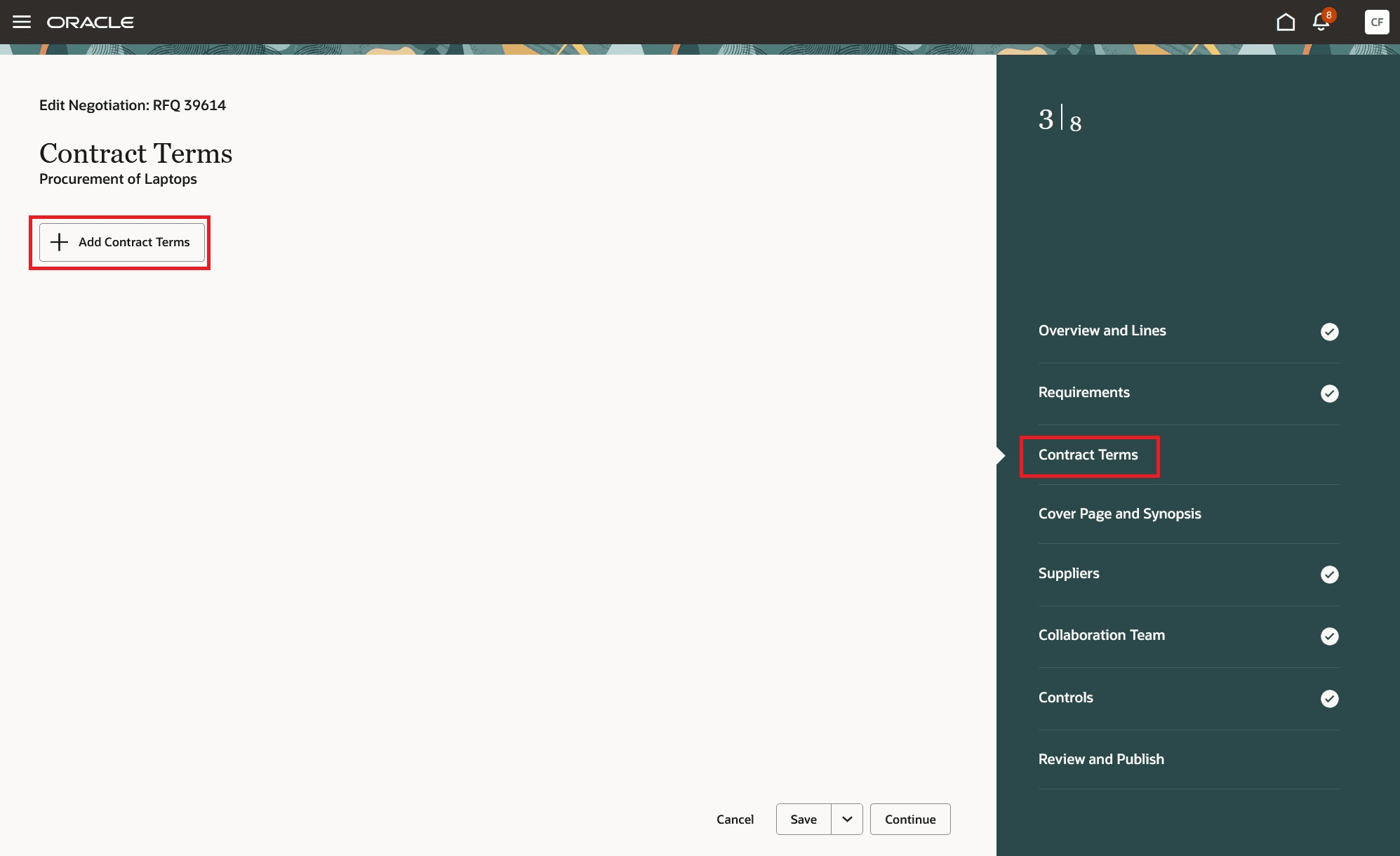
Add Contract Terms on a Negotiation Document
The Add Contract Terms action opens a drawer, allowing you to choose from the following contract sources to add terms to your negotiation:
- Terms Template
- Attached Document
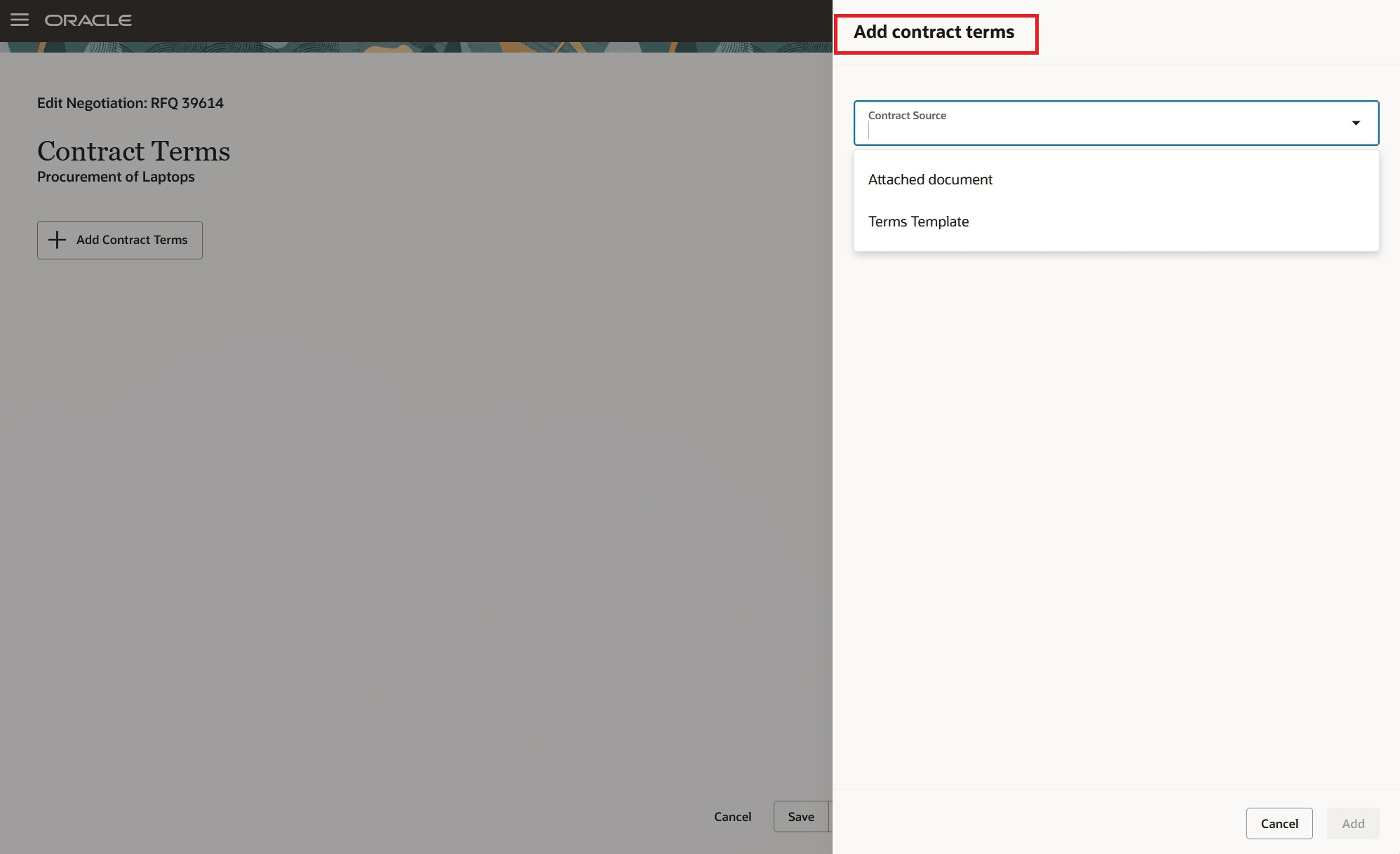
Contract Sources in Add Contract Terms Drawer
Available Actions on Applied Contract Terms
You can perform the following actions on the contract terms applied to a negotiation document:
|
Action |
Action Details |
|
Change Contract Source |
This action is applicable for both Terms Template and Attached Document. Use this action to change the source of the contract terms from one template to another, from a template to an attached document, or from an attached document to a template. |
|
Remove Contract Source |
This action is applicable for both Terms Template and Attached Document. Use this action to remove the contract terms from the negotiation document. |
|
Apply latest contract terms |
This action is applicable only for Terms Template. Use this action to apply the latest version of the terms template to the negotiation document. |
|
Download contract terms |
In this release to view embedded or attached contract terms, you must use this action. Incase of a Terms Template, the action downloads the terms information in word format. Incase of an attached document, the action downloads the document attached as contract terms. |
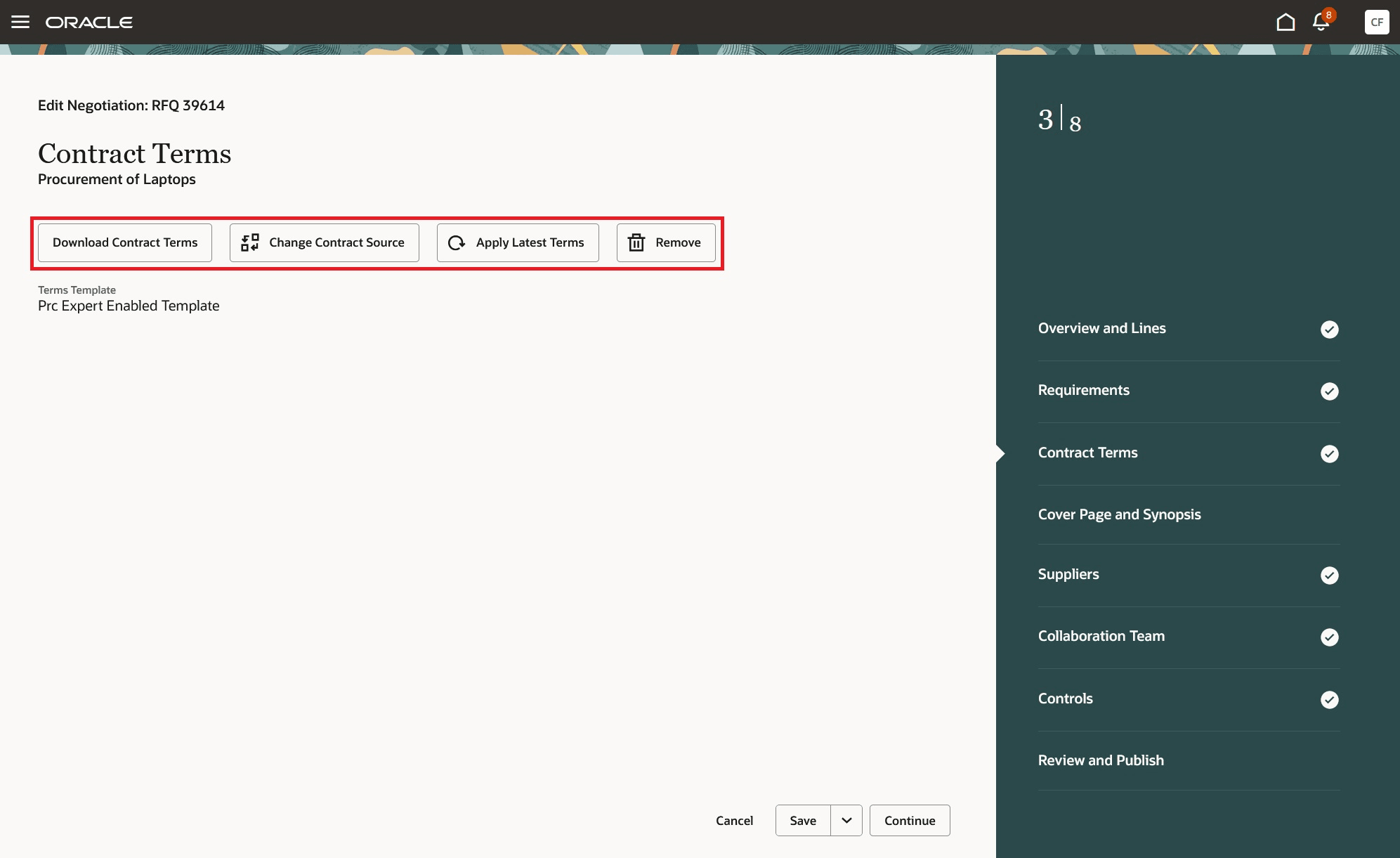
Contract Terms Actions on Negotiation Document
Create Base Contract
When you opt into the Create Supplier Contracts from Negotiation Award feature, the Create Base Contract action becomes available in the contract terms section of a negotiation document. Selecting this action opens a side drawer where you can specify the contract type, contract number, and terms template. You only need to enter a Contract Number if the chosen Contract Type is configured for manual numbering in the Manage Contract Type setup task.
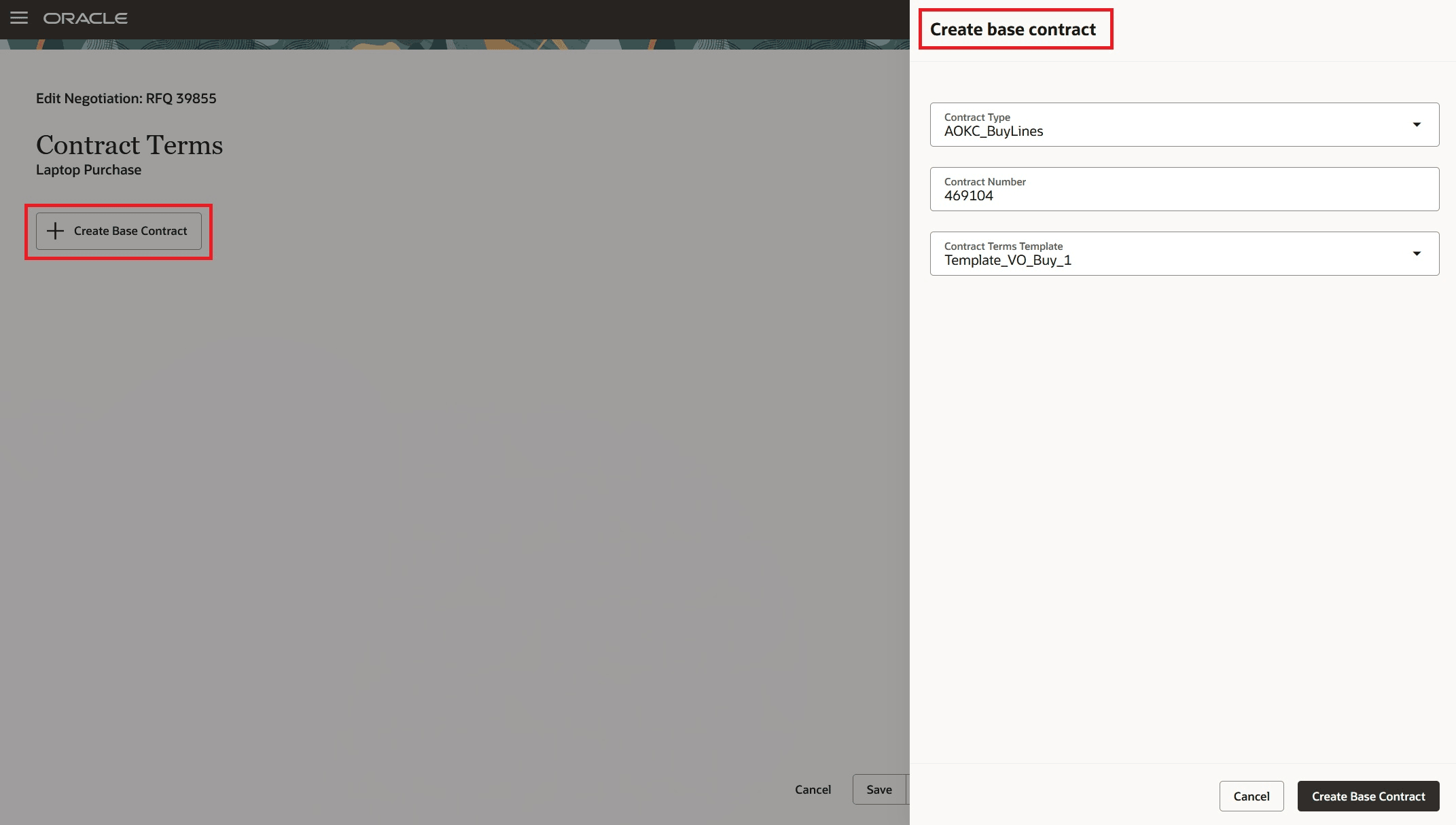
Create Base Contract
When you click Create, a base contract is generated in Oracle Fusion Enterprise Contracts, and the Contract Number is displayed on the page. You can click the Contract Number to open the contract in a new window. To download the contract terms included in the contract document, use the Download Contract Terms action.
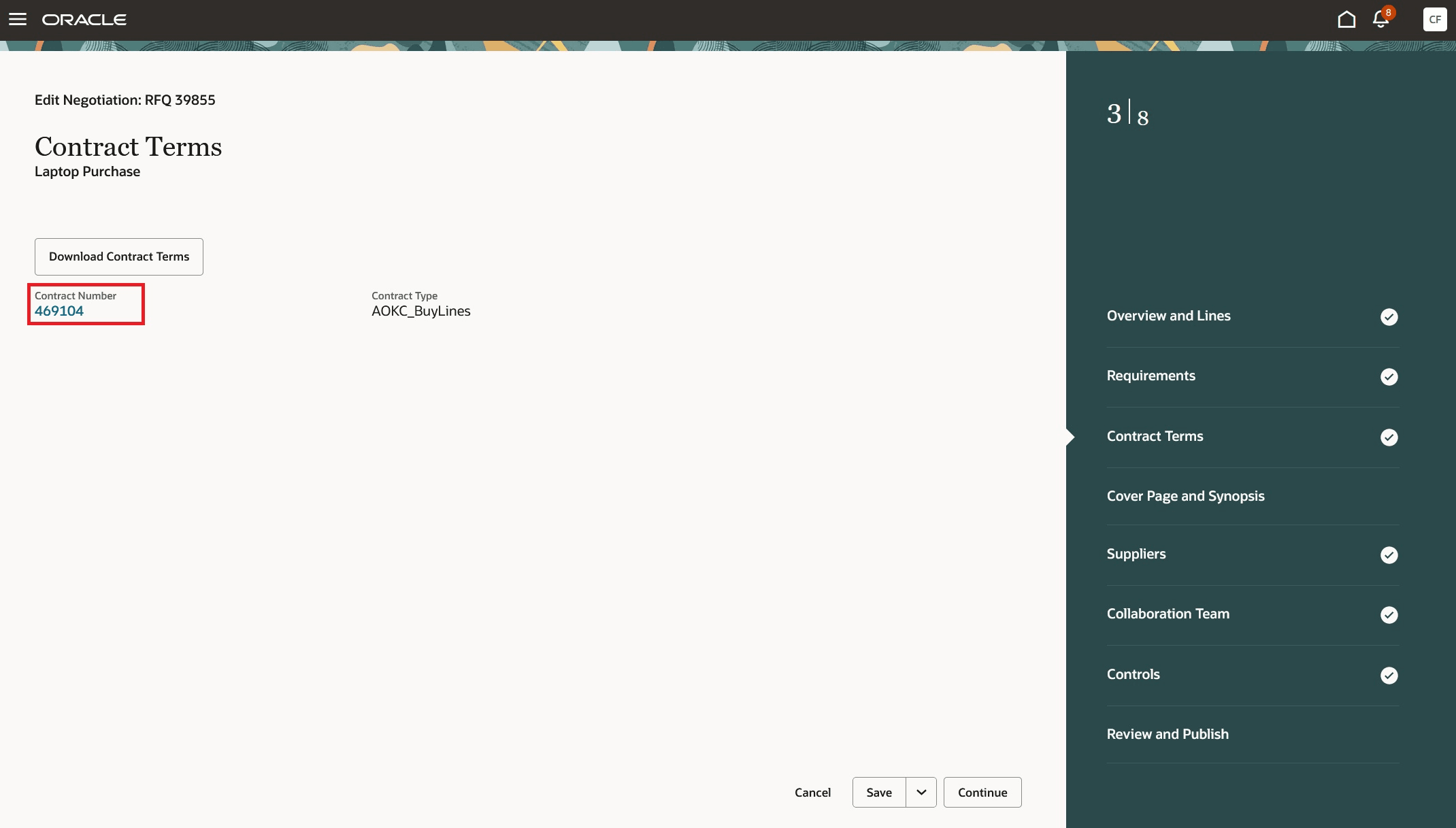
Base Contract Details on a Negotiation Document
The Contract Terms section is also available during the Review and Publish step. Depending on the type of terms added to the negotiation document, you will see either embedded terms details or base contract details.
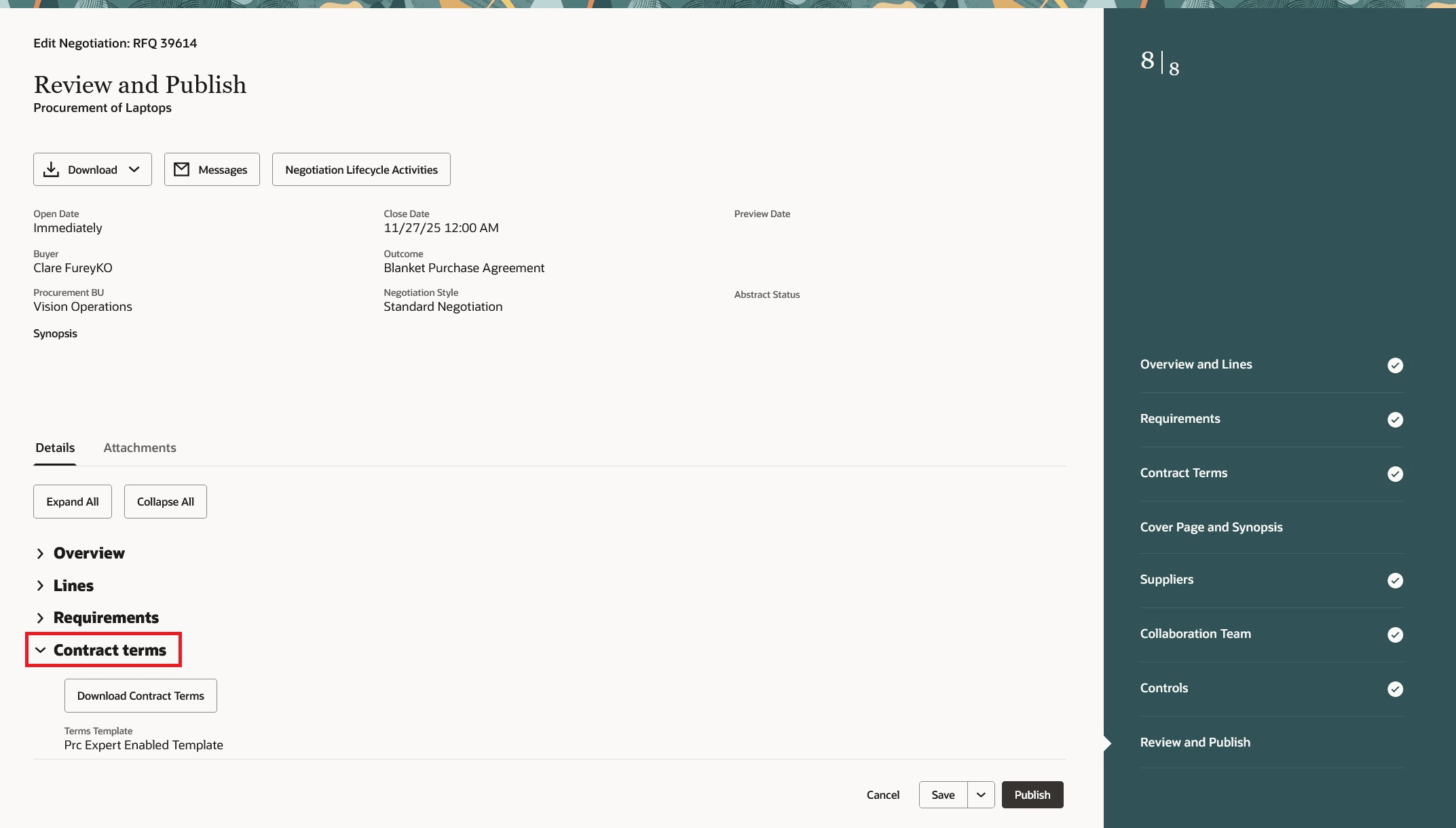
Contract Terms Section on Review and Publish Page
Creation of Supplier Contracts
When the Create Supplier Contracts from Negotiation Award optin is enabled and a base contract is associated with the negotiation document, you can generate supplier contracts for all awarded suppliers upon finalizing the award. In this release, the Finalize Award feature is also accessible from the Redwood Negotiation page.
You can use the Award action from any negotiation document that is ready for the award stage.
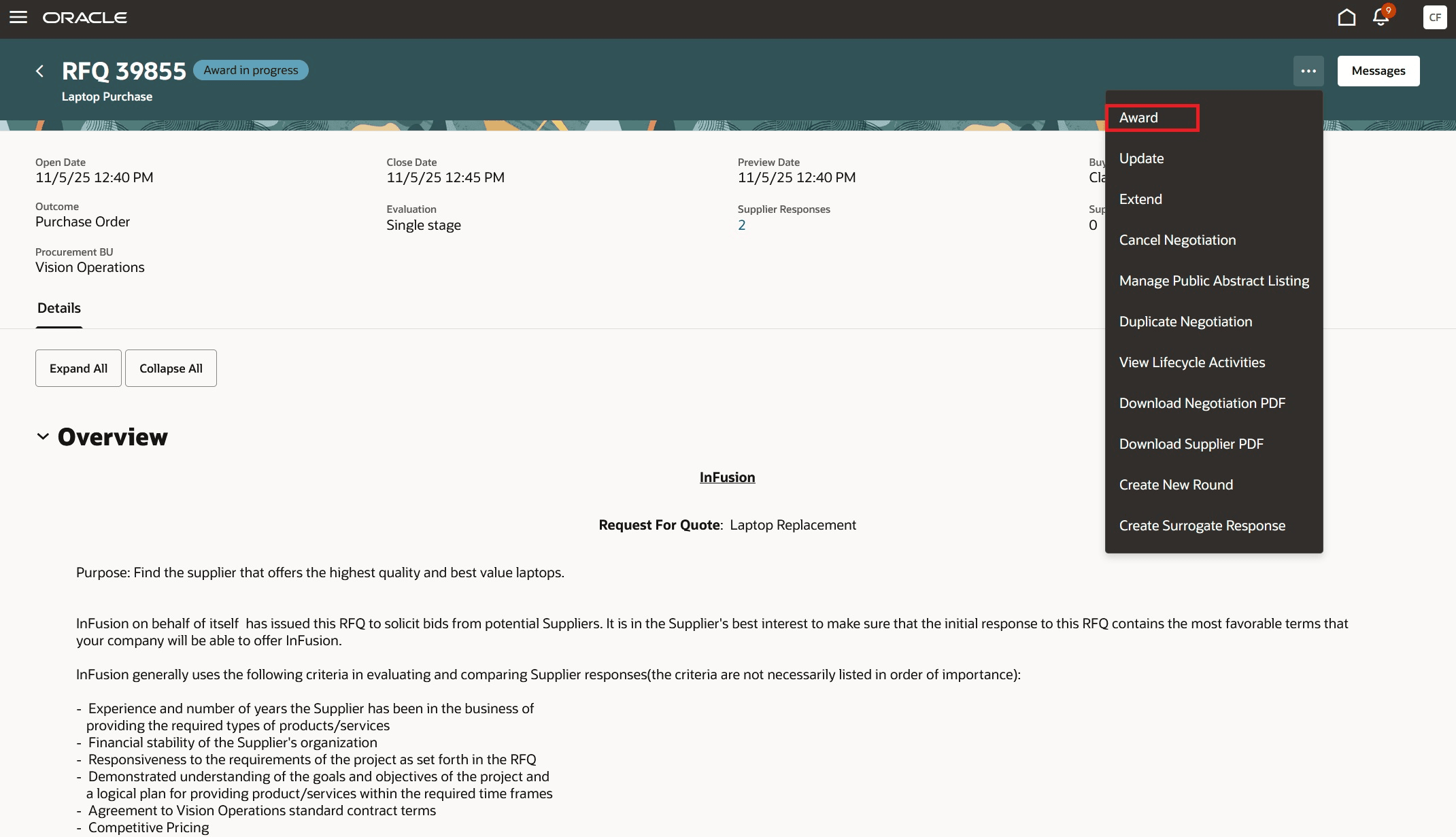
Award Action on a Negotiation Document
The Award action takes you to a page where you can review supplier responses and make your award decisions. Once you are ready to complete the process, select the Finalize Award action.
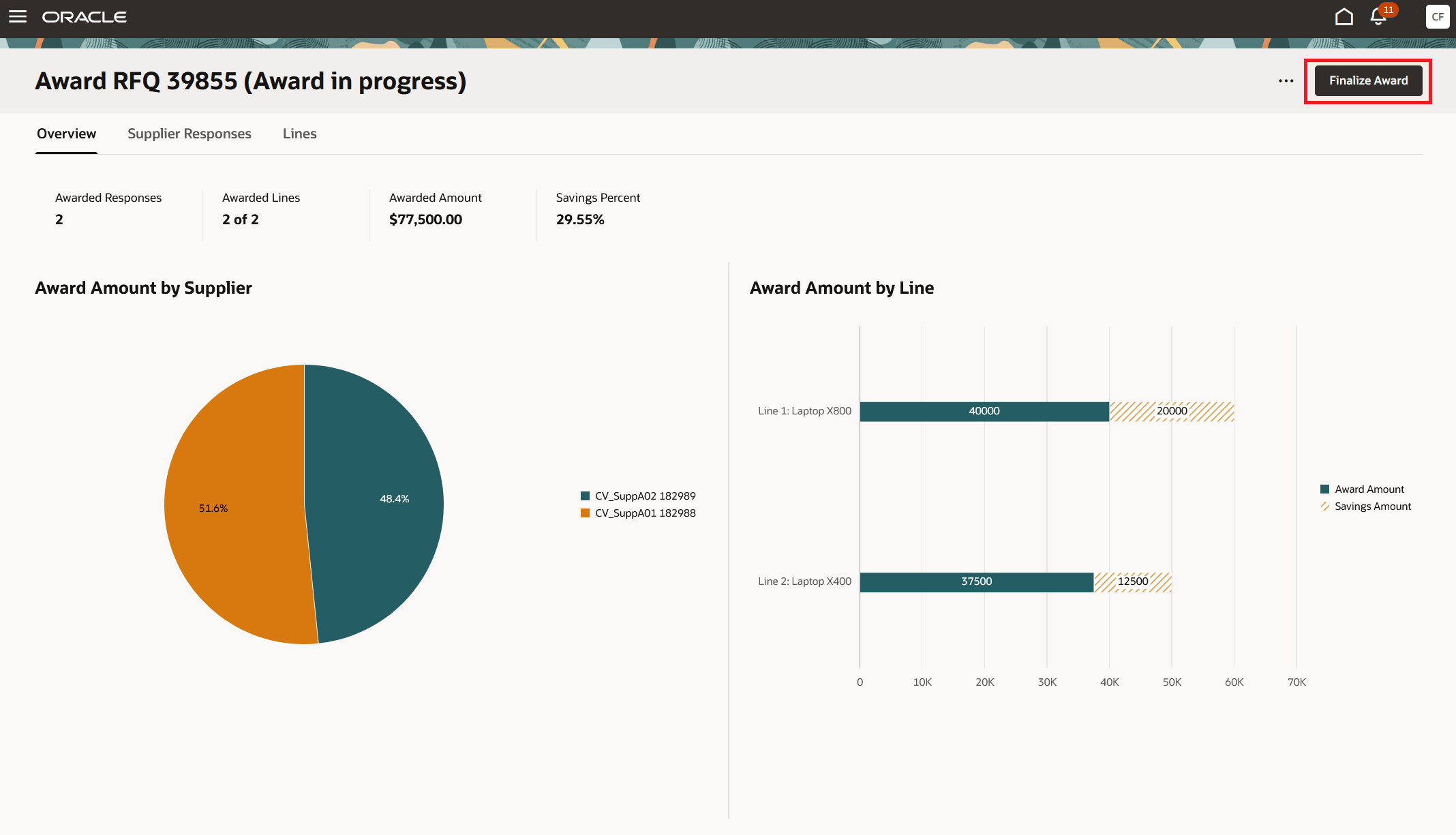
Finalize Award Action on a Negotiation Document
The Finalize Award action opens a drawer where you can select an outcome. You may choose only one of the available options—for example, to create either final orders or a supplier contract. If you select the supplier contract option, a purchasing document cannot be created directly from the award. Instead, purchasing documents are generated during the contract fulfillment process once the contract is approved, which helps prevent duplicate creation. This enhancement offers a more efficient and controlled contracting process compared to the classic application.
To proceed with creating a supplier contract, select the Create supplier contracts option and click Finalize. This will start the process of generating supplier contracts in Enterprise Contracts. Depending on the number of awarded suppliers, one or more supplier contracts will be created with awarded lines at the same time.
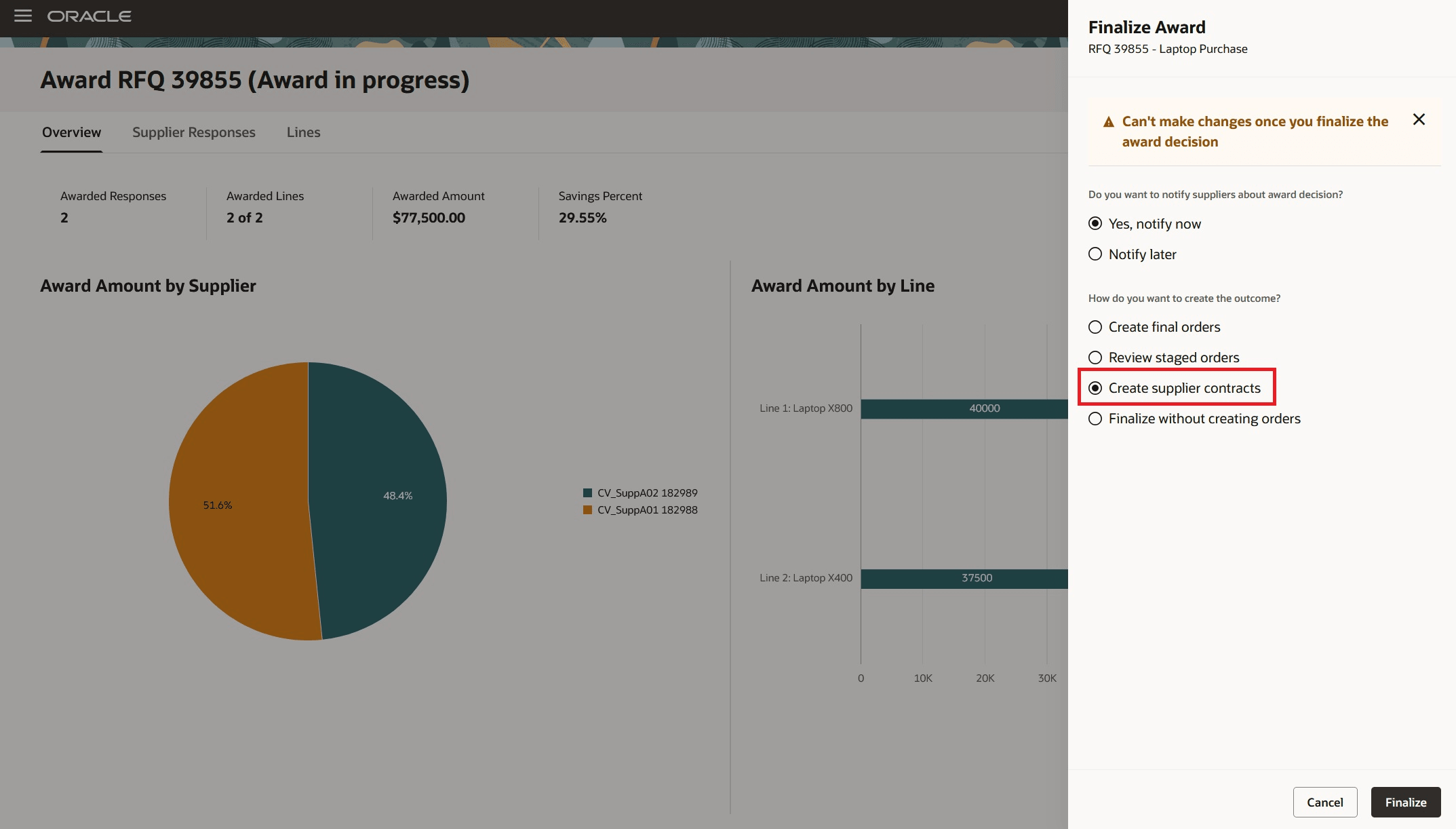
Create Supplier Contracts
After the supplier contracts are successfully created, you will be directed to the Supplier Contracts page, where you can review the generated contracts. Clicking on a Supplier Contract number will open that contract in a new window in the classic UI. Managing Enterprise Contracts in Redwood UI is planned in a future release.
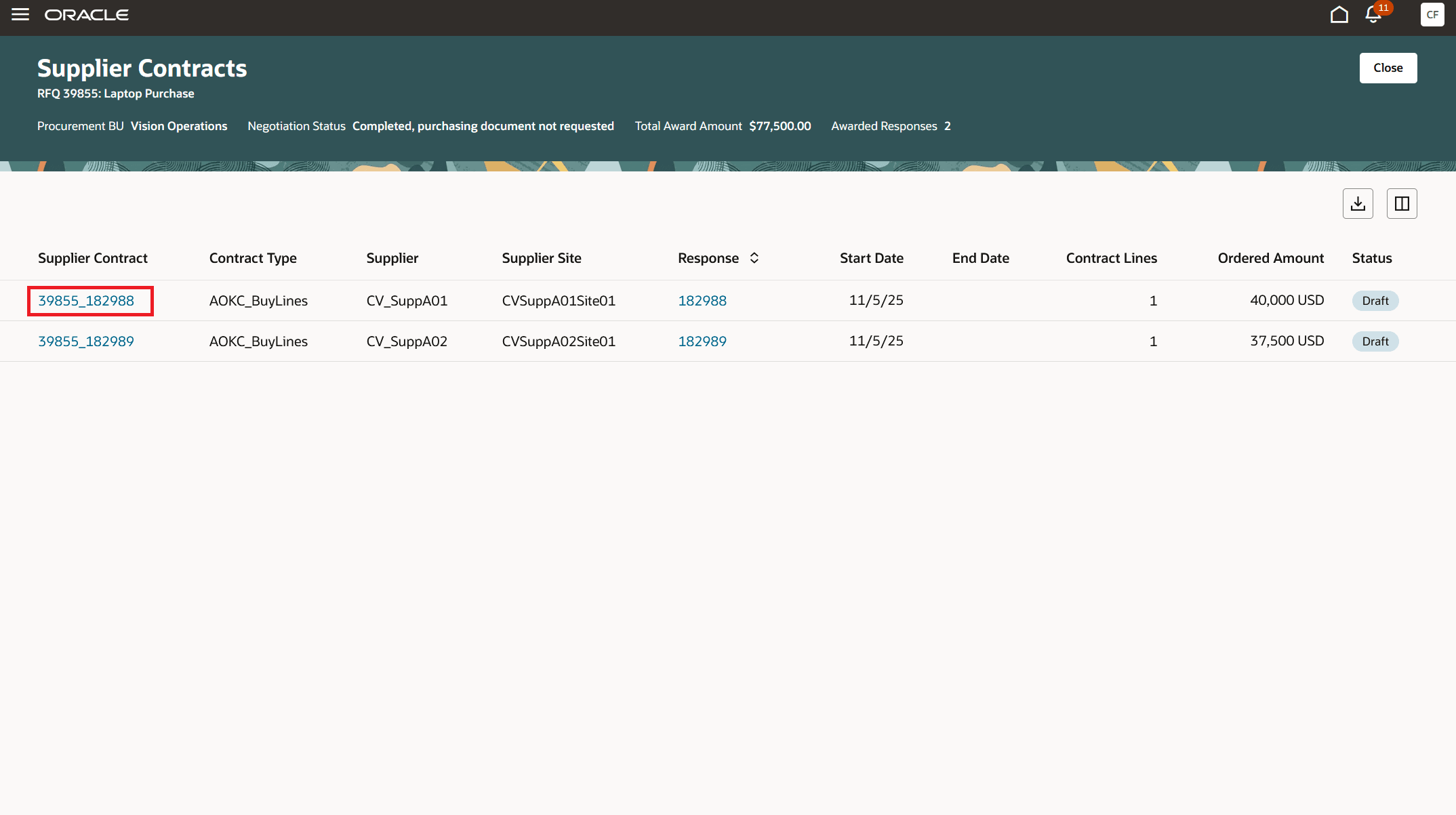
Supplier Contracts Page
You can access the supplier contracts linked to a negotiation by selecting View Supplier Contracts action on the View Negotiation page.
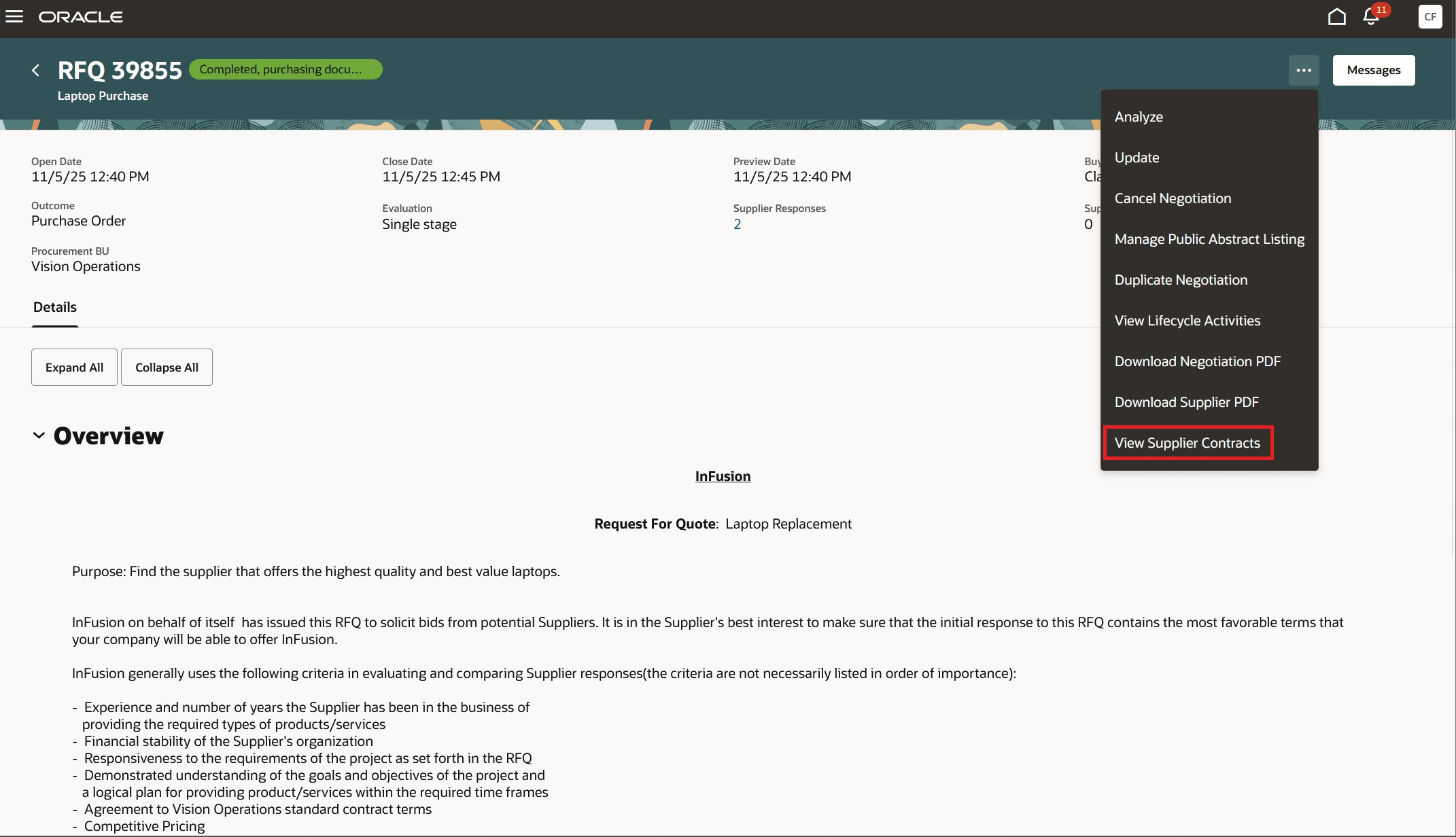
View Supplier Contracts Action on a Negotiation Document
Steps to enable and configure
To use this feature, you must opt in to the required feature and enable the corresponding profile option if you haven’t already.
- Feature: Enable Contract Terms in Oracle Fusion Procurement option within the Procurement Contracts functional area under the Procurement offering. For instructions on opting in to a feature, refer to the Optional Uptake of New Features section of this document.
- Feature: Create Supplier Contracts from Negotiation Award option within the Sourcing functional area under the Procurement offering. This is required only if you need to negotiate terms with a supplier using a base contract. For instructions on opting in to a feature, refer to the Optional Uptake of New Features section of this document.
- Profile Option: Redwood Pages for Sourcing Enabled (ORA_PON_SOURCING_REDWOOD_ENABLED).
- Profile Option: Redwood Page to Create Negotiation Enabled (ORA_PON_CREATE_NEGOTIATION_REDWOOD_ENABLED)
For instructions on enabling a profile option, refer to the Set Profile Option Values topic.
Tips and considerations
- To add and manage contract terms within a negotiation, ensure that the negotiation style is enabled for contract terms in the Manage Negotiation Styles setup task.
- Requisitions can't be fulfilled when a negotiation is awarded directly to a contract. In this scenario, the requisitions are returned to the requisition pool, and the requisition reference isn't carried over to the contract or to any purchase orders created from that contract. Support for requisition fulfillment in the Negotiation Award to Contract process is planned for a future release. In the current release, if processing requisitions, don't opt in to the Create Supplier Contracts from Negotiation Award feature and don't create a base contract. Instead, add the contract terms directly to the negotiation and create the purchase orders or agreements during the award finalization process. With this approach, the contract terms are passed to the resulting purchasing documents, and the requisitions are fulfilled successfully.
Key resources
- For more information on awarding negotiations using the new award analysis dashboard, see the Redwood: Award Negotiation feature available in the Oracle Fusion Cloud Procurement What's New update 26A.
- For details on creating negotiations using the Redwood page, refer to the Redwood: Create Negotiations feature in Oracle Fusion Cloud Procurement What's New, update 25D.
- To learn more about how contract templates function, refer to How Contract Terms Templates Work.
Access requirements
Users who are assigned a configured job role that contains these privileges can embed contract terms from Terms Library:
- Author Standard Contract Terms and Conditions - OKC_AUTHOR_CONTRACT_TERMS_AND_CONDITIONS_TEMPLATE_PRIV
- View Contract Terms - OKC_VIEW_CONTRACT_TERMS_AND_CONDITIONS_PRIV
To negotiate terms with your supplier using a base contract and to create supplier contracts, the following additional privileges are required:
- Create Contract - OKC_CREATE_CONTRACT_PRIV
- Edit Contract - OKC_EDIT_CONTRACT_PRIV
These privileges were available prior to this update.