Redwood: Manage Forecasting Profiles with Additional Capabilities
In Update 25D, you could use the Redwood experience to view, duplicate, edit, and delete a forecasting profile. In this update, you can create a forecasting profile.
In the Redwood work area named Supply Chain Planning, for a demand, demand and supply, or replenishment plan, on the More Actions menu, select View More, and in the Actions drawer, in Configuration, select Forecasting Profiles.
The Forecasting Profiles page will open on a new tab and display a list of forecasting profiles.
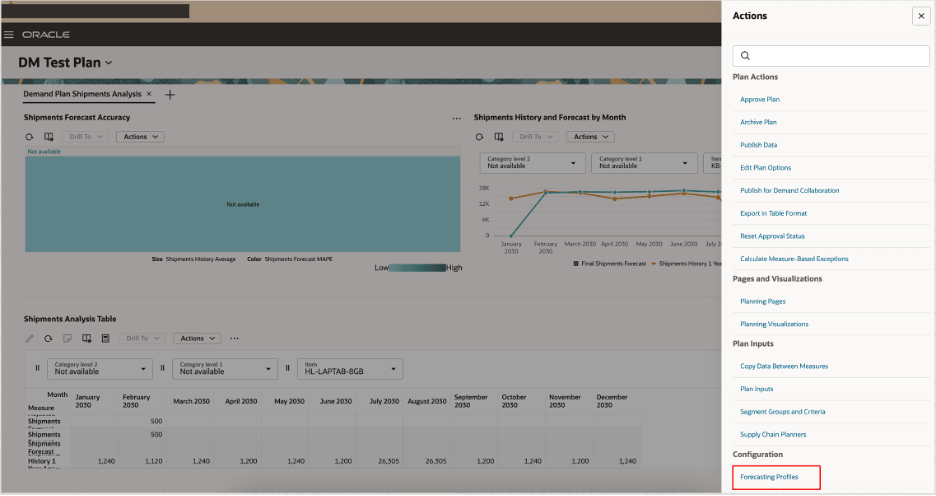
Actions Drawer
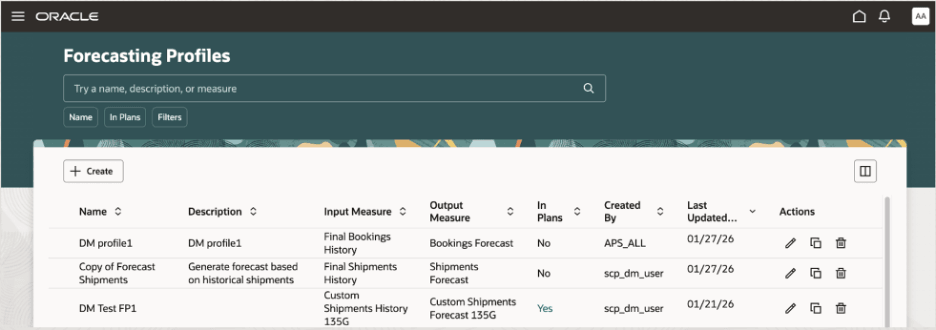
Forecasting Profiles Page
Note: If you have edit privileges, you can create and edit forecasting profiles. If you have view privileges, you can only view the forecasting profile details.
Once a forecasting profile is created, you can view or edit the details. But, you can’t change the machine learning type.
You can run your plan with the forecasting profile and review the plan output.
Create a Forecasting Profile for Bayesian Machine Learning
Follow these steps to create a forecasting profile that uses Bayesian machine learning:
- Select the Create button on the Forecasting Profiles page.
The guided process for creating the forecasting profile will open on the same tab.
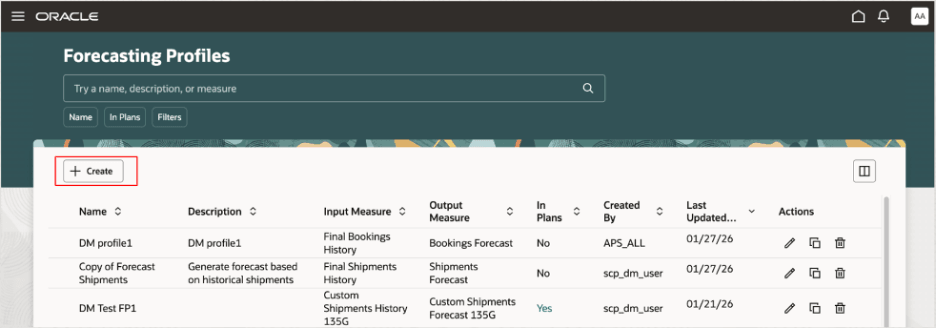
Create Button on Forecasting Profiles Page
- Select Continue to move from a step to the next step, or go directly to a step.
- General: Specify the name, description, plan types, forecasting table, input measure, output measure, and measure catalogs. Select Bayesian as the machine learning type.
The options in the Features, Methods, and Parameters steps will change for the machine learning type.
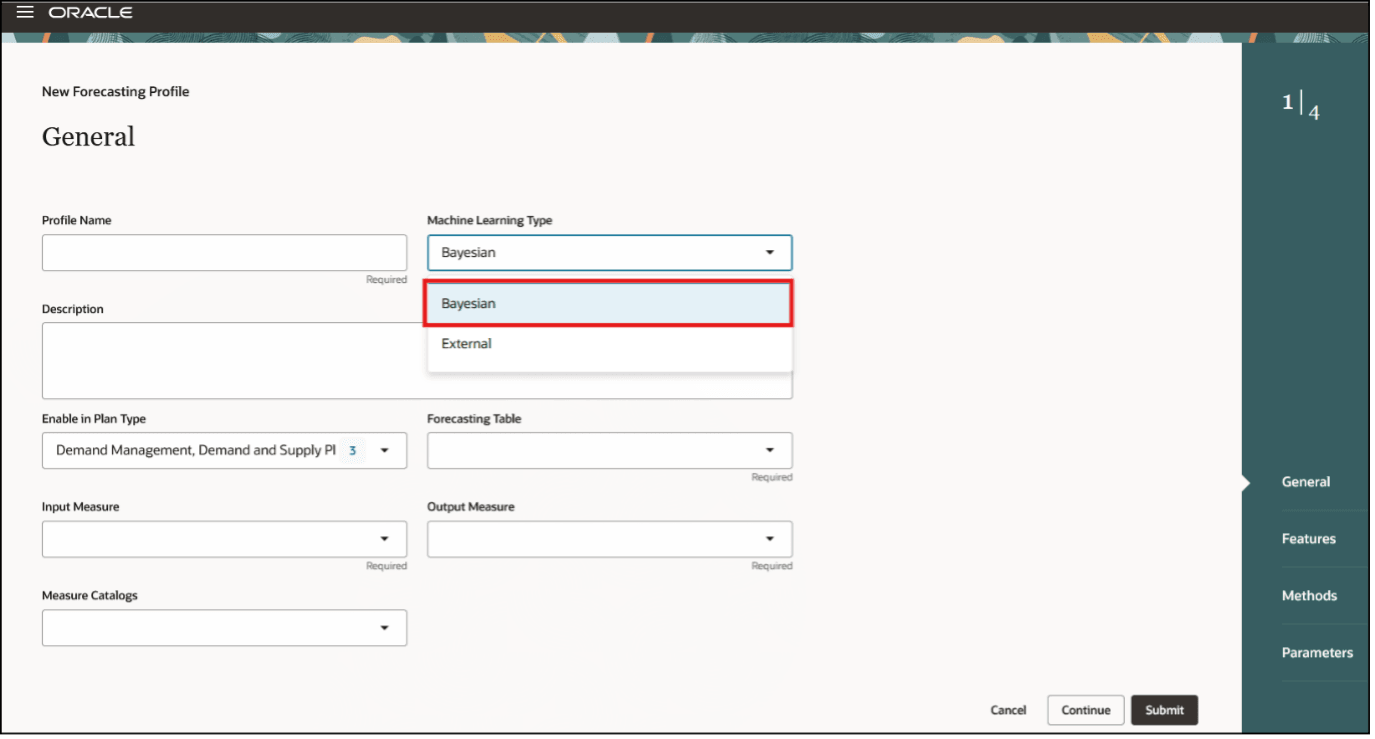
General Step in Guided Process for Creating Forecasting Profile for Bayesian Machine Learning
- Features: Add and edit the feature groups for the forecasting profile.
In the classic interface, decomposition groups were used for grouping causal factors for forecasting profiles of the Bayesian machine learning type and listed on the Decomposition Groups tab in the Manage Forecasting Profiles dialog box. In the Redwood interface, decomposition groups are referred to as feature groups and listed in the Features step of the guided process.
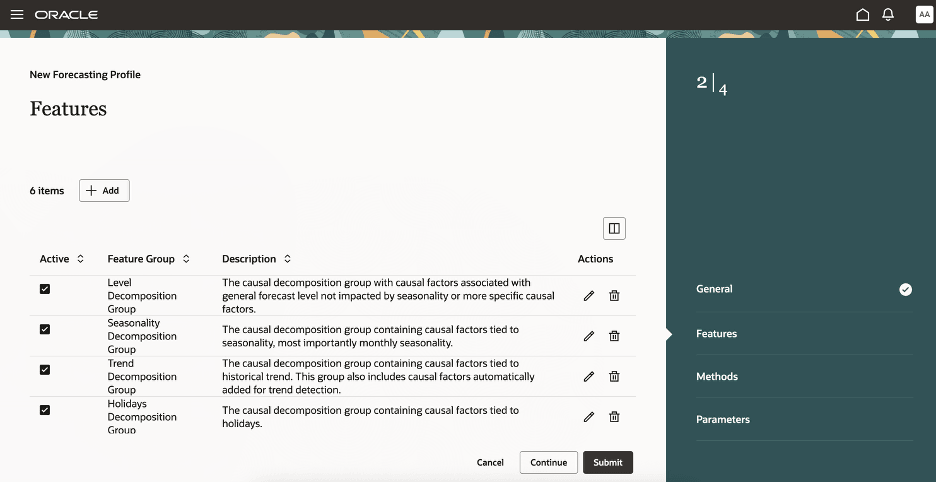
Features Step in Guided Process for Creating Forecasting Profile for Bayesian Machine Learning
- Methods: Select and edit the forecasting methods and method parameters for the forecasting profile.
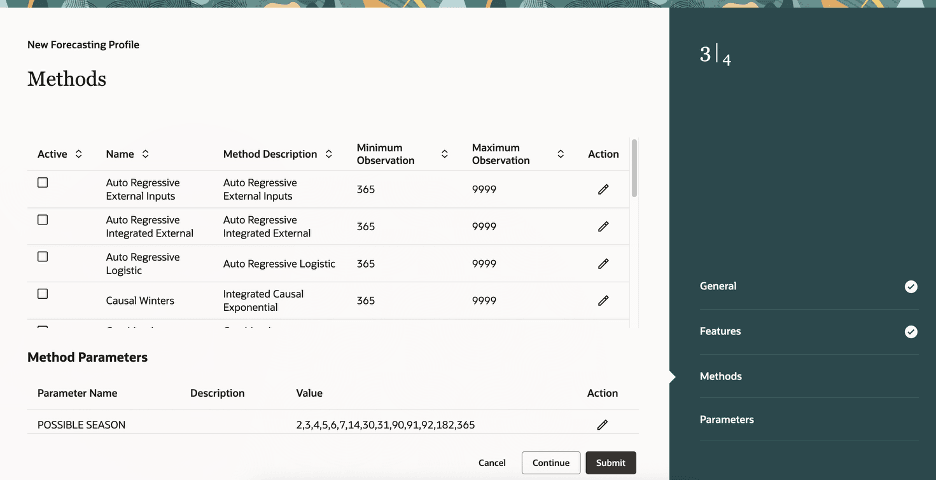
Methods Step in Guided Process for Creating Forecasting Profile for Bayesian Machine Learning
- Parameters: Select and edit the forecasting parameters for the forecasting profile.
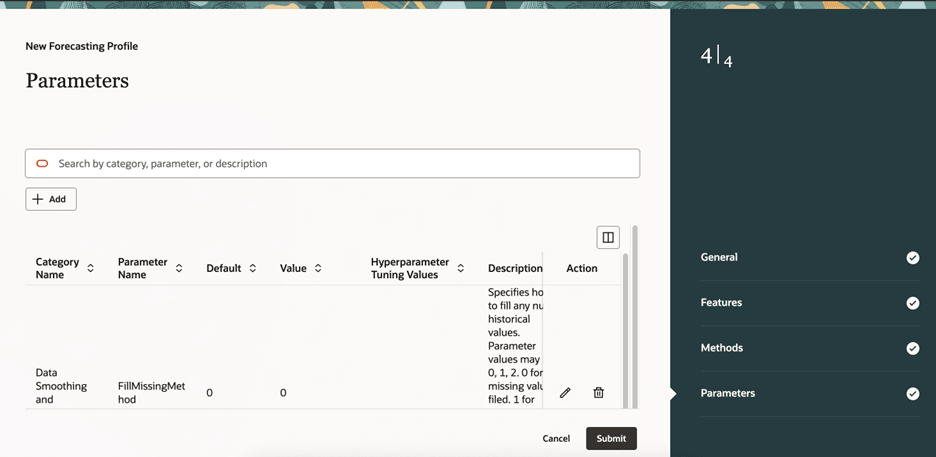
Parameters Step in Guided Process for Creating Forecasting Profile for Bayesian Machine Learning
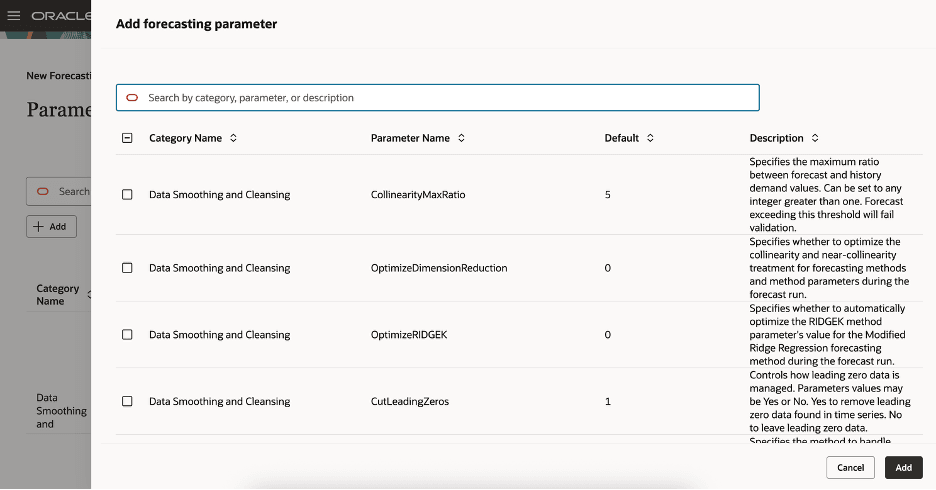
Add Forecasting Parameter Drawer for Forecasting Profile for Bayesian Machine Learning
- Once you’ve reviewed and updated the settings, select Submit.
You’ll see the refreshed Forecasting Profiles page and a confirmation message.
If any errors or warnings occur, then a message will be displayed.
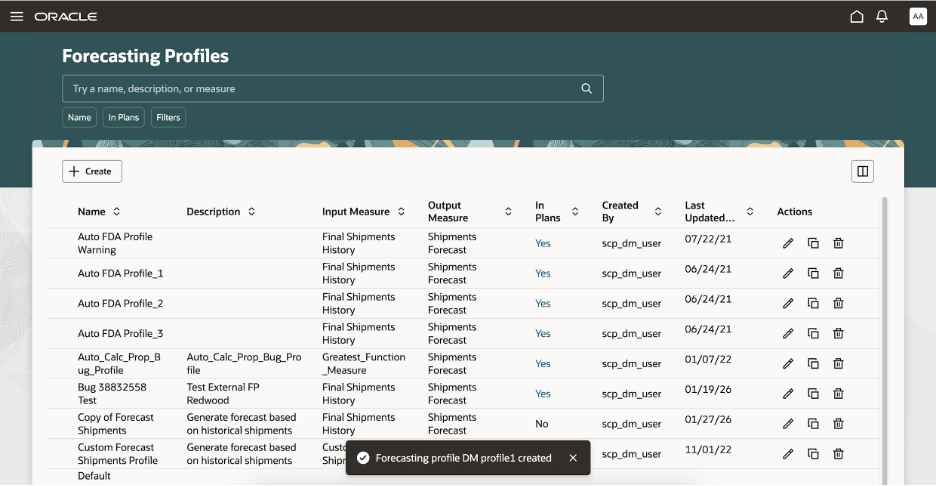
Confirmation Message for Creation of Forecasting Profile
Steps to enable and configure
Use the Opt In UI to enable this feature. For instructions, refer to the Optional Uptake of New Features section of this document.
Offering: Supply Chain Planning
Tips and considerations
If you want to use the Redwood: Manage Forecasting Profiles With Additional Capabilities feature, then you must opt in to its parent feature: Replenishment Planning. If you’ve already opted in to this parent feature, then you don’t have to opt in again.
Key resources
- Refer to the Cloud Applications Readiness content for the following: Redwood: Manage Forecasting Profiles Using a New User Experience (Update 25D)
- Visit https://redwood.oracle.com/ for more information about the Redwood experience.
Access requirements
Users who are assigned a configured job role that contains these privileges can access this feature:
- Edit Forecasting Profiles (MSC_EDIT_FORECASTING_PROFILES_PRIV)
- View Forecasting Profiles (MSC_VIEW_FORECASTING_PROFILES_PRIV)
These privileges were available prior to this update.