AI Agent: Work Order Completion Assistant
The Work Order Completion Assistant streamlines the manufacturing work order completion process by validating the material, resource, output requirements, and open exceptions.
This AI Agent can help the supervisor identify discrepancies in work orders that have been completed on the factory floor and are currently in an 'Awaiting Review for Completion' status. For work orders without discrepancies, you can use the assistant to approve and bulk update their status to 'Completed.' For those with discrepancies, you can manually resolve any pending transactions before attempting to complete the work orders again.
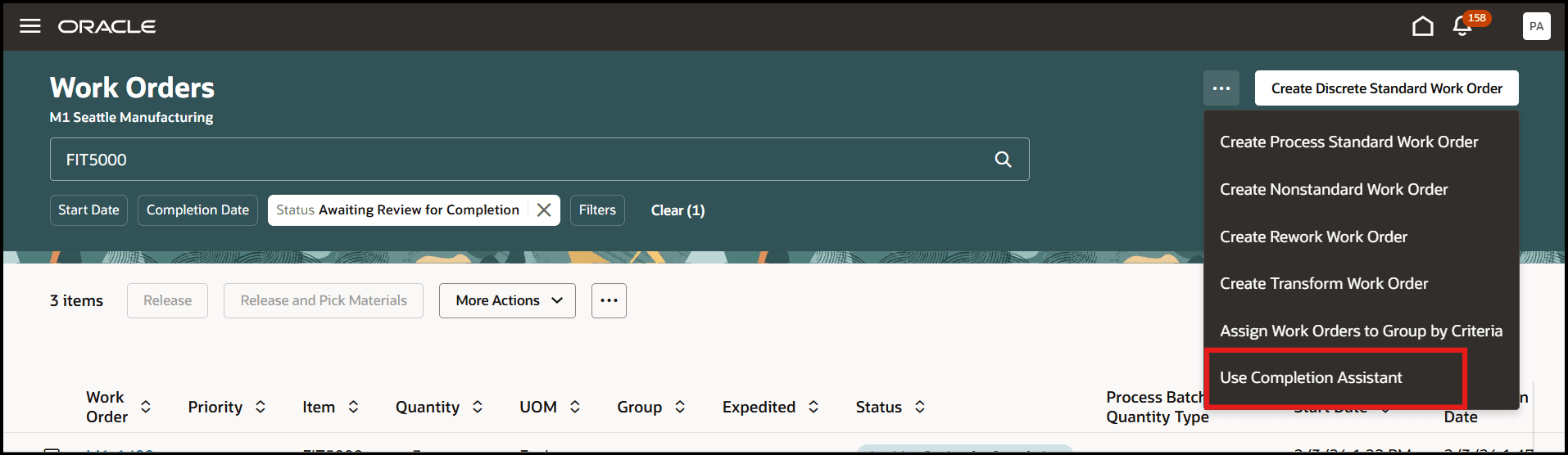
Manage Work Orders Page
Select the Use Completion Assistant menu option to invoke the AI Agent.
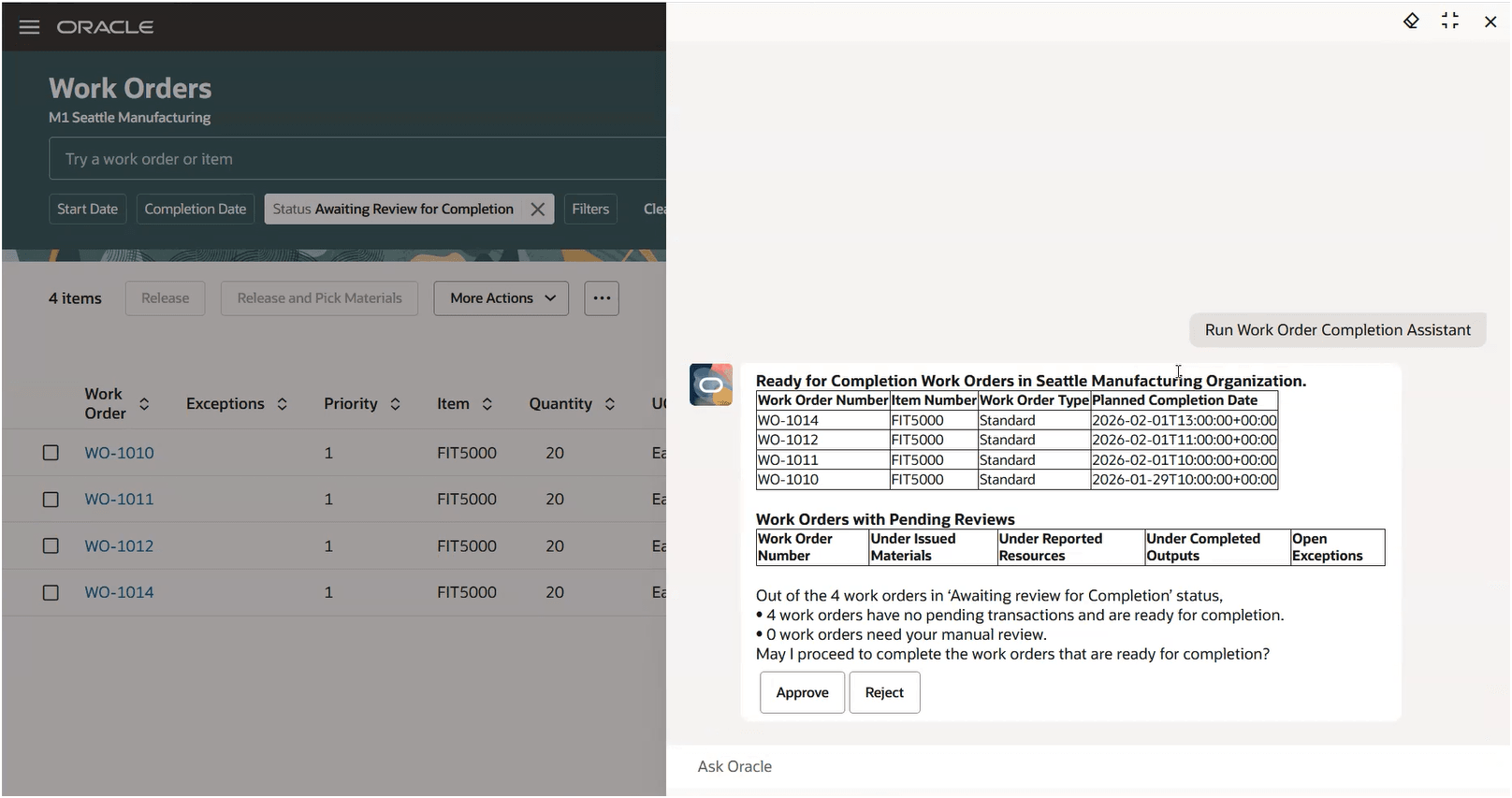
Work Order Completion Assistant
Agent Name:
Work Order Completion Assistant
Agent Description:
This agent checks for anomalies in work orders that are awaiting review before completion. The agent checks for anomalies related to issued materials, reported resources, completed outputs, and any open exceptions. The agent then proceeds to complete the work orders that have no anomalies.
Agent Type: Workflow
This feature streamlines the work order completion process by enabling rapid identification of discrepancies, reducing manual effort, and facilitating bulk update of work order statuses.
Here's the demo of these capabilities:
Steps to enable and configure
- Enable the plant parameter "Enable manual completion of work orders" from the Setup and Maintenance > Manage Plant Parameters page.
- Create and Publish Agents Using AI Agent Studio
You can use AI Agent Studio to use or copy a preconfigured agent template to create agents for your business processes. To automatically add a suffix to all artifacts in your agent team, you can use the Copy Template option instead of Use Template. When you copy a template, you're directly taken to the agent team canvas, where you can edit the agent team settings, agents, tools, and topics. The Use Template option takes you through a step-by-step process for configuring each artifact in the agent team.
For information on using AI Agent Studio, see How do I use AI Agent Studio?
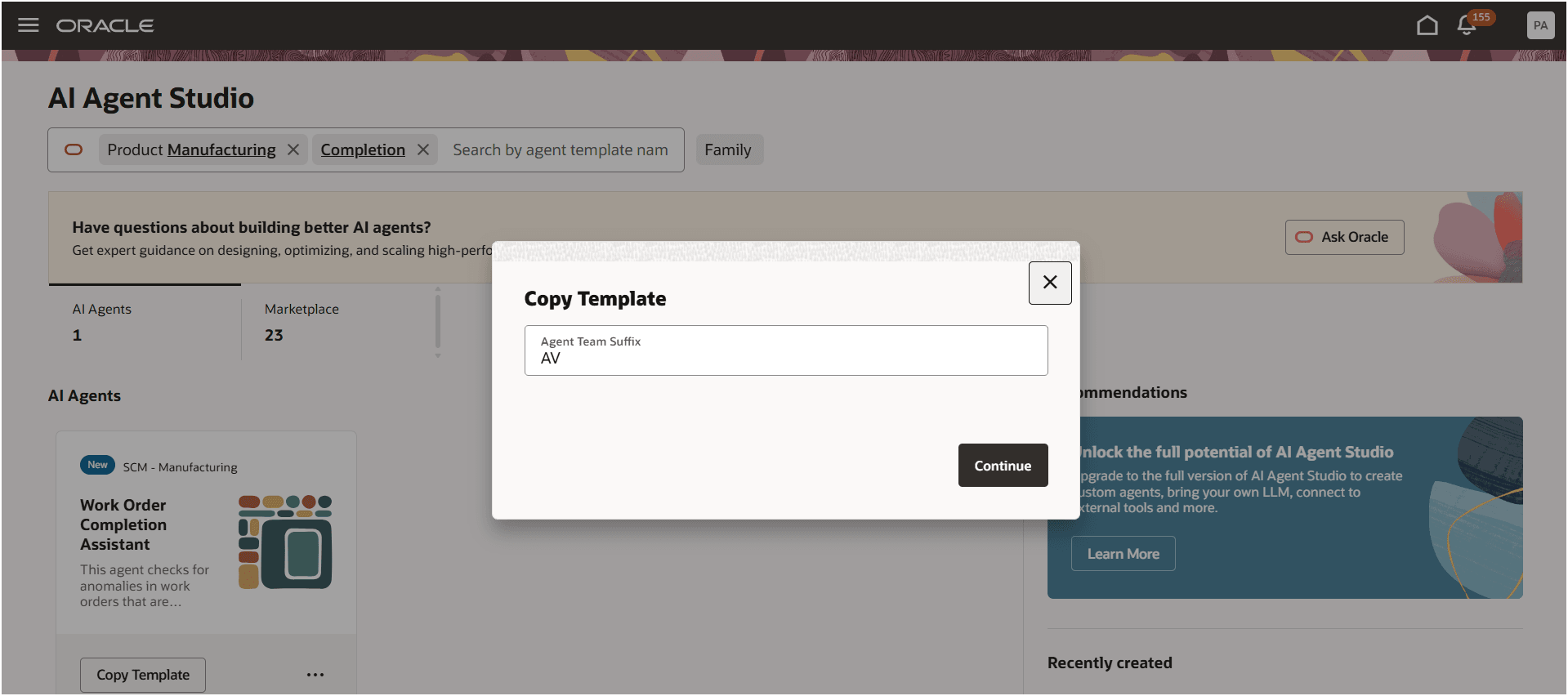
Creating an Agent by Copying the Template
- Add the Agent Team to the Manufacturing Production Supervisor Workbench
- Navigate to Visual Builder from any Redwood page.
- You can add this AI Agent to one or both of the following places:
- Production Supervisor Workbench: Find the manage-work-orders page under Manufacturingsupervisorworkbench > production-supervision.
- Work Orders: Find the manage-work-orders page under Manufacturingworkorders > work-orders.
- Add the Agent Team Code to the field, as shown in the screenshot, and publish the changes.
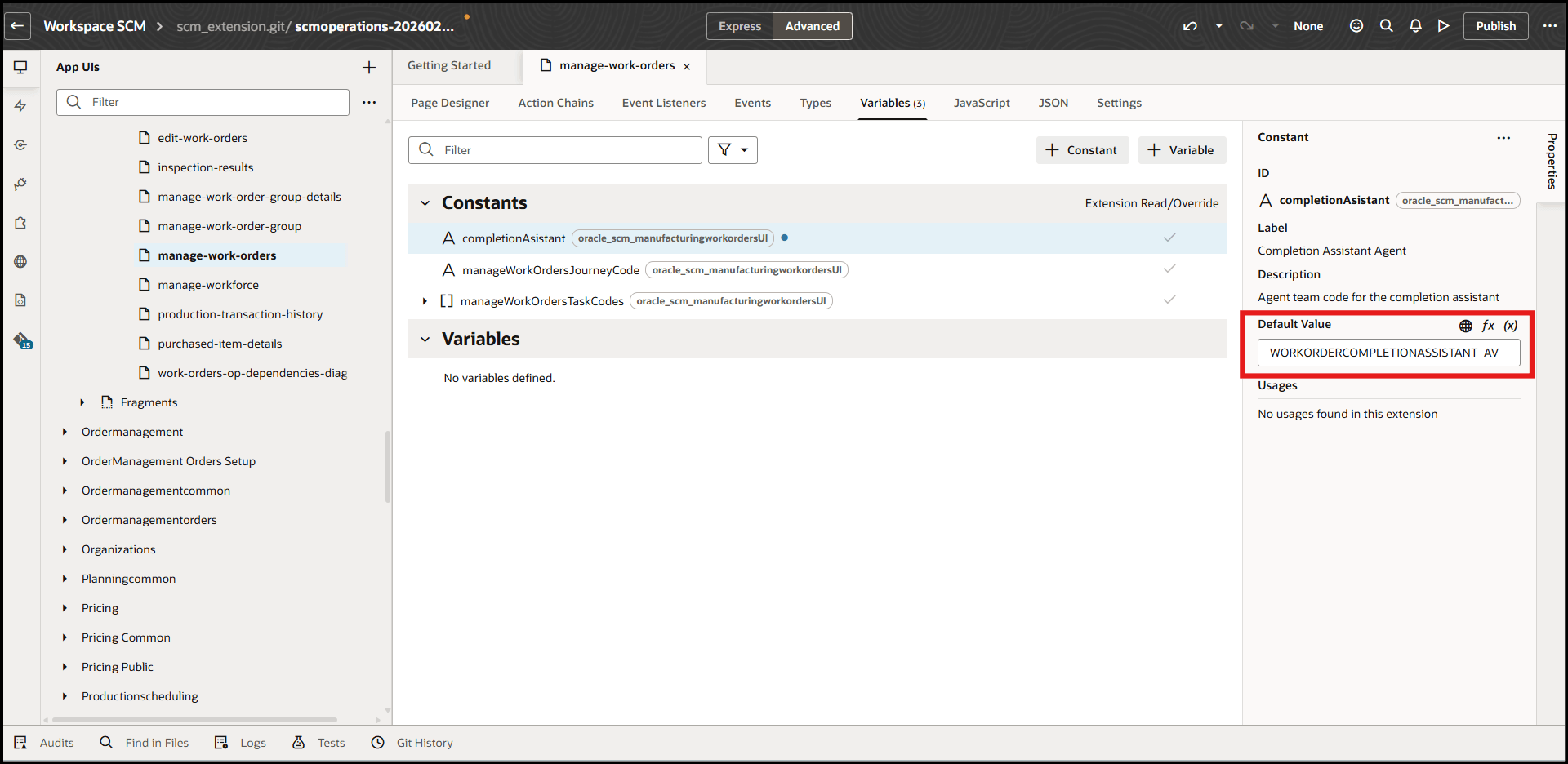
Adding Agent to the Visual Builder Page
Tips and considerations
- You can use this feature to complete discrete and process manufacturing work orders.
- This feature is available only if electronic signatures and electronic records are not enabled for "Manufacturing Work Order Completion Approval".
Key resources
- To learn more about how to use the Work Definitions Change Management Assistant, see the feature demo.
- To learn more about the AI Agent Studio, refer to the feature release update.
Access requirements
See Access Requirements for AI Agent Studio (for administrators) and How can I give users access to AI agents (for end-users) for more information.
To access the Oracle AI Agent Studio for Fusion Applications and manage SCM AI agents, users must be assigned a configured job role that contains these duty roles:
- SCM Intelligent Agent Management Duty (ORA_RCS_SCM_AI_AGENT_MANAGEMENT_DUTY and ORA_RCS_SCM_AI_AGENT_MANAGEMENT_DUTY_HCM – both duty role codes are required)
- Fai Genai Agent SCM Administrator Duty (ORA_DR_FAI_GENERATIVE_AI_AGENT_SCM_ADMINISTRATOR_DUTY)
To interact with AI agents in product pages, users must be assigned a configured job role that contains this duty role:
-
Fai Genai Agent Runtime Duty (ORA_DR_FAI_GENERATIVE_AI_AGENT_RUNTIME_DUTY)
To access the Work Order page, users must be assigned the following privileges:
- Manage Work Execution Work Area (WIS_MANAGE_WORK_DEFINITION_WORK_AREA_PRIV) allows users to access the work execution work area
- Manage Work Order Headers (WIP_MANAGE_WORK_ORDER_HEADERS_PRIV_OBI) allows users to create, and update work orders.
- View Work Orders (WIP_VIEW_WORK_ORDERS_PRIV) allows users to query and view work orders.
These privileges were available before this update.