Redwood: Use Translation Editor for Items
You can translate item information to the languages that you’ve enabled. On the Attributes tab of an item page, click the Translation Editor icon as shown in the following screenshot.
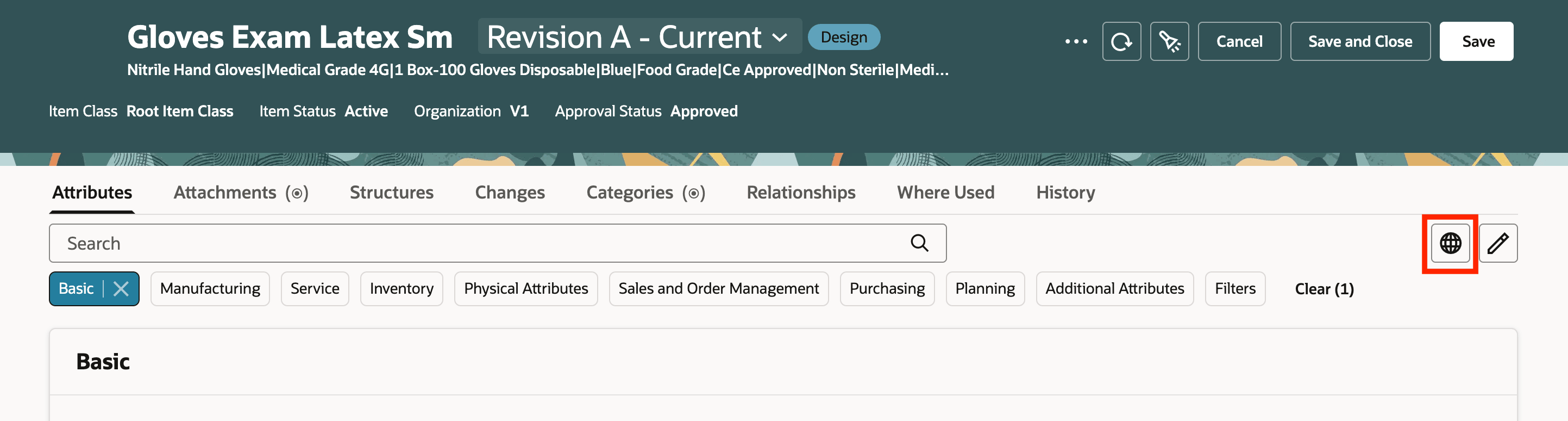
Translation Editor Icon
The Translation Editor drawer is displayed as shown in the following screenshot.
Translation Editor Drawer
Select the language in which you want to edit the item information and click Edit. The language specific drawer displays the translatable fields. You can edit the item description, item long description, and formatted description as shown in the following screenshot.
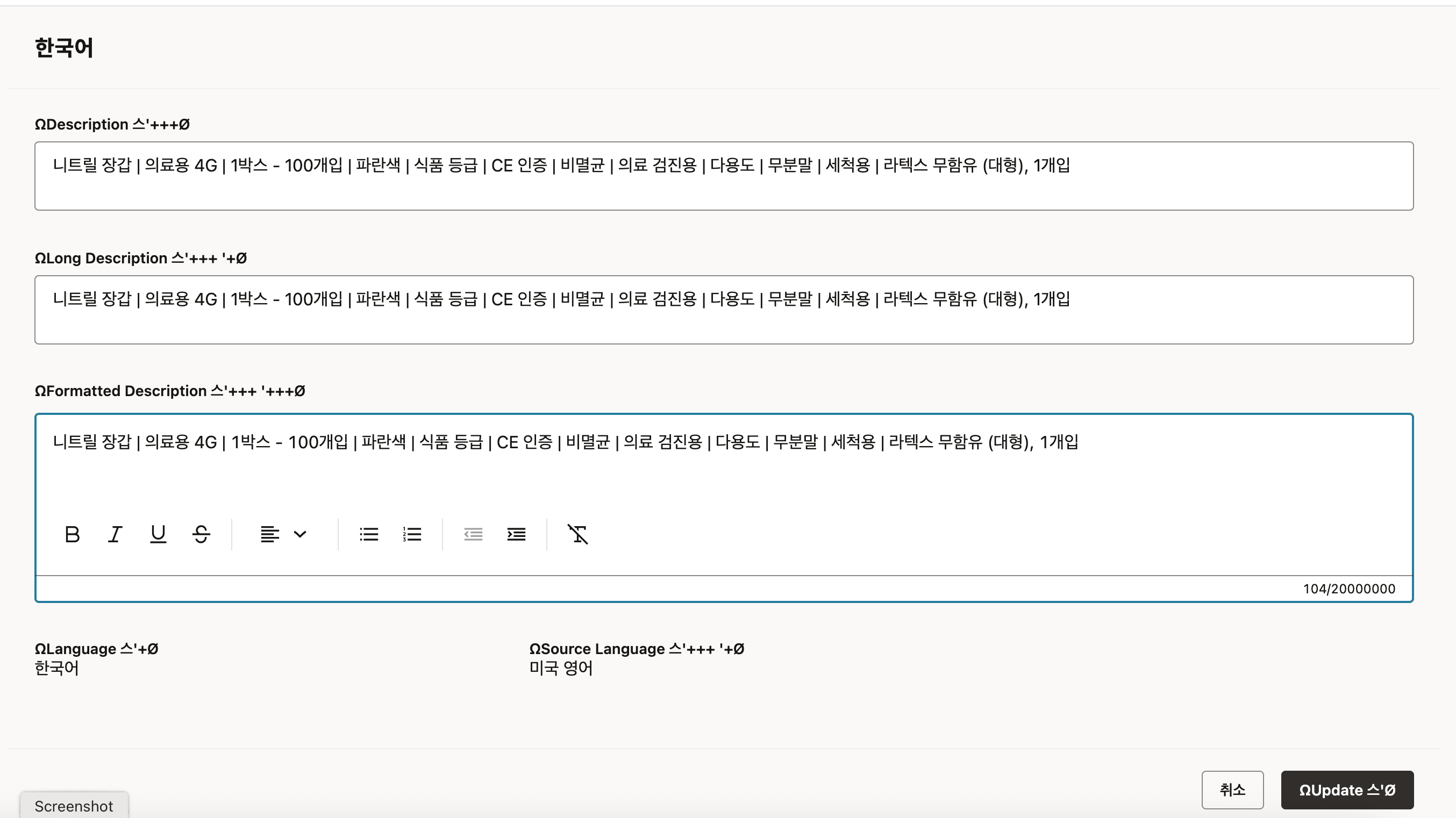
Translation Data Fields
This feature benefits your business by providing use of the Redwood Translation Editor to display the translatable fields for all enabled languages for the item. The editor doesn't require the language preference to be set during translation, which saves time for end users responsible for translating this information.
Steps to enable and configure
You don't need to do anything to enable this feature.
Tips and considerations
You can't view or edit the translated data in any language if the associated privilege is not present.
Key resources
- Extend SCM Redwood Application Pages Using Visual Builder Studio What's New, available on the Oracle Help Center.
- Redwood: Create and Edit Items What's New, available on the Oracle Help Center.
- Oracle Fusion Cloud SCM Using Product Master Data Management Guide, available on the Oracle Help Center.
- Oracle Fusion Cloud SCM Implementing Product Management Guide, available on the Oracle Help Center.
Access requirements
Users who are assigned a configured job role that contains these duty roles and privileges can access this feature:
- Manage Redwood Item Translation (EGP_MANAGE_REDWOOD_ITEM_TRANSLATION_PRIV)
- Manage Item Redwood (ORA_EGP_REDWOOD_MANAGE_ITEM_DUTY)
- Manage Item Redwood Items (EGP_MANAGE_REDWOOD_ITEM_PRIV)
The first privilege is new in this update and the others were available prior to this update.