AI Agent: Research Suppliers with AI
Use the new AI driven search experience by simply describing what suppliers you're looking for based on the items or services you want to procure.
For example, you can try phrases such as:
- Vendors of new hire kits based on recent orders.
- Suppliers of medical equipment like ventilators and syringes.
- Government funded suppliers of office stationery.
The AI agent will understand your search request and provide you a list of suppliers by searching historical transactions and the supplier profile. It will also present a summary of how it interpreted your search request to provide the supplier list.
This capability provides a simple casual interaction for category managers when finding suppliers. They can use natural conversation with AI to describe their supplier needs. AI interprets the intent, applies the right criteria, and returns results instantly. This cuts search time, removes the cognitive load of domain expertise, and feels closer to well-known search interfaces of the modern world.
To use this feature, click on the Research Suppliers (New) action to navigate to the AI-enabled Research Suppliers Redwood page.
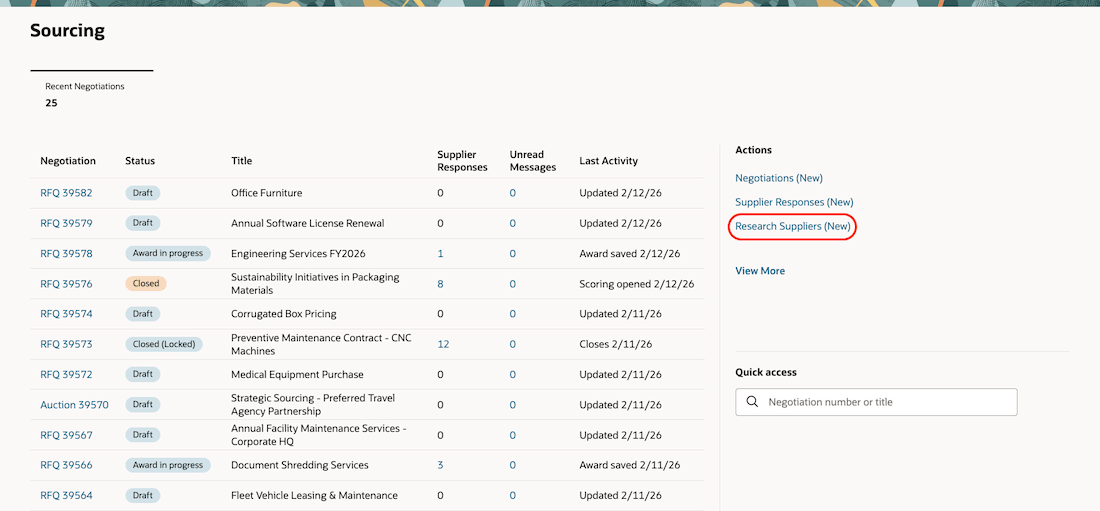
Research Suppliers (New) Action on Redwood Sourcing Landing Page
To find a list of suppliers using natural language, just type in what you're looking for. For instance, type Need to procure bandages from suppliers recently ordered from.
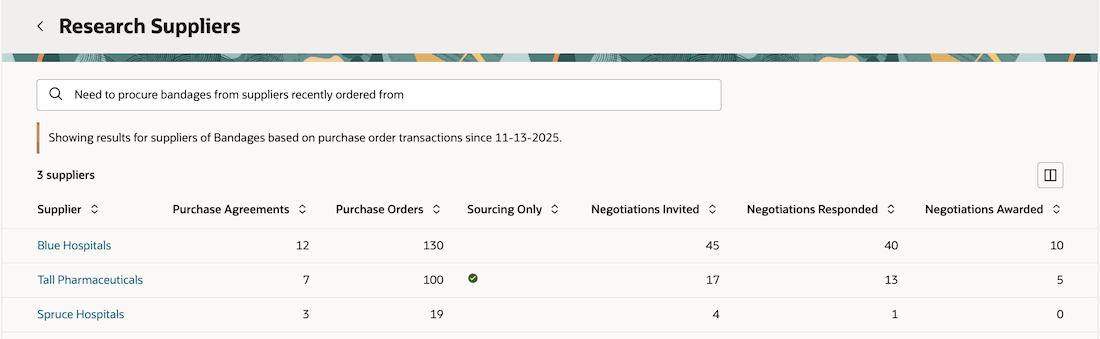
Researching for Suppliers Using Natural Language Input Query
The AI can understand queries about one or more of the following:
- Negotiation line Items and their descriptions
- Purchasing categories of items
- Supplier keywords:
- Supplier name
- Alternate name
- Parent supplier name
- Supplier number
- DUNS number
- Business classification of suppliers
The search is performed within purchase agreements, purchase orders, negotiations, and supplier profile records.
You can also ask AI to exclude certain types of results when researching for suppliers. For instance, just type Show vendors of networking solutions that aren't privately owned. This helps exclude suppliers classified having a business classification as privately owned in the application.
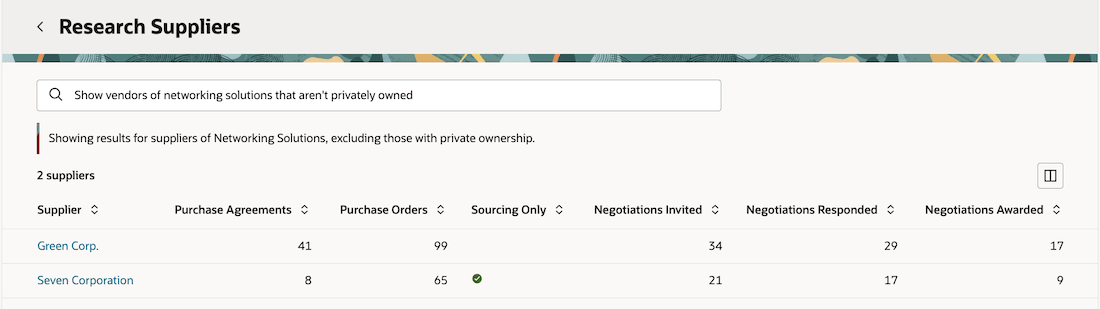
Searching for Suppliers with Exclusion Criteria
Steps to enable and configure
To enable this feature:
-
You must enable this profile option if you haven't already: Redwood Pages for Sourcing Enabled (ORA_PON_SOURCING_REDWOOD_ENABLED).
-
Opt in to the Redwood: Add Suppliers Suggested by Oracle AI feature if you haven't already, and run the Prepare Smart Supplier Suggestions ESS job to extract historical transactions and train the AI Model to provide supplier suggestions. After this, supplier data will remain available as the AI model is periodically retrained on new transactions.
- To search for suppliers using Supplier Keywords, the AI Agent uses an elastic search index for reference. Search for and run the following ESS job to configure the supplier search index:
- Process name: ESS job to create index definition and perform Initial Ingest to OSCS
- Parameter Value for Index Name to Reingest: fa-prc-suppliers
If you already enabled the Suppliers (New) Redwood page, you don't have to run the process again. To enable Suppliers (New), See Search Suppliers with a New User Experience.
In order to let users run AI agents, there are additional set ups and access requirements. You must enable permission groups for roles by taking these steps:
- In the Setup and Maintenance work area, search for the Manage Administrator Profile Values task using the search link in the Tasks panel tab.
- Search for the Enable Security Console External Application Integration (ORA_ASE_SAS_INTEGRATION_ENABLED) profile option and set the Site profile level to Yes.
Tips and considerations
- You can add custom search hints to help users understand how to initiate search in natural language. Add a few examples of queries suitable for your business such as: Try 'Vendors of new hire kits based on recent orders.' In Visual Builder Studio use the Search Query Suggestions page property to add search query examples to display in the search box. For instance, if you add these two example queries, these will cycle through the search input box as hints for the users on what to enter.
- Try 'Vendors of new hire kits based on recent orders.'
- Search with 'Suppliers of medical equipment like ventilators and syringes.'
Automatic language translations for suggested queries isn't supported in this update. You can, however, add suggestions in the language of your choice.
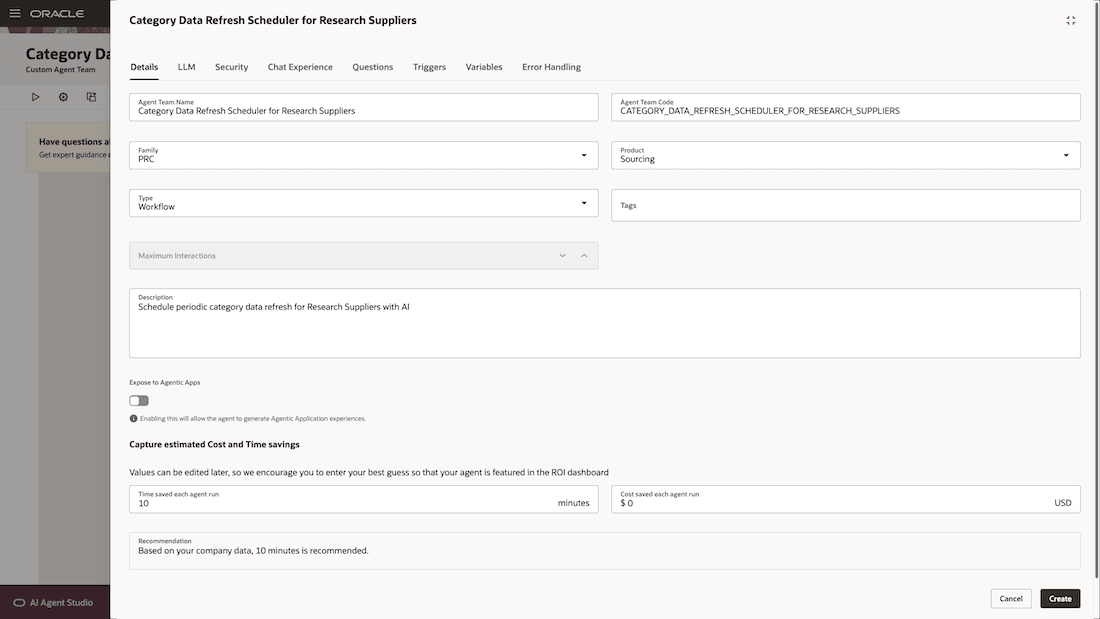
Custom Suggested Search Query
- In this update:
- You can't search for suppliers based on supplier products and services categories (from Supplier Profile).
- You can't search for suppliers based on procurement BU, business relationship, qualification name and outcome, or assessment name and outcome.
- You can't search for suppliers in approved suppliers lists.
- You can't search and add the suppliers while creating a negotiation.
These capabilities will be available in future updates.
- To improve search results for category related queries, see FAQ: PON: How To Improve The Search Results On Research Suppliers With AI (FAQ7608).
- Administrators can use guided journeys to help category managers understand how to use the feature for their organization.
Key resources
- For information about using Oracle Visual Builder Studio to extend your Redwood application pages, see Oracle Fusion Cloud HCM and SCM: Extending Redwood Applications for HCM and SCM Using Visual Builder Studio.
- For information on enabling and using add suppliers suggested by the Oracle AI feature, see Redwood: Add Suppliers Suggested by Oracle AI.
- For information on enabling redwood experience for searching for suppliers, see Search Suppliers with a New User Experience.
- For information on enabling AI Agent Studio for Administrators, see Access Requirements for AI Agent Studio.
Access requirements
Users who are assigned a configured job role that contains this existing privilege can access this feature:
- Research Suppliers (PON_ANALYZE_NEGOTIATION_SUPPLIER_PRIV)
Users who are assigned a configured job role that contains this new duty role can use this AI enabled feature:
- Research Suppliers Workflow Duty (ORA_DR_PON_RESEARCH_SUPPLIERS_WORKFLOW_DUTY)
In the Security Console, filter by Roles and Permission Groups to find this duty role.