Redwood: View an Expired Status for Inactive Purchase Agreements
Search and view purchase agreements that have passed their end date by using the expired status. Agreements with past end dates are now marked as expired.
These screen captures illustrate the feature.
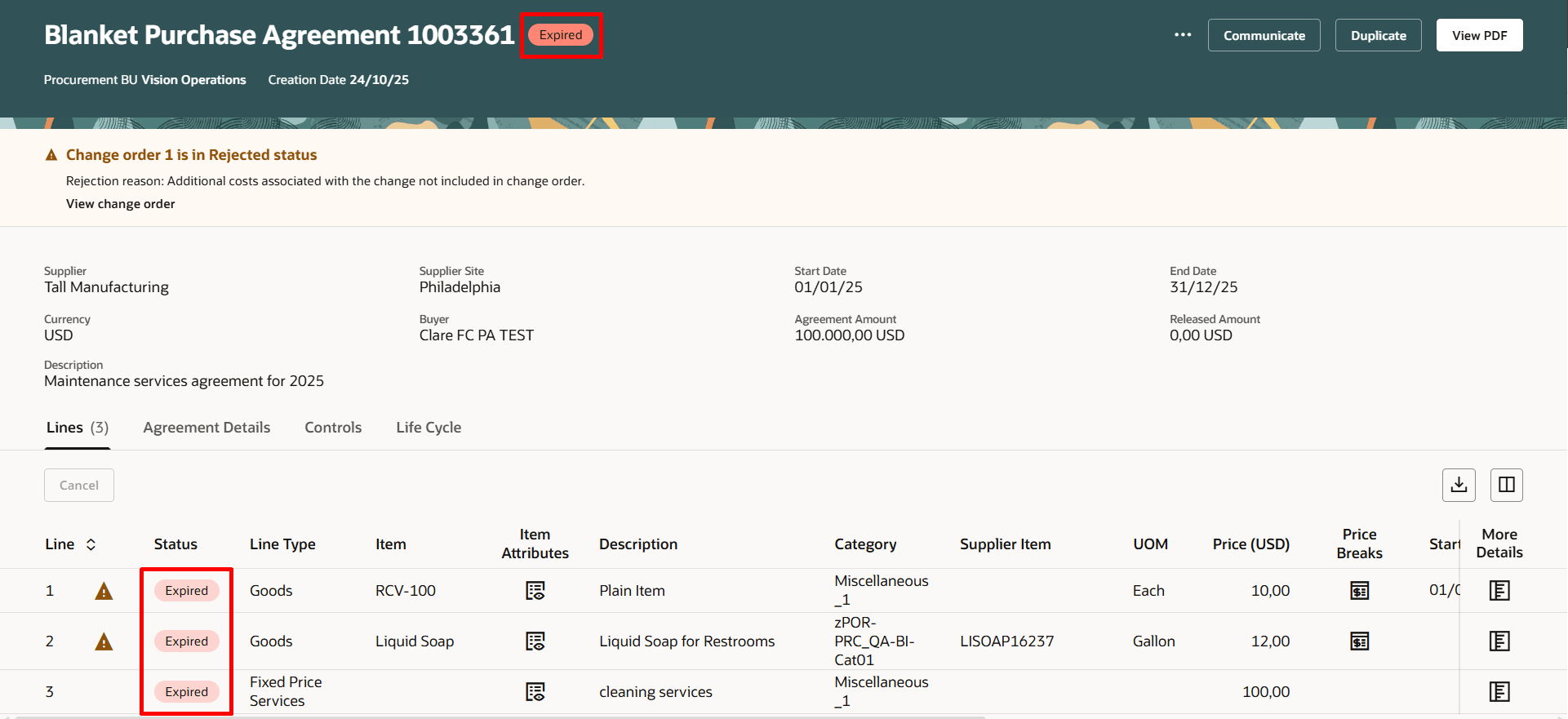
Redwood Purchase Agreement Page Displaying an Expired Purchase Agreement
You can now use the status filter to quickly find expired purchase agreements and agreement lines.
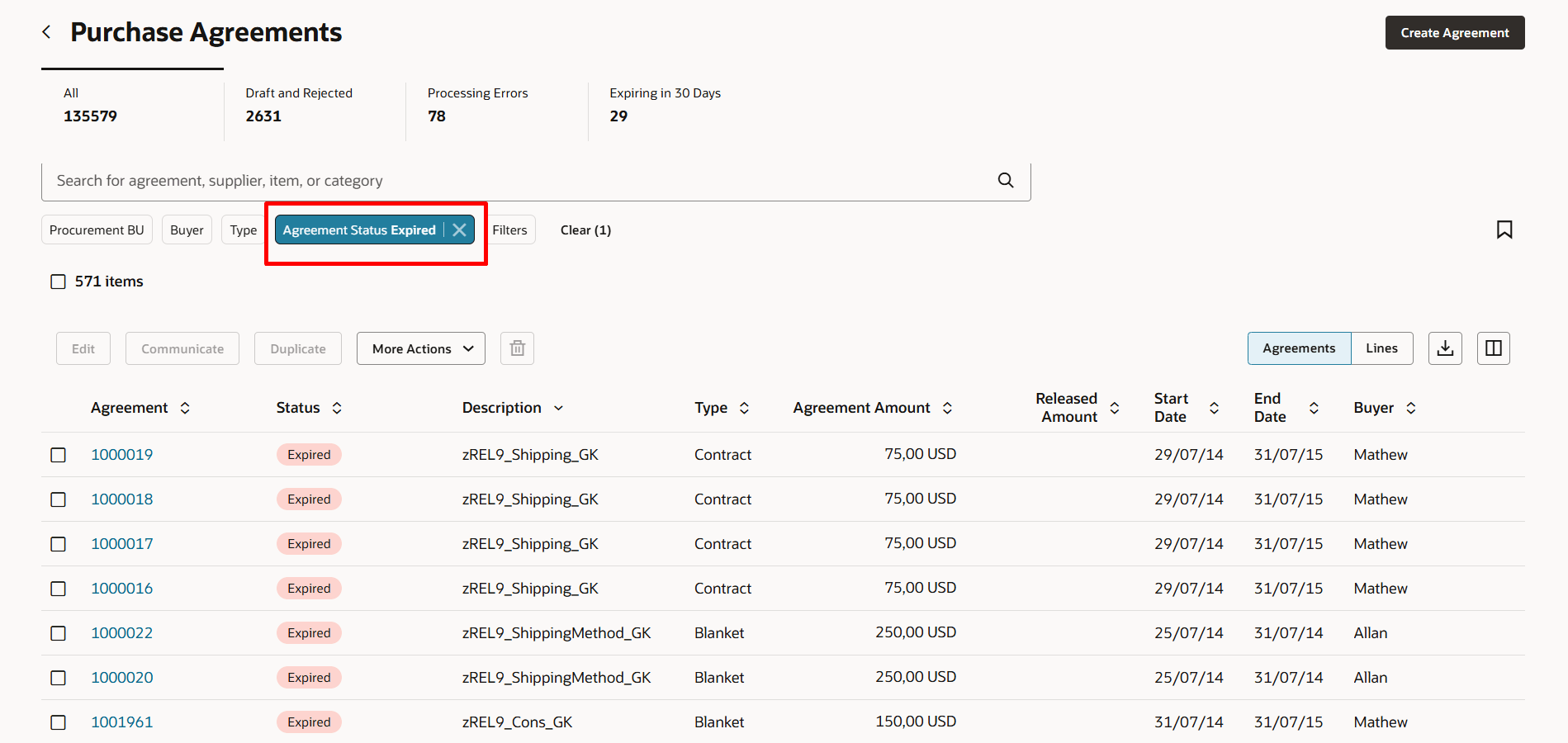
Redwood Purchase Agreements Page Displaying an Expired Status for Purchase Agreements Past Its End Date
When using the Specify Time Zone for Validating Effective Status of Purchase Agreements feature, the application converts the current date to the time zone specified by the Time Zone Reference for Procurement (ORA_PO_PROCUREMENT_TZ) profile option to check for a purchase agreement's effective status. Otherwise, the application uses the current date to check for a purchase agreement's effective status.
Steps to enable and configure
If you haven't enabled Redwood for Purchasing, see the Getting Started with Redwood in Purchasing topic on the SCM Resource Center in Customer Connect.
Tips and considerations
- This feature is available only in Redwood environments.
- An expired status is displayed only for purchase agreements that have an end date specified and are in the Open or On Hold status.
- For blanket purchase agreements that are past its end date, an expired status is displayed for all lines in that agreement except for canceled lines.
Key resources
- To enable Redwood for Purchasing, see the Getting Started with Redwood in Purchasing topic on the SCM Resource Center in Customer Connect.
- For details on viewing purchase agreements as buyer using a Redwood page, refer to the Redwood: View Purchase Agreements as a Buyer feature, available in Oracle Fusion Cloud Procurement What's New, update 25D.
Access requirements
No specific privileges are needed to view and search expired purchase agreements in Redwood.