AI Agent: Purchase Order Status Advisor
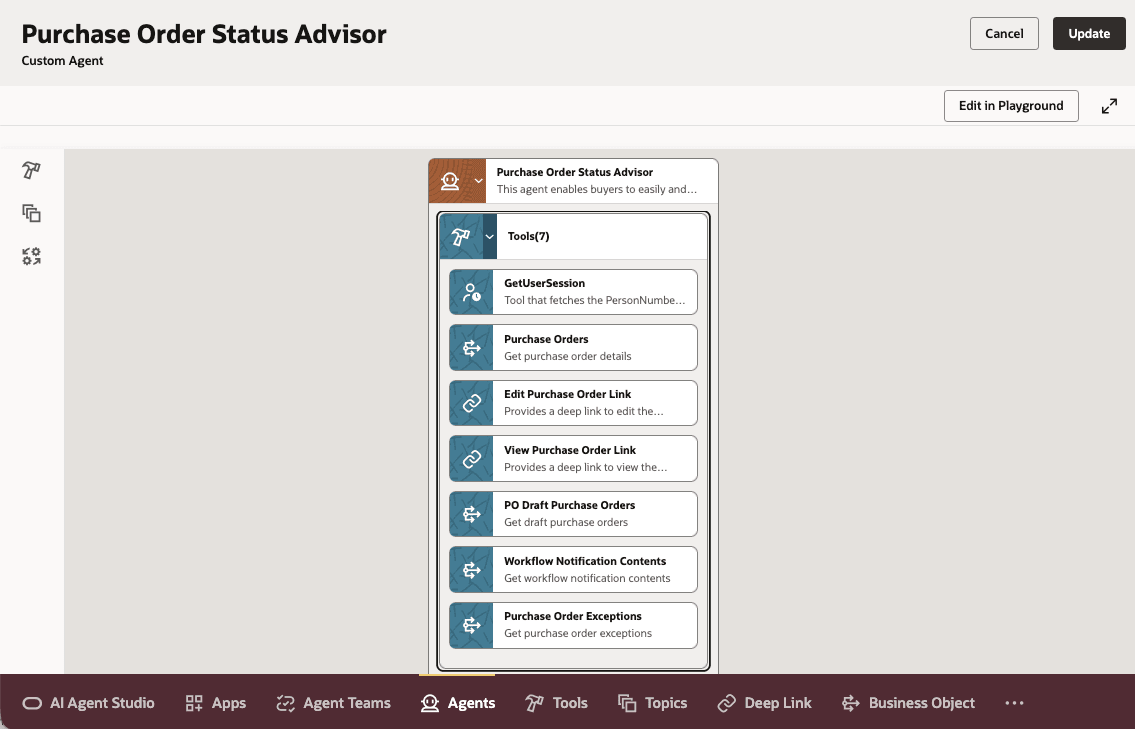
The Purchase Order Status Advisor agent provides buyers with easy access to the status and highlights of their purchase orders using an AI agent-based chat.
Your buyers can ask the agent about the status of a recent order or a specific order. The agent identifies the current approver for a pending order or the exception that caused the rejection. It also provides deep links to the order, allowing buyers to view or edit it.
Your buyers can consult the advisor from the Purchase Orders page using a guided journey.
Status Advisor on Purchase Orders Page
Steps to enable and configure
To enable Redwood for Purchasing, see the Getting Started with Redwood in Purchasing topic on the SCM Resource Center in Customer Connect.
To add the agent to your Redwood page:
- You can use AI Agent Studio to use or copy a preconfigured agent template to create agents for your business processes. To automatically add a suffix to all artifacts in your agent team, you can use the Copy Template instead of Use Template button. When you copy a template, you're taken directly to the agent team canvas where you can edit the agent team settings, agents, tools, and topics. The Use Template option takes you through a step-by-step process for configuring each artifact in the agent team.
- Create a new Guided Journey and add an agent task of the type Workflow Agent for the new agent you just created in AI Agent Studio.
- Using Oracle Visual Builder Studio, add the Guided Journey to your Redwood page.
To enable permission groups for roles, take these steps:
- In the Setup and Maintenance work area, search for the Manage Administrator Profile Values task using the search link in the Tasks panel tab.
- Search for the Enable Security Console External Application Integration (ORA_ASE_SAS_INTEGRATION_ENABLED) profile option and set the Site profile level to Yes.
Tips and considerations
- Buyers using the advisor agent can only inquire about purchase orders for which they have procurement agent access.
Key resources
- Access Requirements for AI Agent Studio
- How can I give users access to AI agents?
- Create AI Agents
- For information about using Oracle Visual Builder Studio to extend your Redwood application pages, see Oracle Fusion Cloud HCM and SCM: Extending Redwood Applications for HCM and SCM Using Visual Builder Studio.
Access requirements
To access the Oracle AI Agent Studio for Fusion Applications and manage PRC AI agents, users must be assigned a configured job role that contains these existing duty roles:
- PRC Intelligent Agent Management Duty (ORA_PO_PRC_AI_AGENT_MANAGEMENT_DUTY)
- PRC Intelligent Agent Management Duty (ORA_PO_PRC_AI_AGENT_MANAGEMENT_DUTY_HCM)
- Fai Genai Agent SCM Administrator Duty (ORA_DR_FAI_GENERATIVE_AI_AGENT_PRC_ADMINISTRATOR_DUTY)
To interact with AI agents in product pages, users must be assigned a configured job role that contains this existing duty role:
- Fai Genai Agent Runtime Duty (ORA_DR_FAI_GENERATIVE_AI_AGENT_RUNTIME_DUTY)
In the Security Console, filter by Roles and Permission Groups to find the Fai Genai Agent SCM Administrator Duty and Fai Genai Agent Runtime Duty roles.
To allow users to interact with agents, you must also enable permission groups in the Security Console on those users’ configured job roles that contain the Fai Genai Agent Runtime Duty role. You can enable permission groups when you manage the basic information of your configured job roles.
Users’ configured job roles must also contain privileges that allow access to the pages where AI agents are enabled.
See Access Requirements for AI Agent Studio (for administrators) and How can I give users access to AI agents (for end-users) for more information.