Redwood: Manage Resource Availability Using a New User Experience
You can now use the Resource Availability page in the Redwood user experience to review and maintain capacity across planning modules. You can edit Resource Available Hours at the day, week, or period granularity including multiselect edits with validation to ensure that values are numeric and nonnegative. The Resource Availability page is accessible from supply plans, demand and supply plans, and Plan Inputs and supports drills to and drills from Resources, Operation Resources, and Resource Requirements while preserving organization and resource context to speed analysis. Further, to support what-if analysis, you can copy individual edits or all changes to an existing or new simulation set.
The Resource Availability page allows you to view and edit time-phased, resource available hours.
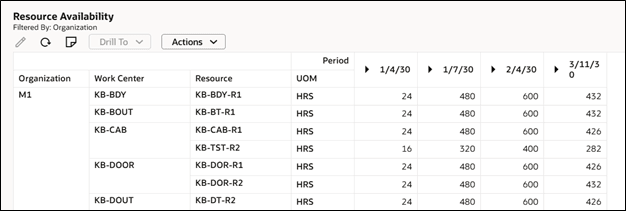
Resource Availability Page
Navigate to and from Resource Availability Page
You can navigate to the Resource Availability page from the following pages.
Drill to Resource Availability Page
| From | To | Context |
|---|---|---|
| Resources | Resource Availability | Resource, Organization |
| Operations | Resource Availability | Resource, Organization |
| Resource Requirements | Resource Availability | Resource, Organization |
You can access the Resource Availability Page from Resources, Operations, and Resource Requirements pages.
You can navigate from the Resource Availability page to the following pages.
Drill from Resource Availability Page
| From | To | Context |
|---|---|---|
| Resource Availability | Resources | Resource, Organization |
| Resource Availability | Operations | Organization, Resource |
| Resource Availability | Resource Requirements | Day, Organization, Resource |
From the Resource Availability Page, you can access Resources, Operations, and Resource Requirements pages.
Add Links to Resource Availability from Other Pages
Resource Availability can be added using the Manage Links action from any page, as long as that page has an Organization and Resource context. When you do this, the Clear Context menu item is disabled, as shown in the following image, meaning that only the context from the selected rows is passed.
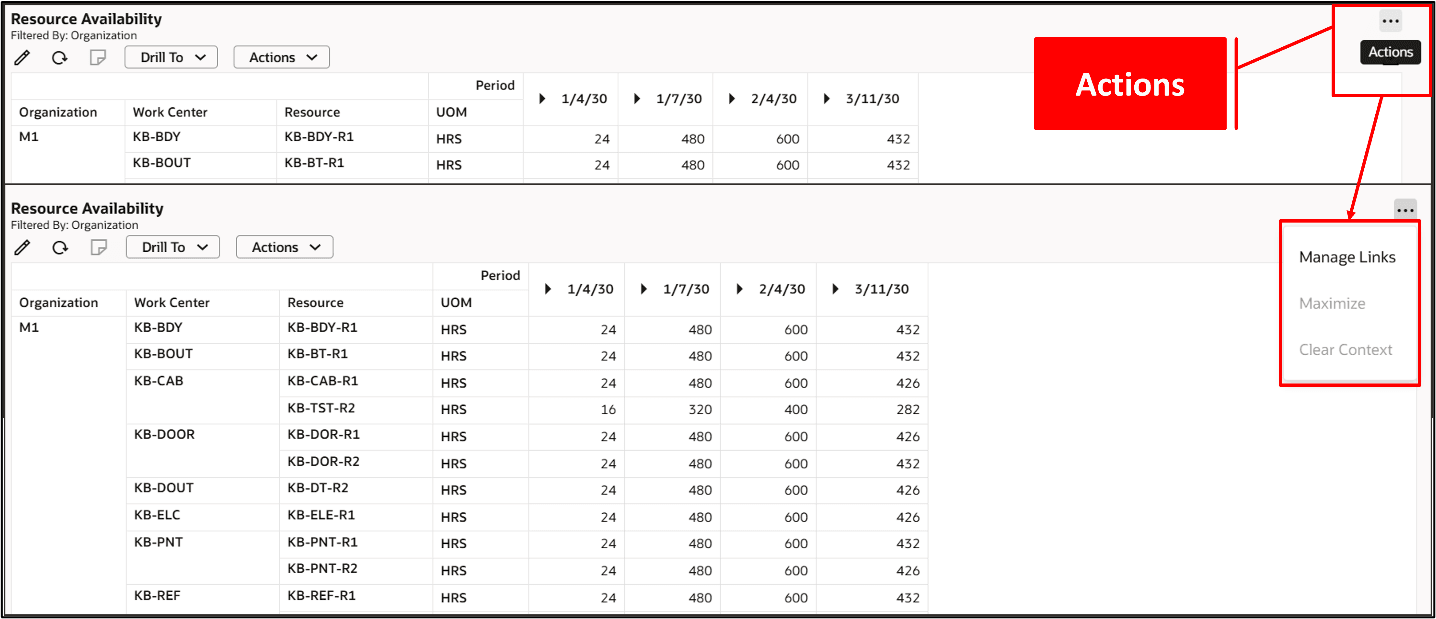
Adding a Link to Resource Availability
Edit Resource Availability Values
You can select one or more resource availability cells to edit their values. Select the Edit (pencil) icon. An Edit drawer opens, where you can select an action for the selected cells (such as “Set value to”) and enter a value.
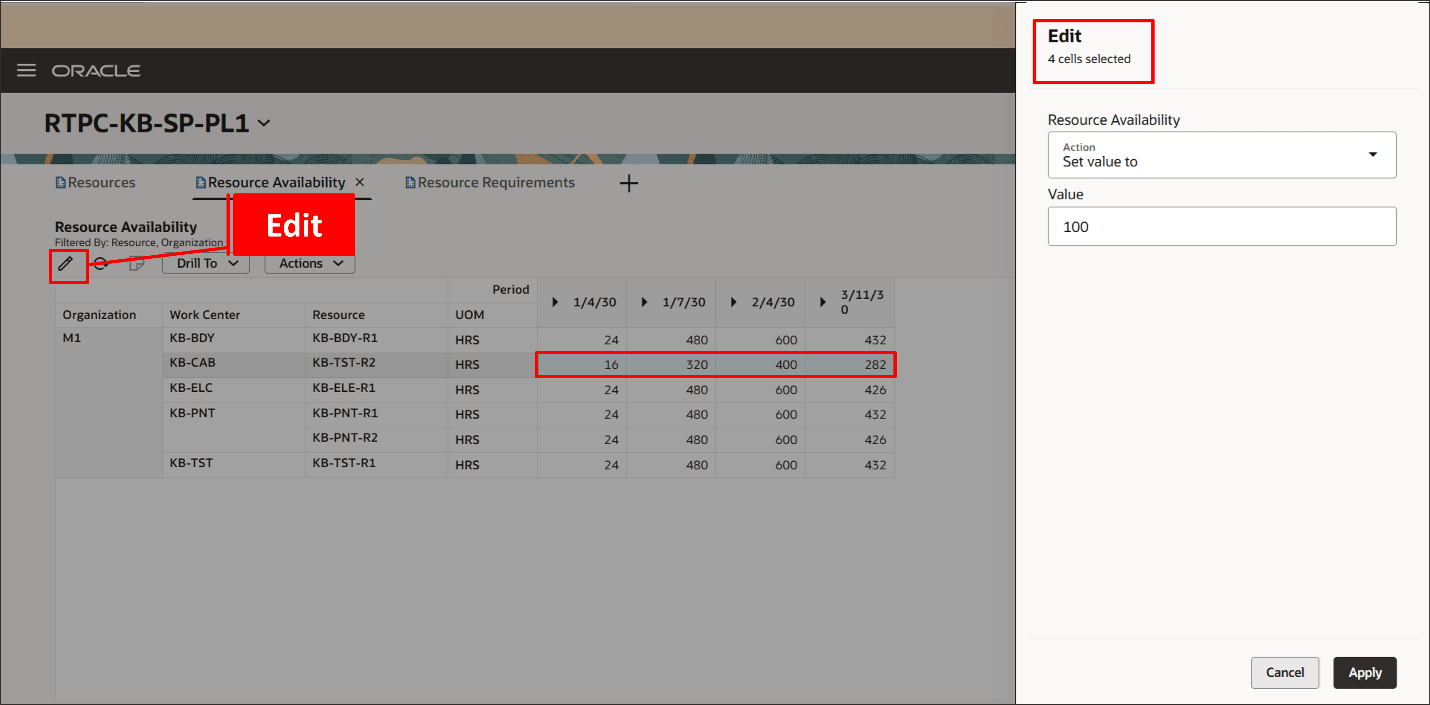
Editing Resource Availability
Copy to Simulation Set
You can copy individual edits or all changes from the Resource Availability table to an existing or a new simulation set, to support what-if analysis.
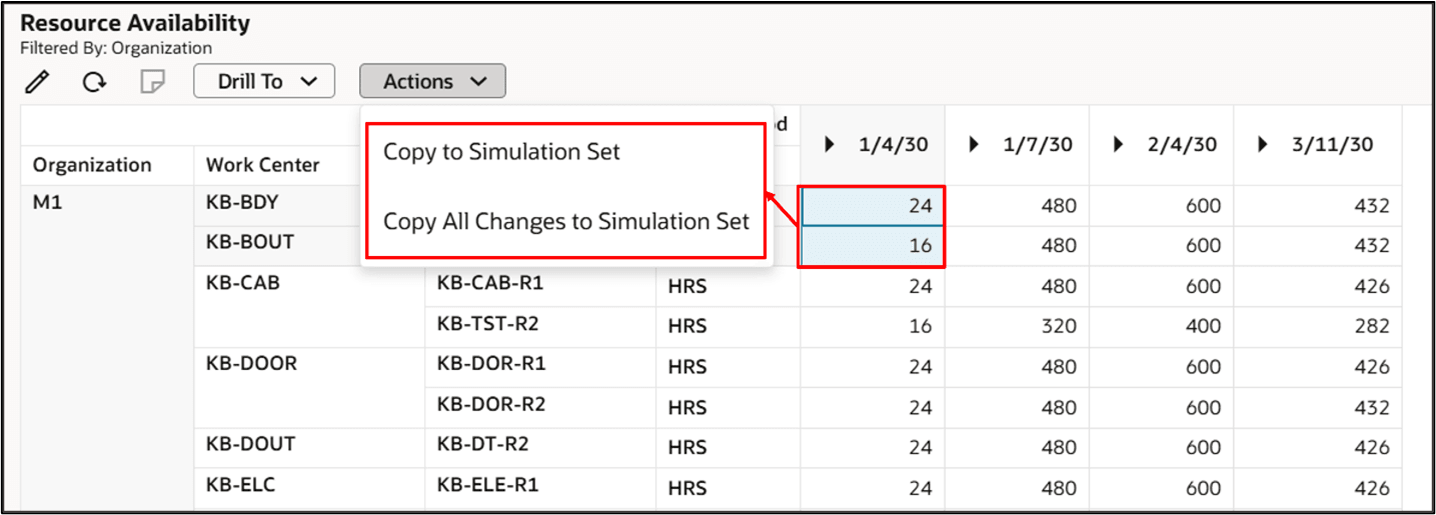
Copying Edited Resource Availability to Simulation Set
Resource Availability Time Buckets
Resource availability hours can be viewed by day, week, or period. Just expand or collapse the time-bucket column headings as desired.
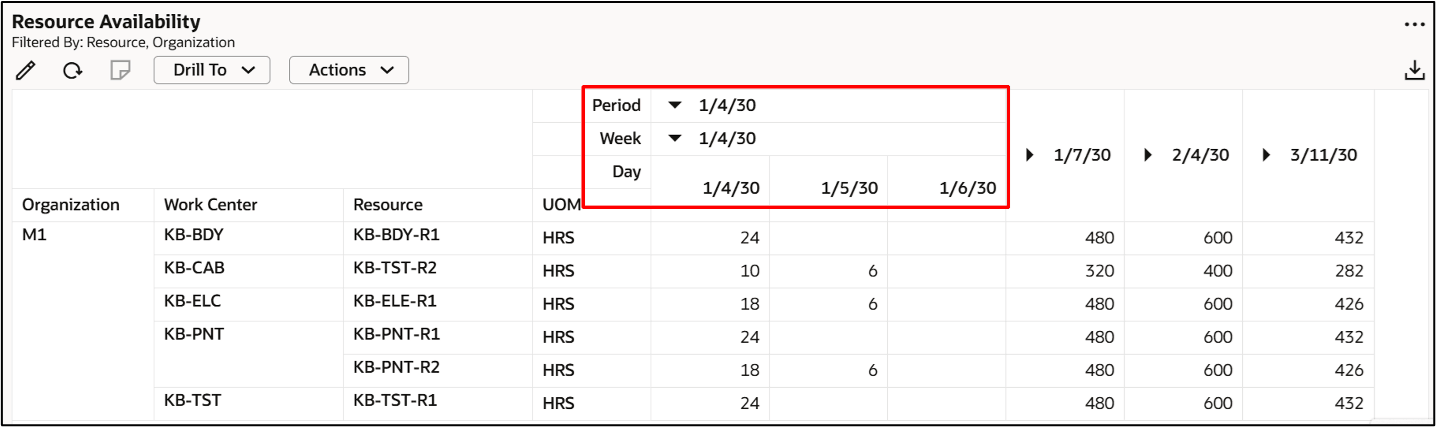
Viewing Resource Availability Hours in Day, Week, or Period
Export Resource Availability Hours
You can export resource availability hours to external spreadsheets.
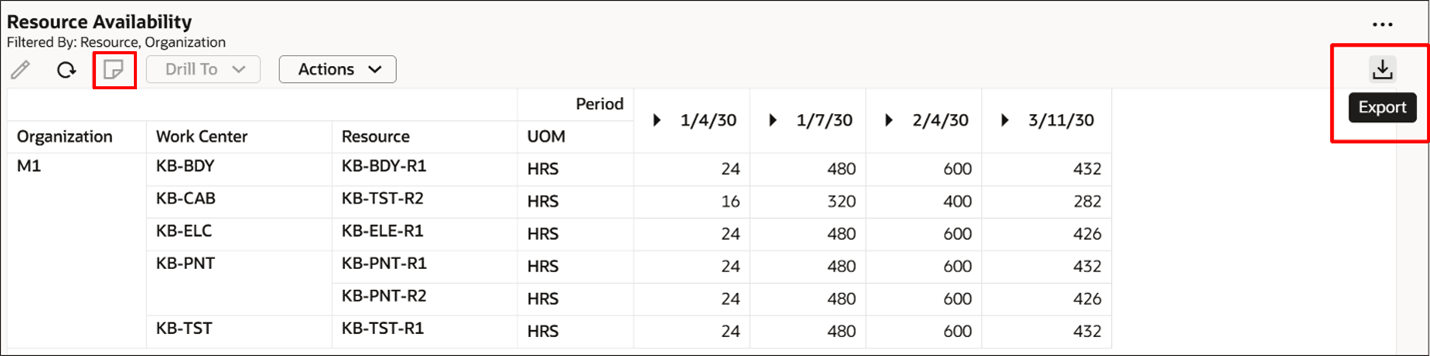
Exporting Resource Availability
Resource Availability Notes
You can add notes at the resource and date level (Day, Week, Period, Month). Notes added at a lower time granularity level are also visible at higher levels.
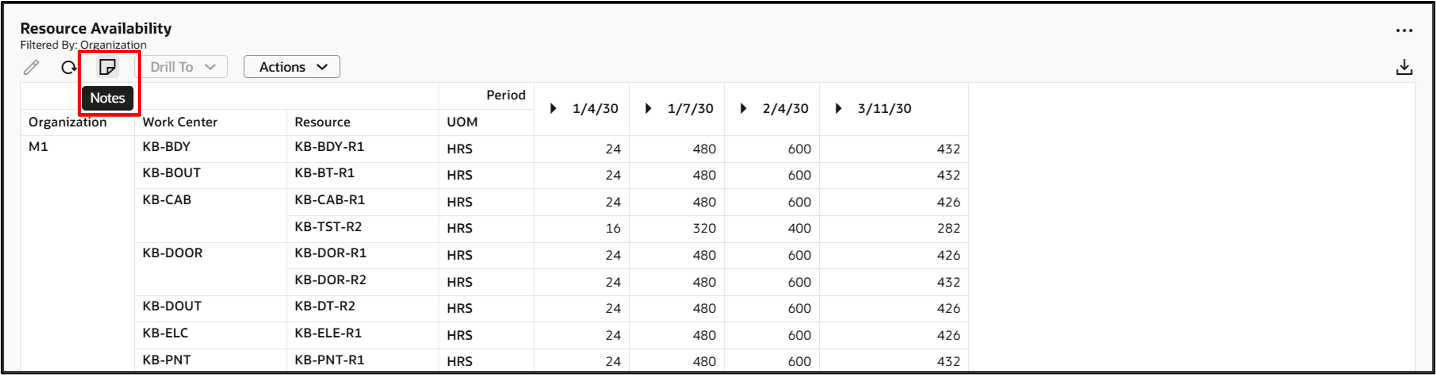
Creating Resource Availability Notes
For more information about notes, see Redwood: Manage Planning Notes Using a New User Experience in the Oracle Fusion Cloud Supply Planning 25B What’s New.
Steps to enable and configure
You don't need to do anything to enable this feature.
Access requirements
Users who are assigned a configured job role that contains these privileges can access this feature:
- View Plan Options (MSC_VIEW_PLAN_OPTIONS_PRIV)
- Edit Plan Options (MSC_EDIT_PLAN_OPTIONS_PRIV)
These privileges were available prior to this update.