Redwood: Manage Contract Fulfillment Lines
You can now manage contract fulfillment lines in a dedicated Redwood page. As a buyer, you can access the Contract Fulfillments page as a quick action from Fusion Home, or from the Purchasing landing page in Redwood.
Fulfillment lines are automatically created when eligible buy-intent contracts are approved which then become accessible on the Contract Fulfillments page for downstream processing. You can search for fulfillment lines, review unfulfilled work, update fulfillment details, split fulfillment lines, and create purchasing documents from one or more selected lines.
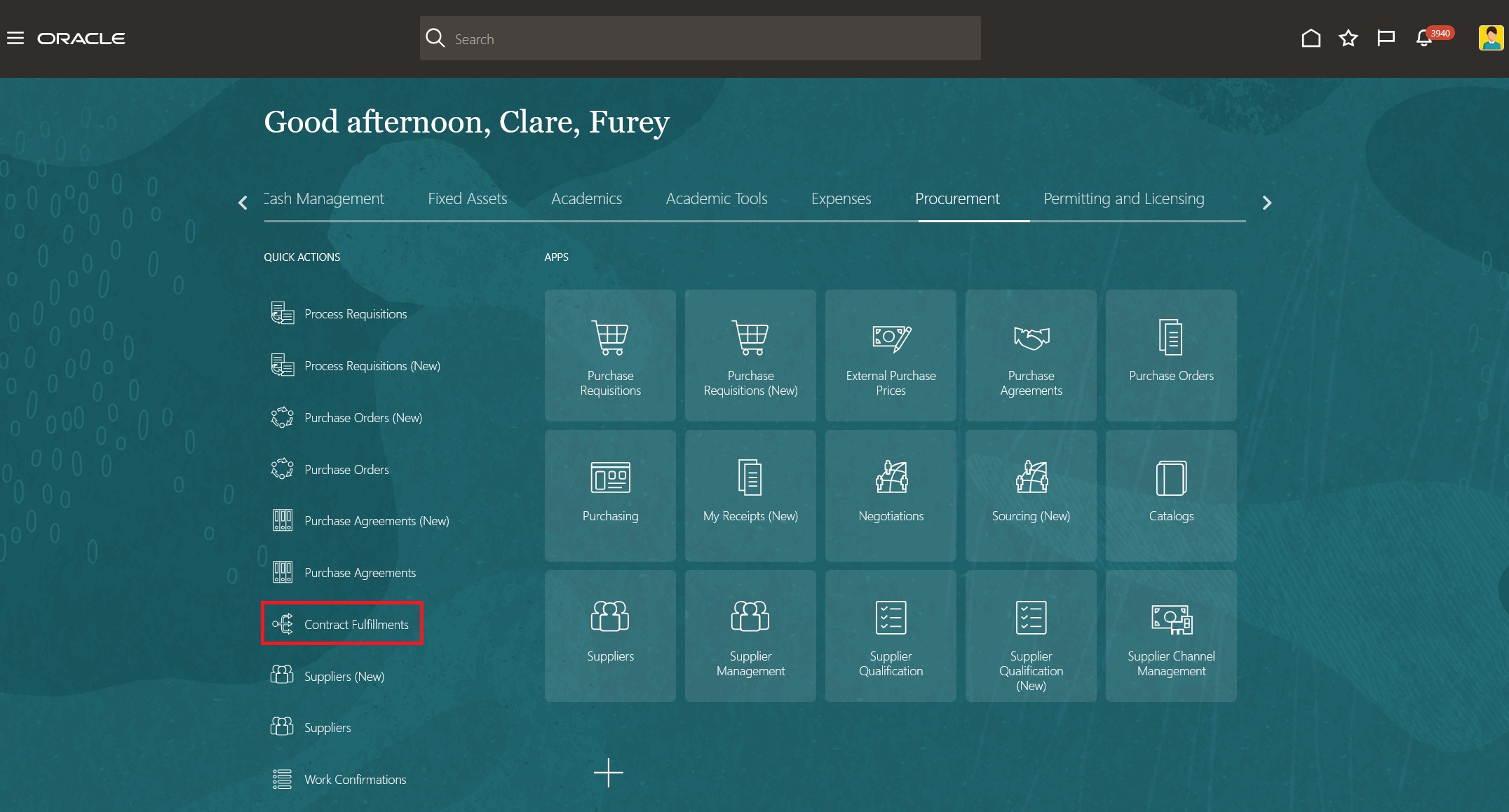
Contract Fulfillments Quick Action
This feature provides you with a centralized experience for contract fulfillment and reduces the effort to convert approved contract commitments into purchase orders and purchase agreements. It also improves visibility into fulfillment processing by allowing you to track in-progress, successful, and failed purchasing document creation from the Contract Fulfillments page.
Fulfillment lines are automatically generated for these contracts:
- Buy-intent agreement class contracts
- Buy-intent enterprise class contracts where lines are allowed for the contract type
The Contract Fulfillments page includes two views:
- Unfulfilled Lines: Displays lines that are ready for action or require correction after a failed purchasing document creation process.
- All: Displays all contract fulfillment lines accessible to you, including lines already processed into purchasing documents.
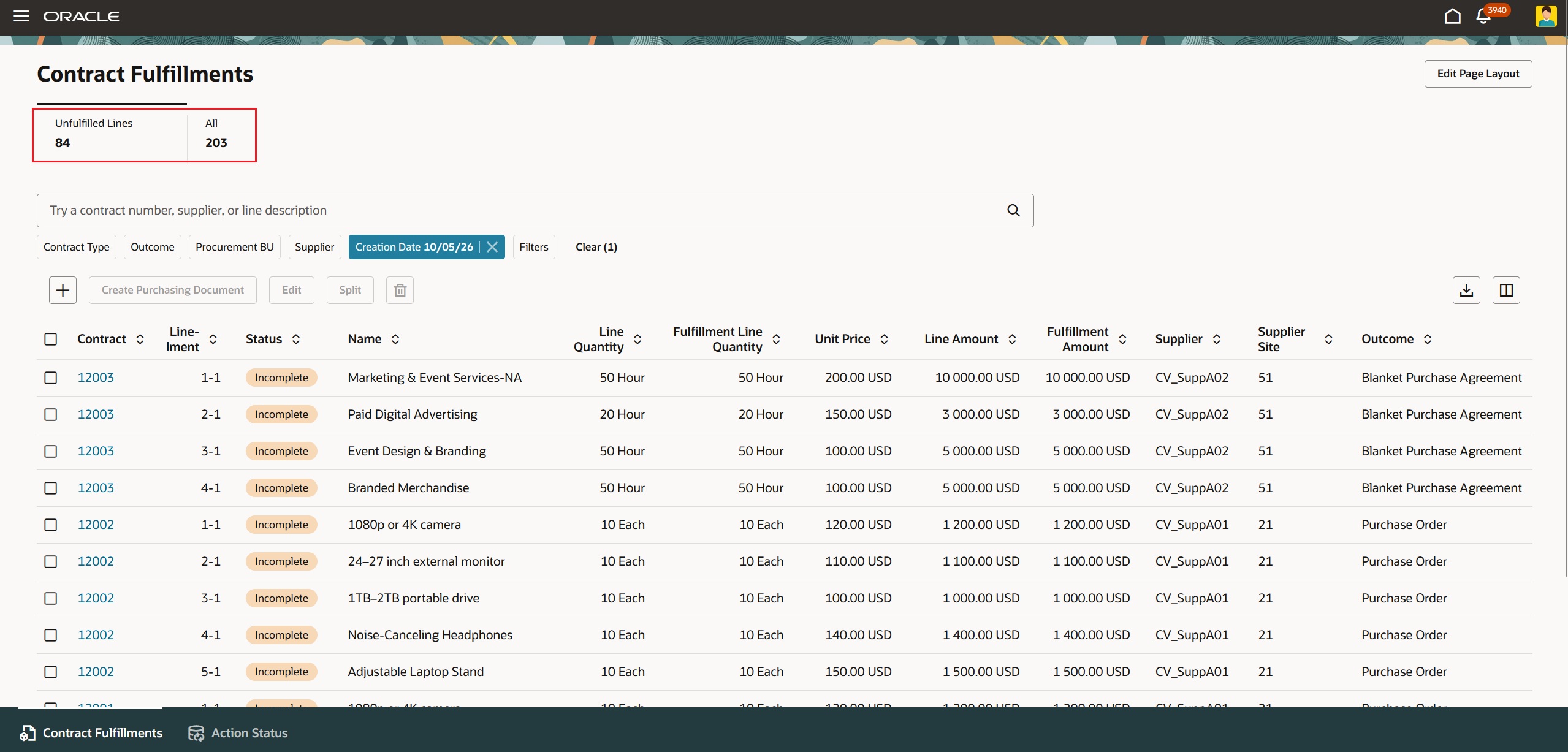
Contract Fulfillments KPIs
From the Contract Fulfillments page, you can:
- Search by contract number, supplier, or line description
- Filter and sort fulfillment lines using contract, supplier, status, procurement business unit, outcome, and other fulfillment attributes
- Download fulfillment lines to Microsoft Excel
- Create fulfillment lines for active contracts
- Edit fulfillment line attributes such as document style, procurement business unit, supplier site, buyer, bill-to location, ship-to location, quantity, amount, due date, and other purchasing details
- Split fulfillment lines so quantities or amounts can be fulfilled separately
- Delete fulfillment lines that were manually created from the Contract Fulfillments page
- Create purchasing documents for one or more selected fulfillment lines
- Use the Action Status tab to monitor the status of the Create Purchasing Document process
Create Purchasing Documents from Fulfillment Lines
Use the Create Purchasing Document action to process selected fulfillment lines into purchase orders or purchase agreements. You can select a single line, multiple lines, or all lines returned by the current search and filter criteria.
When you submit selected lines for processing, a scheduled process creates the purchasing documents. You can also choose whether the created purchasing documents should be automatically submitted for approval.
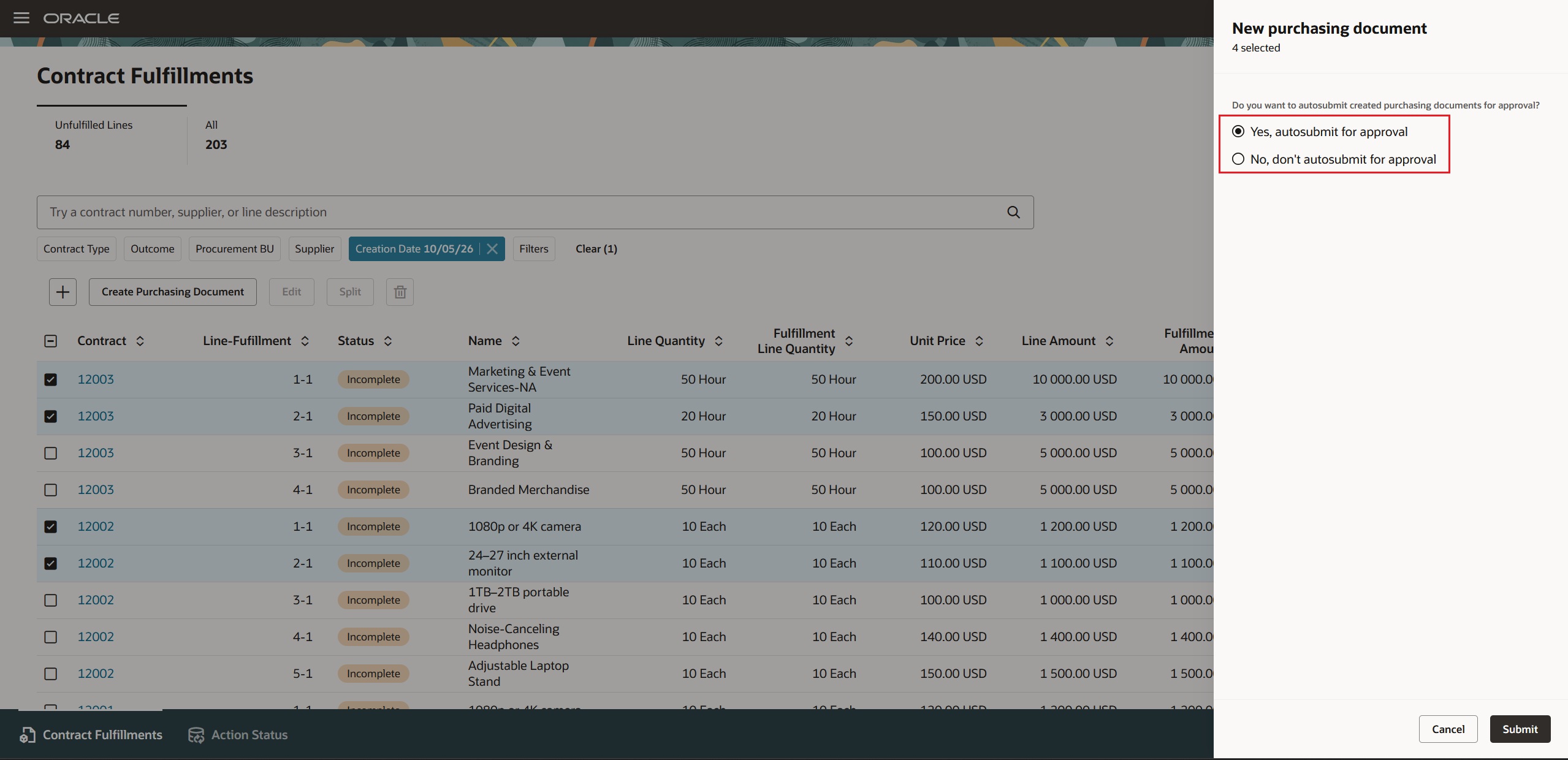
Autosubmit Options for Purchasing Documents
After the process is submitted, you can drill into the process status from the confirmation banner message, which navigates to the Action Status tab. If purchasing document creation fails, the affected lines display an error status and you can review error details from the Action Status tab. Successfully processed lines display the related purchasing document details in the All view.
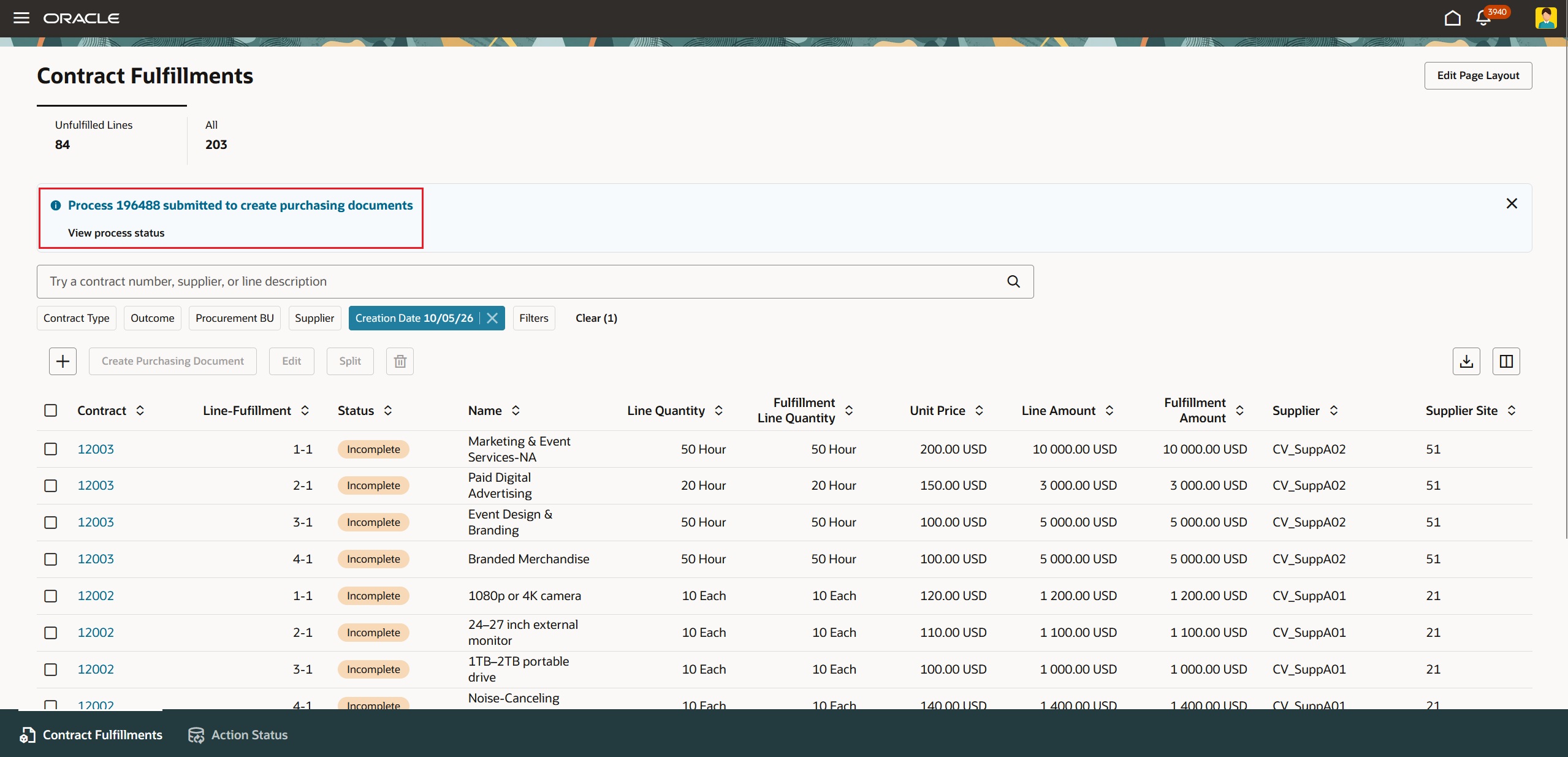
Confirmation Banner after Create Purchasing Document action
Split Fulfillment Lines
You can split a fulfillment line when part of the quantity or amount requires separate fulfillment. The Split action creates a new fulfillment line using the same fulfillment details as the original line, except for the quantity or amount you specify. The original line is reduced by the same quantity or amount.
For example, if a fulfillment line has a quantity of 200 and you split 50, the action creates a new fulfillment line for 50 and updates the original fulfillment line to 150.
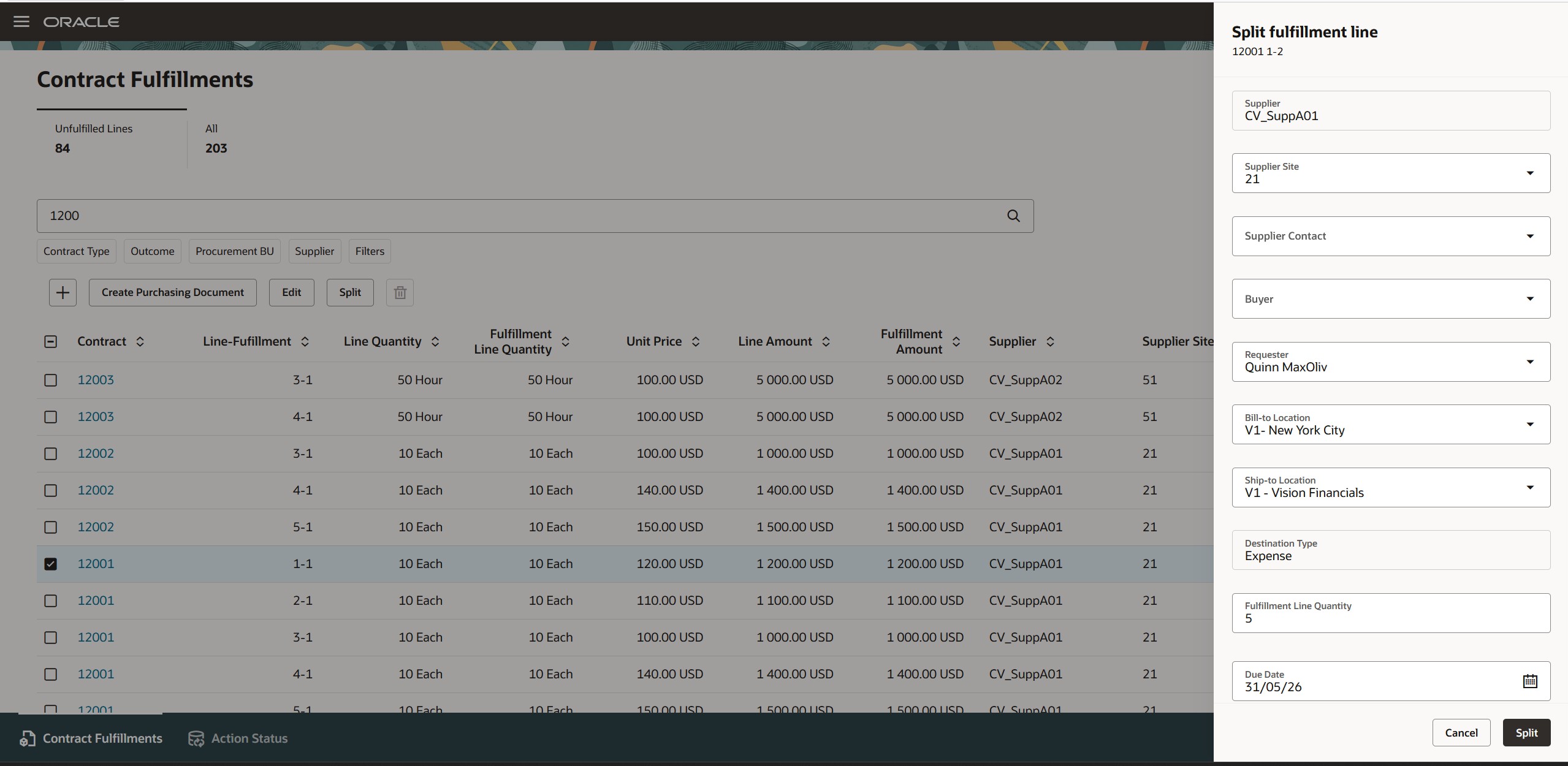
Split Fulfillment Line
When a fulfillment line is backed by a requisition line, the page also supports the requisition line split required to keep requisition line and fulfillment references aligned. Quantity-based requisition lines are split by quantity, while service-based requisition lines are split by amount.
If multiple fulfillment lines reference the same requisition line, the requisition line is split as needed during purchasing document creation. Fulfilled lines are updated with the new requisition line and purchasing document references, while remaining unfulfilled lines retain the remaining requisition demand.
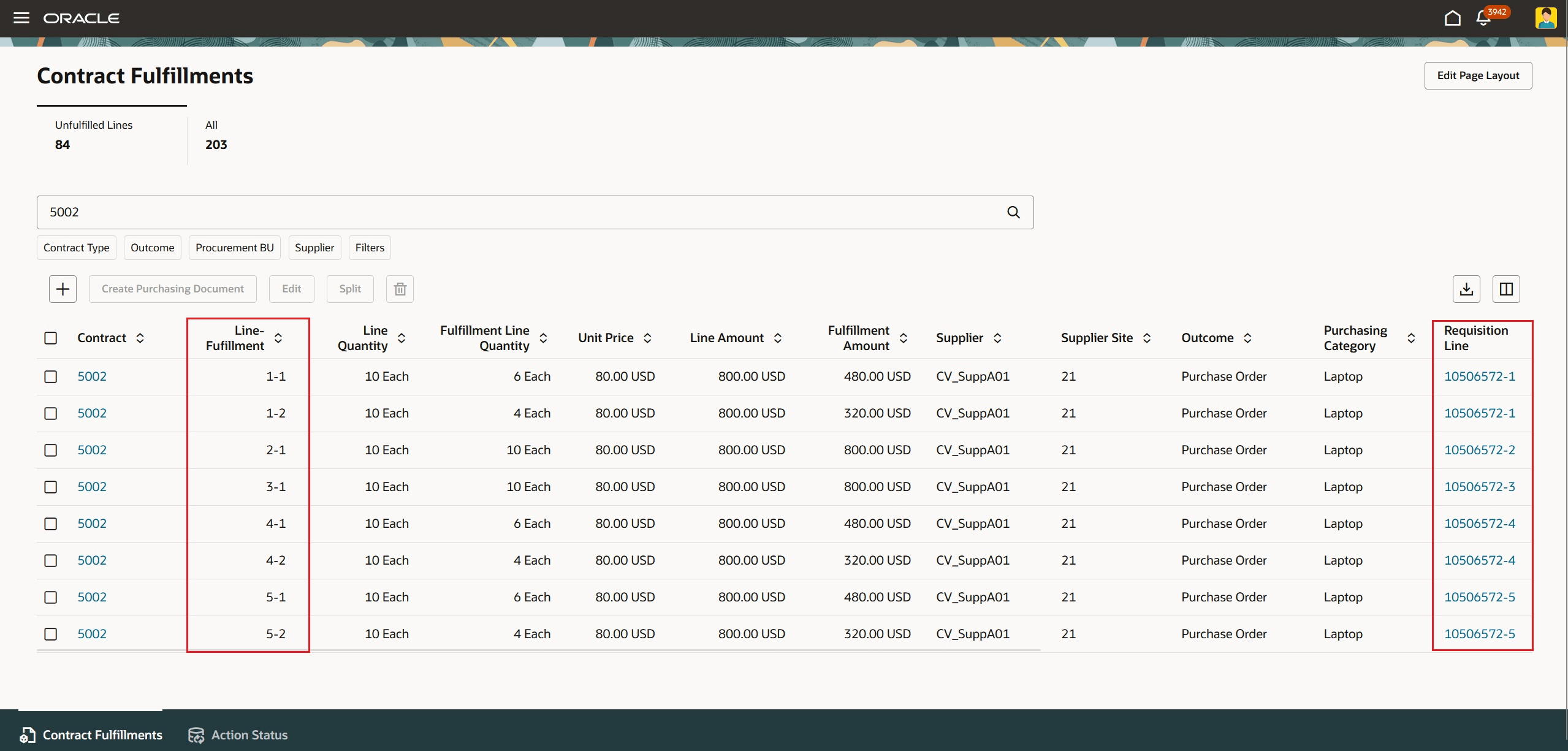
Fulfillment Line Backed by Requisition Line
Create Fulfillment Lines
Create a fulfillment line for an active contract when additional contract demand needs to be prepared for downstream purchasing document creation.
When creating a fulfillment line, you can select the contract context and enter the fulfillment and purchasing details required for processing. These details can include the document style, procurement business unit, requisitioning business unit, supplier site, buyer, bill-to location, ship-to location, quantity, amount, due date, and other attributes required to create the purchasing document.
Manually created fulfillment lines appear in the Unfulfilled Lines view and can be edited, split, deleted, or selected for purchasing document creation.
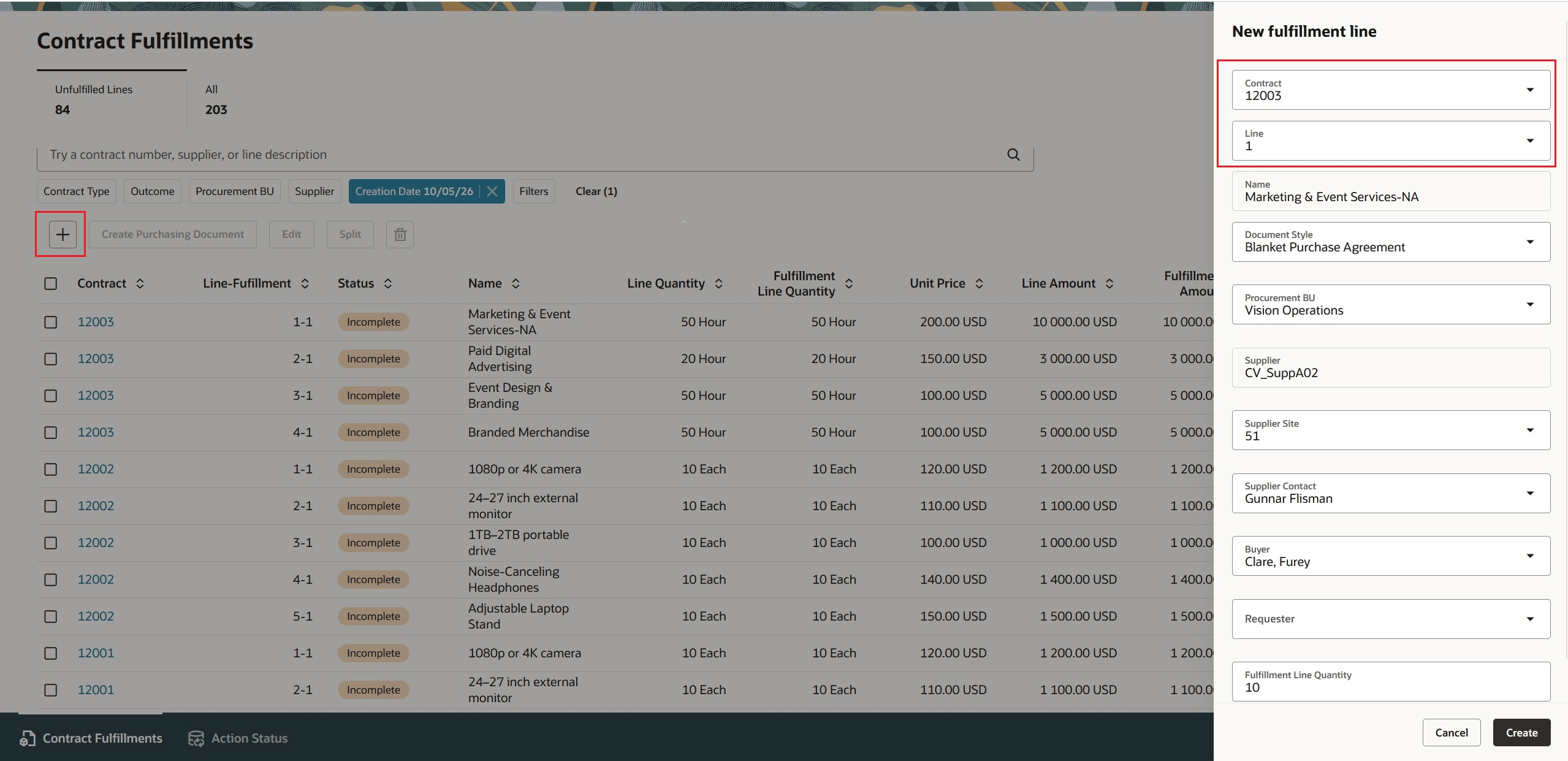
New Fulfillment Line
View Fulfillment Details from the Redwood Contracts Page
The Redwood contract page provides visibility into purchasing documents created through contract fulfillment.
When a contract is linked to a single purchasing document, fulfillment details are displayed on the contract overview and the document is listed on the Fulfillment tab. When a contract is linked to multiple purchasing documents, the Fulfillment tab lists all associated documents.
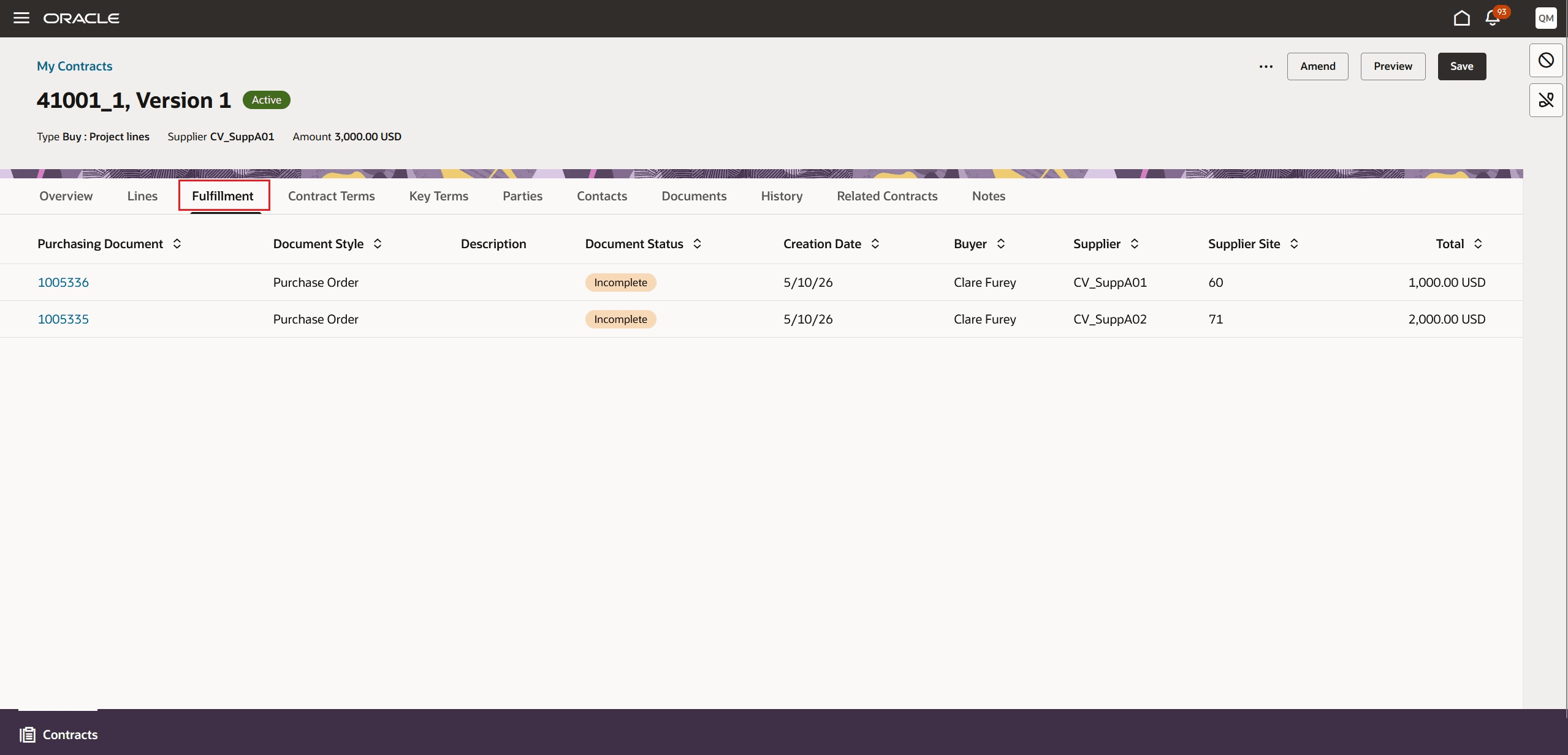
Fulfillment Line Tab on the Contracts Page
Steps to enable and configure
Enable the Redwood page for contract fulfillments profile option.
- To access the new Contract Fulfillments page, you must enable the Redwood Page for Contract Fulfillments Enabled (ORA_PO_CONTRACT_FULFILLMENTS_REDWOOD_ENABLED) profile option. By default, this profile option is disabled.
- If you have contracts that are created in a business unit that isn't enabled for the procurement function, you must set the default procurement business unit for contract fulfillments using the Procurement Business Unit Default for Contract Fulfillments (ORA_PO_CONTRACT_FULFILLMENT_DEFAULT_PRC_BU) profile option.
- Fulfillment lines require a procurement business unit for buyer access and processing. If the contract business unit is enabled for procurement, the fulfillment line defaults to the contract business unit. Otherwise, the fulfillment line uses the procurement business unit specified in this profile option.
- Fulfillment lines without a procurement BU are visible to buyers who are procurement agents for the default procurement BU specified in this profile option.
- Run the ESS job to create index definition and perform initial ingest to OSCS scheduled process with this index name:
- Contract Fulfillments: fa-prc-okc-fulfillment
Tips and considerations
- Fulfillment lines are secured by procurement business unit. To access a fulfillment line, you must be set up as a procurement agent for the procurement business unit associated with the line.
- Access to fulfillment lines is based on your procurement agent setup. If you’re enabled for the Manage Purchase Orders task in Manage Procurement Agents, you can view fulfillment lines with purchase order outcomes. If you’re enabled for the Manage Purchase Agreements task, you can view fulfillment lines with agreement outcomes.
- Before fulfillment lines can be processed into purchasing documents, required attributes such as procurement business unit, requisitioning business unit, supplier, supplier site, and document style must be completed.
- If a buyer isn't specified on a fulfillment line, the logged-in buyer is used during purchasing document creation.
- Purchasing documents are grouped from fulfillment lines based on attributes such as contract, procurement business unit, buyer, supplier, supplier site, currency, payment terms, carrier, freight terms, bill-to location, ship-to location, and FOB. If a fulfillment line is backed by a requisition line, additional attributes such as sold-to legal entity, document fiscal classification, and taxation country associated with the requisition line are also considered during document grouping.
- When creating blanket purchase agreement or contract purchase agreement documents from the Contract Fulfillments page, the contract header-level agreed amount and amount limit aren’t copied to the generated agreement headers. You can use the agreed amount defined on the fulfillment line to control downstream processing.
- If a fulfillment line is backed by a requisition line that can’t be split, the requisition split step can fail during the Create Purchasing Document process. In such cases, review the process log, delete the split fulfillment line if necessary, and process the original fulfillment line.
- For requisition-to-contract-to-BPA-to-PO flows, you can choose during staged document processing from the Process Requisitions page whether to consume requisition demand or return it to the requisition pool. When demand is consumed, fulfillment lines are created with requisition references. After the blanket purchase agreement is created and approved and purchase orders are generated, the requisition references are carried forward to the purchase order. The requisition line is also updated with the related agreement and purchase order references.
- When a contract amendment adds fulfillment lines and the contract is already linked to a single purchasing document, eligible unlinked fulfillment lines are added to that document through a change order if they meet the same grouping criteria. Automatic change order creation is available only when you’ve opted in to the Automatically Generate Purchasing Change Orders for Contract Amendments feature. If the grouping criteria aren't met, the newly added fulfillment lines are available for processing from the Contract Fulfillments page. For details on automatic change order creation, refer to the Automatically Generate Purchasing Change Orders for Contract Amendments feature, available in Oracle Fusion Cloud Procurement What's New, update 26B.
- Automatic purchasing change order generation for contract amendments applies only when the contract is associated with a single purchasing document. If the contract is associated with multiple purchasing documents, newly added fulfillment lines are available for processing from the Contract Fulfillments page. Any eligible fulfillment lines that couldn’t be successfully added to an existing purchasing document are also available for processing from the page.
- Currently, contract fulfillment doesn't support all quantity and amount change scenarios for fulfillment lines that are backed by requisition lines. If you increase or decrease the quantity or amount on a contract line, the resulting purchase order can contain discrepancies between the purchase order line quantity or amount and the corresponding distribution quantity or amount derived from the requisition line. Buyers must manually correct these discrepancies before submitting the purchase order. This limitation applies when no purchasing document references the contract and the changes are made during either the initial contract fulfillment process or a subsequent contract amendment.
- You can't increase or decrease the quantity or amount on fulfillment lines that are backed by requisition lines.
Key resources
- For details on creating and managing procurement contracts Redwood pages, refer to the Redwood: Create and Manage Procurement Contracts feature, available in Oracle Fusion Cloud Procurement What's New, update 26A.
Access requirements
Users who are assigned the buyer job role that includes this new privilege can access this feature:
- Process Contract Fulfillment Line (PO_PROCESS_CONTRACT_FULFILLMENT_LINE)
This privilege is associated with the Buyer job role starting in this release.
Users also need these privileges with the necessary contract data security to manage and process fulfillment lines:
- Edit Contract (OKC_EDIT_CONTRACT_PRIV)
- View Contract (OKC_VIEW_CONTRACT_PRIV)
These privileges were available prior to this update