Redwood: Get Category Suggestions for Description-Based Lines Using AI
Get category suggestions for description-based lines in purchase orders, blanket purchase agreements, and change orders. When you select the Suggest Category action, the application analyzes the entered description using historical purchasing data and recommends the best-fit category. This helps improve spend classification accuracy and reduce manual category entry.
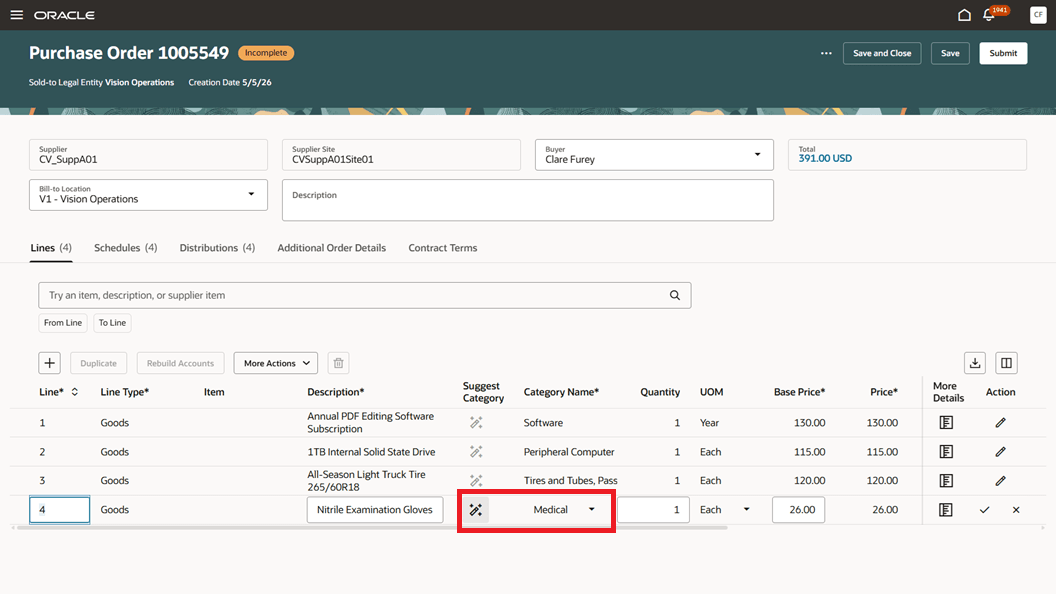
Suggest Category for a Description-Based Purchase Order Line
Steps to enable and configure
-
If you haven't enabled Redwood for Purchasing, see the Getting Started with Redwood in Purchasing topic on the SCM Resource Center in Customer Connect.
-
The Suggest Category action is hidden by default. To configure the page to display the action, follow these steps:
- In Oracle Visual Builder Studio, open the Redwood purchasing document page that you want to configure, such as the Purchase Order or Blanket Purchase Agreement page.
- In the Page Properties pane, navigate to the Common Properties section.
- Set the Show Suggest Category Action for Line property to true.
- Publish your changes.
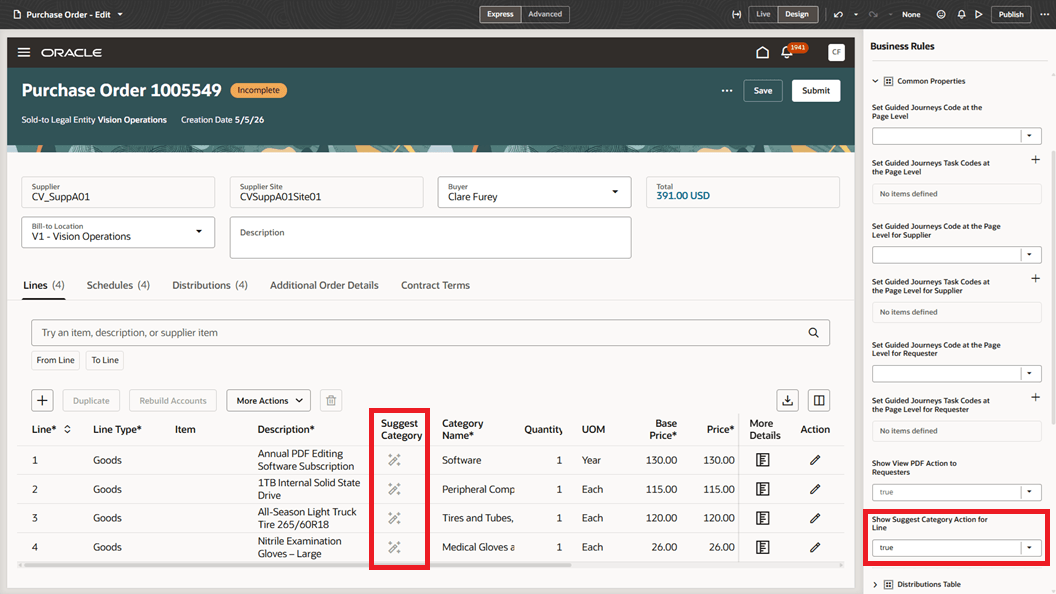
Enable Show Suggest Category Action for Line in Page Properties
- Run the Prepare the Purchasing Category Suggestion Model scheduled job to prepare the classifier used for category suggestions. Consider scheduling this process to run periodically so the model can be refreshed as new approved purchasing document history becomes available.
Tips and considerations
- The Suggest Category action is enabled only for description-based lines when the category is editable and a description has been entered. The action remains disabled when the category isn't editable, the line is item-based, or the description is blank.
- When you select the Suggest Category action, the application first looks for an exact match using prepared historical purchasing data. If no exact match is found, it uses fuzzy matching and historical frequency to identify the best-fit category.
- If the classifier can’t determine a matching category, the Suggest Category action doesn’t return a suggestion.
- You can manually override the suggested category after it’s populated.
- In Redwood, users can use this feature in these scenarios:
- Buyers can use it in the Purchasing work area when editing eligible purchasing document lines.
- Requesters can use it only when adding new lines through purchase order change orders.
- Suppliers can use it only when adding new lines through blanket purchase agreement change orders in Redwood Supplier Portal.
- Users must have the required privileges to edit the document lines.
Key resources
- For details on adding new lines to a purchase order change order as a requester, refer to the Create Purchase Order Changes as a Requester Using an Enhanced Redwood Change Order Page feature, available in Oracle Fusion Cloud Self Service Procurement What’s New, update 25D.
- For details on adding new lines to a blanket purchase agreement change order as a supplier, refer to the Redwood: Create Purchase Agreement Changes as a Supplier feature, available in Oracle Fusion Cloud Procurement What's New, update 26A.
- For information about using Oracle Visual Builder Studio to extend your Redwood application pages, see Oracle Fusion Cloud HCM and SCM: Extending Redwood Applications for HCM and SCM Using Visual Builder Studio.
Access requirements
Users who are assigned a configured job role that contains this privilege can run the scheduled job:
- Prepare the Purchasing Category Suggestions Model (POR_PREPARE_PURCHASING_CATEGORY_SUGGESTIONS_MODEL_PRIV)
Users who are assigned a configured job role that contains these privileges can see the Edit Page in Oracle Visual Builder Studio link on Oracle Cloud Applications pages and deploy and manage the extension lifecycle from Oracle Visual Builder Studio:
- View Administration Link (FND_VIEW_ADMIN_LINK_PRIV)
- Administer Sandbox (FND_ADMINISTER_SANDBOX_PRIV)
These privileges were available prior to this update.