Use improved item search
In many organizations, warehouse staff and other supply chain users interact with items using different identifiers, depending on their roles and business processes. While some users are familiar with internal item numbers, others are more likely to know an item by its description, manufacturer part number, supplier part number, or other business-specific attributes. To improve usability and accelerate transaction flows, you can now search items using a broader range of attributes defined in Oracle Fusion Cloud Product Hub's item index.
The enhanced item search capability provides a consistent and streamlined search experience through the item filter chip across multiple Inventory Management, Shipping, and Receiving pages. You can search for items using:
- Item number
- Item description
- Manufacturer
- Manufacturer part number
- Supplier part number
- Category
- GTIN
- Other item attributes configured in the Product Hub item index
To perform a detailed search, enter a value in the Item filter chip and select More search options.
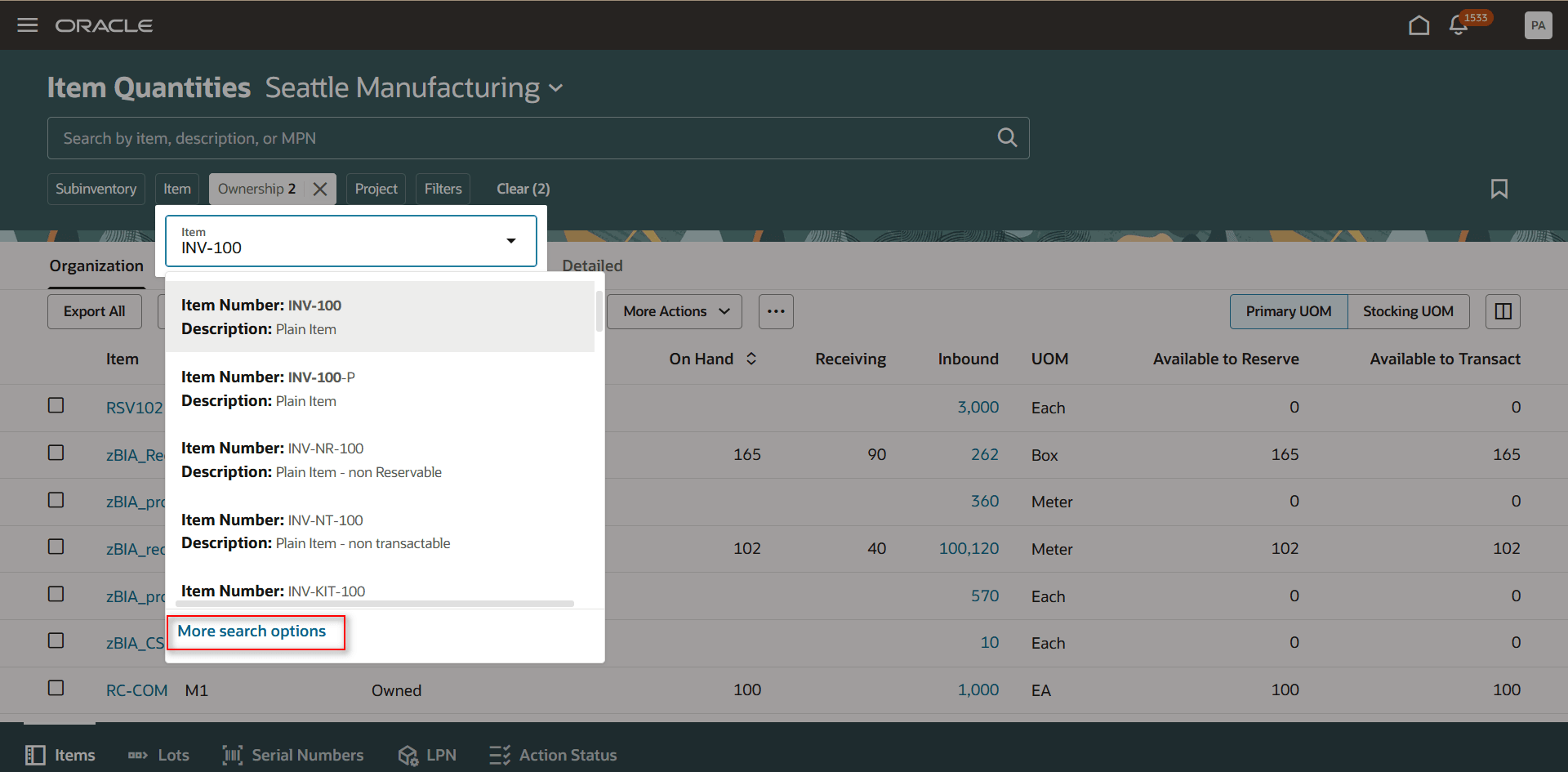
More search options
You can then refine the search using additional item attributes and select the item from the search results. The selected item is used to filter the page results.
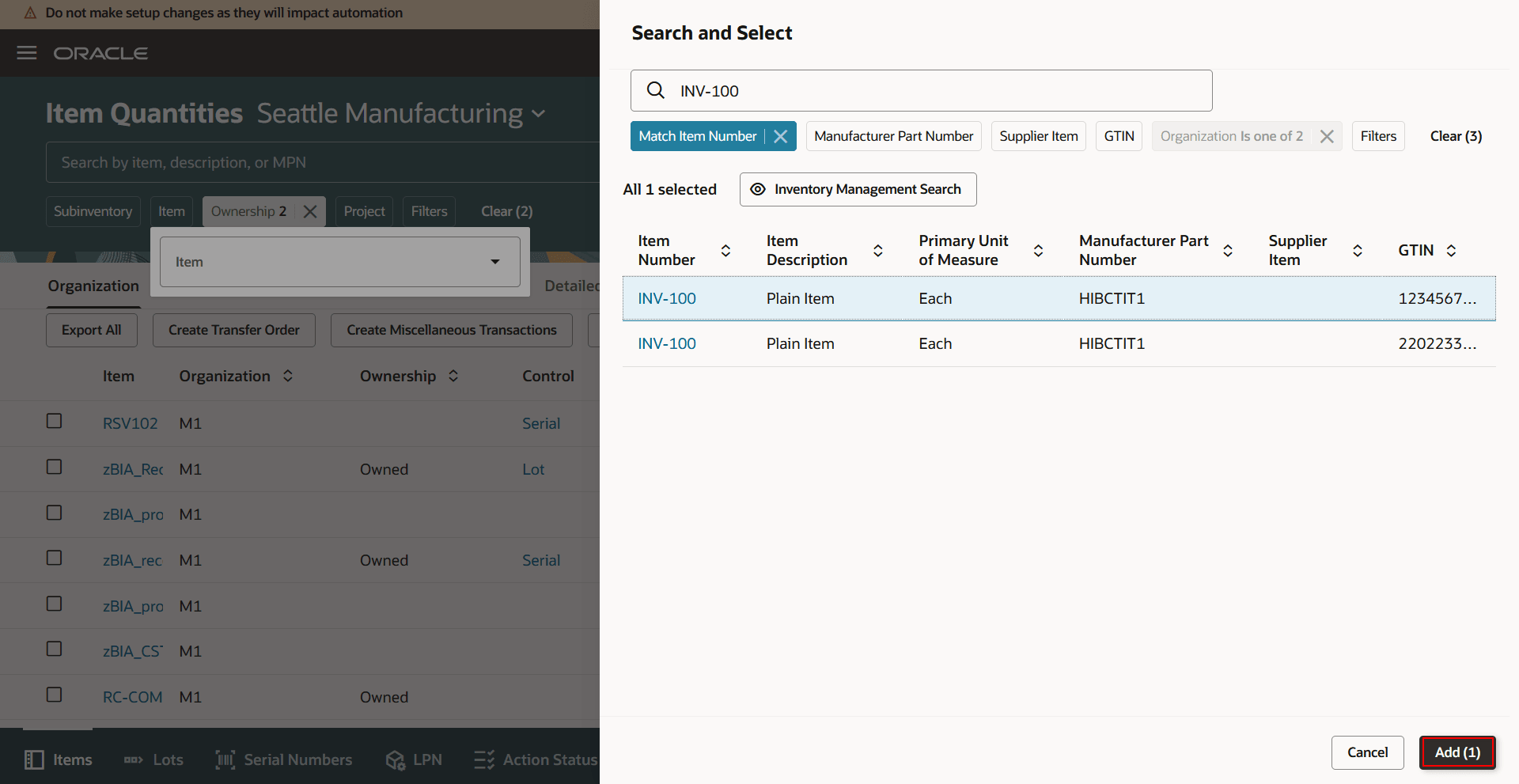
Add item
Pages supporting enhanced item search
Inventory management
- Inventory Landing Page
- Item Quantities
- Item Supply and Demand
- Inventory Transactions
- Reservations
- Lots and Serial Numbers
- Configure Subinventories
- Configure Item Transaction Defaults
- Consigned Inventory — Consigned tab
- Record Cycle Counts
- Record Preapproved Cycle Counts
- Cycle Count Approvals
- Confirm Pick Slips
- RFID Tags
- Movement Requests
- Inventory Attribute Exceptions
- Inventory Replenishment Values
- Consumption Rules
Shipping
- Outbound Shipments
- Item Packing Unit Configurations
Receiving
- Expected Shipment Lines
- Received Lines
- Receiving Returns
- Unordered Receipts
By expanding item search beyond internal item numbers, users can find the information they need more quickly, reducing delays, minimizing manual lookup, and improving overall operational efficiency.
This enhancement:
- Improves item discoverability by supporting multiple item identifiers.
- Reduces the time required to locate the correct item.
- Minimizes transaction errors caused by selecting an incorrect item.
- Provides a consistent item-search experience across multiple pages.
- Streamlines transaction processing for users who may not know the internal item number.
Here's the demo of these capabilities:
Steps to enable and configure
Businesses that have already adopted the Redwood item picker and configured it for item-attribute search don't need to perform any additional setup. Businesses that are migrating to the Redwood experience must complete the procedures in the Steps to enable and configure section to enable Use Improved Item Search, including search by item attributes. For additional setup guidance, refer to the documentation listed under Key resources.
If you've enabled any Inventory Management pages in the Redwood experience, then you must complete a set of configuration steps to enable the item attribute search fields on those pages. This allows you to select an item, MPN, and other inventory attributes from the list of values when you perform Redwood desktop and mobile transactions.
Perform these steps to enable the search:
- Enable the opt-in feature
- Enable item search
- Enable item class security
Enable opt-in feature: Search items using the new user interface
To enable the Search Items Using the New User Interface opt-in feature, complete these steps:
- Navigate to My Enterprise and select Available Features.
- Search for and enable the Search Items Using the New User Interface feature.
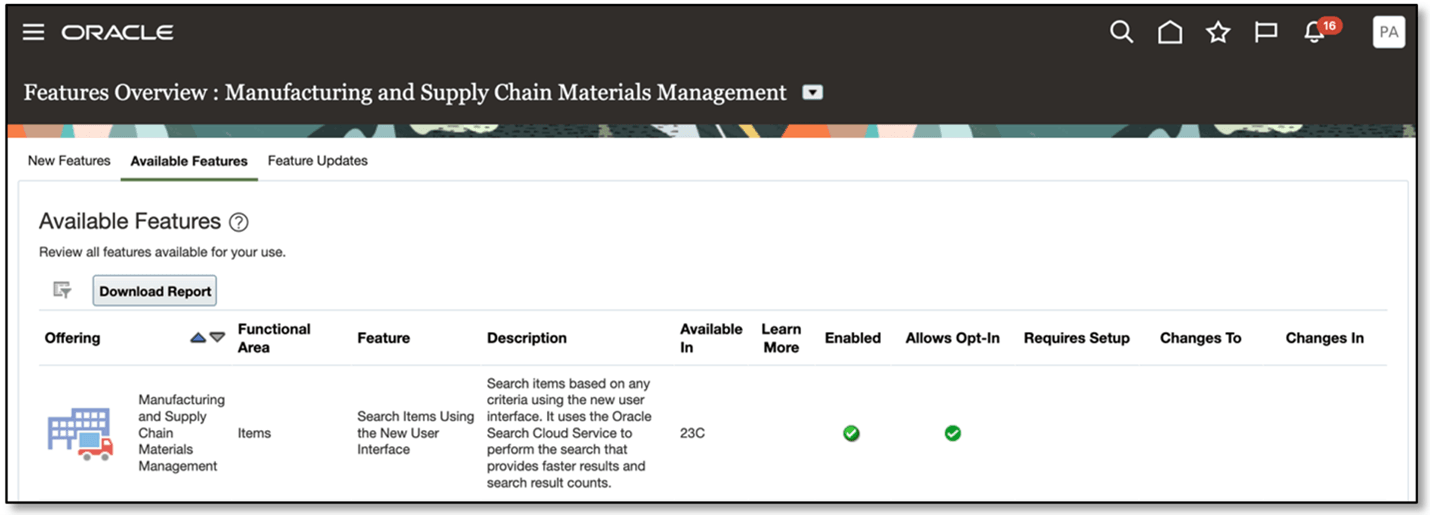
Opt-in to the search items using the new user interface feature
Enable item search
To enable the item search, navigate to the Product Information Management work area or the Product Development work area and complete these steps:
- On the landing page, select the Tasks tab to open the drawer.
- Select Configure Index and select the Item card.
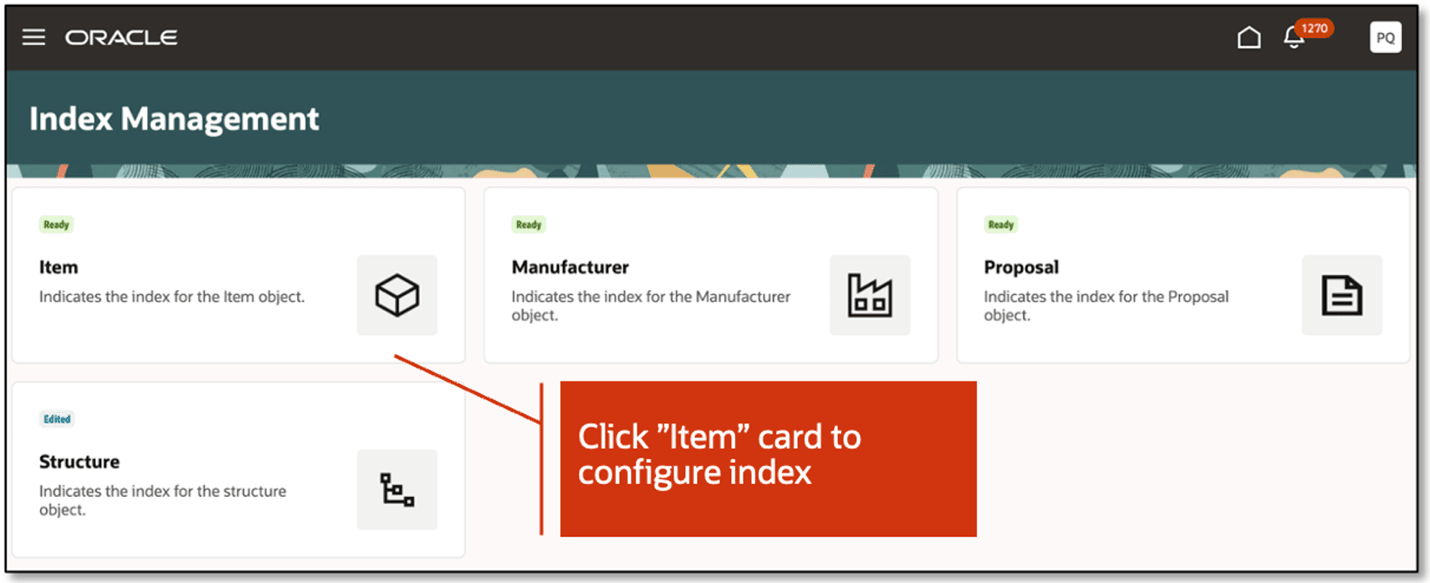
Item card in index management
- Select Action and select Enable attribute sets to open a drawer and enable the inventory seeded attributes. The initial status will be New.
- Toggle the Enable switch to On for the Inventory Management application.
- Select Apply. The attributes are inserted into the metadata for the index. The next rebuild will add the seeded attributes to the index, and the seeded view will be available on the Configure View user interface.
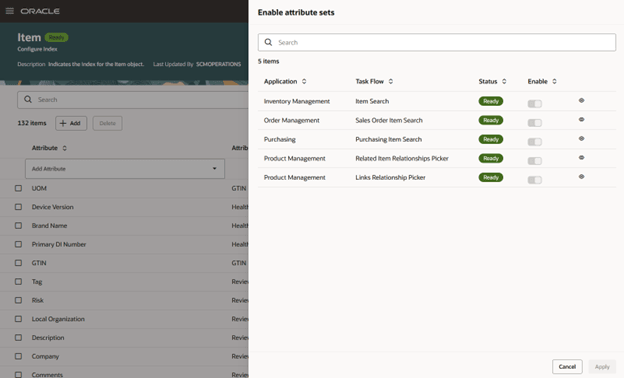
Enable attribute sets panel
- Select Update if enabled, and then save the index configuration.
- Select Rebuild from the Actions list.
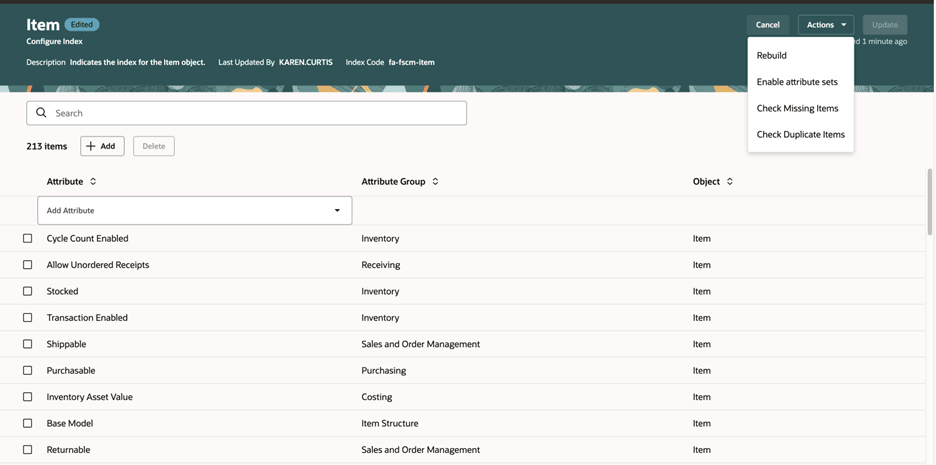
Actions list on configure index page
- In the Schedule Index Rebuild Process dialog box, select Rebuild. The index rebuild process starts and a job ID is provided to track the process. Since the rebuild process is long-running, you can check the index status on the Index Management page. The item card has an indicator badge which shows Ready when the index rebuild is complete.
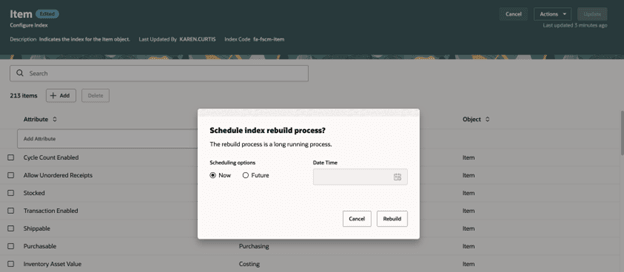
Schedule index rebuild process
Enable item class security
To enable item class security, navigate to the Manage Item Classes task in the Setup and Maintenance work area and configure security for the root item class.
Root item class security is only required when the Data Governance and Data Consolidation functional areas are enabled under the Product Management offering. These functional areas should be enabled only if Oracle Fusion Cloud Product Management is licensed. Additionally if the Public option is enabled in the root item class, security configuration isn’t required.
This is a required data security configuration in the Product Management offering to display the inventory items associated with an inventory organization.
- In the Setup and Maintenance work area, search for and select the Manage Item Classes task.
- Search for Root Item Class in the Item Class field.
- Select the Root Item Class link.
- Select Add or Add Row.
- Select Person under Principal, User Name, and Inventory Organization.
- Specify a Start Date and End Date and Select and Add.
- Search for the View Item Basic action and select Apply.
- Select Save and Close.
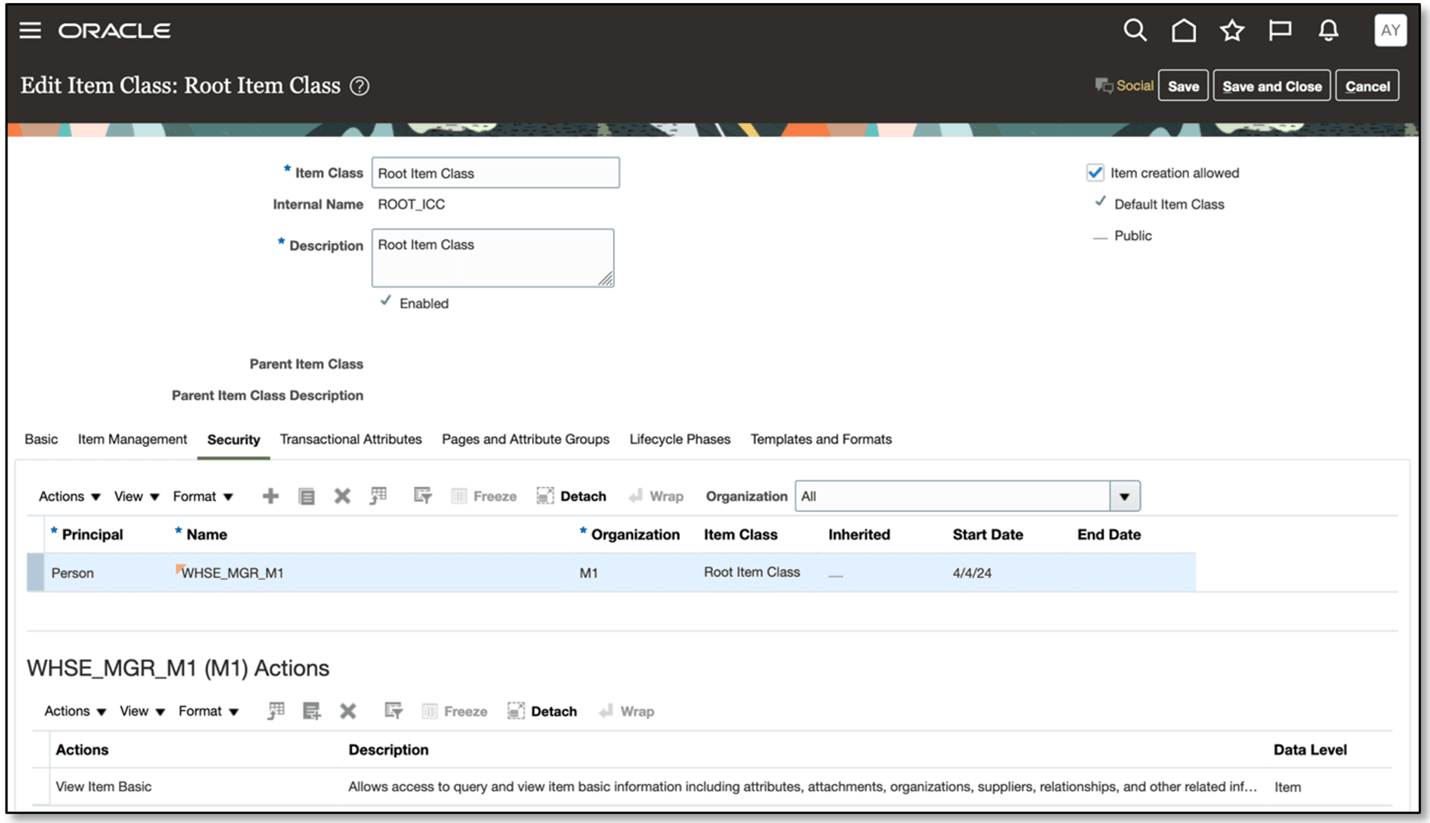
Edit root item class page
Tips and considerations
-
The index and predefined views have a set of predefined attributes to support common search use cases as the initial point for implementation. You must review your requirements to determine the composition of the index and its views, searchable attributes, filters, and the attributes that'll be shown in the results. You can also create your own personal views.
- You can add any attribute that isn't available in the predefined index by searching with the attribute name and rebuilding the index, then adding it to the custom view. For example, Extensible Flexfields aren't part of the predefined index. You need to add the attribute to the index, rebuild it, and then add it to the view as a searchable attribute to search with the Extensible Flexfields.
Key resources
- For an overview of product management search, refer to the Overview of Product Management Search topic.
- To know how to set up data security for item classes, refer to the Set Up Data Security for Item Classes topic.
- To know more about how to make attributes such as Manufacturer, Manufacturer Part Number, Supplier Part Number, Cross Reference, or Extensible Flexfields available as keywords for item search, refer to the Build Item Keyword Index topic, available in the Oracle Fusion Cloud SCM: Implementing Product Management guide.
- Oracle Fusion Cloud Product Lifecycle Management: Search Items Using the New User Interface, refer to the Search Items Using the New User Interface.
- Oracle Fusion Cloud SCM: Using Inventory Management guide, available on the Oracle Help Center.
- Oracle Fusion Cloud SCM: Implementing Product Management guide, available on the Oracle Help Center
Access requirements
There are no additional access requirements.