Select more rows during physical inventory count approval actions
In many big warehouses, physical inventory counts can generate large volumes of count records that require review and undergo approval or rejection. When you can review only a small number of records at a time, you're forced to repeat the same approval steps across multiple transactions. This increases processing time and slows the completion of inventory activities. This becomes burdensome during high-volume count events, when you need to work through many records efficiently while still maintaining accuracy. To improve review productivity and streamline inventory control, you can now select and process a larger set of physical inventory count records in a single action.
By reducing repetitive work and accelerating review cycles, organizations can improve operational efficiency, support faster inventory reconciliation, and make physical inventory processing more scalable across the warehouse.
You can now select and process more than 10 records at a time from the Physical Inventory Approvals page. Filter the records you want to review, select the required rows, and apply Approve, Reject, Reset to Pending, or Update in a single action.
Here's how:
- Select the required records and click Reject.
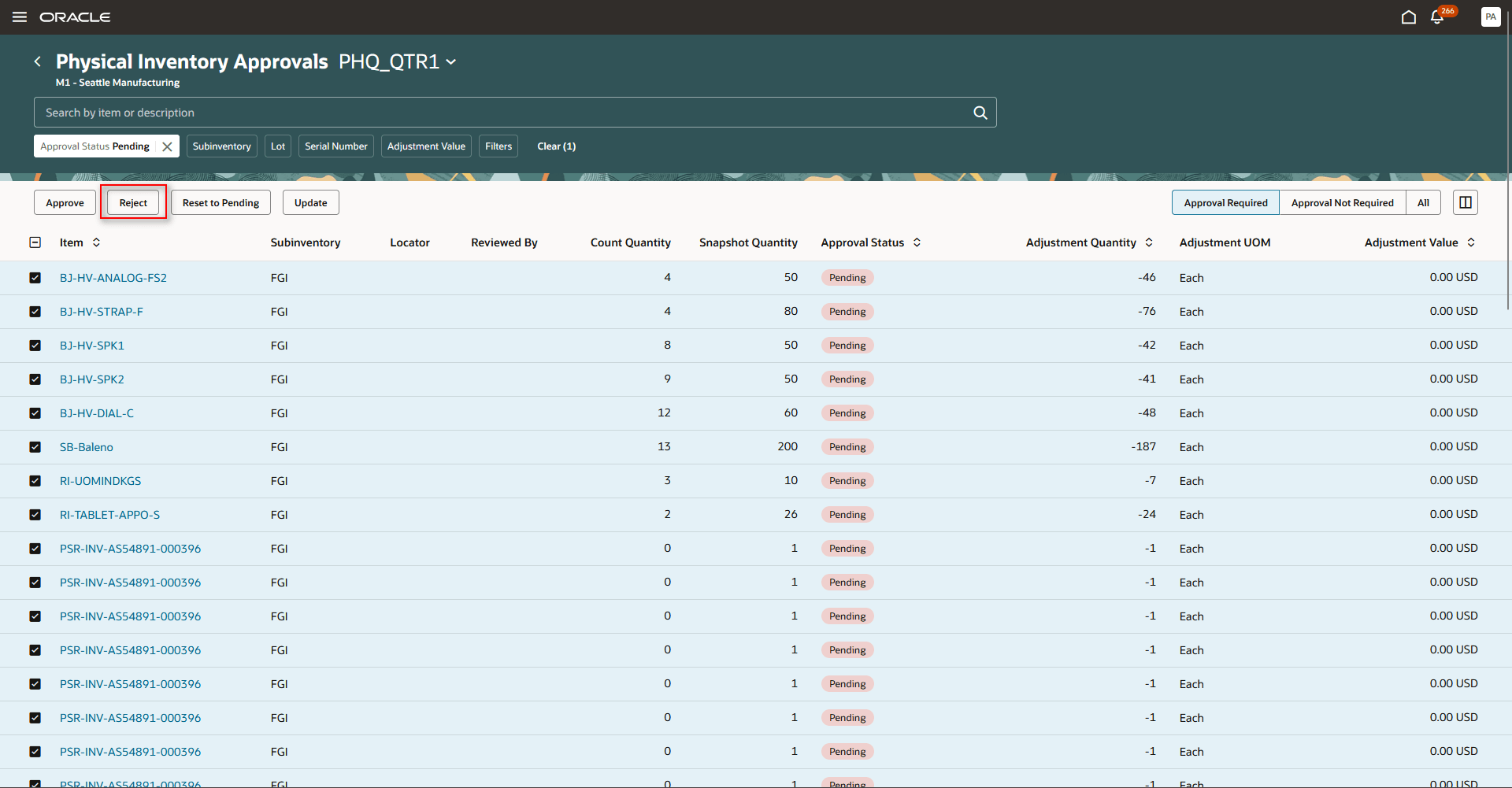
Select rows and reject
- After the action is completed, the status of the selected records is updated accordingly.
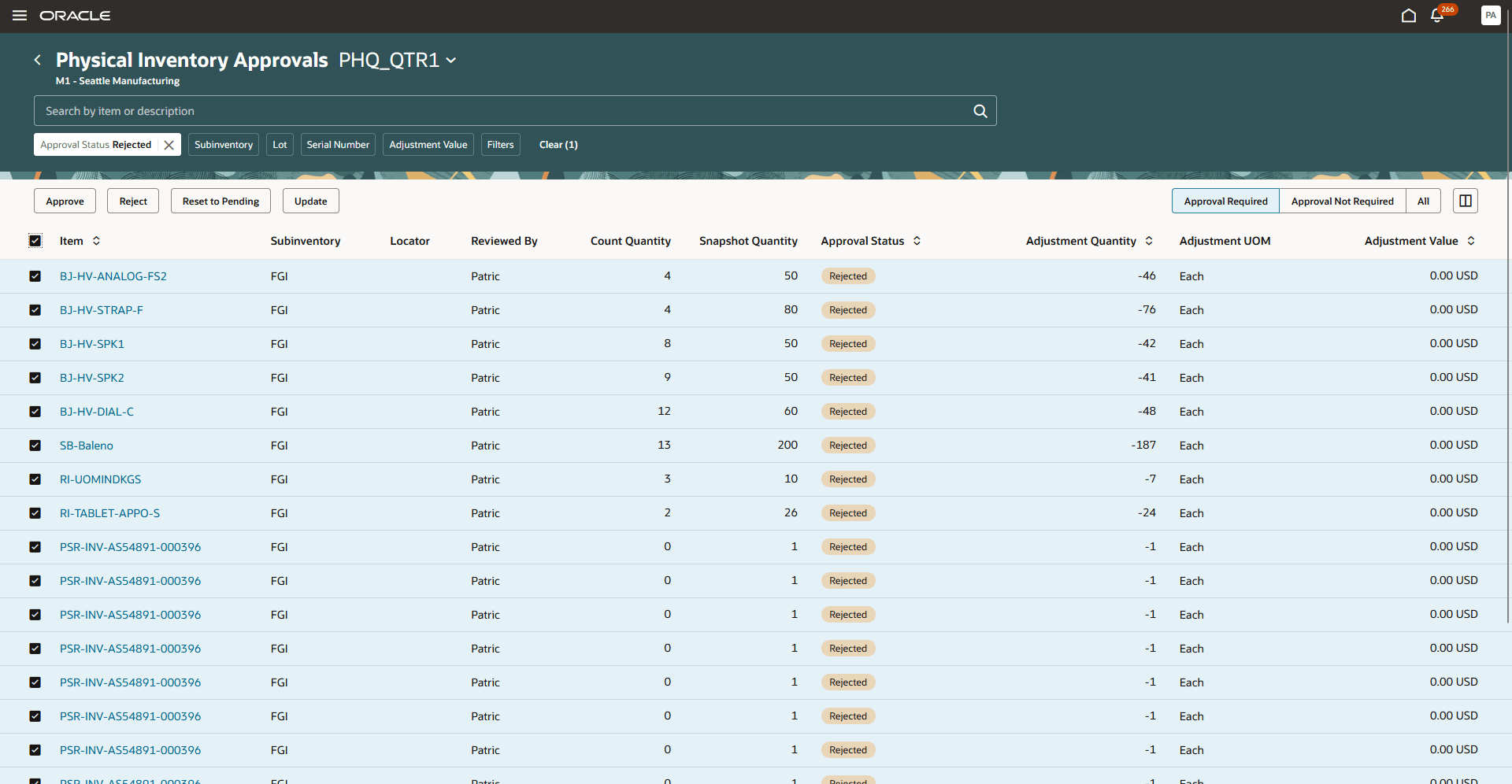
Status updated to rejected
This helps to:
- Process larger sets of physical inventory count records in a single action.
- Approve, reject, reset, or update multiple records together.
- Reduce manual effort during high-volume count reconciliation.
- Accelerate inventory review and close activities.
- Maintain record-level validations and approval controls.
Steps to enable and configure
- In the Setup and Maintenance work area, search for and select the Manage Inventory Profile Options task.
- On the Manage Inventory Profile Options page, search for and select the Redwood Page for Physical Inventory Approvals Enabled profile display name or ORA_INV_PHYSICAL_INVENTORY_APPROVALS_REDWOOD_ENABLED as the profile option code.
- In the Profile Values section, set the Site Level to Yes or No. The default value is No.
- Yes = enables the feature
- No = disables the feature
- Click Save and Close. Changes in the profile value will affect users the next time they sign in.
Key resources
- Oracle Fusion Cloud SCM: Using Inventory Management guide, available on the Oracle Help Center.
- Oracle Fusion Cloud SCM: Redwood: Approve Physical Inventory Adjustments Using a Redwood Page, available on the Inventory Management 25A What's New.
Access requirements
If you're using custom job roles, then you need to add the duty roles identified as new in this update as well as validate that you have the previously delivered duty roles listed.
| Duty role status | Duty role name and code |
|---|---|
| Previously delivered |
Physical Inventory Management Using Responsive Inventory Duty ORA_INV_PHYSICAL_INVENTORY_MANAGEMENT_PWA_DUTY |