Cost Management Command Center
Gain a consolidated view of Cost Accounting period-close readiness across the cost organizations and cost books in a ledger. In Update 26D, the Cost Management Command Center brings period status, period-end validation errors, and the latest validation run dates together so you can identify exceptions and focus your close activities. A concise readiness summary highlights the issues that need attention, and links to the Cost Accounting Close Workspace help you move from an overview to detailed investigation.
To access the Cost Management Command Center, navigate to Supply Chain Execution, select Show More, and then select Cost Management Command Center.
Cost Accounting close readiness
Review the Cost Accounting card for the selected ledger and period. The card summarizes period status and validation results across cost organizations, helping you distinguish reported exceptions from results that still need to be verified.
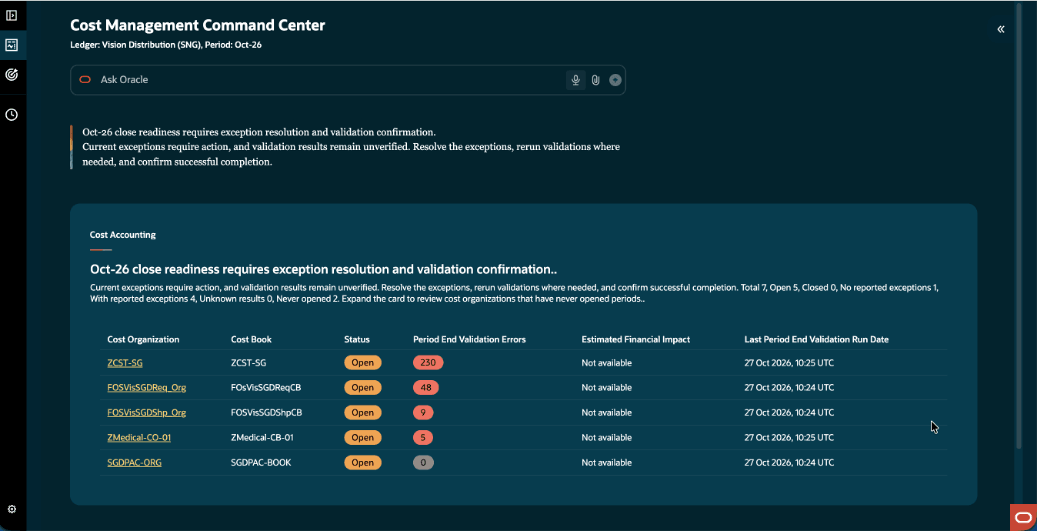
Cost Accounting readiness across cost organizations and cost books
For each cost organization and cost book, review the period status, period-end validation error count, and last period-end validation run date. The summary also identifies periods that have never been opened so you can review their relevance to your close scope.
Understand the readiness summary
The headline and summary explain the selected period’s close readiness and the next action. If current exceptions and unverified validation results coexist, the summary calls attention to both so you can resolve the exceptions and obtain current validation results.
- Reported exceptions require investigation and correction, followed by validation to confirm the result.
- Missing, failed, not-run, or stale validation results leave readiness unconfirmed.
- A zero error count confirms a clean validation result only when the validation completed successfully and is current.
Use the validation error counts and run dates to identify cost organizations that need attention. Select Run Validations for the relevant cost organization and cost book to obtain updated validation results. After resolving an exception, rerun validations and confirm successful completion before assessing readiness.
Drill into the Cost Accounting Close Workspace
Select a cost organization link to open the Cost Accounting Close Workspace for the selected cost organization, cost book, and period. Use the workspace to investigate the processing status and supporting details for that context, then return to the Cost Management Command Center to review readiness across the ledger.
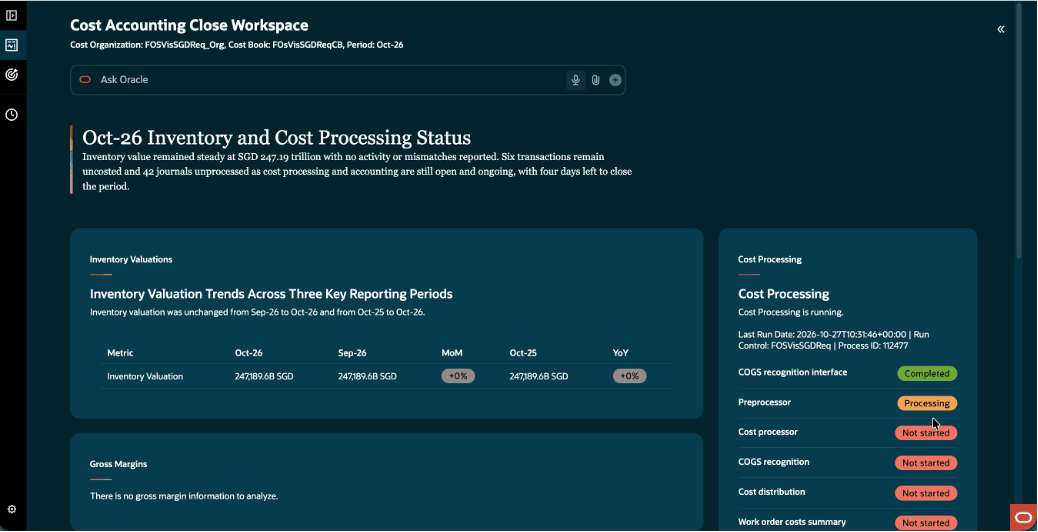
Cost Accounting Close Workspace for a selected cost organization and cost book
Share Cost Accounting status
Use Email Cost Accounting Status in the Communications area to prepare an editable status email for the selected ledger and period. This gives your close team a common view of reported exceptions and validation results without manually assembling status information from individual cost organizations.
- Open Email Cost Accounting Status from the Communications area.
- Review the generated snapshot, including the ledger, period, readiness summary, cost organization details, and validation run dates.
- Refine the email content as needed, verify the recipients and status information, and select Send Email when the message is ready.
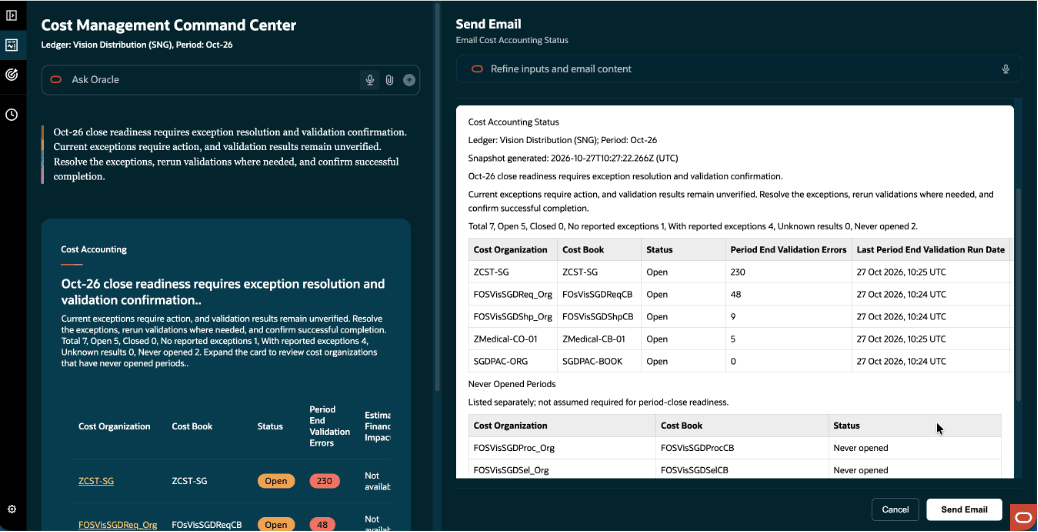
Review and refine the generated Cost Accounting status email before sending
The email snapshot lists never-opened periods separately. Review these periods in the context of your close scope rather than assuming they must be closed or can be excluded.
Steps to enable and configure
To use this feature, enable the Cost Management Command Center profile option:
- Navigate to the Setup and Maintenance work area.
- Search for and select the Manage Cost Accounting Profile Options task.
- Search for the profile option code ORA_CST_COMMAND_CENTER_AGENTIC_APP_ENABLED.
- In the Profile Values section, set the Site level value to Yes.
- Click Save and Close.
Tips and considerations
- Confirm the ledger and accounting period before interpreting the readiness summary or sharing a status email.
- Ledger suggestions depend on your data access to the cost organization. Select the intended ledger when multiple suggestions are available.
- Use Ask Oracle to set or change the ledger context without leaving the Cost Management Command Center. For example, enter “Change ledger to Vision Distribution.” When a ledger name is incomplete or does not exactly match a configured name, select the intended ledger from the available suggestions based on your data access.
- Review both the validation error count and the last validation run date. An unknown or blank result isn't a zero, and a stale result doesn't confirm readiness.
- Review periods that have never been opened separately and determine whether they are required for the selected close scope.
- Treat a financial impact value of Not available as unavailable information, rather than zero financial exposure.
- Review the snapshot generation time and validation dates before sending a status email, because results may change after the snapshot is generated.
- If you can't access the workspace despite having the necessary duty roles, try enabling permission groups:
- Navigate to Tools > Security Console.
- Search for the duty role Costing Period Close Workspace Duty (ORA_CST_COST_ACCOUNTING_CLOSE_WORKSPACE_DUTY).
- Edit the role and select Enable Permission Groups under Basic Information.
- Complete the flow and select Save and Close.
- Run the Import User and Role Application Security Data scheduled process to bring the changes into effect.
- The workspace will continue to evolve, with additional insights, actions, and automation capabilities planned for future updates.
Key resources
Access requirements
Users need all of the following duty roles to access the Oracle AI Agent Studio for Fusion Applications and manage SCM AI agents. Duty roles marked as new were introduced in this update.
| Duty role status | Duty role name and code |
|---|---|
| Previously delivered |
SCM Intelligent Agent Management Duty ORA_RCS_SCM_AI_AGENT_MANAGEMENT_DUTY |
| Previously delivered | SCM Intelligent Agent Management Duty ORA_RCS_SCM_AI_AGENT_MANAGEMENT_DUTY_HCM |
| Previously delivered |
Fai Genai Agent SCM Administrator Duty ORA_DR_FAI_GENERATIVE_AI_AGENT_SCM_ADMINISTRATOR_DUTY |
| Previously delivered | Costing Period Close Workspace Duty ORA_CST_COST_ACCOUNTING_CLOSE_WORKSPACE_DUTY |
Users need all of the following privileges to access this feature.
| Privilege status | Privilege name and code |
|---|---|
| Previously delivered |
Get Enterprise Structures Using REST Service FUN_GET_ENTERPRISE_STRUCTURES_REST_SERVICE_PRIV |
Users need the following duty roles to interact with AI agents in product pages.
| Duty role status | Duty role name and code |
|---|---|
| Previously delivered |
Fai Genai Agent Runtime Duty ORA_DR_FAI_GENERATIVE_AI_AGENT_RUNTIME_DUTY |
In the Security Console, filter by Roles and Permission Groups to find this duty role.
To allow users to interact with agents, you must also enable permission groups in the Security Console on those users' custom job roles that contain the Fai Genai Agent Runtime Duty role. You can enable permission groups when you manage the basic information of your custom job roles.
Users' custom job roles must also contain privileges that allow access to the pages where AI agents are enabled.
See Access Requirements for AI Agent Studio (for administrators) and How can I give users access to AI agents (for end-users) for more information.