Scan barcodes and QR codes with multiple fields
Manufacturing operators often need to capture the work order, item, lot, and serial details during transactions on the shop floor. Entering these values manually or scanning separate labels slows execution and increases the chance of transaction errors. With this update, Oracle Fusion Cloud Manufacturing can read multiple fields from a single barcode and populate the supported transaction fields automatically in Redwood and mobile manufacturing flows.
Key Capabilities
- Scan one multi-field barcode to populate supported fields such as item, lot, serial, LPN, work order or batch, and operation details, based on the fields available in the transaction flow.
- Use configured barcode formats, including GS1-style formats, to parse the scanned value and map each element to the correct Manufacturing transaction field.
- Apply single-scan capture in supported material, operation, output, orderless, resource, and flow schedule transactions.
Once the barcode formats are configured, the field names can be used as barcodes. The Barcode Identifier Prefix is used to refer to the field names that are configured.
For example, in Report Material Transactions, when searching for the work order and operation sequence, you can provide the barcodes for the work order and operation sequence. The values are deduced and defaulted in the respective fields. If other field names are provided, then they would be ignored.
In this example, 'Mx' is the barcode identifier prefix. 'W$' and 'OP$' are the respective data identifiers for the Work Order and Operation Sequence. '|' is the delimiter.
Navigation: Supply Chain Execution> Work Execution> Execute Production> Report Material Transactions
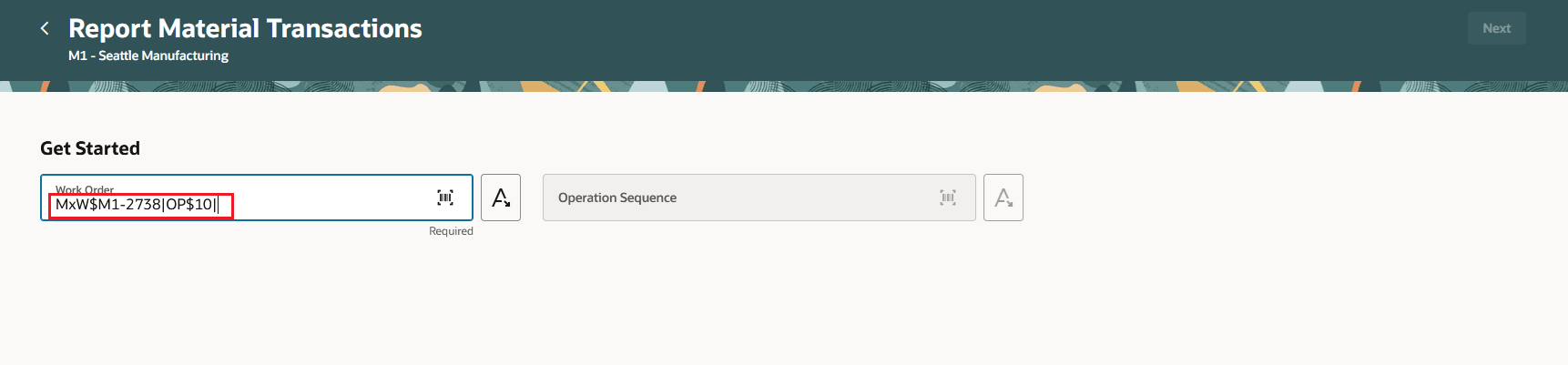
Report Material Transactions - Scan barcode for Work Order and Operation Sequence

Report Material Transactions - Work Order and Operation Sequence values defaulted from the barcode
Next, you can provide the Item, Lot number, and Serial number in the barcode format. The values of the Item, Serial Number, and Lot Number get defaulted in the respective fields.
'Mx' is the Barcode Identifier Prefix. 'IT$', 'L$', and 'S$' are the data identifiers for Item, Lot number, and Serial number respectively. '|' is the delimiter.
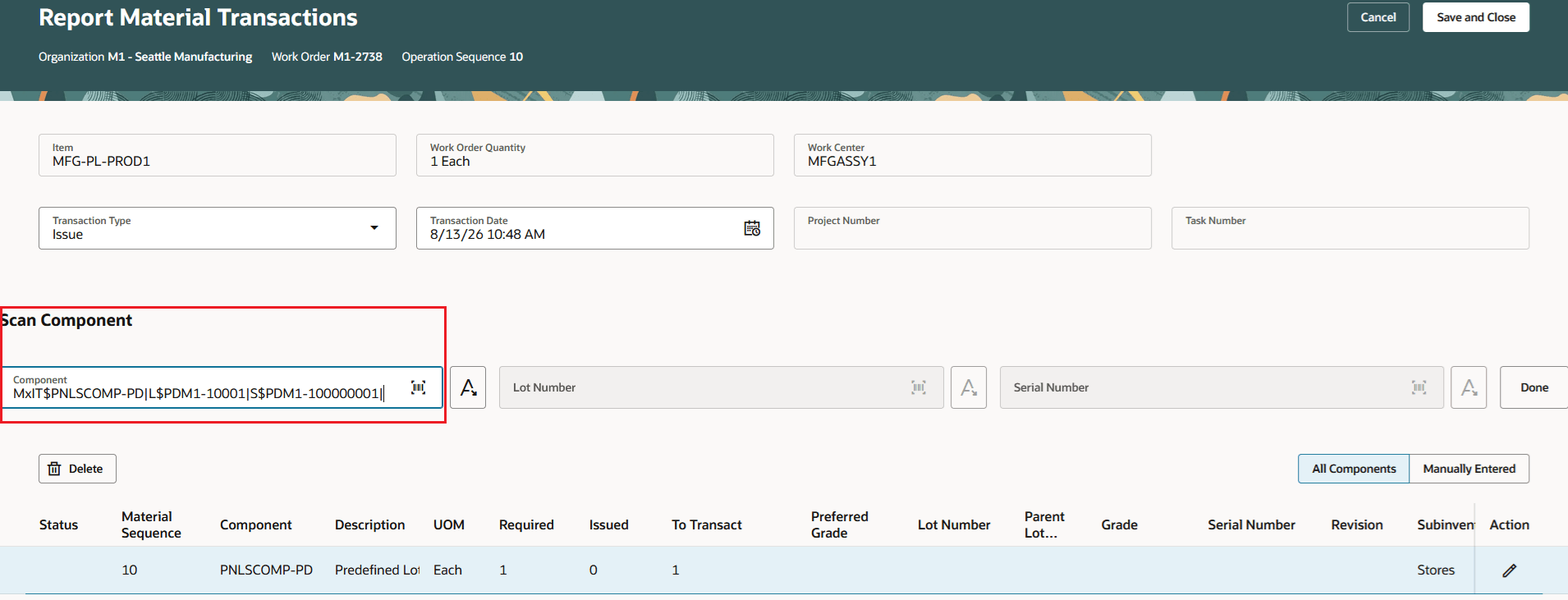
Report Material Transactions - Scan barcode for the Item, Lot, and Serial details
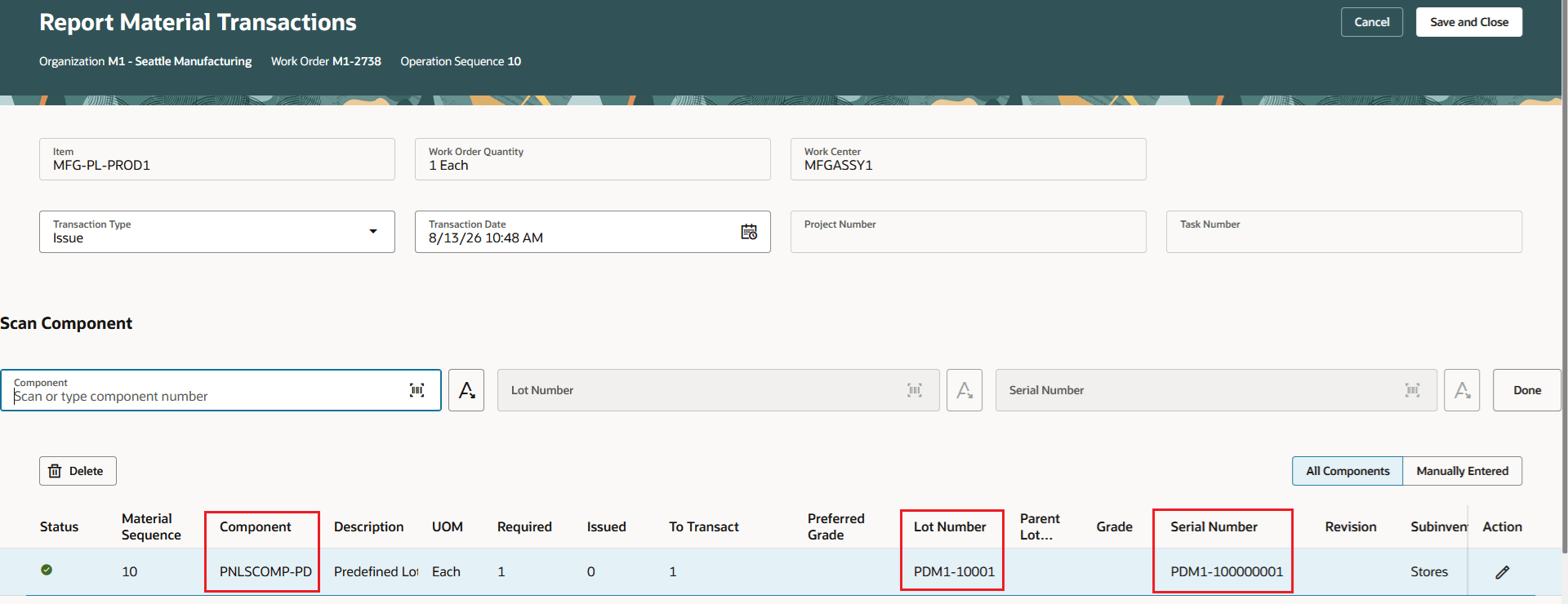
Defaulted values from the barcode
You can similarly provide the barcode values in the Mobile transactions UI as well. In Report Material Transactions, the Work Order and Operation Sequence barcode values are provided first to search the work order. Next, the Item, Lot number, and Serial number barcode values are provided.
Navigation: Supply Chain Execution> Production Reporting> Material Transactions> Issue> Issue Material
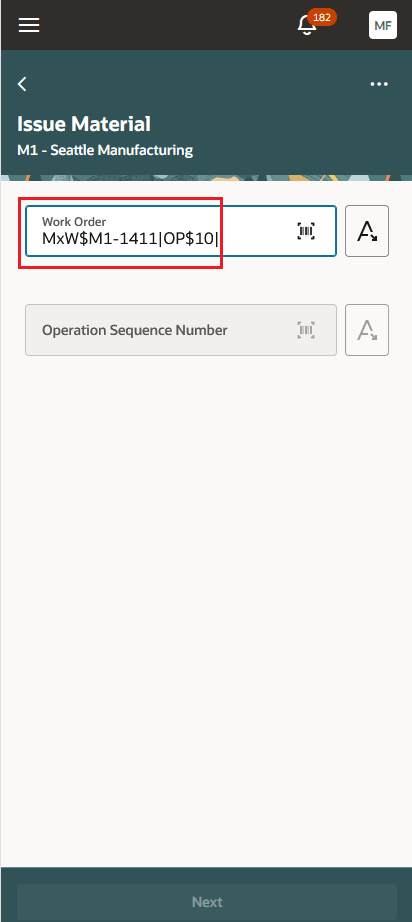
Mobile UI - Issue Material: Scan barcode for Work Order and Operation Sequence
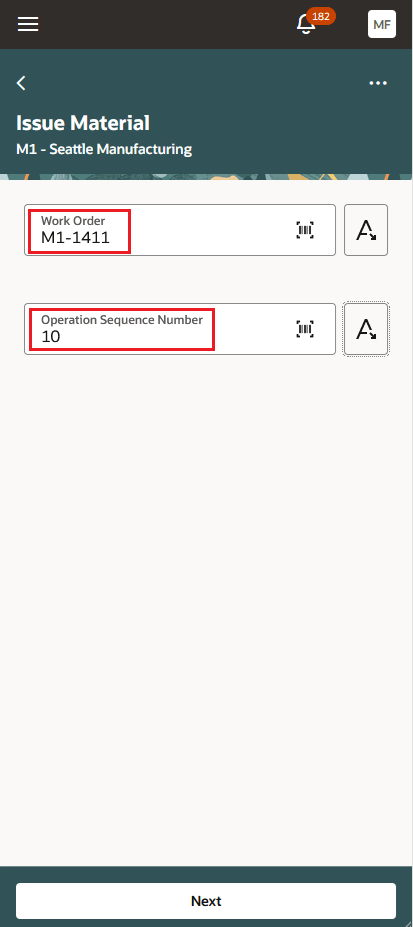
Mobile UI - Issue Material: Work Order and Operation Sequence values defaulted from the barcode
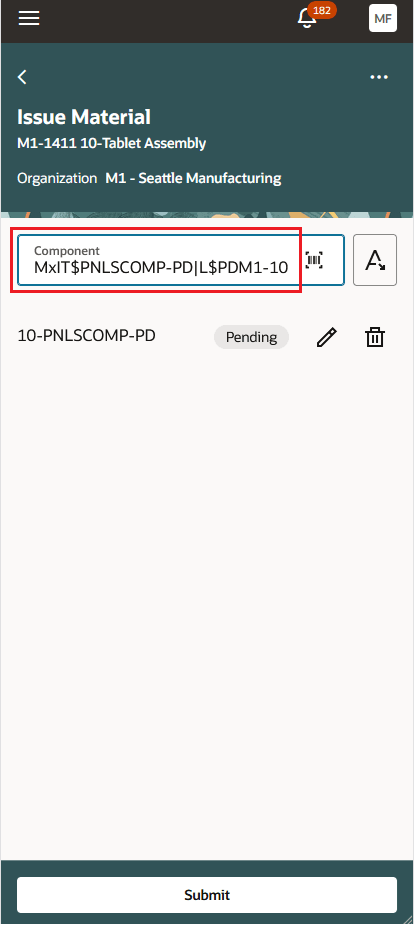
Mobile UI - Issue Material: Scan barcode for Item, Lot, and Serial details
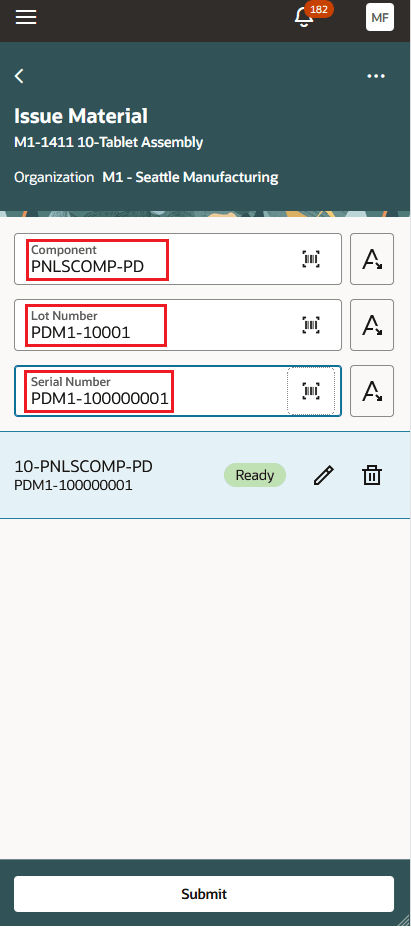
Mobile UI - Issue Material: Lot and Serial values of the Item defaulted from the barcode
The following transactions are supported in the Redwood UI and Mobile Manufacturing pages for barcode scanning:
- Material Transactions
- Operation Transactions
- Output Transactions
- Orderless Transactions
- Flow Schedules
- Complete (Backflush - Component)
- Resource Transactions
The ability to scan barcodes and QR codes with multiple fields provides the following advantages:
- Reduces manual entries and repeated scans during work execution on the shop floor.
- Improves transaction accuracy by automatically placing scanned values into the right fields.
- Strengthens lot and serial traceability for production tracking, quality, and recall processes.
- Helps operators complete material, completion, output, and related manufacturing transactions faster.
Steps to enable and configure
The feature works when barcode parsing is set up using the Configure Barcode Formats task.
The following fields can be enabled: Work Order, Item, Operation Sequence, Lot Number, Serial Number, and LPN. The Barcode Identifier Prefix is used to refer to the field names that are configured and used in the transactions.
Navigation: Setup and Maintenance> Setup: Manufacturing and Supply Chain Materials Management> Inventory Management> Configure Barcode Formats
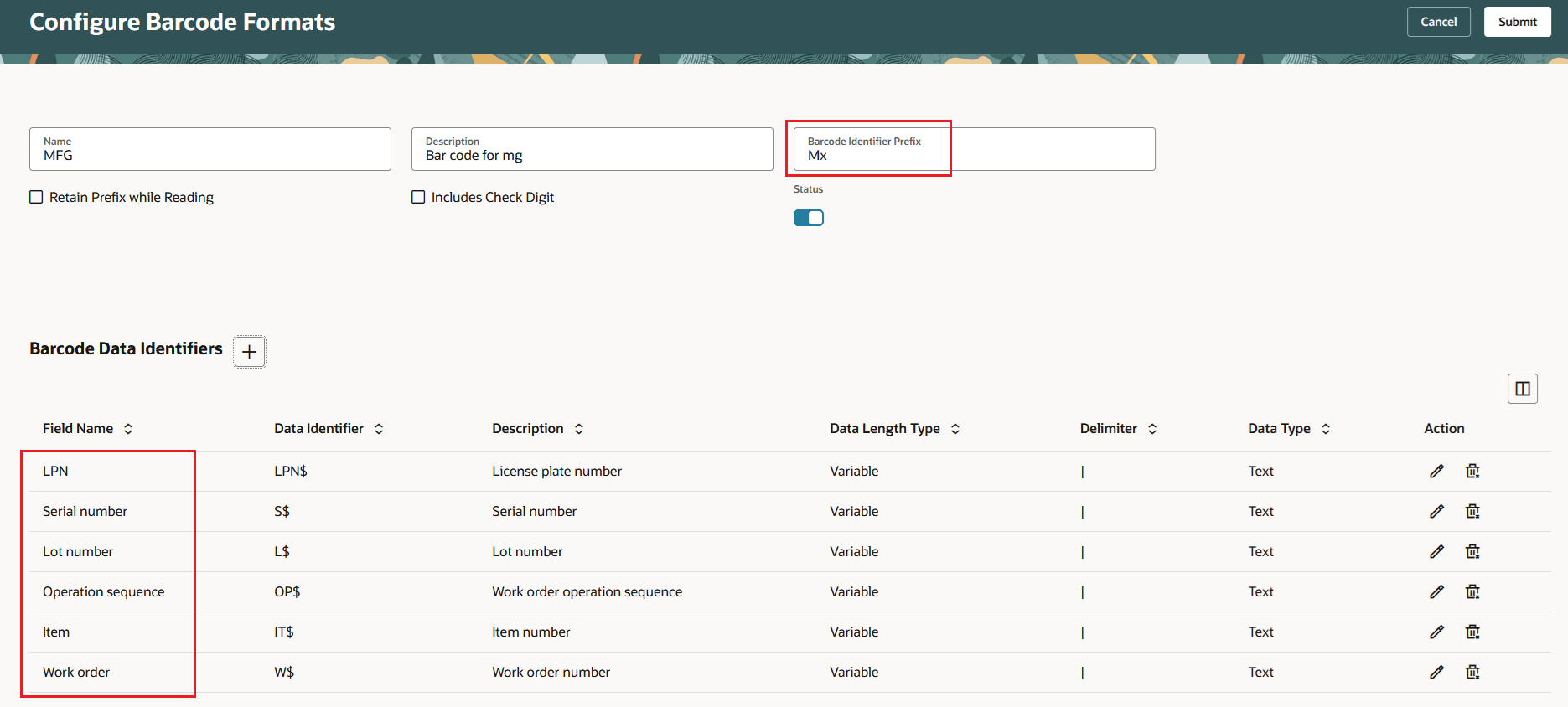
Configure barcode formats
Tips and considerations
- This feature applies to the Redwood User Interface and Mobile Manufacturing pages where the target fields are scan-enabled and available on the same page.
- No opt-in is required.
- Review the 24B Inventory Management feature - Print Item or Location Labels and Define Barcode Configurations for Scanning Labels.
Key resources
- Watch the Scan Barcodes and QR codes with multiple fields demo.
- Oracle Fusion Cloud SCM: Refer to the Using Manufacturing guide, available on the Oracle Help Center.
- Oracle Fusion Cloud SCM: Refer to the Implementing Manufacturing and Supply Chain Materials Management guide, available on the Oracle Help Center.
Access requirements
If you are using custom job roles, then you need to validate that you have the previously delivered privileges listed.
| Privilege status | Privilege name and code |
|---|---|
| Previously delivered |
Configure Inventory Barcode Formats INV_CONFIGURE_INVENTORY_BARCODE_FORMATS_PRIV |
| Previously delivered |
Report Material Transactions |
| Previously delivered |
Report Operation Transactions |
| Previously delivered |
Report Orderless Transactions |
| Previously delivered |
Report Resource Transactions |
| Previously delivered |
Report Scrap Transactions |