Record dispensed material quantities using connected equipment
In regulated process manufacturing industries, dispensing requires precise weighing of ingredients before they’re issued to production. Manual entry of scale readings can slow dispensing and introduce transcription errors. With this update, dispensing operators can capture measurements directly from connected equipment (scales) when dispensing material and use those readings to record dispensed material quantities accurately.
Key Capabilities:
- Select Capture measurement when adding measurements in Material Dispensing to request a scale reading from connected equipment.
- Choose the applicable scale for the dispensing container, including separate scale selection for source and target containers when needed.
- Automatically populate the dispensed measurement from the connected scale without needing to refresh the page.
You can assign scales to a dispense area and, optionally, to a specific dispense booth.
- A scale assigned to a dispense area is available for measurements in all dispense booths within that area.
- A scale assigned to a specific dispense booth is available only for measurements performed during dispense transactions created in that booth.
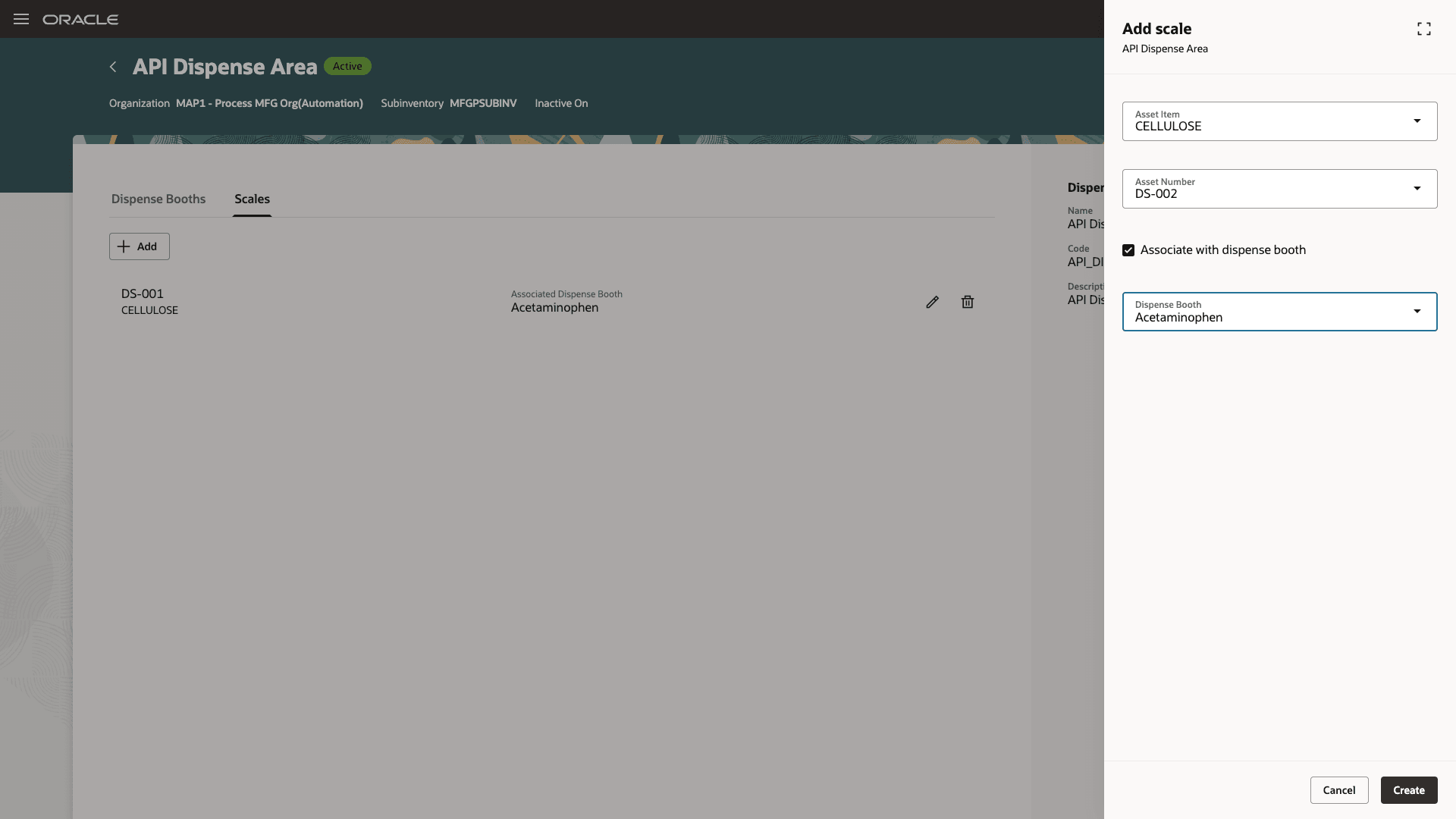
Define scales
From the dispense area and dispense booth pages, you can view the associated scales and add scales as needed.
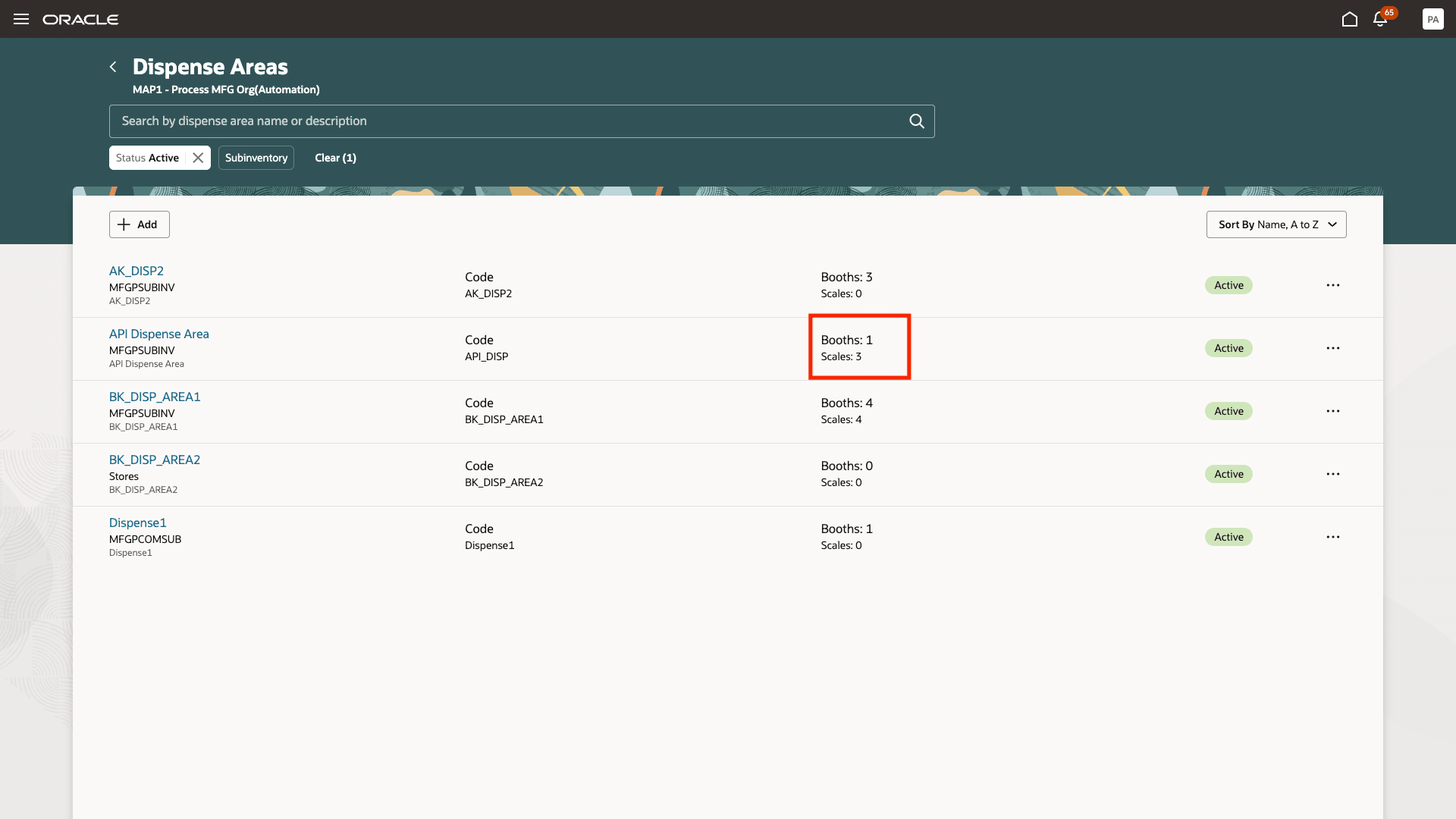
Scales associated with a dispense area
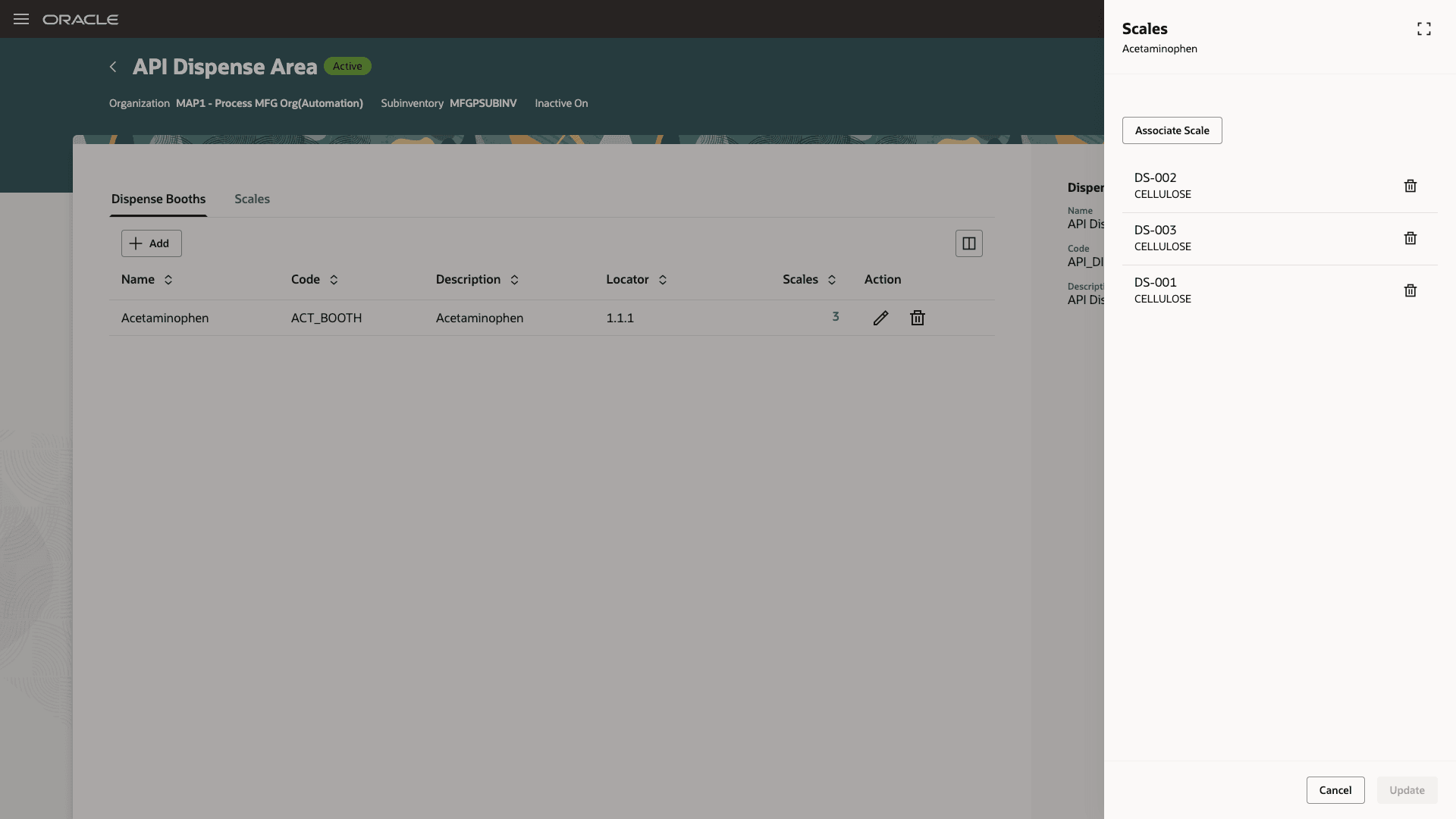
Scales associated with a dispense booth
During dispensing, the operator can select a scale associated with the dispense area or dispense booth to retrieve weight measurements from that scale.
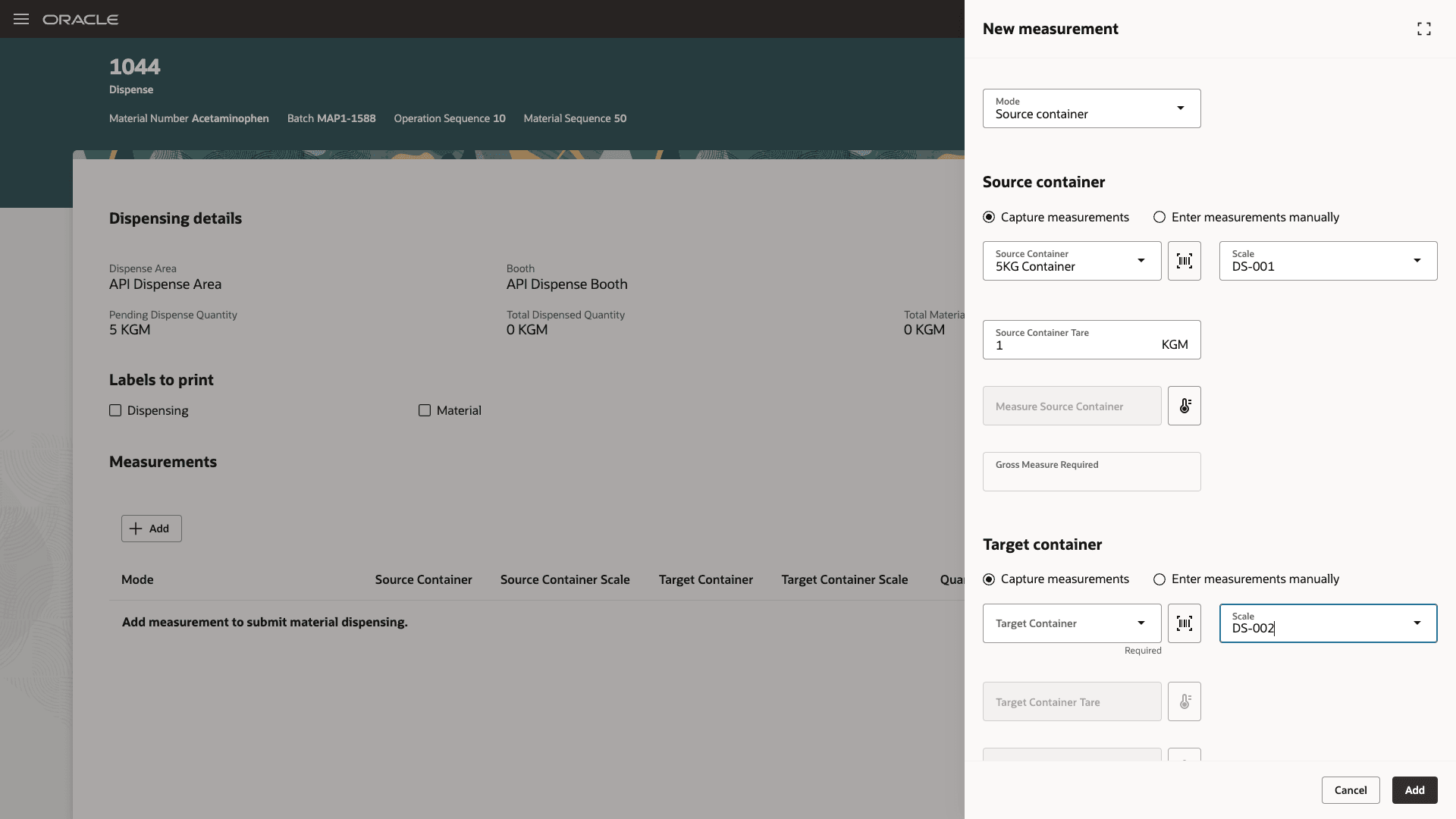
Scales shown during dispensing
When the operator clicks the Measure button, the application sends a request to the selected scale to retrieve the current weight. Once the weight is received through the integration, it is displayed on the page.
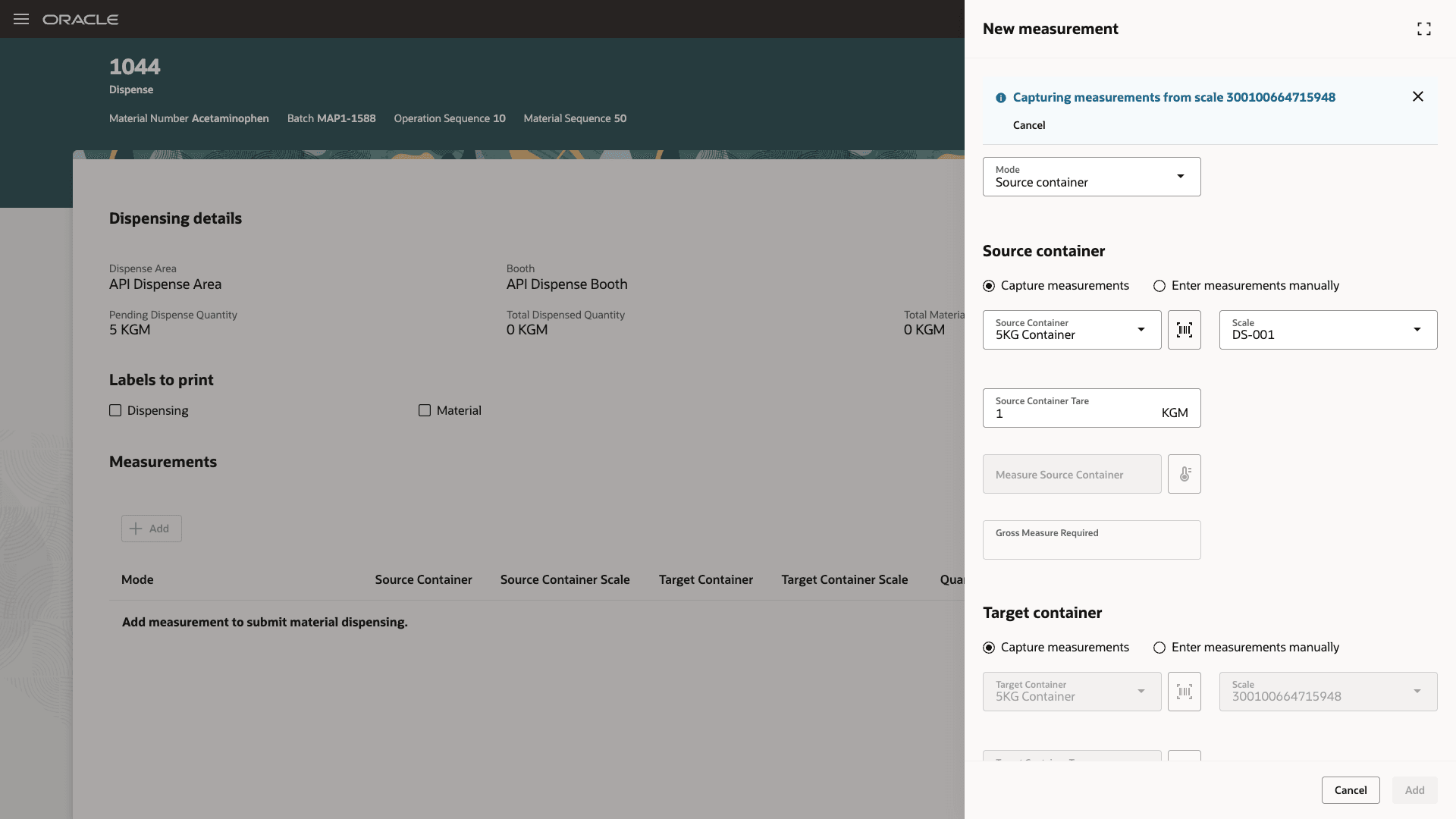
Capture measurements
The ability to use connected equipment to record measurements provides the following advantages:
- Reduces manual data entry and transcription errors during ingredient dispensing.
- Improves dispensing accuracy for formulation, batch quality, and GMP-aligned processes.
- Helps operators complete the weighing and dispensing steps efficiently while preserving controlled fallback flows.
Here's the demo of these capabilities:
Steps to enable and configure
To create a scale, create a new asset from the Manage Assets page, which is available in the Maintenance Management application available under the Supply Chain Execution offering. Assign a meter of type "Gauge" and ensure that it is assigned to the plant.
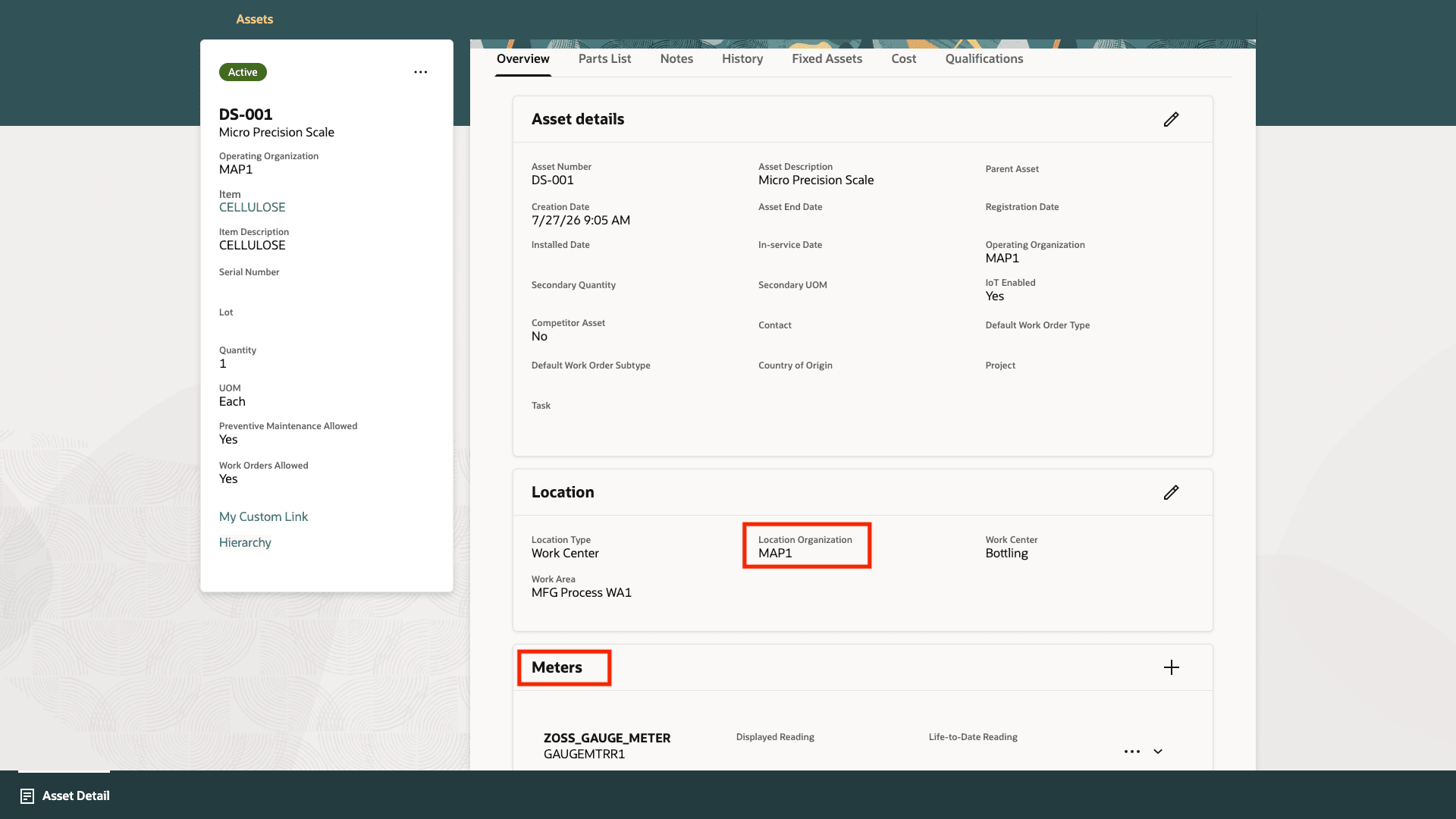
Define an asset to be used as a scale
To enable capturing measurements from connected equipment (scales), configure an Integration in Smart Operations Configurations:
1. In the Work Execution work area, select the Smart Operations Configurations action, and switch to the Integrations tab.
2. Configure an Integration for bidirectional connectivity with the equipment (scales).
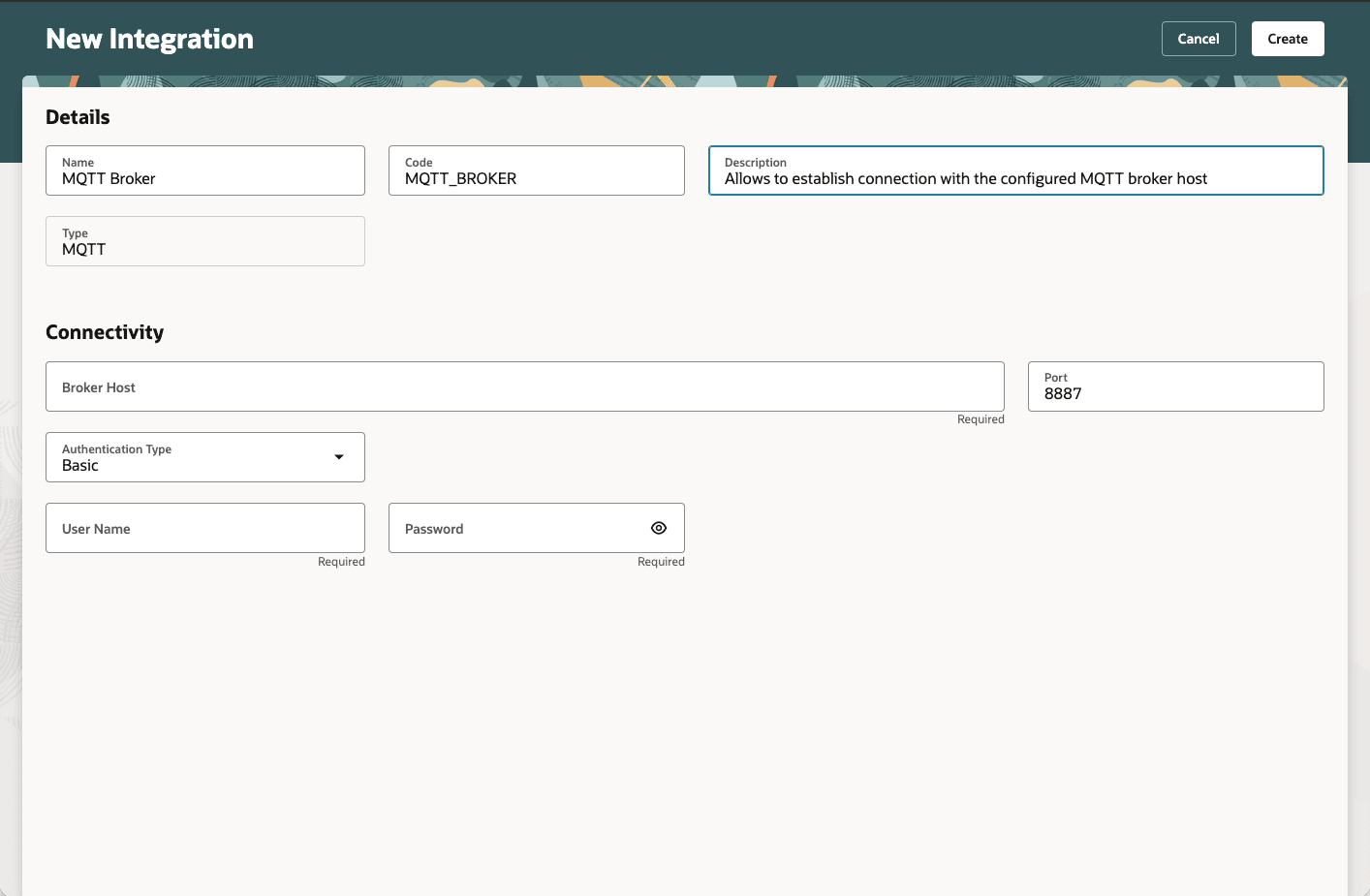
Configure an integration in Smart Operations Configurations
Tips and considerations
- The source and the target scales used for the measurements are stored for each dispense transaction. If the operator captures the information manually, the scale is not recorded against the dispense transaction.
- If the weight is not received through the integration within the configured timeout period, the measurement request times out. The operator can retry the measurement request or manually enter the weight.
- The scales are displayed only when the integration has been configured to get measurements from scales.
- We recommend that you create only one meter of type "Gauge" for the assets that you intend to use as scales.
- You need to configure an integration of type MQTT in Smart Operation Configurations to capture measurements using connected scales.
Key resources
- Watch the Record Dispensed Material Quantities using Connected Equipment demo.
- Oracle Fusion Cloud SCM: Refer to the Using Manufacturing guide, available on the Oracle Help Center.
- Oracle Fusion Cloud SCM: Refer to the Implementing Manufacturing and Supply Chain Materials Management guide, available on the Oracle Help Center.
- Oracle Fusion Cloud SCM: Refer to the What's New documentation for Dispense Materials to Batches, available on the Oracle Help Center.
Access requirements
If you are using custom job roles, then you need to validate that you have the previously delivered privileges listed.
| Privilege status | Privilege name and code |
|---|---|
| Previously delivered |
Manage Dispense Areas WIS_MANAGE_DISPENSE_AREAS |
| Previously delivered | Dispense Materials to Work Orders WIP_DISPENSE_MATERIALS |
| Previously delivered | Manage Smart Operations Integrations SMO_MANAGE_SMART_OPERATIONS_INTEGRATIONS_PRIV |
| Previously delivered | View Smart Operations Integrations SMO_VIEW_SMART_OPERATIONS_INTEGRATIONS_PRIV |
| Previously delivered | Send Operational Commands SMO_SEND_OPERATIONAL_COMMANDS_PRIV |
If you're using custom job roles, then you need to validate that you have the previously delivered duty roles listed.
| Duty role status | Duty role name and code |
|---|---|
| Previously delivered | Manage Smart Operations Integrations ORA_DR_SMO_MANAGE_SMART_OPERATIONS_INTEGRATIONS_DUTY |
| Previously delivered | Application Deployment Administration ORA_DR_ASM_APPLICATION_DEPLOYER_DUTY |
| Previously delivered | View Smart Operations Integration Connectivity Status ORA_DR_SMO_VIEW_SMART_OPERATIONS_INTEGRATION_STATUS_DUTY |
| Previously delivered | View Smart Operations Integrations ORA_DR_SMO_VIEW_SMART_OPERATIONS_INTEGRATIONS_DUTY |
| Previously delivered | Send Operational Commands ORA_DR_SMO_SEND_OPERATIONAL_COMMANDS_DUTY |